Add an OpenStreetMap Component to a Page
This guide explains how to add the OpenStreetMap component to a page using the Experience manager.
Prerequisites
- Access to the Experience manager
- An existing channel and page to edit
Steps
-
In the Experience manager, select the relevant channel.
-
Navigate to the page where you want to add the map component.
-
Open the components sidebar on the left.
-
Locate the
OpenStreetMapcomponent.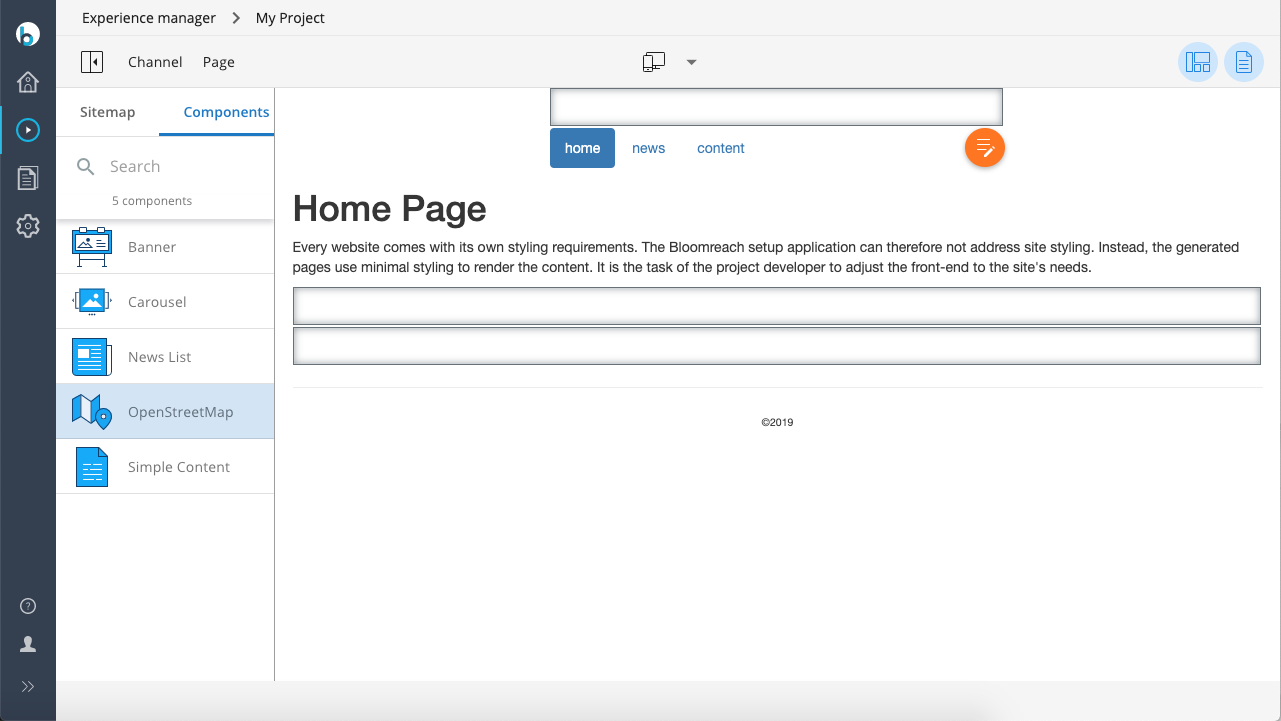
-
Click
OpenStreetMap. -
Click inside the desired container on the page to place the component.
The map component is added to the selected container. The configuration sidebar opens on the right.
Configurable Properties
You can configure the following properties for the OpenStreetMap component:
-
Center the map on a specific address or latitude/longitude coordinates
-
Add an optional marker
-
Select the map type (available map types are configurable)
-
Add an optional map overlay (available overlays are configurable)
-
Set the width and height of the map
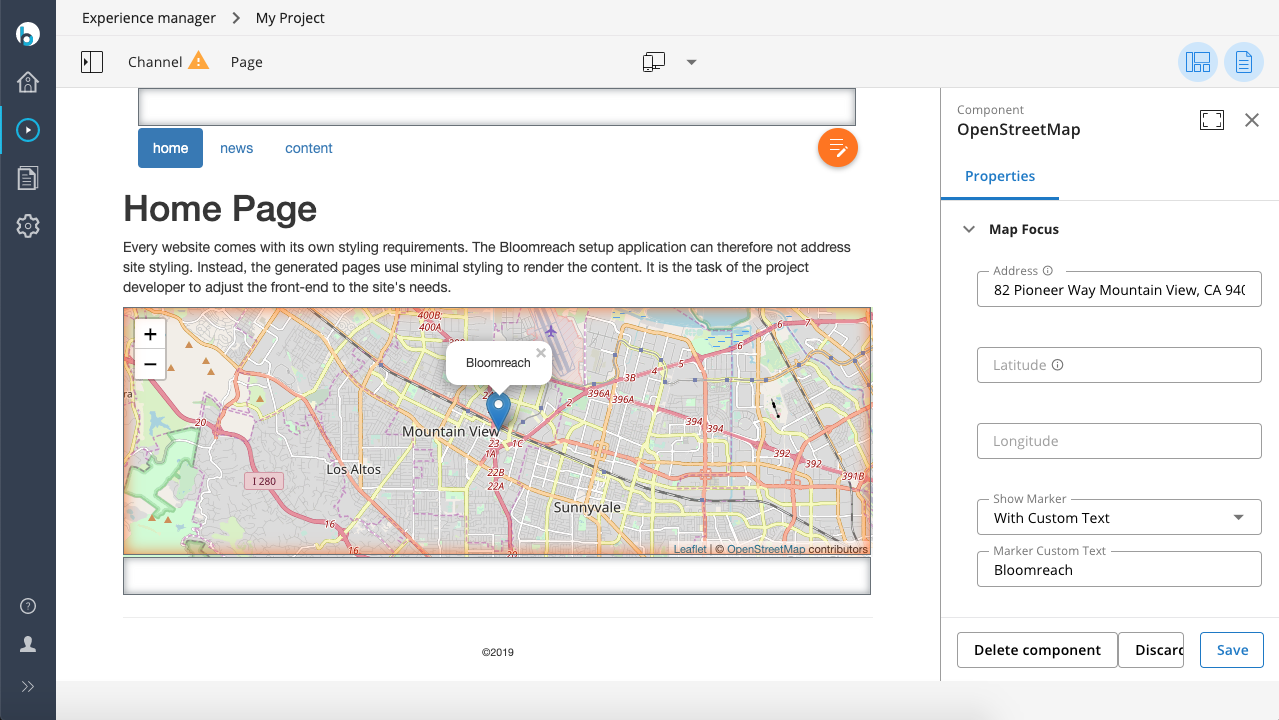
Verification
After configuring the properties, verify that the map displays as expected on the page.