Content Blocks Configuration
Overview
You can add and configure the Content Blocks plugin in your project using Essentials.
Prerequisites
- A Bloomreach Content project set up with Essentials.
- At least one document type to which you will add a content blocks field.
- At least two compound types to use as content blocks.
Configuration Steps
- In Essentials, add the Content Blocks feature to your project.

- Rebuild and restart your project.
- In Essentials, locate Content Blocks under Installed features and select Configure.

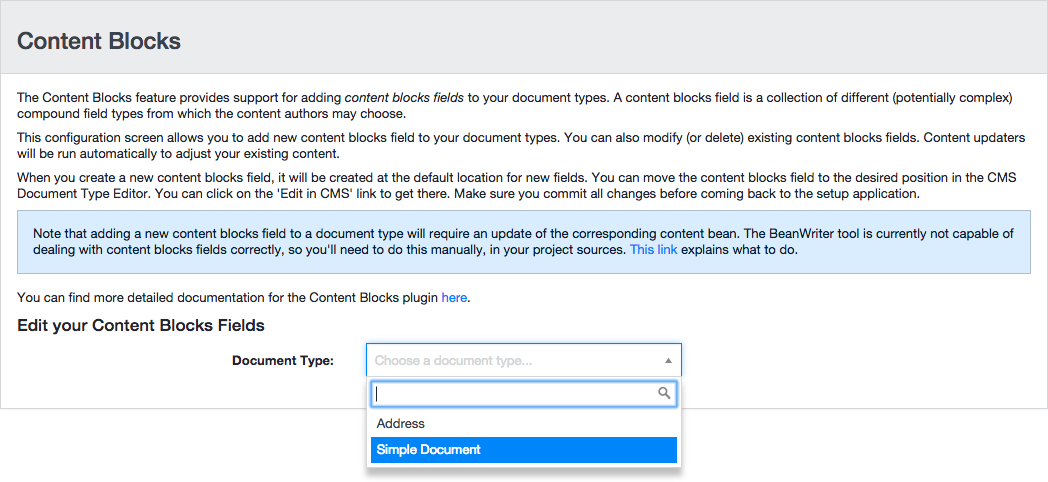
- Choose the document type where you want to add content block fields.
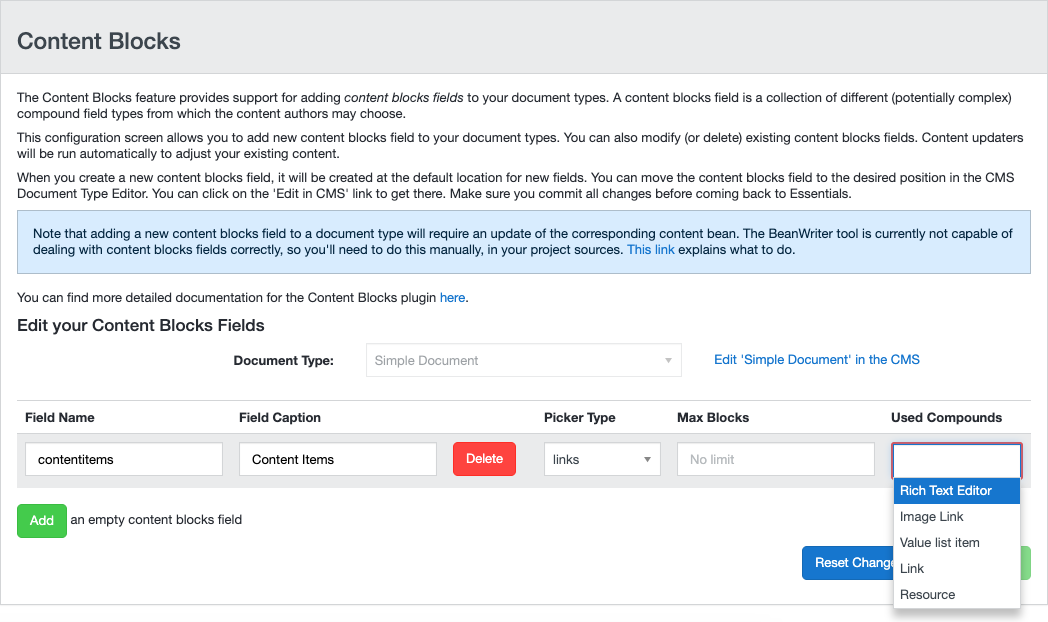
- To add a new content blocks field, click Add and configure the following parameters:
- Field name: The label displayed above the field in the CMS Document Editor.
- Picker type (links or dropdown): Determines whether the UI presents content block options as links or in a dropdown.
- Max Blocks: The maximum number of blocks allowed in the field. Leave empty for no limit.
- Used Compounds: Select two or more from the available compound types.
- Save your changes.
Note: The Beanwriter tool in the setup application does not generate getters for content blocks fields. You must manually add a getter method for each content blocks field in the content bean. For details, see Content Blocks and Delivery Tier.
Advanced Configuration
You can configure additional options for content blocks fields using JCR properties in the CMS Console.
Configuration properties are stored at:
/hippo:namespaces/[project_name]/[document_type]/editor:templates/_default_/[content_blocks_field]/cluster.options
For example, in a project named myproject with a document type contentdocument and a content blocks field blocks, the node path is:
/hippo:namespaces/myproject/contentdocument/editor:templates/_default_/blocks/cluster.options
Display Block Type Names
You can display the name of each block's compound type above the content block in the editor.
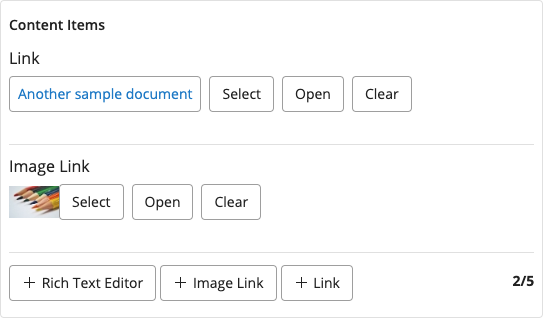
To enable this feature, add the boolean property showCompoundNames with the value true to the cluster.options node:
/hippo:namespaces/myproject/contentdocument/editor:templates/_default_/blocks/cluster.options: showCompoundNames: true
Additional Block Name Configuration
Info: These options are available in brXM 15.5.0 and later.
Starting with version 15.5.0, block names can be collapsed. The following properties are available for configuration in the Content application only, and only when showCompoundNames is set to true:
/hippo:namespaces/myproject/contentdocument/editor:templates/_default_/blocks/cluster.options: showCompoundNames: true startCollapsed: true showTitles: true titleMapping: ['myproject:mycompound=myproject:title', 'myproject:myothercompound=myproject:summary'] compoundNamesMaxLength: 90
| Property name | Property type | Description |
|---|---|---|
startCollapsed | Boolean | If set to true, blocks are collapsed by default when a document opens. |
showTitles | Boolean | If set to true, a part of the block's content is shown in the block name for easier identification when collapsed. Uses titleMapping to determine the property to display. |
titleMapping | multiple String | Maps compound type to property name. Used to determine which property to display as the title when showTitles is true. |
compoundNamesMaxLength | Long | Sets the maximum length for a block name. The default is 90. If the name exceeds this length (especially when showTitles is true), it is truncated and an ellipsis is added. |