Configure the OpenStreetMap Plugin
Add the OpenStreetMap Plugin to Your Project
You can add the OpenStreetMap plugin to your Bloomreach Content project using the Essentials setup application.
Prerequisites
- A Bloomreach Content project with the Essentials setup application available.
Steps
- In Essentials, add the
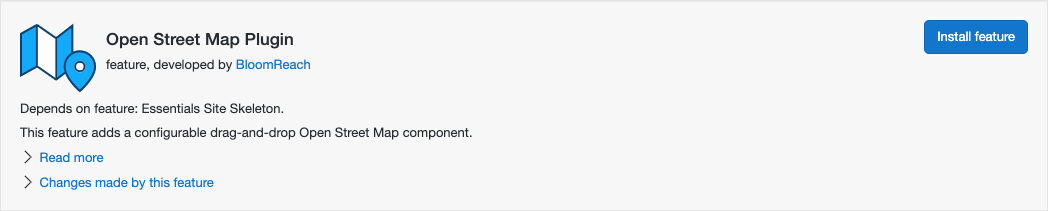
OpenStreetMap Pluginfeature to your project.
- Rebuild and restart your project to apply the changes.
Configure Map Types and Overlays
When users add the OpenStreetMap component to a page in Experience manager, they can select a map type and, optionally, a map overlay from dropdown menus. You can configure the available map types and overlays in resource bundle documents.
To configure map types and overlays:
- In the CMS, open the Content application.
- Navigate to the
administration > open street mapfolder. - To configure map types, open the
OpenStreetMap Mapsresource bundle document. For each map type, enter a tile server URL as the key and a human-readable label as the value.
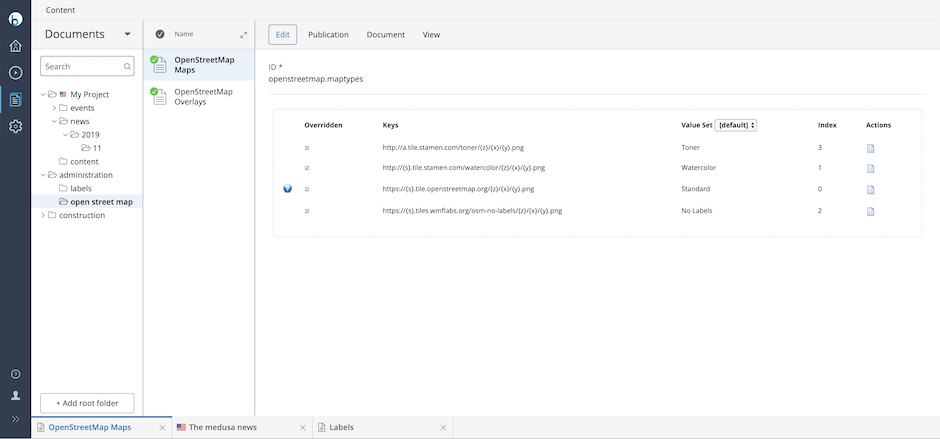
- To configure map overlays, open the
OpenStreetMap Overlaysresource bundle document. For each overlay, enter a tile server URL as the key and a human-readable label as the value.
Important: The default tile servers are not intended for production use. Before using this feature in a production environment, review the OpenStreetMap usage policies: https://operations.osmfoundation.org/policies/.