Related Documents Plugin Configuration
Overview
The Related Documents plugin allows you to add and configure a related documents field for specific document types in your Bloomreach Content project. Configuration is managed through the Essentials setup application.
Prerequisites
- A Bloomreach Content project with the Essentials setup application available.
- At least one defined document type.
Configuration Steps
- Open the Essentials setup application and add the Related Documents feature to your project.

- Rebuild and restart your project to apply the changes.
- In the setup application, locate Related Documents under Installed features and select Configure.

- Choose the document type where you want to add the related documents field.
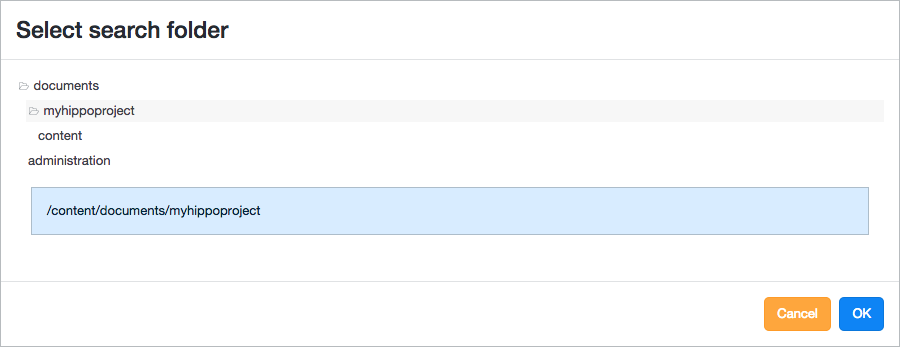
- Select the search folder that the plugin will use to suggest related documents based on metadata.
- Specify the number of related document suggestions to display.
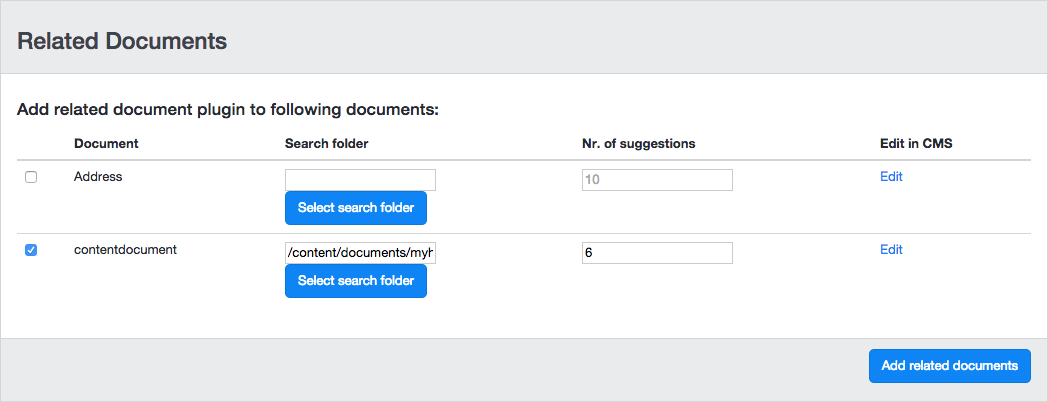
- Select Add related documents to complete the configuration.
Verification
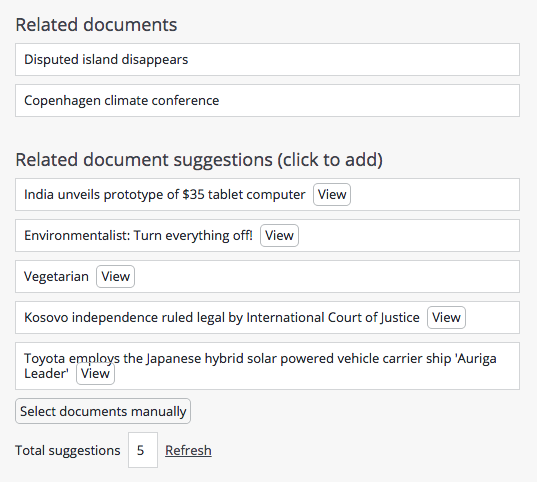
After configuration, open a document of the selected type in the CMS. The document editor displays a Related documents field.
You can:
- Click a suggested document to add it as a related document.
- Select Select documents manually to choose related documents directly.