Add a Google Maps Component to a Page
To add a Google Maps component to a page in Experience Manager:
-
In Experience Manager, select your channel and navigate to the target page.
-
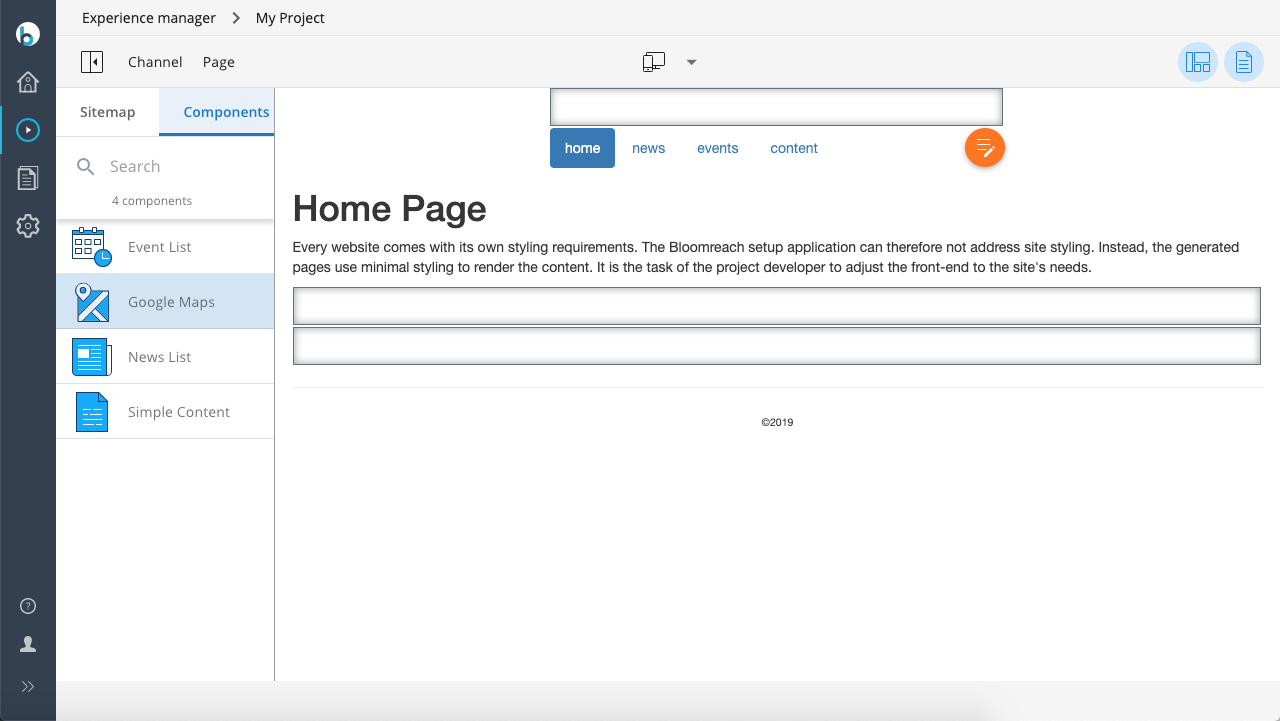
Open the components sidebar on the left and locate the Google Maps component.
-
Click Google Maps, then click inside the desired container on the page. Experience Manager adds the map component to the selected container.
-
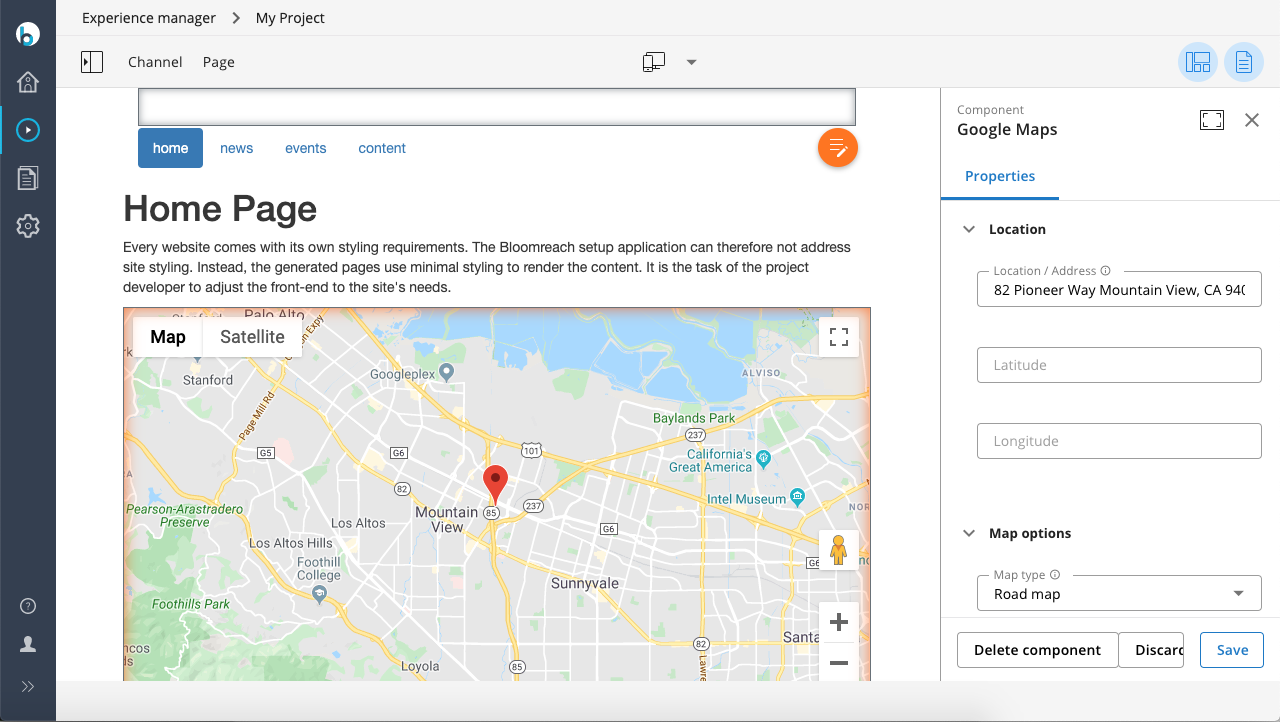
Click inside the newly added map component to open the configuration sidebar on the right.
You can configure the following map properties:
-
Center location (address or latitude/longitude coordinates)
-
Map type
-
Default zoom level
-
Map width and height
-
Google Maps API key (required)