SEO Support Plugin Configuration
Installation
You can add the SEO Support plugin to your project using Essentials.
Prerequisites
- A Bloomreach Content project set up with Essentials.
Installation Steps
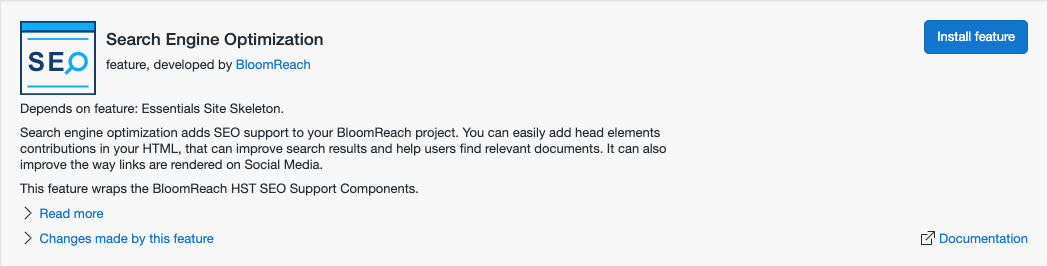
- In Essentials, add the Search Engine Optimization feature to your project.
- Rebuild and restart your project.
Configuration
Using the Channel Editor
The setup application adds a reusable SEO component to the component catalog. You can add this component to any container in a page template using the Channel Editor.
- In the Experience manager, select your channel.
- Navigate to the page or template where you want to add the SEO component.
- Open the Sidenav by clicking the leftmost icon in the Channel Editor toolbar, then select the Components tab.
- Click the SEO component to select it. Click inside a container on the page to add the SEO component. After adding, the component displays the message Click to edit SEO (visible only in the Channel Editor).
- Click inside the container to open the configuration dialog for the SEO component.
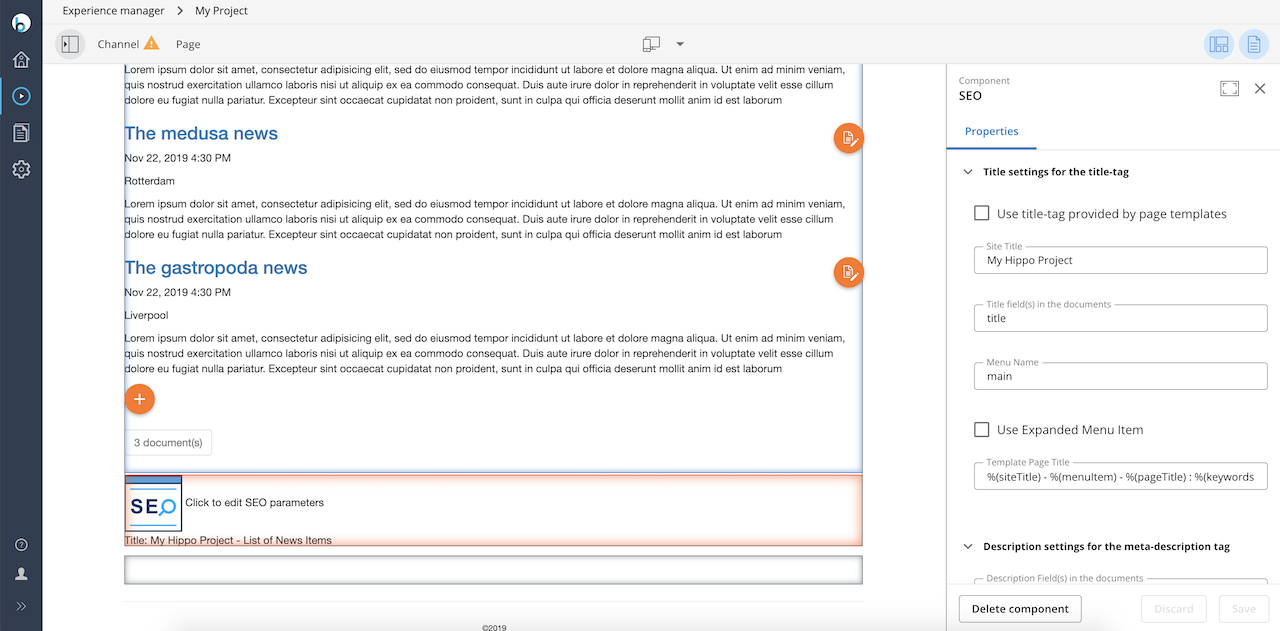
- Set the configuration parameters. For details, see Component Parameters.
- Click Save & Close.
- Save and publish the channel.
Using the Console
Note: If you install the SEO plugin through the setup application, no further configuration is required for standard use. To customize the template that renders SEO-related tags, you can update the configuration using the Console as described below.
Manual configuration through the Console provides additional control and flexibility.
Configuring the SEO Support plugin involves updates in three areas: HST Component, HST Template, and HTML Page.
HST Component Configuration
Add a seohelper component configuration under /hst:hst/hst:configurations/hst:default/hst:components:
/hst:hst/hst:configurations/hst:default/hst:components: /seohelper: jcr:primaryType: hst:component hst:componentclassname: org.onehippo.forge.seo.support.SEOHelperComponent hst:parameternames: [site-dc-copyright-link,\ \ site-title,\ \ document-title-bean-props,\ \ document-keywords-bean-props,\ \ document-description-bean-props,\ \ document-image-bean-props] hst:parametervalues: [http://www.example.com/html/ts/nps/terms_of_use.html,\ \ Example!,\ \ title,\ \ keywords,\ \ summary,\ \ image] hst:template: seo
HST Templates Configuration
The setup application adds a default Freemarker template and a template configuration seo at /hst:hst/hst:configurations/hst:default/hst:templates:
/hst:hst/hst:configurations/hst:default/hst:templates: /seo: jcr:primaryType: hst:template hst:renderpath: webfile:/freemarker/hstdefault/seo.ftl
The standard template provided by SEO Support includes head contributions based on the component configuration. To override the default template, set the hst:renderpath property to the path of your custom template.
HTML Page Configuration
To include the seohelper component in a page configuration, add it under the top-level component in the hierarchy.
In the template that renders the top-level component:
- Use the
hst:headContributionstag in the HTML<head>to include head contributions. This is included by default in the out-of-the-box top-level rendering template. - Use the
hst:includetag in the HTML<body>to include theseocomponent.
Example Configuration
This example shows how to add a seo component configuration to the standard page configuration at /hst:hst/hst:configurations/myproject/hst:pages/standard.
Adding HST SEO Support Components to the Standard Page Template
/hst:hst/hst:configurations/myproject/hst:pages/standard: /seo: jcr:primaryType: hst:component hst:referencecomponent: hst:components/seohelper
Including HST SEO Support Components in the HTML Page from the Standard Template
<html> <head> <hst:headContributions categoryExcludes="scripts" xhtml="true"/> <!-- other code and markup goes here --> </head> <body> <hst:include ref="seo"/> <!-- other code and markup goes here --> </body> </html>
Additional Information
For a complete list of component parameters and their descriptions, see the component parameters documentation. These parameters define which HTML metadata is retrieved from the document.