Custom Date Field Initial Value Rule
Overview
Enterprise Forms allows you to define custom initial values for date fields by implementing Java classes and configuring them in the repository. Custom date field initial value rules enable you to apply organization-specific date logic to form fields.
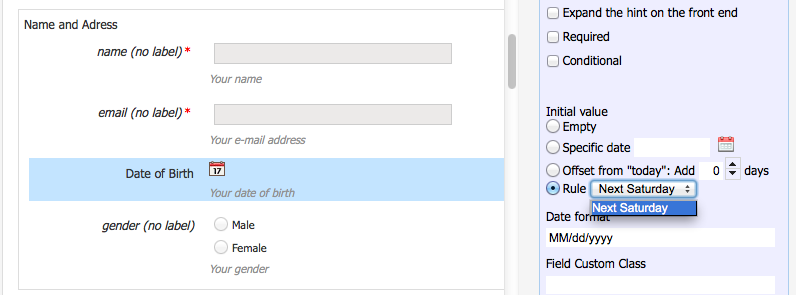
For example, the Enterprise Forms demo application includes a "Next Saturday" date rule for the "Date of Birth" field. When this rule is selected, the frontend form automatically sets the date field to the next upcoming Saturday.
Implementing a Custom Date Rule
Enterprise Forms requires that each custom date rule implements the following interface:
package com.onehippo.cms7.eforms.hst.daterules; import java.util.Calendar; public interface DateRule { Calendar getDate(); }
The "Next Saturday" rule in the demo application is implemented as follows:
package com.onehippo.cms7.eforms.hst.daterules; import java.util.Calendar; public class NextSaturdayDateRule extends AbstractNextDayOfWeekRule { @Override public Calendar getDate() { return getNext(Calendar.SATURDAY); } }
To create your own rule, implement the getDate() method to return the desired initial date value. When a form field references your custom rule, the form rendering process calls getDate() at runtime to determine the initial value.
For example, you can implement a NextBusinessDay rule that calculates the next business day based on your organization's calendar and business logic.
Configuring a Custom Date Rule
Configure all custom date initial value rules under the following repository path:
/hippo:configuration/hippo:modules/eforms/hippo:moduleconfig/eforms:daterules
The demo application includes this configuration by default:
/eforms:daterules: jcr:primaryType: nt:unstructured /eforms:daterule: jcr:primaryType: nt:unstructured eforms:dateruleclass: com.onehippo.cms7.eforms.hst.daterules.NextSaturdayDateRule eforms:dateruleid: next-saturday eforms:daterulelabel: Next Saturday
This example defines a single date rule, "Next Saturday."
To add another custom date rule:
- Create a uniquely named child node under
eforms:dateruleswith the node typehipposys:moduleconfig. - Set the
eforms:dateruleclassproperty to the fully qualified class name (FQCN) of your custom implementation. - Set the
eforms:daterulelabelproperty to the label you want displayed in the CMS form document editor.
After configuration, your custom date rule appears in the dropdown menu for the date field property editor in the CMS.