Actual Store Counter
- HST Behavior class:
com.onehippo.cms7.eforms.hst.behaviors.FormSubmissionCounterBehavior - CMS Plugin class:
com.onehippo.cms7.eforms.cms.extensions.FormCounterExtensionPlugin - CMS Plugin class:
com.onehippo.cms7.eforms.cms.extensions.StoreFormDataPlugin
Overview
The Actual Store Counter feature enables tracking the number of times form data is successfully stored, rather than counting all form submissions. This functionality is available when you use both the StoreFormDataPlugin and the FormCounterExtensionPlugin in your configuration.
Screenshots:
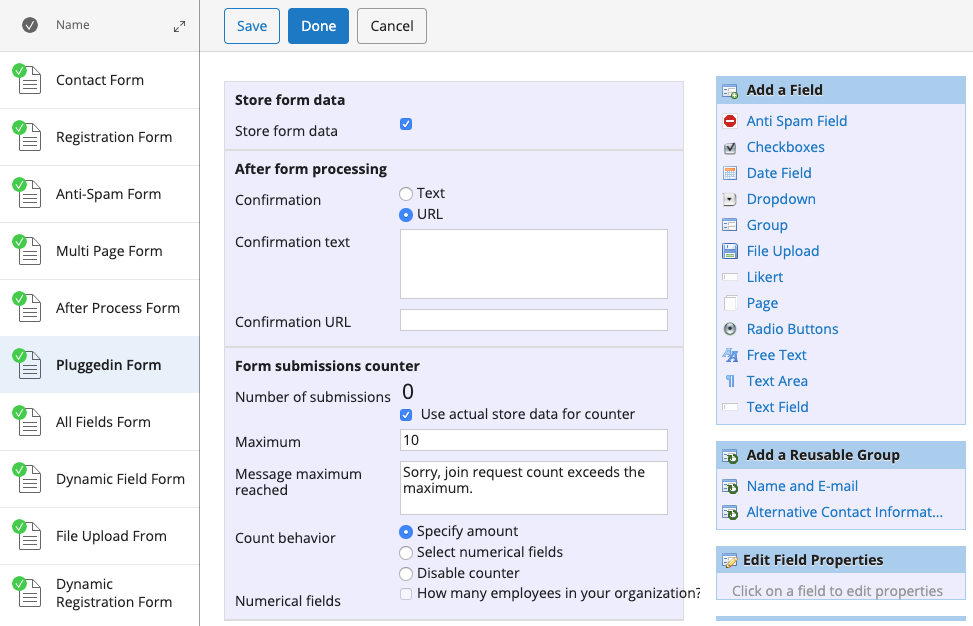
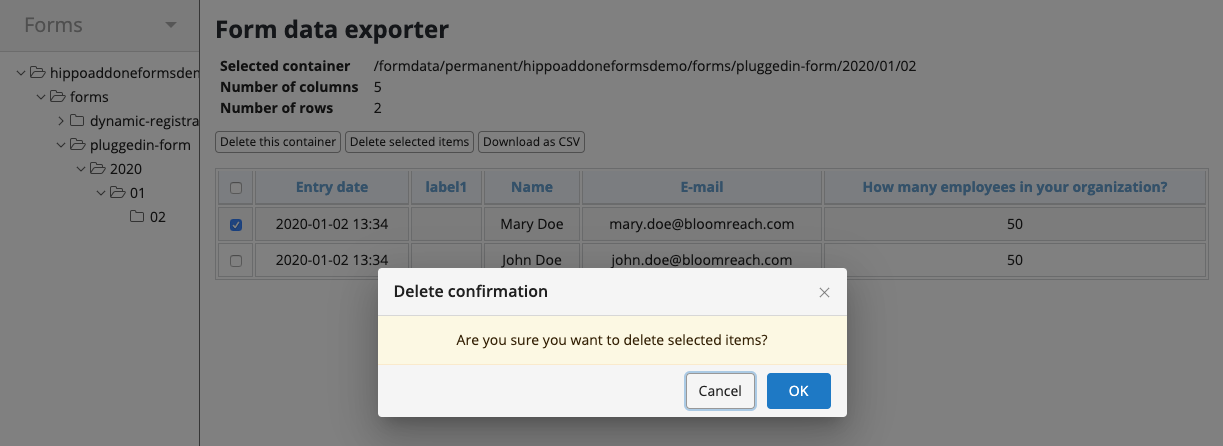
When to Use
Use the Actual Store Counter when you need to limit or monitor the number of times form data is actually saved, rather than the total number of submission attempts. This is useful for scenarios where only successful data storage events should be counted.
Prerequisites
- Bloomreach Content with Enterprise Forms enabled
- Access to the JCR repository for configuration
- Familiarity with CMS plugin and HST component configuration
CMS Configuration
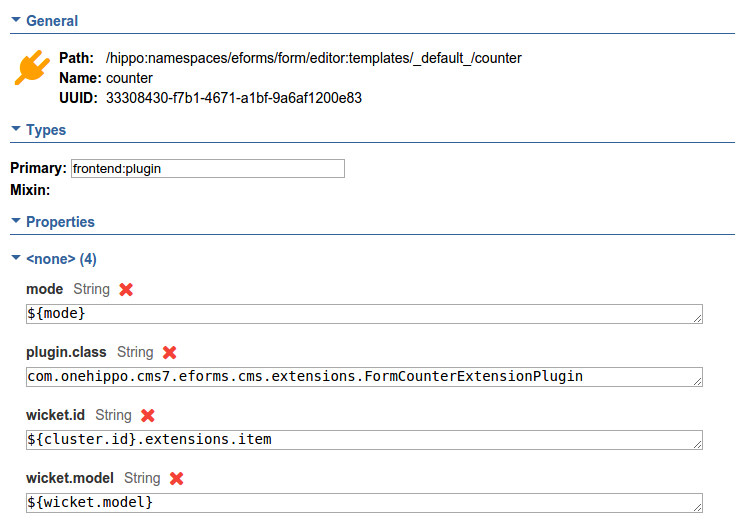
To enable the Actual Store Counter in the form editor, add two nodes of type frontend:plugin under the following path:
/hippo:namespaces/eforms/form/editor:templates/_default_
Configure the first node with these properties:
plugin.class=com.onehippo.cms7.eforms.cms.extensions.FormCounterExtensionPluginmode=${mode}wicket.id=${cluster.id}.extensions.itemwicket.model=${wicket.model}
Configure the second node with these properties:
plugin.class=com.onehippo.cms7.eforms.cms.extensions.StoreFormDataPluginmode=${mode}wicket.id=${cluster.id}.extensions.itemwicket.model=${wicket.model}
Screenshot:
Note:
You can add these plugins to a custom form template instead of the default eforms:form template if your implementation requires a different configuration.
HST Configuration
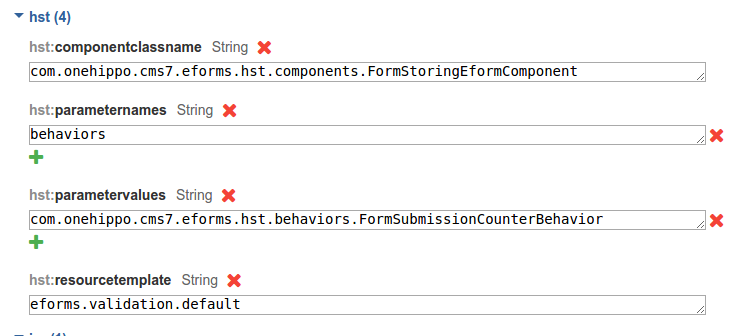
To activate the counter behavior in your form component, add the following parameter to the component configuration:
behaviors=com.onehippo.cms7.eforms.hst.behaviors.FormSubmissionCounterBehavior
Screenshot:
Request Attributes
The FormSubmissionCounterBehavior implements DoBeforeRenderBehavior and sets these request attributes:
maxFormSubmissionsReached(boolean): Indicates whether the maximum number of allowed form submissions has been reached.maxFormSubmissionsReachedText(String): Provides the message to display when the maximum submission count is reached.
Verification
After configuration, verify that:
- The form editor displays the actual store data counter option.
- The counter reflects only successful data storage events.
- The form enforces the maximum submission limit as configured.