Taxonomy Plugin Configuration
Installation
You can add the Taxonomy plugin to your project using the Essentials setup application.
Prerequisites
- A Bloomreach Content project with the Essentials setup application installed.
Steps
- In Essentials, add the
Taxonomyfeature to your project.

- Rebuild and restart your project.
Configuration
- In Essentials, go to
Installed features. - Locate
Taxonomyand select theConfigurebutton.

- To create a new taxonomy, enter a name and select the locales to include.
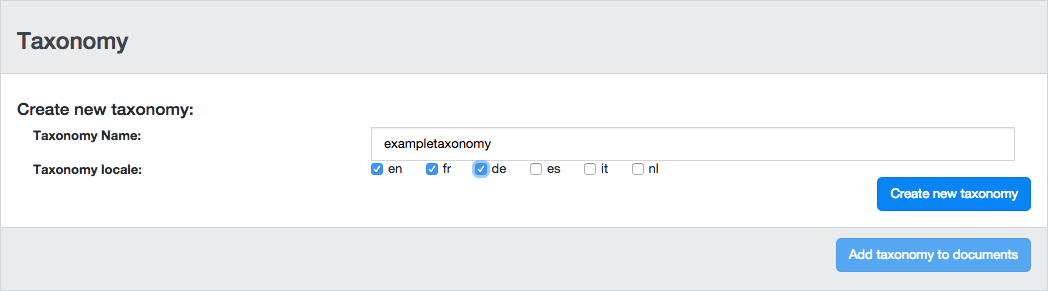
- Select the
Create new taxonomybutton.
After creating the taxonomy, the configuration tool displays the option to add the taxonomy to your document types. Proceed with this step only if you are using version 15.2.
If you are using version 15.3 or newer, skip this step and use the Document Type Editor to add a taxonomy field as described in the next section.
Add Taxonomy to Document Type (Taxonomy Field Type)
Info: The taxonomy field type is available in brXM 15.3.0 and later.
For version 15.3 or newer, use the CMS to add a taxonomy field to your document type.
- Log in to the CMS as an administrator.
- Open the
Contentapplication and selectDocument typesfrom the dropdown in the top left.
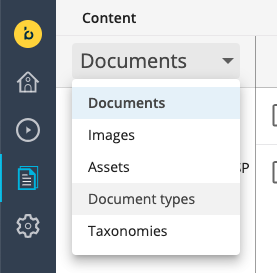
- Navigate to the document type where you want to add a taxonomy field and open it in the editor.
- Under
Primitive Field, selectTaxonomyto add a taxonomy field.
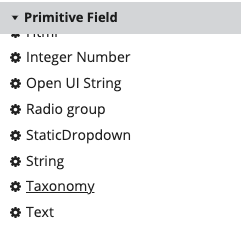
- In the taxonomy field's properties, set the
taxonomy.nameproperty to the URL name of your taxonomy.
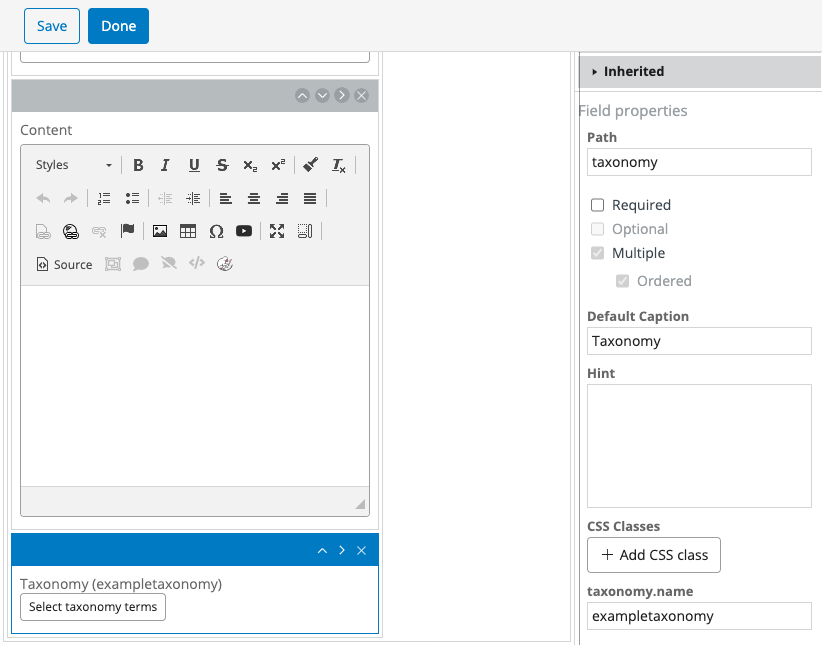
- Click
Done, then selectType actionsand chooseCommit.
Add Taxonomy to Document Type (Legacy Taxonomy Mixin)
In version 15.2 or earlier, use the legacy mixin-based taxonomy field. This approach remains supported for backward compatibility.
Continue in the Essentials Taxonomy configuration tool:
- Select the document types where you want to add taxonomy, and choose the taxonomy to use.
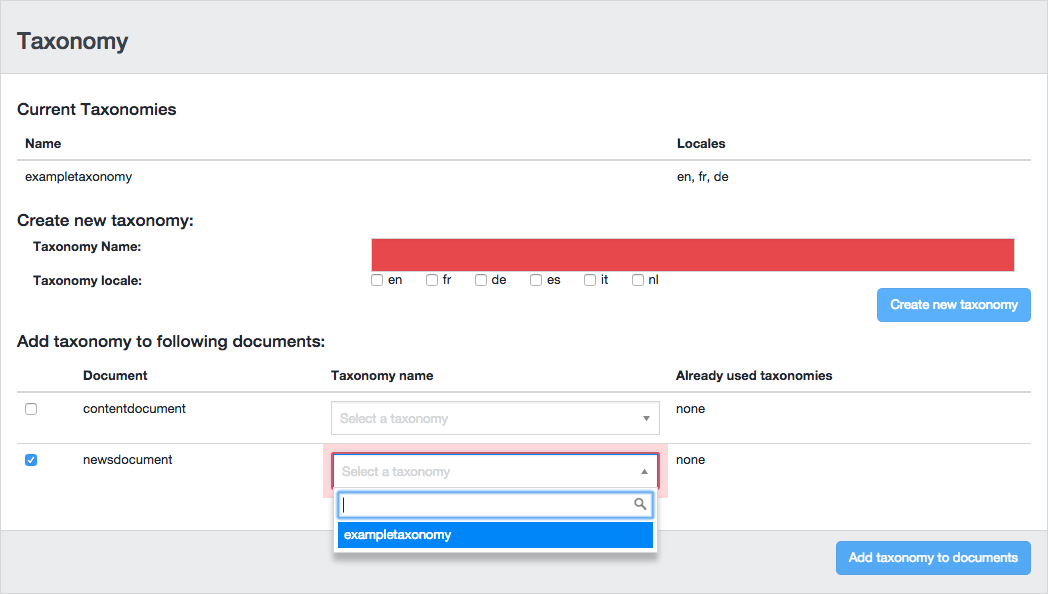
- Click the
Add taxonomy to documentsbutton. - Use the BeanWriter tool to regenerate the content beans for the document types you updated.
Manage Taxonomy
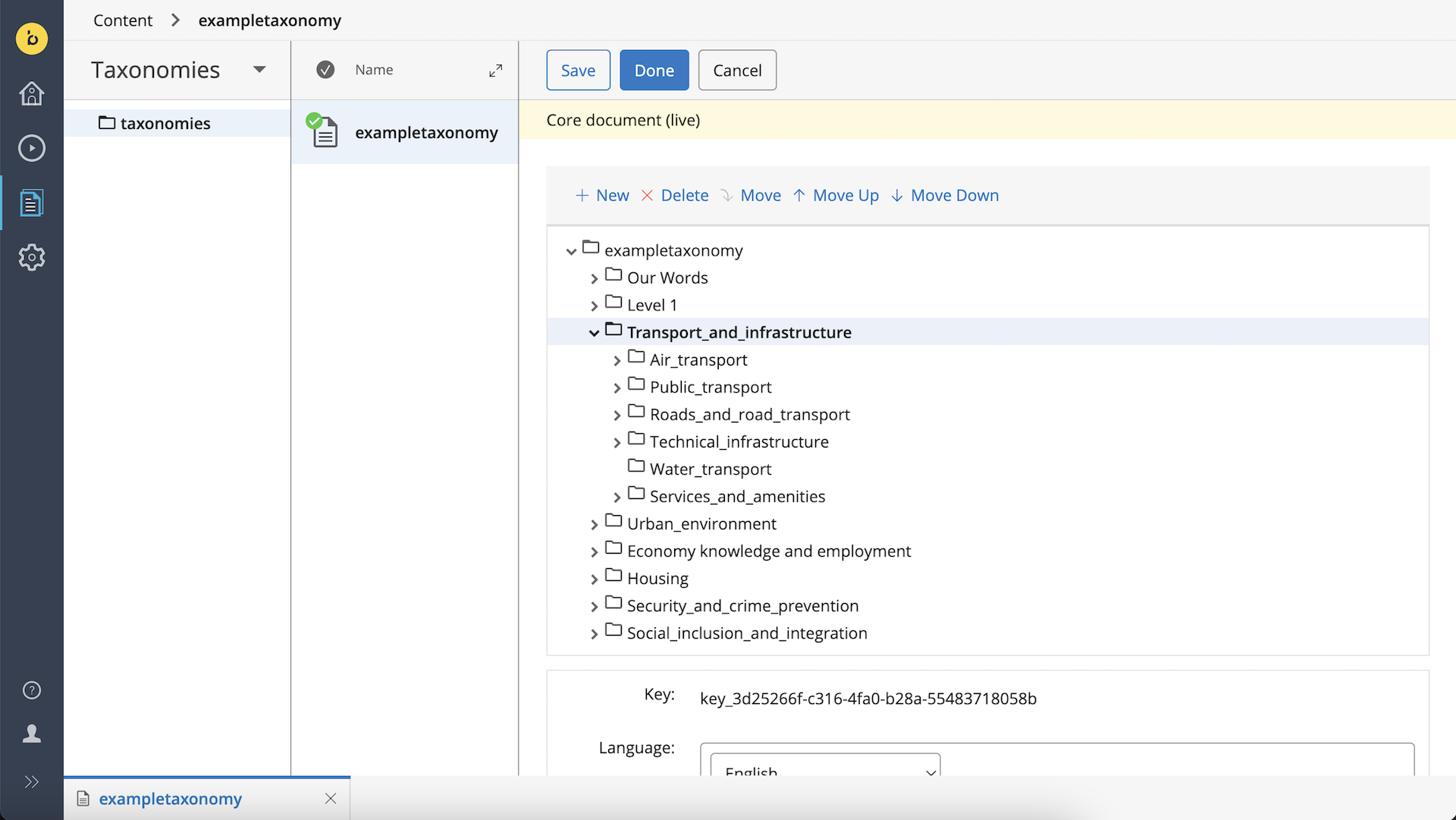
You can manage taxonomies in the Content application under the Taxonomies section.
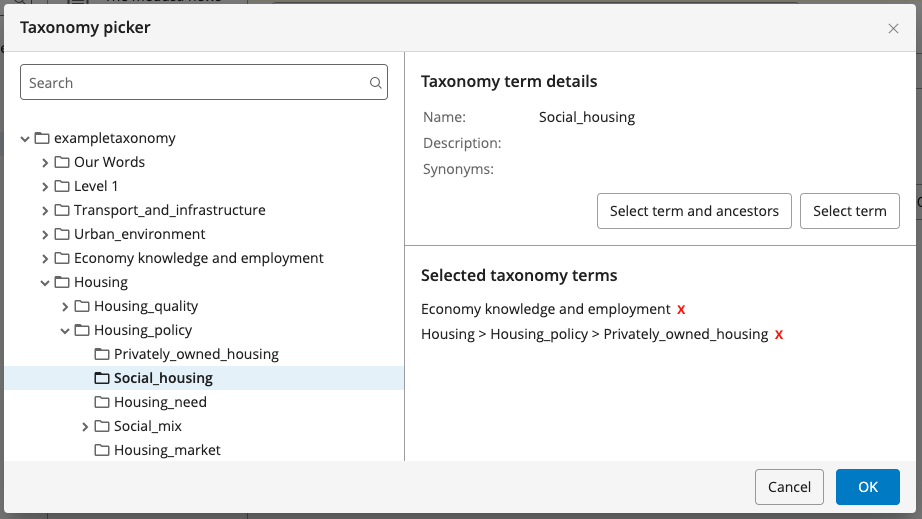
When editing documents that use a taxonomy, select categories using the taxonomy picker dialog.
Info: To access taxonomy data from the delivery tier, see Taxonomy Plugin Delivery Tier Configuration.