The Content Application
After you log in, select the content application by clicking the icon  in the leftmost column.
The content application interface includes three main areas: the navigation area (left), the documents area (center), and the document viewer area (right). The editor area appears only when you open a document.
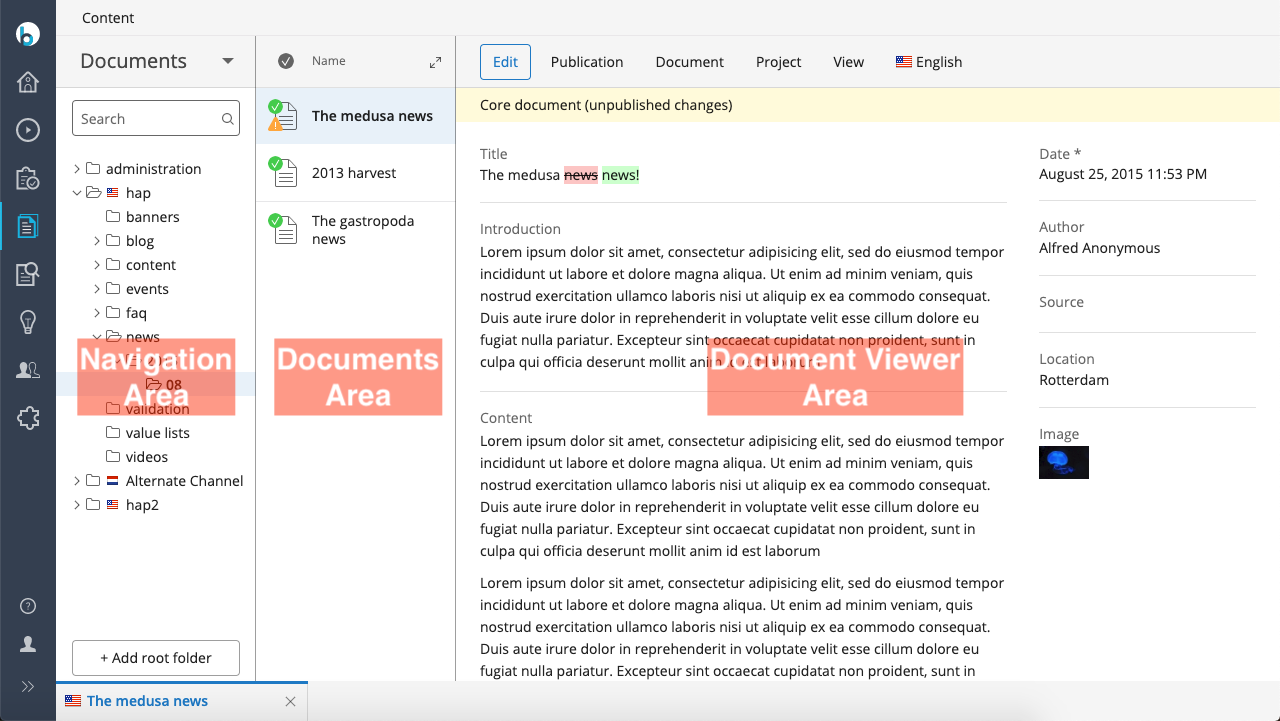
Navigation Area
The navigation area displays a tree structure of document folders. Use this area to organize documents into groups. A search function is available to locate documents quickly. The navigation area typically includes sections for Documents, Images, and Assets. Additional sections may appear based on your CMS configuration.
Documents Area
The documents area lists the contents of the folder selected in the navigation area. For each document, you can view attributes such as type, publication state, modification date, and translations. When the document viewer area is active, most attributes are hidden.
Document Viewer Area
The document viewer area displays the content of the document selected in the documents area. You can open multiple documents at once. Each open document appears as a tab at the bottom of the viewer area. Switch between open documents by clicking the corresponding tab.
Document Actions
Within the content application, you can perform the following actions:
-
Create, edit, and publish experience pages.