Configure Domains
Overview
This page describes how to configure domain routing in Bloomreach Cloud. Domain configuration controls how incoming traffic is directed to specific environments and web applications.
When to Use
Configure domains when you need to:
- Route traffic for a domain to a specific environment (such as for blue-green deployments)
- Add new domains or subdomains for your CMS or site applications
- Use your own custom domains with Bloomreach Cloud
Domain Configuration Options
You can add domains in two ways:
Option 1: Use Reserved bloomreach.cloud Subdomains
Each Bloomreach Cloud stack includes a reserved URL segment in the format *.customer.bloomreach.cloud. For example, if your stack name is bankpoc, you can use:
blue.bankpoc.bloomreach.cloudgreen.bankpoc.bloomreach.clouddev.bankpoc.bloomreach.cloudtest.bankpoc.bloomreach.cloud
You can add these domains through the Mission Control UI or the Bloomreach Cloud API.
Info: Use reserved
bloomreach.cloudsubdomains for internal CMS and site access. To use your own domains, see Option 2. The standard Bloomreach Cloud plan includes up to 5 Cloudflare Custom Hostnames. If you need more, contact support or your account manager.
Option 2: Use Your Own Domain or Subdomain
You can use a domain such as www.customer.com.
Hint: You can request a wildcard domain (e.g.,
*.customer.com) to allow any third-level subdomain.
Do not use the same (sub)domain for both CMS and site webapps or the delivery API. Always assign separate (sub)domains (for example, cms.customer.com for CMS and prod.customer.com for the site) to prevent public site availability issues during CMS maintenance mode.
Prerequisites and Constraints
General Requirements (Both Options)
- You must have created a distribution and deployed at least one environment in Mission Control.
- Before adding a domain, ensure the delivery tier for your environment has a virtual host configuration for the domain.
- To disable caching for a domain, contact support. For details on default caching, see Cloudflare documentation. Bloomreach Cloud uses the Cloudflare Enterprise tier.
Option 1 Constraints
- Subdomains and environment names must be unique. For example, you cannot use
blue.customer.bloomreach.cloudif you have an environment namedbluein Mission Control. The platform automatically generates links for environments (Site, CMS, Console, Repository).
Warning: Only use auto-generated links for initial configuration and testing. For development, testing, and production, always use user-managed domains (Option 1 or Option 2).
Option 2 Constraints
- To use an apex domain, see the FAQ. Add both the apex domain and subdomain as separate entries in Mission Control.
- Every domain must have a valid SSL certificate. Bloomreach recommends using Let's Encrypt for certificate management. You must add TXT or CNAME records in your DNS zone for domain validation and certificate renewal. If you prefer to provide your own certificate, submit a support request and follow the SSL certificate guide.
- If you provide your own SSL certificates, monitor expiration dates and supply a new certificate at least 7 days before expiration.
Implementation Steps
1. Configure a New Domain
Option 1: Reserved bloomreach.cloud Subdomains
You can add reserved subdomains directly in Mission Control or via the Bloomreach Cloud API. No additional steps are required.
Info: Use reserved subdomains when the domain name is not visible to end users, such as for headless or SPA implementations.
Option 2: Custom Domains
To use your own domain, submit a support request with the following details:
- Case subject: For example, "Custom domain request"
- Case description: Include:
- Domain name (e.g., wildcard domain
*.customer.com) - Certificate management preference: "Fully managed with Let's Encrypt CA" (default) or your own certificate
- Caching preference (Enabled / Disabled)
- Attachments: If providing your own certificate, follow the SSL certificate guide and attach the encrypted certificate files
- Domain name (e.g., wildcard domain
Configure the virtual host for the domain in the target environment. For example, for somesubdomain.customer.com.
If using managed certificates, ensure you have access to your DNS zone to add TXT or CNAME records for validation.
Add a CNAME record in your DNS zone:
somesubdomain.customer.com. 300 IN CNAME api.<your-stack-name>.bloomreach.cloud
Hint: If you do not know your API domain, request this information in your support case.
After configuration, the support team will provide further instructions:
- If you provided your own certificate, support will notify you when the certificate is validated and installed.
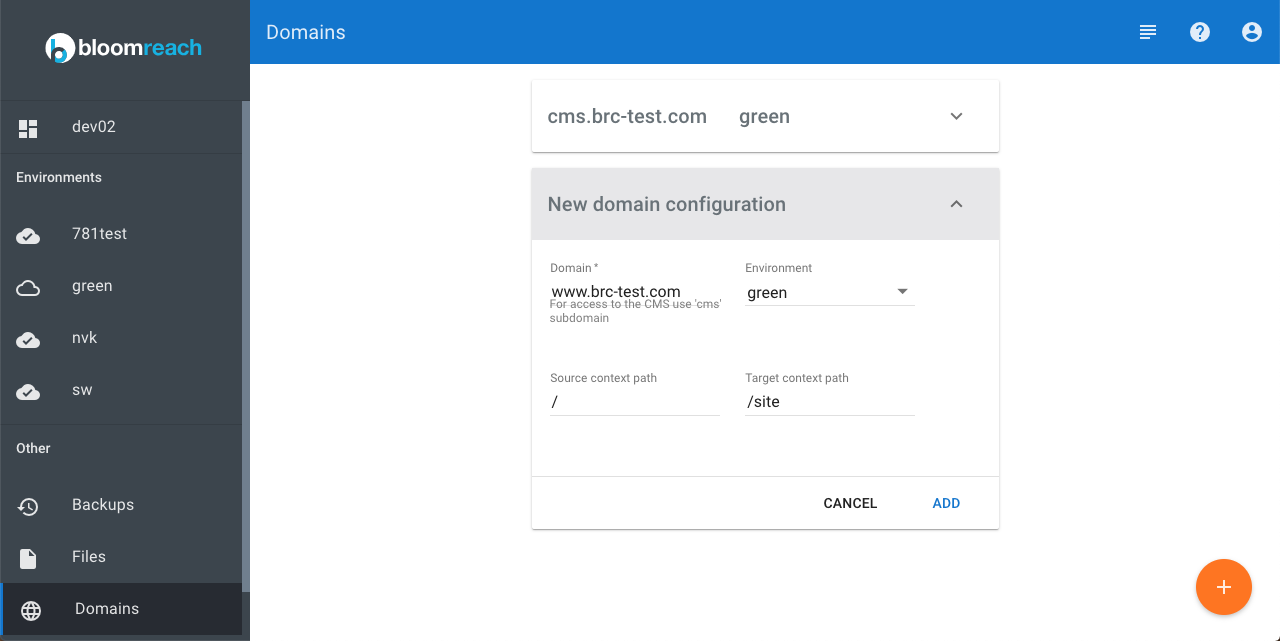
Once confirmed, log in to Mission Control and go to Domains.
- Click the
+button in the bottom right to add a domain. - Enter the domain name (e.g.,
somesubdomain.customer.com) and select the target environment. - For site traffic, use the default values: Target context path (
/) and Source context path (/site), unless you are running multiple site webapps (see Configure Domains for Multiple Site Webapps). - For a custom CMS domain (e.g.,
cms.customer.com), set Source context path to/and Target context path to/cms. - Click
Save.
2. Switch Domain Between Blue and Green Environments
To switch a domain between environments (for example, during blue-green deployment):
- Ensure the target environment has the correct virtual host configuration.
- Log in to Mission Control and navigate to
Domains. - Select the domain to switch.
- In the
Environmentdropdown, select the new environment. - Click
Save. - Repeat for the CMS domain if applicable.
3. Configure Domains for Multiple Site Webapps
If you run multiple site webapps in one environment, configure an additional domain for each webapp. Set the appropriate source and target context paths.
- The source context path is the URL path after the domain name that clients use.
- The target context path is the actual context path of the webapp.
By default, an empty source path (/) maps to the target path /site.
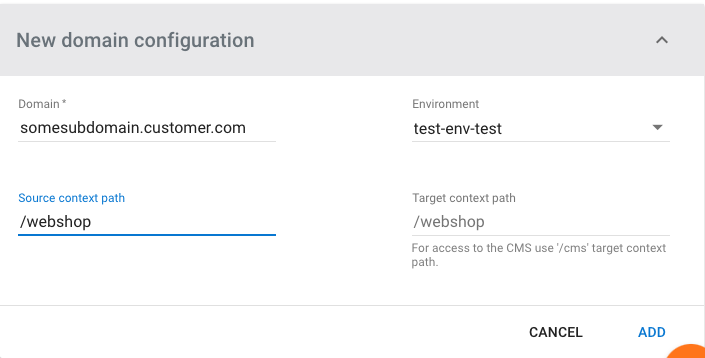
For example, if you add a second site webapp called webshop:
- Add another domain for
somesubdomain.customer.com - Set Source context path to
webshop - Set Target context path to
webshop
This configuration makes the webshop available at somesubdomain.customer.com/webshop/.