Restore a Backup
Overview
This page describes how to restore a backup in Bloomreach Cloud. You can restore a backup in either an existing environment or a new environment.
About Backups in Bloomreach Cloud
Bloomreach Cloud creates backups of each environment automatically at scheduled intervals. You can also create backups manually using Mission Control or the API.
Each backup includes the following components:
- Content repository database
- Relevance database
- Projects workflow database
- Elasticsearch index
You can restore a backup in any environment where a compatible distribution is deployed. Deploying a distribution and restoring a backup are separate actions. This separation allows you to restore data without changing the application distribution, or to deploy a new distribution using existing data.
Restore a Backup in an Existing Environment
To restore a backup in an existing environment:
- Verify that the deployed distribution in the environment is compatible with the backup you want to restore.
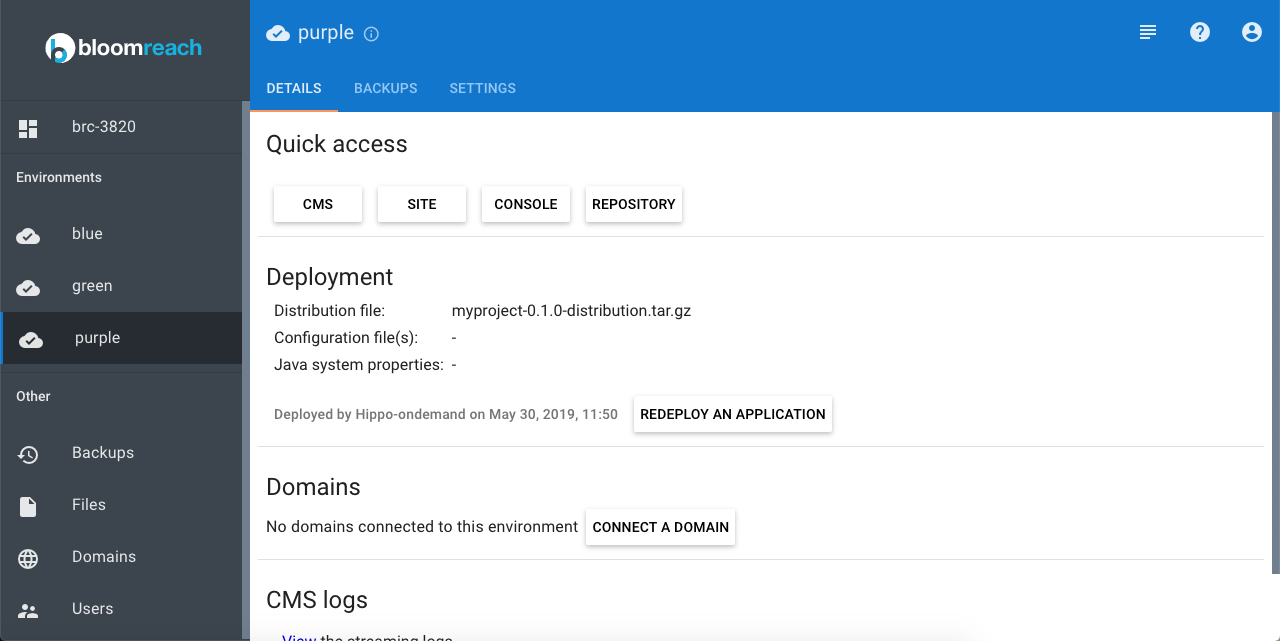
- In the environment details screen, open the
Backupstab. Select the environment where the backup was created. By default, backups from the current environment are listed. To select a backup from another environment, chooseOther available environmentsorDeleted environments.
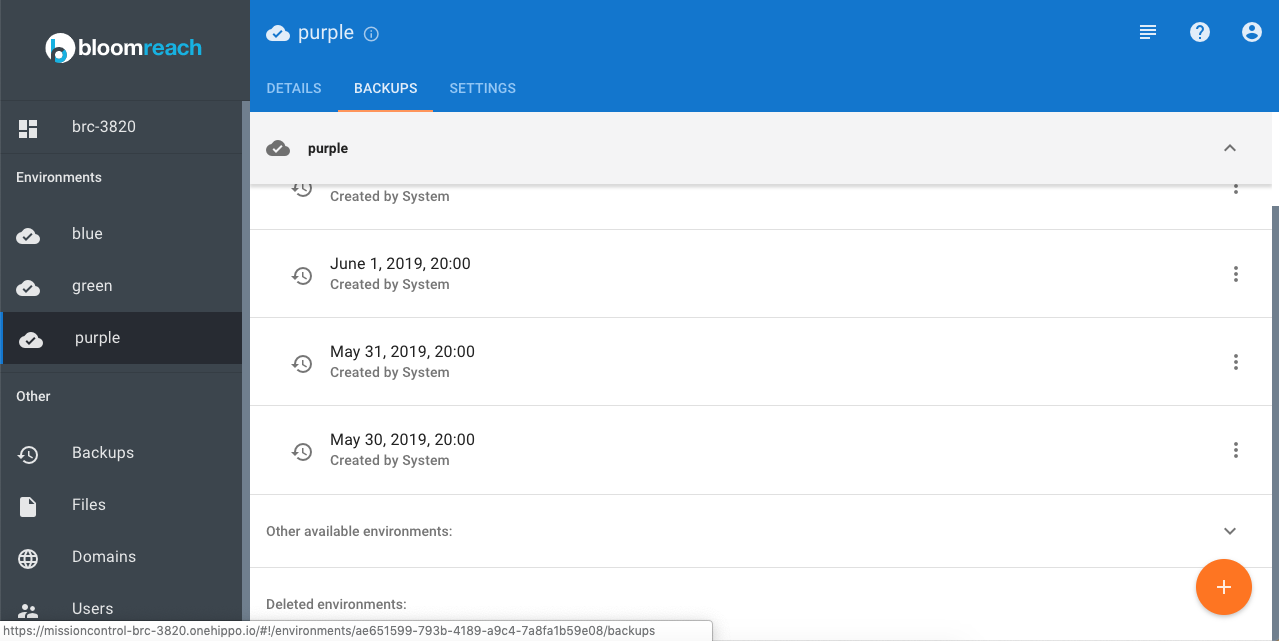
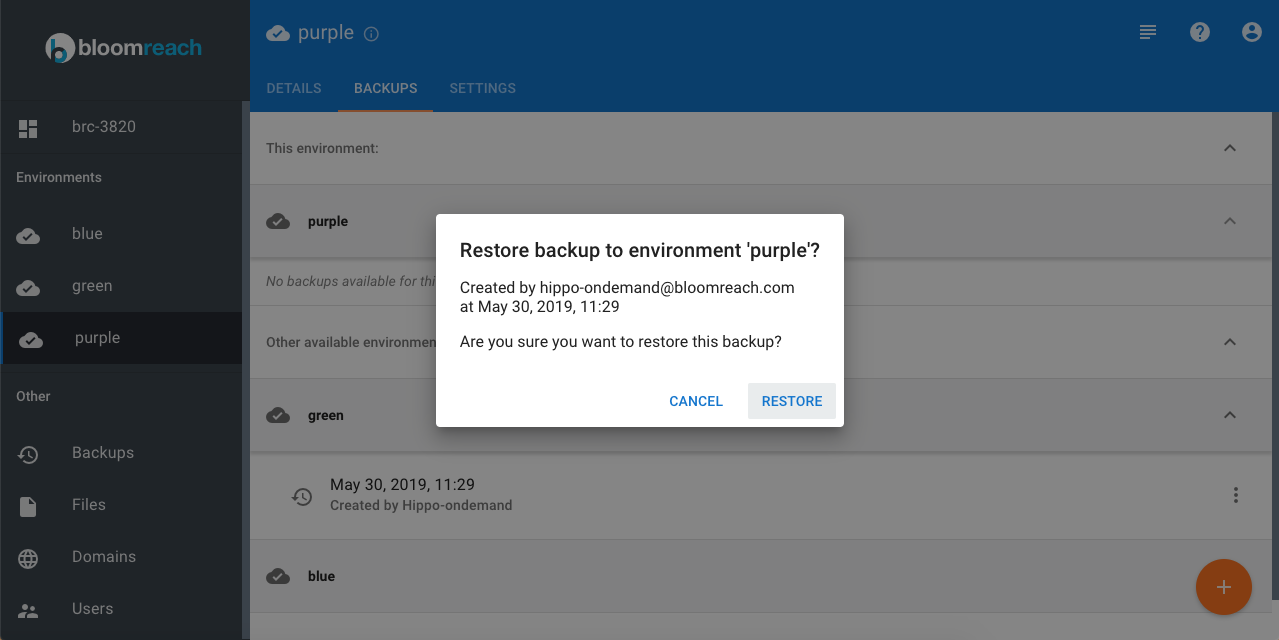
- Select the backup to restore. In the confirmation dialog, click
Restoreto start the process.
Restore a Backup in a New Environment
To restore a backup in a new environment:
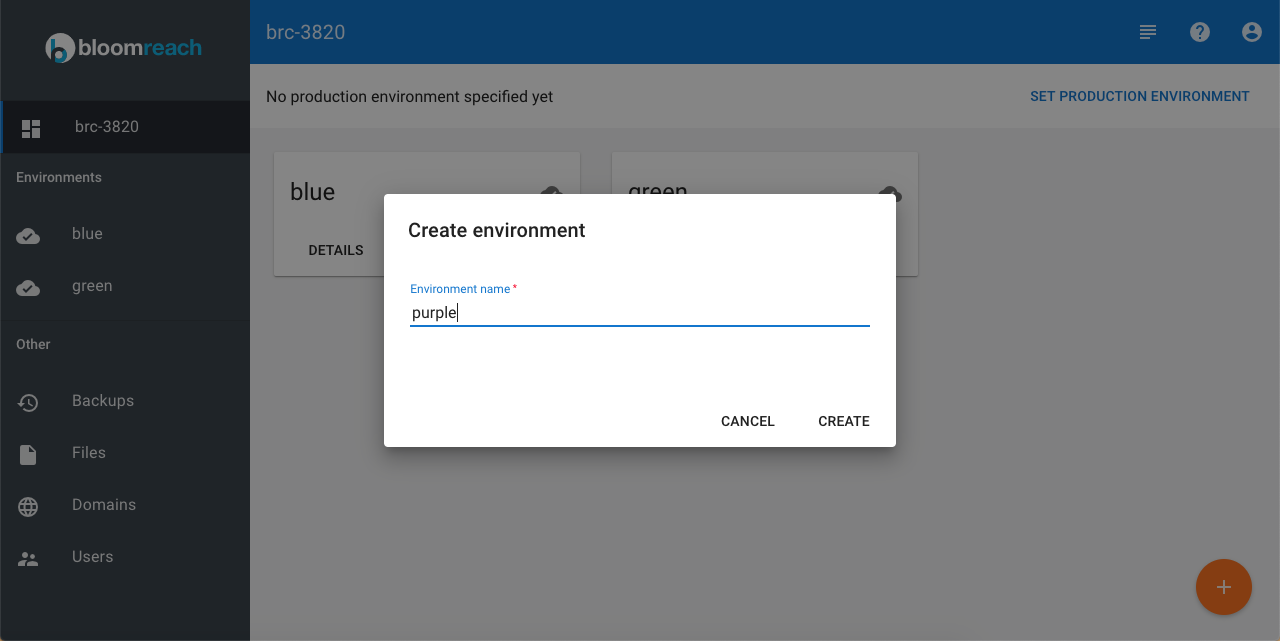
- Create a new environment where you want to restore the backup.
- Deploy a distribution that matches the backup. Use either the distribution that was active when the backup was created or another distribution that is compatible with the backup data.
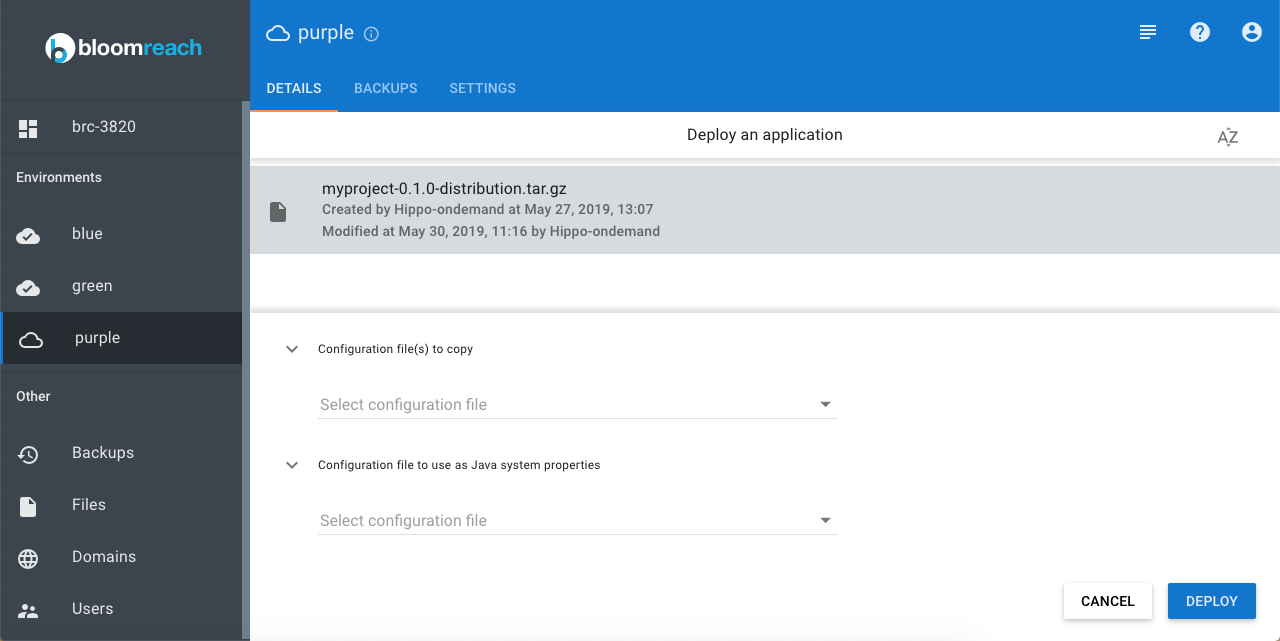
- In the environment details screen, open the
Backupstab. SelectOther available environmentsorDeleted environments, then choose the environment where the backup was created.
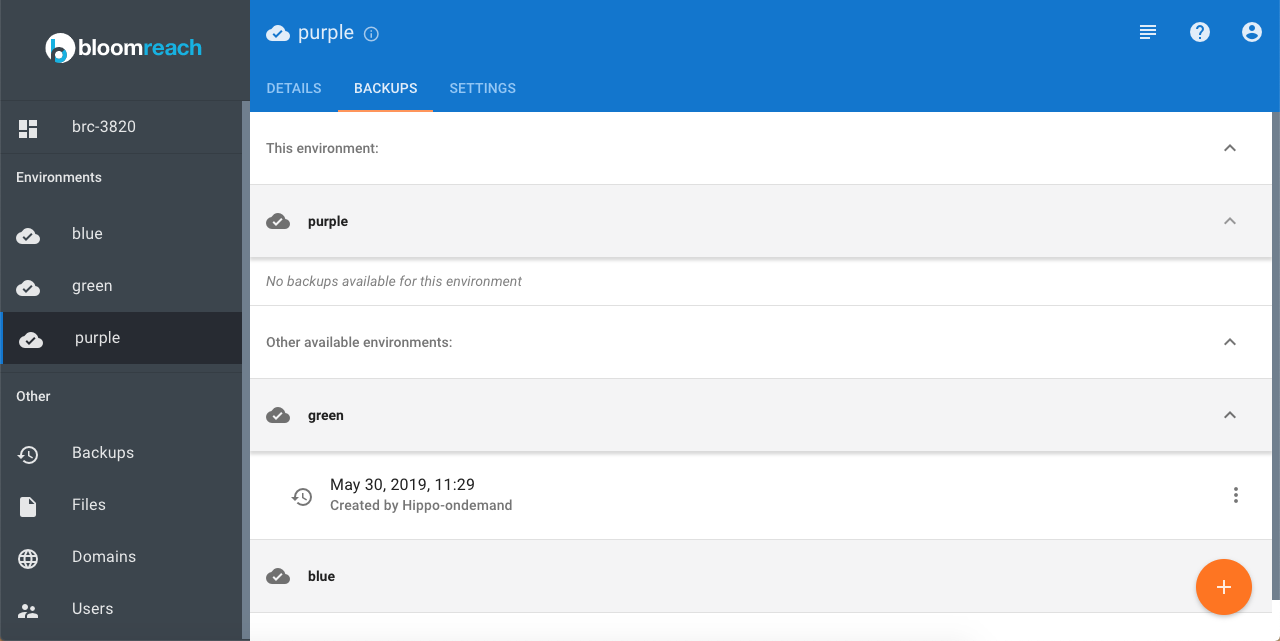
- Select the backup to restore. In the confirmation dialog, click
Restoreto begin the restoration.