Protect an Environment
Overview
This page describes how to restrict access to a site or CMS environment in Bloomreach Cloud by enabling password protection. Use these features to prevent unauthorized visitors from accessing your site or CMS during maintenance or other controlled periods.
When to Use
Enable site protection to prevent public access to your site. Enable CMS maintenance mode to restrict access to the CMS application, for example, during maintenance windows or content freezes.
Note: Enabling CMS maintenance mode applies password protection to the entire CMS (sub)domain. Always use separate (sub)domains for your CMS and public site (for example,
cms.customer.comandprod.customer.com) to ensure the public site remains accessible when only the CMS is protected.
Tip: For more granular access control based on IP addresses, use the IP Filter Plugin.
Prerequisites
- Access to Mission Control.
- Environment(s) configured in Bloomreach Cloud.
Enable Site Protection
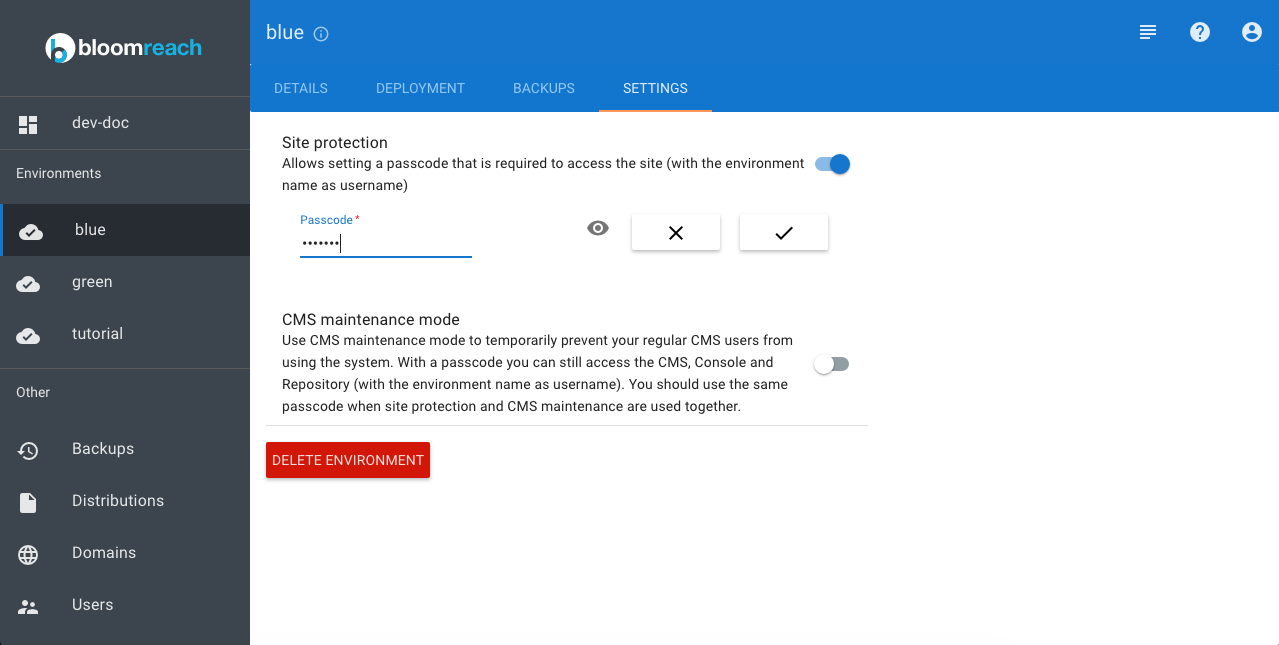
Follow these steps to enable password protection for a site environment:
- Log in to Mission Control.
- Select the environment where you want to enable site protection.
- Go to the Settings tab.
- Enable the Site protection switch.
- Enter a passcode.
If you have also enabled CMS maintenance mode, use the same passcode for both features. - Click the button with the checkmark to save.
Verification
-
Access the protected site in your browser.
-
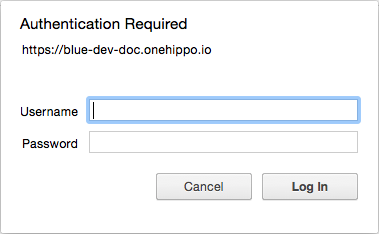
The browser should display a generic login dialog. For example, Chrome displays:
-
Enter the environment name as the username and the passcode you configured in Mission Control as the password.
Enable CMS Maintenance Mode
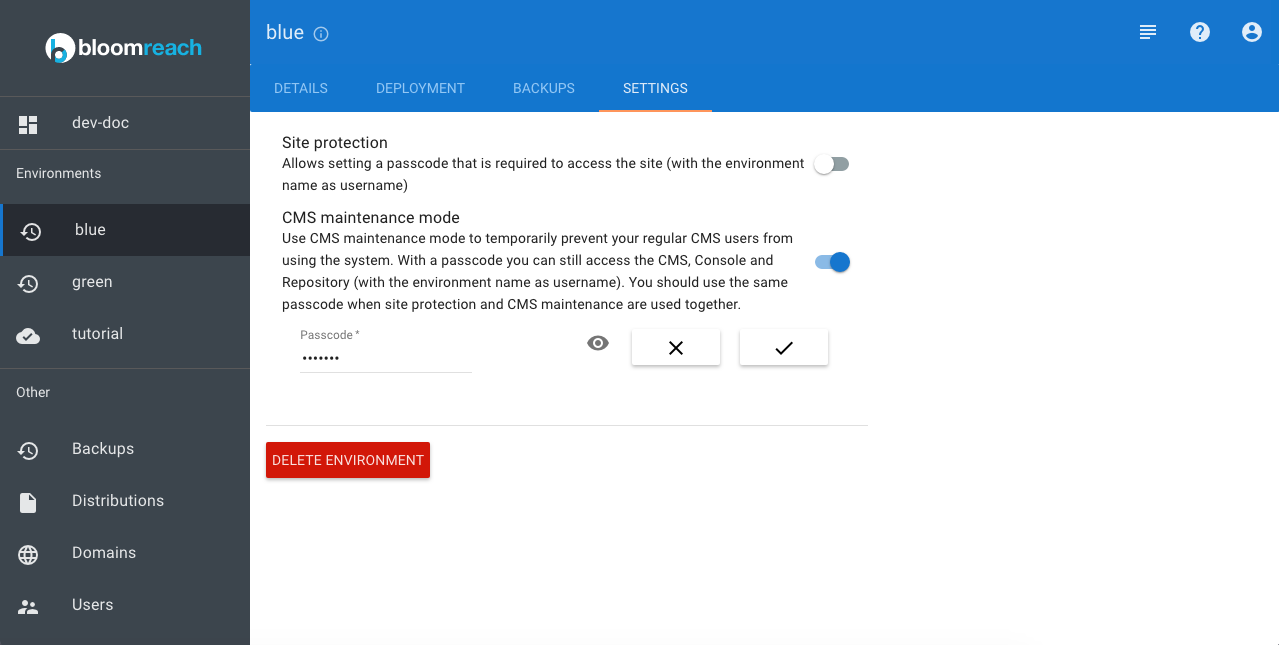
To restrict access to the CMS application:
- Log in to Mission Control.
- Select the environment where you want to enable CMS maintenance mode.
- Go to the Settings tab.
- Enable the CMS maintenance mode switch.
- Enter a passcode.
If you have also enabled site protection, use the same passcode for both features. - Click the button with the checkmark to save.
Verification
-
Access the CMS application in your browser.
-
The browser should display a generic login dialog. For example, Chrome displays:
-
Enter the environment name as the username and the passcode you configured in Mission Control as the password.
Important Considerations
- When both Site protection and CMS maintenance mode are enabled, always use the same passcode for both.
Using different passcodes can cause unexpected behavior when accessing the CMS, because the Channel Manager requires access to the site. Logging in with one passcode may override the other, resulting in access issues. - To avoid conflicts, set the same passcode for both features if they are enabled simultaneously.