Use Your Organization's Identity Provider for Authentication
Overview
You can integrate your organization's Identity Provider (IdP) with Bloomreach Cloud to enable Single Sign-On (SSO) for your users.
When to Use
Use this integration to centralize authentication, enforce your organization's security policies, and streamline user access to Bloomreach Cloud. SSO allows you to manage access and authentication requirements (such as password policies and Multi-Factor Authentication) within your IdP.
Prerequisites
- You must have an Identity Provider configured.
- If you require Multi-Factor Authentication (MFA), your IdP must support it.
- Update any CI scripts that deploy to Bloomreach Cloud to accommodate SSO.
Implementation Steps
1. Initiate SSO Integration
To enable SSO, you need to integrate your IdP with Bloomreach Auth0. Open a support ticket with Bloomreach Cloud to start the process. The Bloomreach team will guide you through the integration, which varies depending on your IdP. An example configuration for Azure Active Directory is provided below.
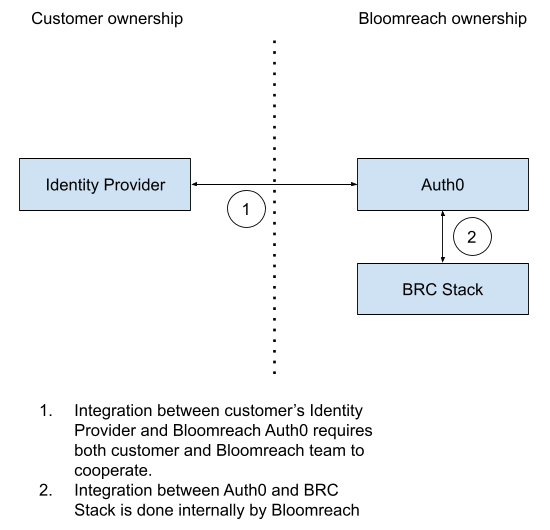
Diagram: The diagram illustrates the relationship between your Identity Provider, Auth0, and the BRC Stack. The Identity Provider connects to Auth0, which is associated with the BRC Stack, representing the SSO authentication flow.
2. Update CI Script Authentication
When SSO is enabled, the /v3/authn/access_token endpoint is disabled. CI scripts must authenticate using one of the following approaches:
Option 1: Authenticate via Identity Provider
- Configure your IdP to allow dedicated "script" accounts.
- For each CI run:
- Use the "script" account to authenticate with your IdP and obtain an authentication token.
- Exchange the authentication token for an authorization token from the Auth0 API.
- Include the authorization token in the header of each Bloomreach Cloud API request.
This approach gives you direct control over script account credentials and rotation policies. However, it requires your CI scripts to implement OAuth2 or SAML, depending on your IdP.
Option 2: Authenticate via Auth0
- Obtain an Auth0 API endpoint and API key from Bloomreach Cloud support.
- CI scripts call the Auth0 API directly to retrieve an authorization token.
This method is simpler to implement. However, rotating the API key requires contacting Bloomreach Cloud support.
3. Example: Azure Active Directory SSO Integration
Follow these steps to configure SSO with Azure Active Directory using SAML. You are responsible for configuring Azure; Bloomreach will provide required values such as the connection name and Auth0 domain.
- Sign in to portal.azure.com.
- Navigate to
Azure Active Directory > Enterprise applications > + New Application. - Select
+ Create your own application. - Enter "BloomreachCloud" as the application name.
- For application type, select
Integrate any other application you don’t find in the gallery (Non-gallery)and clickCreate. - In the left pane, select
Single sign-onand chooseSAMLas the sign-on method. - In the
1. Basic SAML Configurationsection, clickEdit. - Set
Identifier (Entity ID)to the value provided by Bloomreach. - Set
Reply URL (Assertion Consumer Service URL)to the value provided by Bloomreach. - Click
Save. - In the
3. SAML Signing Certificatesection, download theCertificate (Base64). - In the
4. Set up BloomreachCloudsection, copy the Login URL (e.g.,https://login.microsoftonline.com/xxx/saml2).
Send the Login URL and the downloaded certificate to Bloomreach. Bloomreach will complete the Auth0 configuration.
After Bloomreach confirms setup is complete, test the connection:
- Go to
Dashboard > Authentication > Enterprise > SAML. - Click the three dots next to your connection and select
Try.
Verification
- Confirm that users can log in to Bloomreach Cloud using your IdP credentials.
- Test CI script authentication using the selected approach.
- Validate that access is revoked after removing a user from your IdP (after token expiry).
Frequently Asked Questions
Which Identity Providers are supported?
Bloomreach Cloud can integrate with any IdP that supports OAuth2 or SAML. Contact Bloomreach Cloud support to confirm compatibility with your specific IdP.
Does Bloomreach Cloud access our Identity Provider's user list?
No. Bloomreach Cloud does not access your IdP's user list. Authentication and authorization are handled via OAuth2 or SAML protocols.
How long is an SSO login valid?
By default, the authorization token is valid for 24 hours. Contact Bloomreach Cloud support to request a different duration.
Are changes to user access in the IdP reflected immediately?
Removing a user from your IdP prevents future logins. However, any previously issued token remains valid until it expires.
Can the Auth0 token be used with the Bloomreach Cloud API?
Yes. You can copy the token from the user menu in Mission Control and use it with the Bloomreach Cloud API until it expires (default: 24 hours).
Is the token invalidated when logging out from Mission Control?
No. Logging out from Mission Control only removes the token from the session. The token itself remains valid until it expires.
Related Topics
Troubleshooting
If you encounter issues during integration or authentication, contact Bloomreach Cloud support and provide details about your IdP and configuration steps taken.