Set Production Environment
Overview
Marking an environment as the production environment in Bloomreach Cloud allocates additional resources to support higher performance and availability. Production environments also receive increased monitoring to ensure stability.
You can optionally update domain rules to route traffic to the new production environment. This is recommended when using a blue-green deployment strategy.
When to Use
Set an environment as production when you need to:
- Allocate more resources for performance and availability.
- Enable enhanced monitoring.
- Route live traffic to a new environment, especially during blue-green deployments.
Prerequisites
- Access to Mission Control.
- Appropriate permissions to modify environment settings.
Steps
-
Log in to Mission Control.
-
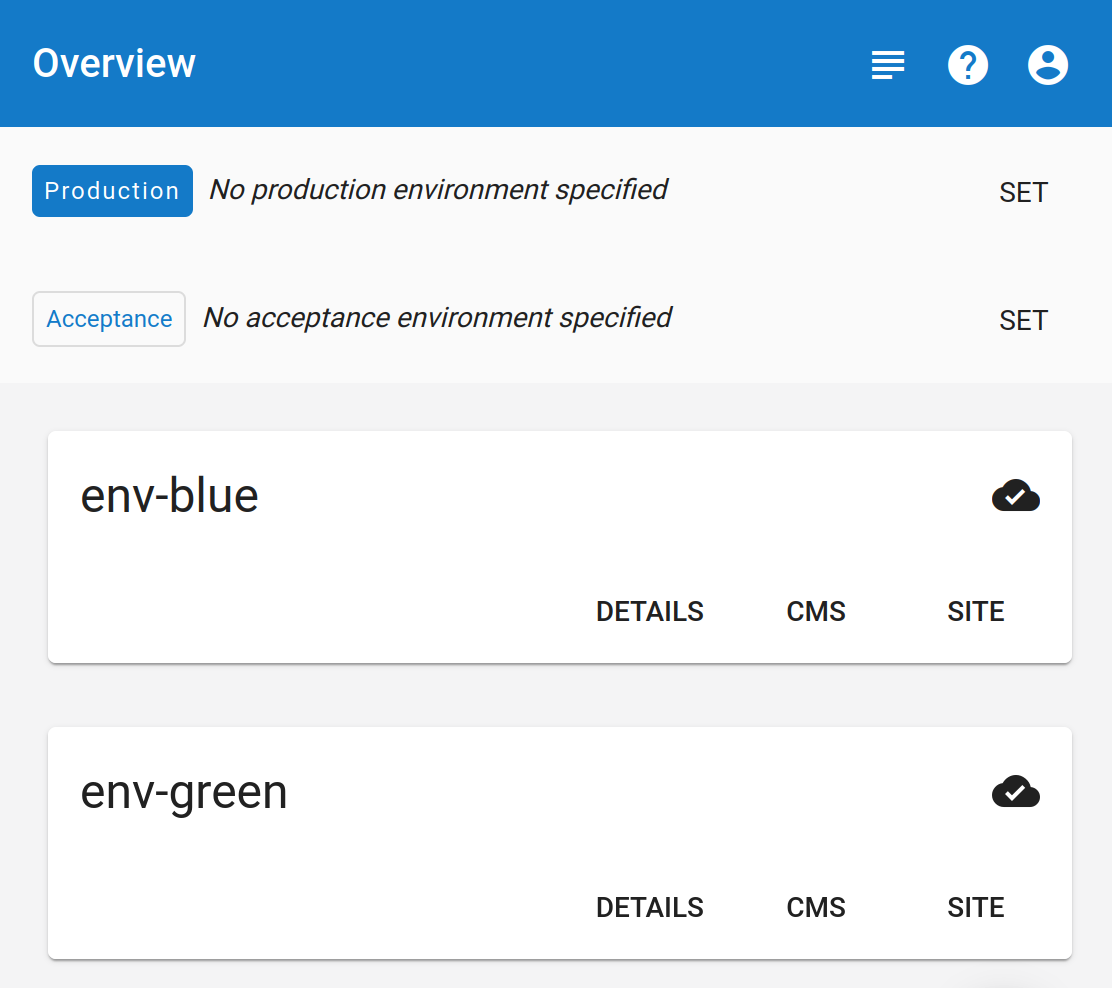
Navigate to the environments overview page.
-
Locate the Production environment switch at the top of the page.
-
On the right side, click the
SETbutton and select the environment you want to mark as production.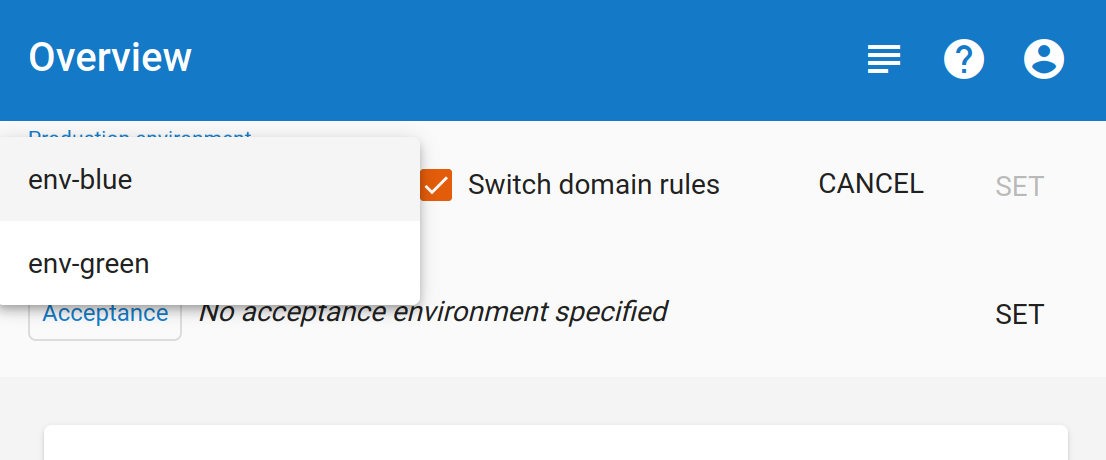
-
(Optional) To update your domain rules to point to the new production environment, select the
Switch domain rulescheckbox. -
Click
Set. -
In the confirmation dialog, click
Setagain to confirm.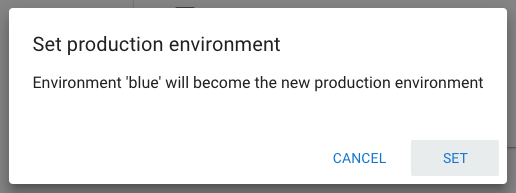
Verification
After confirmation, the selected environment is marked as the production environment. The system allocates additional resources and applies production-level monitoring.
Important
Avoid making test or experimental changes in the production environment. Production environments are closely monitored, and unexpected changes may trigger alerts.