Use Rolling Updates
Overview
This guide explains how to redeploy a backward-compatible distribution in Bloomreach Cloud using the rolling update method to avoid downtime.
Deployment Methods
When you redeploy a backward-compatible distribution in a Bloomreach Cloud environment, you can choose between two methods:
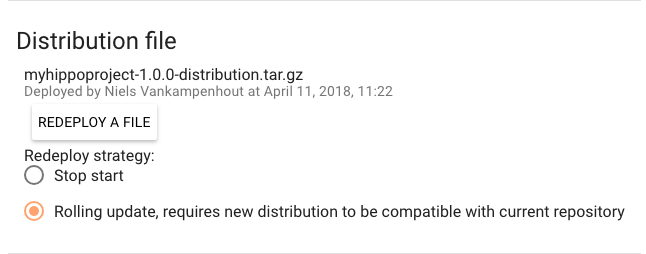
- Stop-start: Stops all existing containers before starting new ones with the updated distribution. This approach is the most reliable and prevents issues that can occur when different versions interact with the same database.
- Rolling update: Starts a new container and waits until it is ready to serve traffic before stopping an old container. This process repeats until all old containers are replaced.
By default, Bloomreach Cloud uses the stop-start method, which results in a period of downtime. If you use the rolling update method with a backward-compatible distribution, you can avoid downtime during deployment. Rolling updates ensure that at least one container remains available to serve traffic throughout the process.
Note: When you use rolling updates, all session state is lost. Active CMS users will be logged out and must log in again after the update.
Info: For most deployments—and always for non-backward compatible distributions—use the Blue-Green Deployment strategy. Blue-Green Deployment avoids downtime by deploying to an offline environment and switching live traffic only after successful verification.
Steps to Perform a Rolling Update
- Verify that the new distribution is backward-compatible with the currently deployed version.
- In Mission Control, select the environment where you want to redeploy the distribution.
- Go to the
Detailstab. - In the Distribution file section, select
Rolling update. - Click
Redeploy a fileto start the rolling update process.