Set Environment Configuration Properties
Overview
This page describes how to configure environment-specific properties for your Bloomreach Experience Manager (XM) application in Bloomreach Cloud. Use configuration files in Java properties format to define key-value pairs such as credentials, API keys, or other settings required for each environment.
Create a Configuration File
Create a plain text file using the Java properties file format. Each line should contain a key-value pair:
foo.service.url=https://example.org/foo/
foo.service.key=ABev2c6Rp5tC1YTYiklHn2hvn54XiZhu3Ce9Wte6
Manage Configuration Files in Mission Control
To upload and manage configuration files:
- In Mission Control, go to the
Filesscreen. - Select the
Configurationstab.
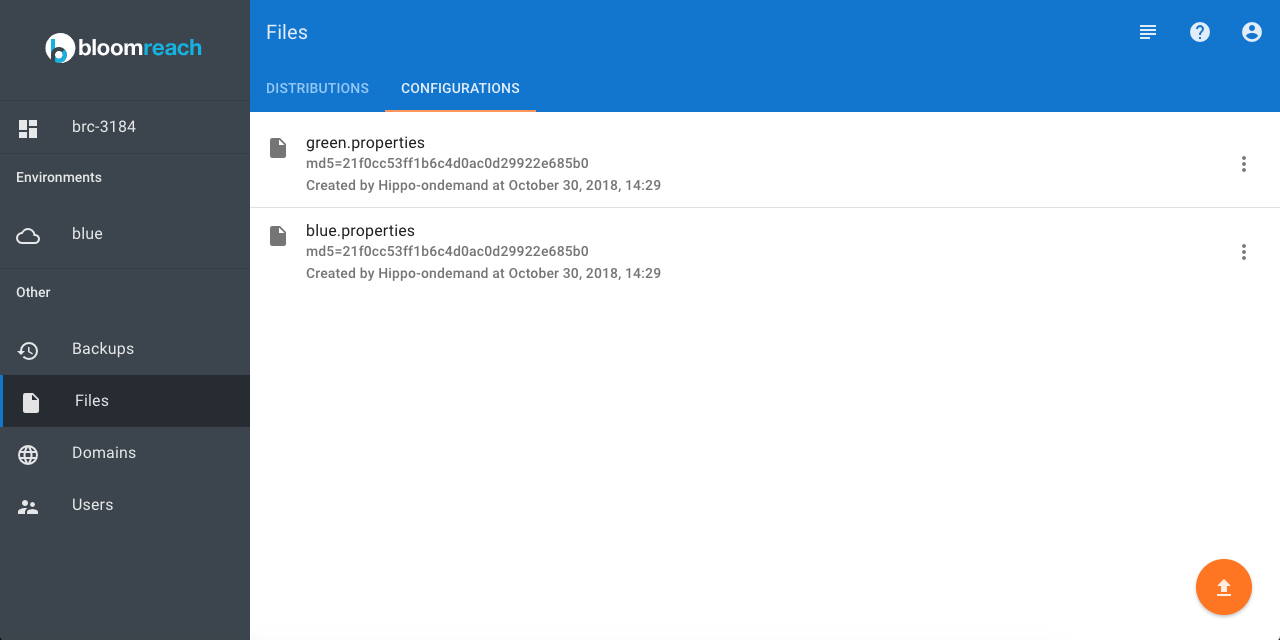
- Use the button in the bottom right corner to upload a new configuration file.
- Use the context menu for each file to rename or delete it.

Note:
You cannot overwrite an existing configuration file. If you upload a file with the same name as an existing file, Bloomreach Cloud appends a suffix to the new file name (for example, blue.properties becomes blue (1).properties).
Deploy Configuration Files with a Distribution
To deploy configuration files with your application:
- Navigate to the target environment.
- Click
Deploy an applicationorRedeploy an application. - Select the distribution to deploy.
- Select one or more configuration files to include. Bloomreach Cloud sets the Java system property
brc.appconfigfileswith a comma-separated list of the selected file names.
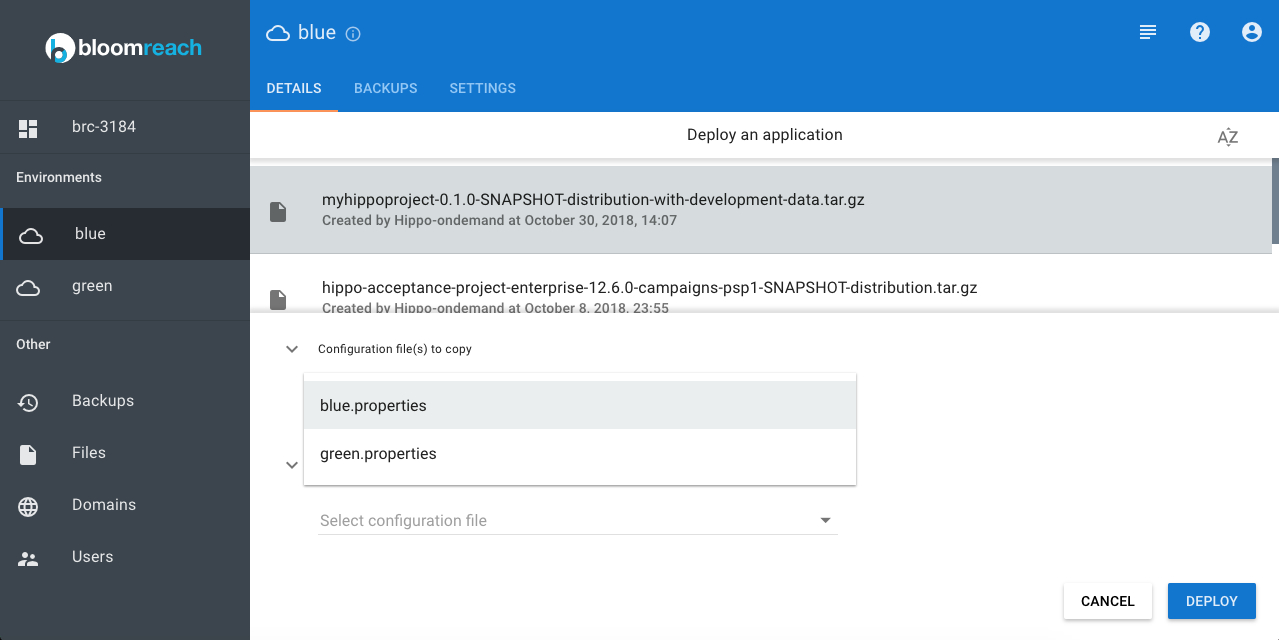
You can optionally specify a new name for each configuration file during deployment. This allows you to maintain versioned files (such as blue.1.0.0.properties, blue.2.0.0.properties) but always deploy them as a consistent name (such as blue.properties).

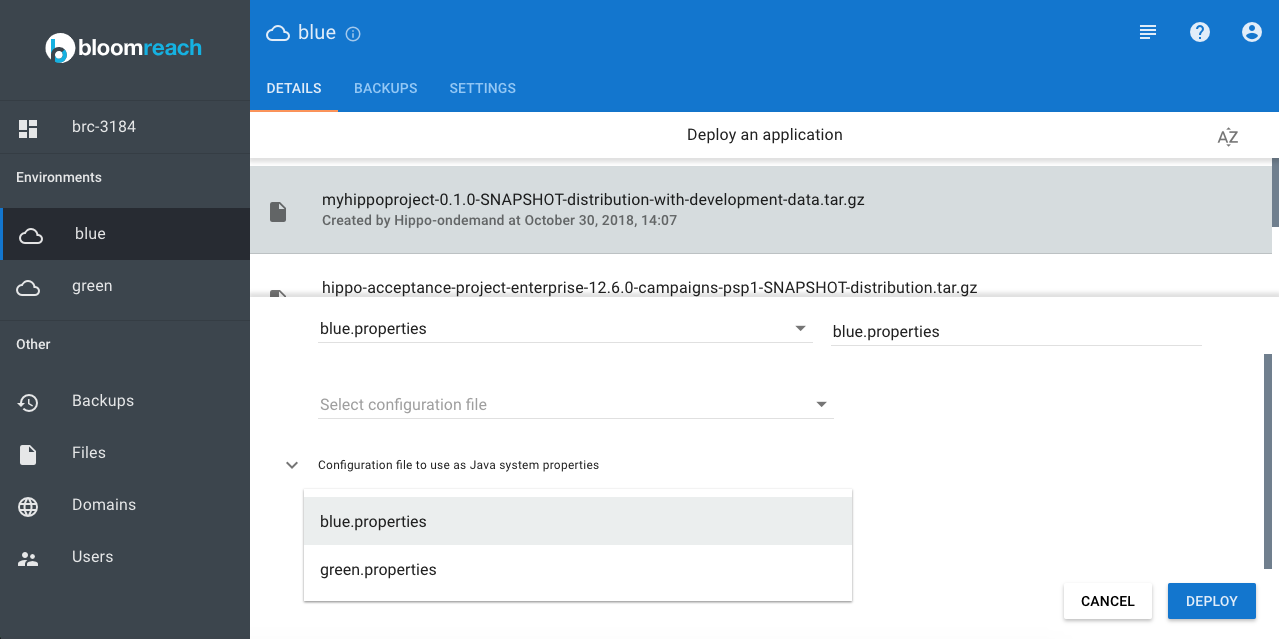
You may also select one or more configuration files to use as Java system properties. In this case, Bloomreach Cloud sets a Java system property for each key-value pair in the selected files. You can view the resulting Java system properties and their values in the CMS admin panel.
Retrieve the Environment Name
To retrieve the current environment name in your application code, use the Java system property brc.environmentname.
Specify Configuration File Location as a Java System Property
If you need to reference the location of a configuration file as a Java system property, use the variable ${APP_CONFIG_PATH}. For example:
spring.config.location=${APP_CONFIG_PATH}/spring.properties
Bloomreach Cloud replaces ${APP_CONFIG_PATH} with the actual path and passes spring.config.location as a Java system property.
The full path to the configuration files is also available as the Java system property brc.appconfigpath.
Javax.net.truststore Restrictions
Bloomreach Cloud does not allow javax.net.truststore as a parameter. If your configuration file contains this parameter, the upload will fail.
Configure brXM to Load HST Configuration Files
To use environment-specific configuration files for core brXM files (such as platform.properties), update your project as follows:
-
Configure the CMS application to load the configuration file from the deployment directory. Set the
hst-config-propertiescontext parameter in the/cmsproject'sweb.xmlfile:<context-param> <param-name>hst-config-properties</param-name> <param-value>${brc.appconfigpath}/platform.properties</param-value> </context-param> -
For local development, set the
brc.appconfigpathsystem property in thecargo.runprofile of your mainpom.xmlfile:<brc.appconfigpath>conf</brc.appconfigpath> -
Upload the environment-specific configuration files and deploy them as described above.
Ensure that each file is deployed asplatform.propertiesfrom the CMS application's perspective. For example, upload files namedplatform-production.properties,platform-acceptance.properties, andplatform-test.properties, but always deploy them asplatform.properties.
Override repo.bootstrap
Starting with BRC v12.6, you can override the repo.bootstrap argument in a configuration file:
repo.bootstrap=full
The default value is true. Only change this setting if you understand its impact. When deploying, select the "use as Java system properties" option for the configuration file.
To check your BRC version, navigate to #/version in Mission Control (for example: https://missioncontrol.customer.bloomreach.cloud/#/version).
Configure JVM Timezone
To set the JVM timezone, upload a configuration file with the following property:
user.timezone=Etc/UTC
Replace Etc/UTC with your desired timezone. When deploying the CMS distribution, include this file as a Java system properties file.