Discovery Recommendations and Visual Search
Discovery recommendation widgets and visual (image) search use the Discovery v2 Pathways API. Content editors configure these features through the user interface; developer involvement is minimal. This page describes the available widget document types, the wizard editors for configuration, and the process to enable image-based search.
ON THIS PAGE
- v1 vs. v2 - automatic version selection
- Recommendation document types
- Placing a recommendation component
- Visual search
v1 vs. v2 - Automatic Version Selection
The plugin supports two Discovery recommendation APIs and selects between them based on configuration:
- v1 (
discoverySearchAPI): Used when noauthKeyis configured. - v2 Pathways (
discoveryPathwaysAPI): Used automatically whenauthKeyis present.
You do not need to set a configuration flag. The presence of authKey—provided via BRXDIS_AUTH_KEY, -Dbrxdis.authKey, the global configuration node, or a per-channel discoveryAuthKeyEnvVar override—determines which API is used. For details, see Configuration.
Visual search is only available with v2. v1 does not support this feature.
Recommendation Document Types
Each recommendation widget is defined as a JCR document. Editors use a dedicated wizard interface to configure these documents, rather than editing raw parameters.
| Document type | Wizard | Widget types targeted |
|---|---|---|
| Discovery Product Recommendation | 3-step product recommendation wizard | co_viewed, co_bought, rt_recs, mlt |
| Discovery Category Recommendation | 3-step category recommendation wizard | category |
| Discovery Global/Personalized Recommendation | 3-step global recommendation wizard | bestseller, trending_product, jfy, past_purchases, recently_viewed |
| Discovery Keyword Recommendation | 3-step keyword recommendation wizard | keyword/query-driven widgets |
The 3-Step Wizard
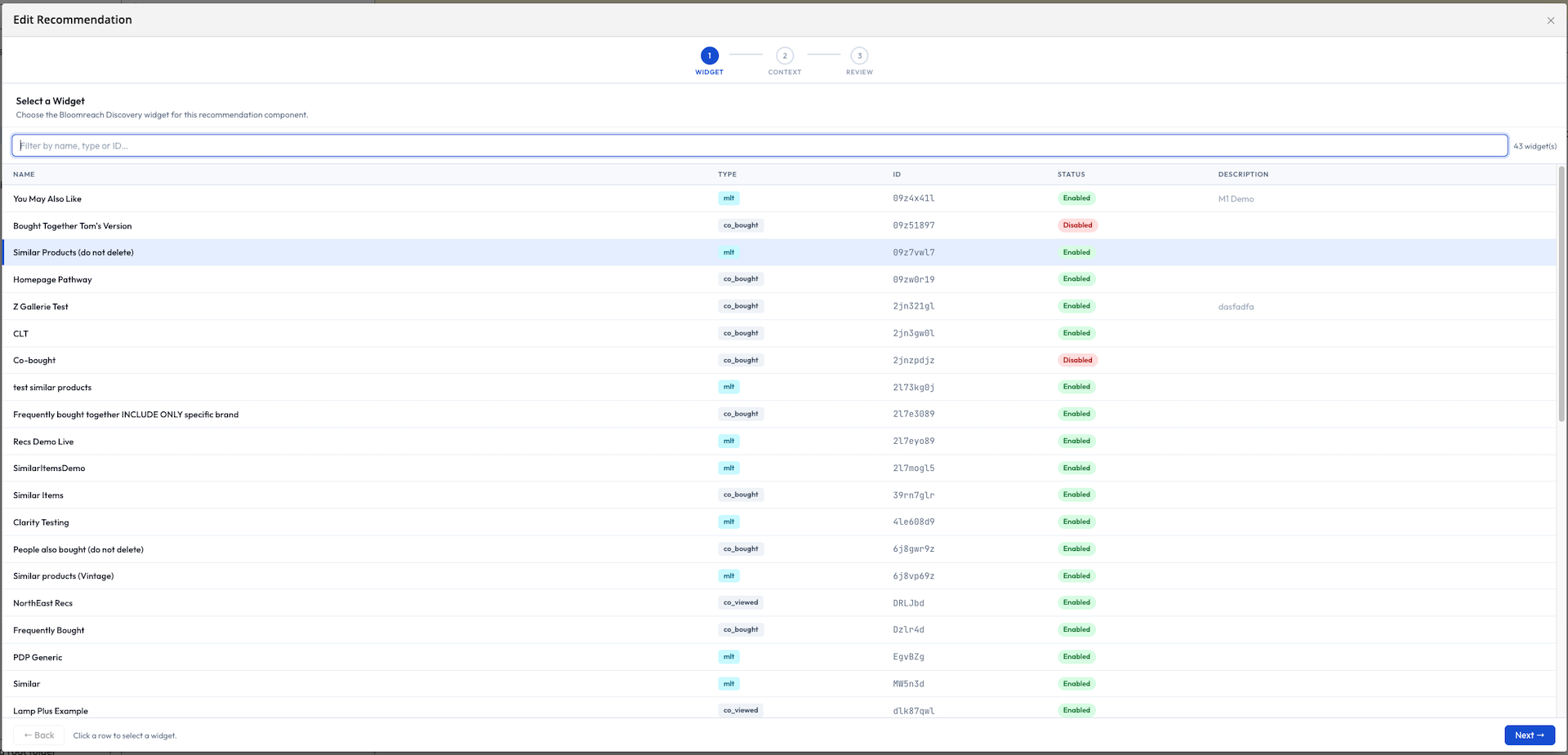
The wizard guides editors through the following steps:
-
Widget Selection: Choose from the recommendation widgets available in your Discovery account. The list is filtered to show only widget types relevant to the current document type.
-
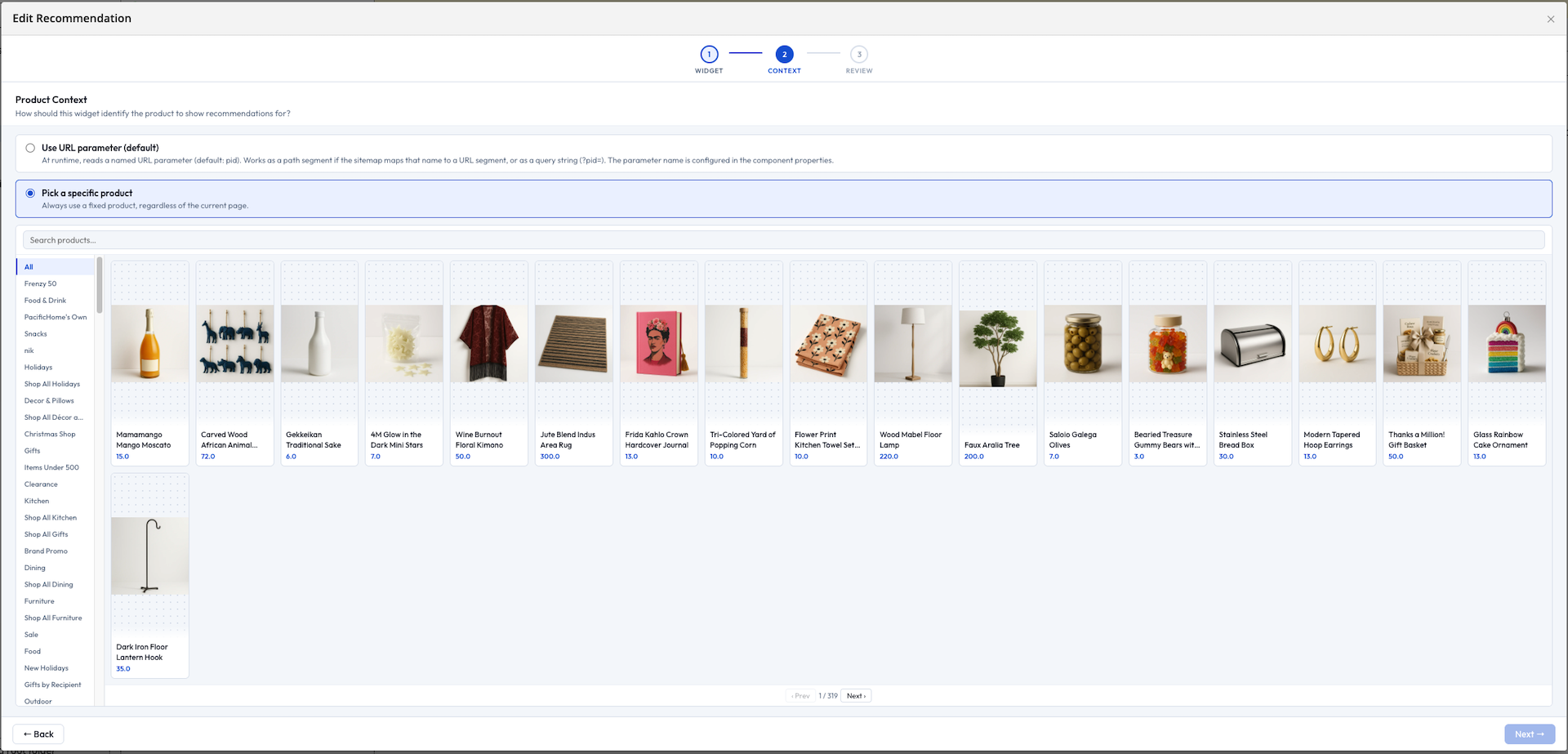
Context (product and category widgets only): Select whether the widget is always linked to a specific product or category ("Pinned"), or if it should dynamically use the product/category ID from the current page URL at render time ("Dynamic"). This step is skipped for global and personalized widgets.
-
Review: Review the configuration summary and see a live thumbnail preview of the widget output.
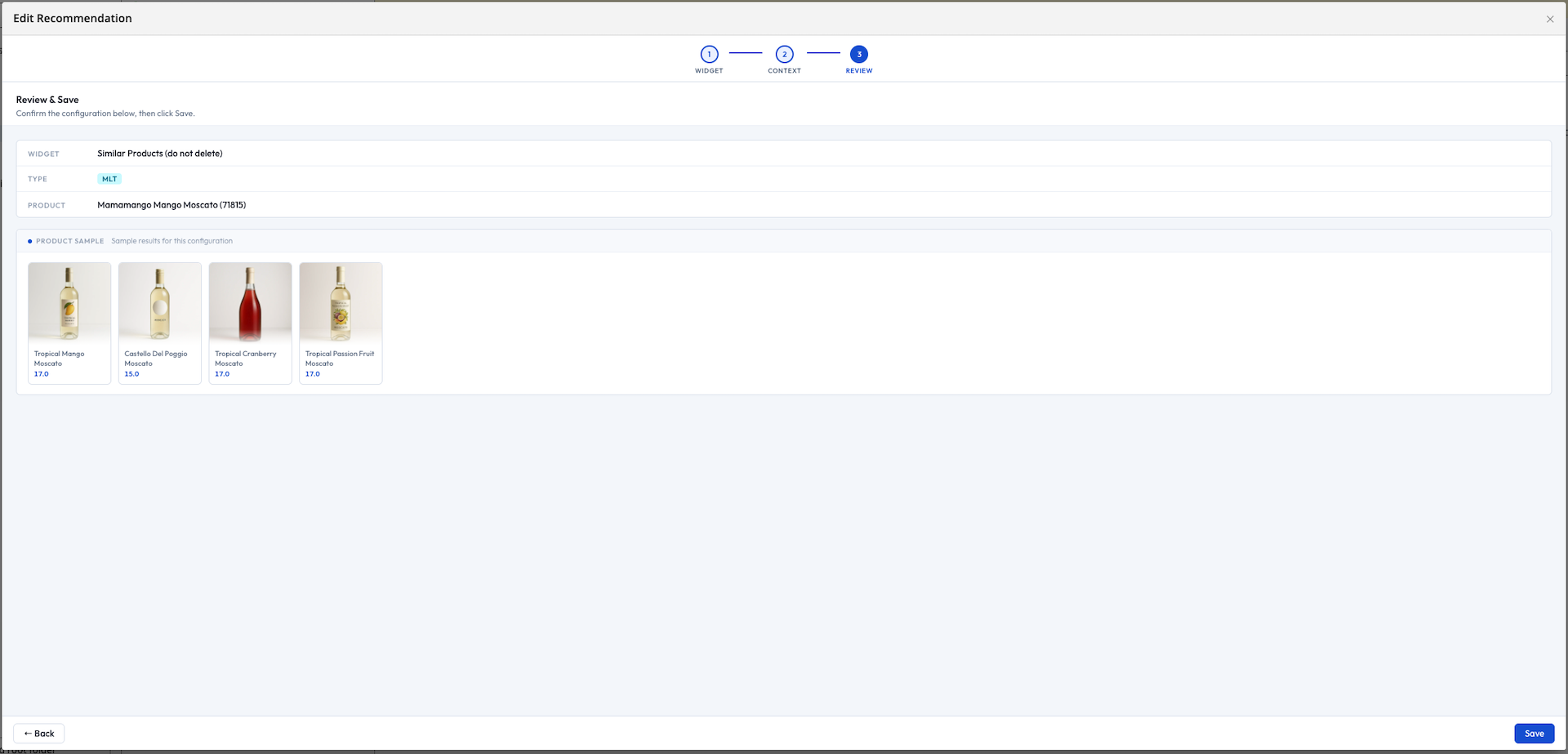
For widgets in Dynamic mode, editors can enter a sample product or category ID to preview the output. This value is used only for preview and is not saved.
Placing a Recommendation Component
Refer to Component Parameters for the shared parameter table. Each recommendation component references the widget configuration created through the wizard. No additional setup is required for the component itself.
Example: "Similar Items" carousel on a product detail page
To display a "Similar Items" carousel, place both DiscoveryProductDetailComponent and DiscoveryProductRecommendationComponent on the product detail page. Leave both components in Dynamic mode. When a user navigates to a product page with ?pid=SKU-123 in the URL, both components receive the product ID automatically. No extra integration is needed.
Visual Search
Visual search allows shoppers to upload a photo instead of entering keywords, returning products that visually match the image.

Enabling Visual Search
Visual search is enabled per channel in Channel Manager under Channel Settings → Visual Search.
| Field | Type | Default | Description |
|---|---|---|---|
| discoveryVisualSearchEnabled | boolean | false | Displays the camera button in the search bar and activates the upload endpoint. |
| discoveryVisualSearchWidgetId | String | "" | The visual search widget ID from your Discovery dashboard. This is required when enabling visual search. |

If visual search is enabled without specifying a widget ID, the plugin logs a warning and defaults to keyword search. Users will not see a broken interface.
No component parameter changes are needed. The same DiscoverySearchInputComponent and DiscoverySearchGridComponent used for keyword search also support visual search automatically.
How Visual Search Works
- The shopper selects or takes a photo.
- The image is uploaded to a server-side endpoint provided by the plugin. Discovery credentials are not exposed to the browser.
- The plugin sends the image to Discovery and receives an image reference ID.
- The shopper is redirected to the results page, which detects the image reference and calls Discovery's visual search API.
- The results page displays matching products in the standard product grid. Facets and pagination are not available for image-based results, as Discovery does not return them for this query type.
Example visual search results:
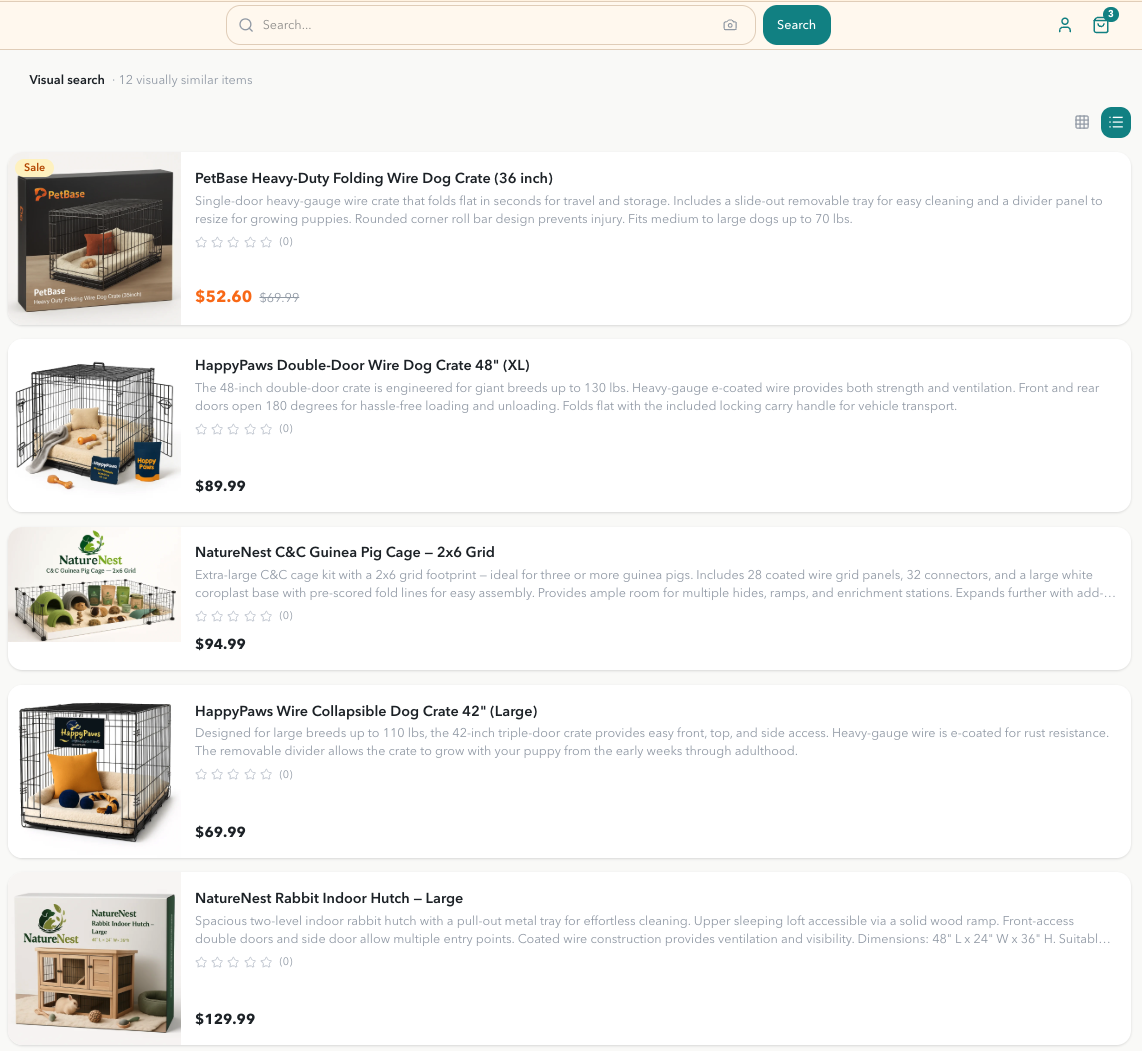
The plugin manages the integration, including communication with Discovery and mapping responses to usable models. It does not provide a front end. The UI shown in these examples is for reference only. You must implement your own templates or components to display the data returned by the plugin.
Visual Search Mount Placement
The plugin's visual search endpoints must be accessible through an HST mount located under the channel mount that contains the Discovery channel settings. This placement allows the endpoint to resolve the correct per-channel credentials.
/commerce: jcr:primaryType: hst:mount hst:mountpoint: /hst:site/hst:sites/commerce hst:namedpipeline: resourceapi /_brxdis-api: jcr:primaryType: hst:mount hst:ismapped: false hst:types: [rest] hst:namedpipeline: BrxdisVisualSearchPipeline
Do not mount this endpoint at the host root or as a sibling to your channels. If the endpoint is not nested under a channel, it cannot resolve per-channel credentials and will fall back to the global configuration.
Troubleshooting
| Symptom | Likely Cause |
|---|---|
| Camera button not visible | Visual search is disabled or no widget ID is set for this channel. |
| Upload fails | The widget ID in Channel Settings does not match a widget in the Discovery dashboard. |
| Results page falls back to keyword search | The image reference from the upload was not passed to the results page during redirect. |
authKey missing warning in logs | Visual search requires v2 Pathways credentials. See Configuration. |