Discovery Document Types and Pickers
This page describes how the Discovery plugin integrates with CMS document types and pickers. Editors configure plugin components by selecting JCR documents—such as products, categories, or recommendation widgets—using embedded Open UI pickers or wizards. Editors do not need to know or enter Discovery product or category IDs manually.
All picker and wizard interactions are routed through a CMS-side REST endpoint. The Discovery API credentials remain protected and are never exposed to the browser.
ON THIS PAGE
- Document types
- Product & category wizards - Dynamic vs. Pinned
- The product picker
- The category picker
- Live preview fields
- Adding a picker to your own document type
- Troubleshooting
Document types
The following table lists the available document types, their usage, and the associated wizard:
| Document type | Used by | Wizard |
|---|---|---|
Product Detail Document (brxdis:productDetailDocument) | Product Detail, Product Highlight components | 2-step product wizard |
Category Document (brxdis:categoryDocument) | Category Grid, Category Highlight components | 2-step category wizard |
| Product Recommendation Document | Product Recommendation component | 3-step recommendation wizard |
| Category Recommendation Document | Category Recommendation component | 3-step recommendation wizard |
| Global/Personalized Recommendation Document | Global Recommendation component | 3-step recommendation wizard |
| Keyword Recommendation Document | Keyword Recommendation component | 3-step recommendation wizard |
The recommendation wizard is documented in Recommendations & Visual Search. This page focuses on the product and category document wizards and the picker components they use.
Product & category wizards - Dynamic vs. Pinned
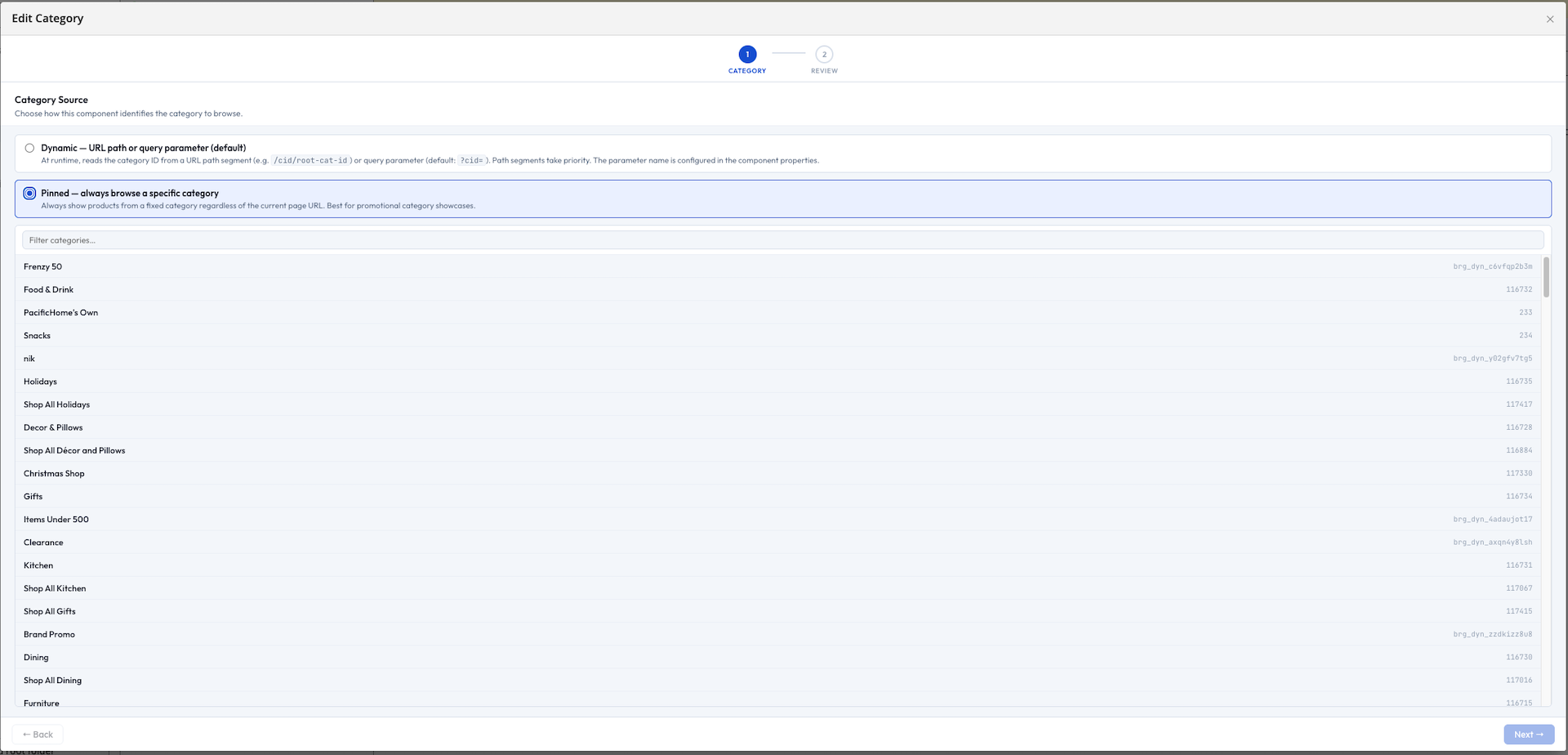
Both the product and category wizards use a two-step process. In the first step, editors choose between Dynamic and Pinned modes:
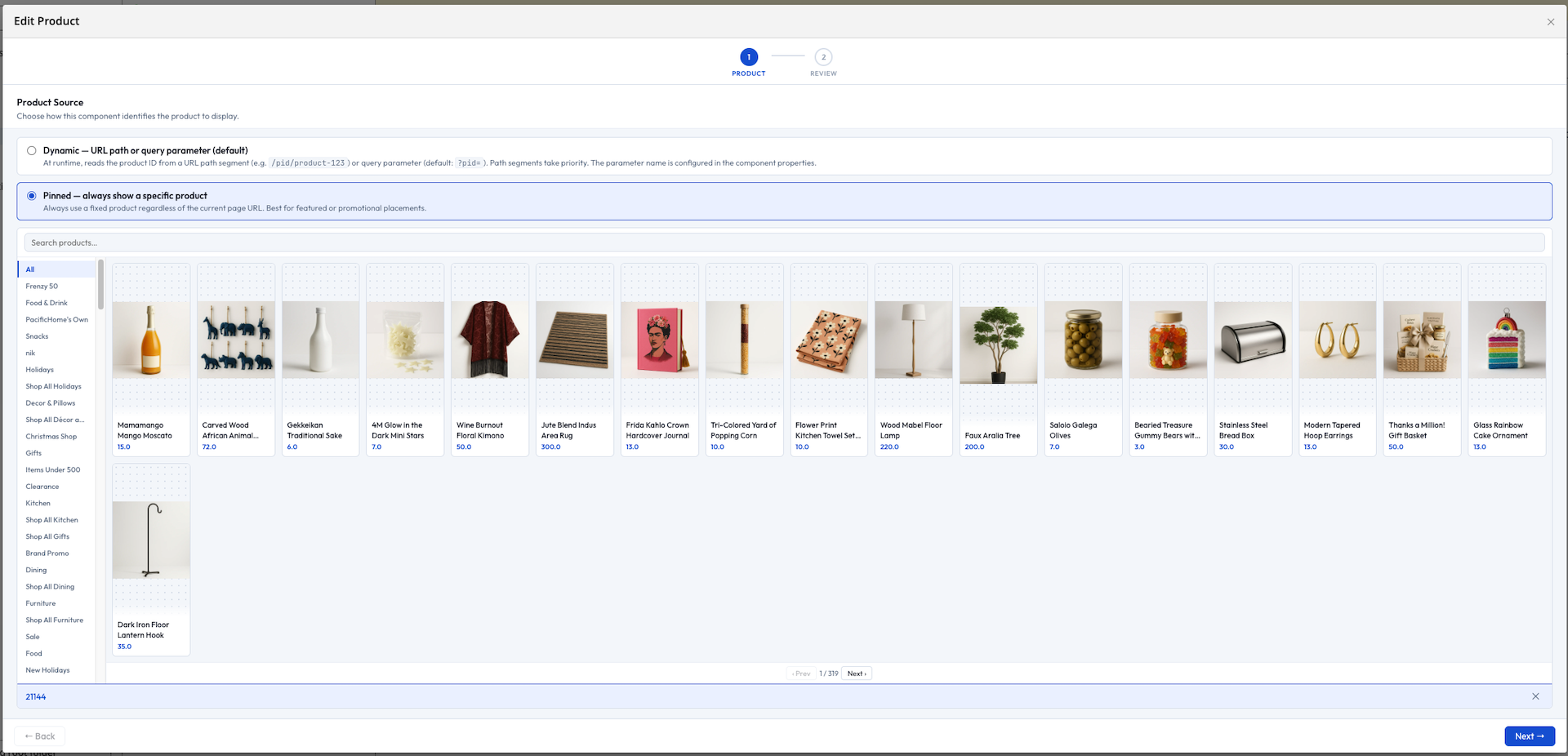
- Dynamic: The component retrieves the product or category ID from the URL at render time (for example,
?pid=for products or/category/{slug}/cid/{id}or?cid=for categories). The document does not store a specific item. Use Dynamic mode for template pages that render content based on the current visitor context. - Pinned: The editor searches for and selects a specific product or category. The selection is fixed and does not depend on the URL. Use Pinned mode for slots that should always display the same item.
In step 2, the wizard displays a review screen. For Pinned selections, it shows a live product or category card. For Dynamic mode, it explains the runtime URL behavior.
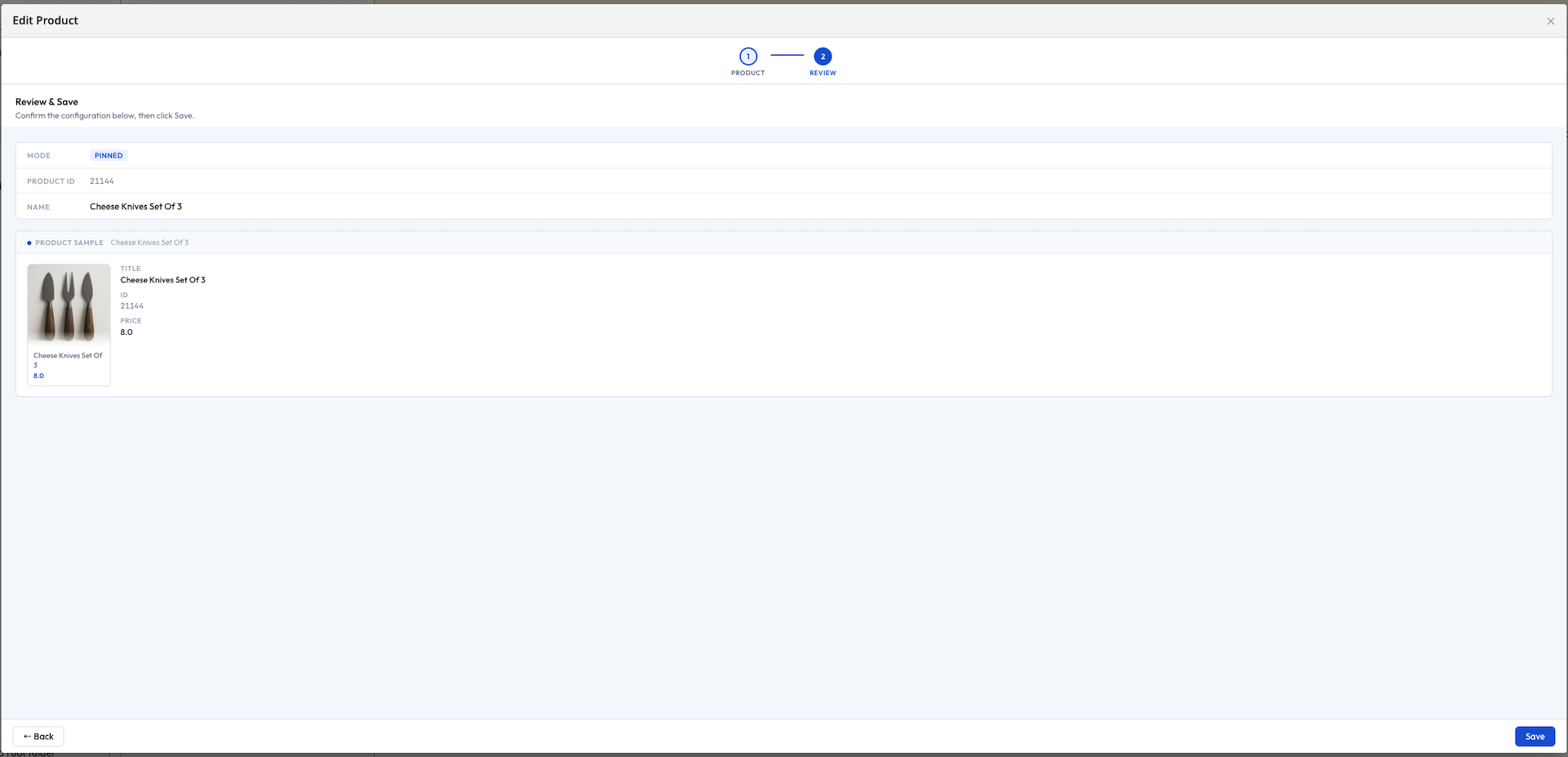
Runtime behavior:
If a component's document is not configured, it renders nothing. In Channel Manager preview, a configuration prompt appears. If a Dynamic-mode document cannot find a matching URL parameter, it also renders nothing. The preview displays a warning, but production visitors see an empty slot rather than an error.
The product picker
The product picker provides the search interface for both the product wizard and the Pinned product recommendation flow.
Editors can:
- Browse categories using the sidebar, or filter the category list by name or ID
- Search for products by keyword with the search bar
- Select a product card to highlight it (the ID and title appear in the footer)
- Confirm the selection with Select →, or cancel with Cancel
The picker stores only a single product ID string. Price, stock, and image data are always retrieved at render time, ensuring up-to-date information.
The category picker
The category picker offers a similar search interface for categories. It is used by the category wizard and by Pinned category recommendation widgets.
Live preview fields
Several document types include an inline preview field next to the wizard. Editors can see the result of their selection immediately, without saving the document.
| Preview field | Shown on | Shows |
|---|---|---|
| Product Detail Preview | Product Detail Document | Thumbnail of the selected (or Dynamic-mode) product |
| Category Product Preview | Category Document | Live thumbnail strip, with an adjustable "number of previews" control (0–4) |
| Recommendation Preview | Recommendation documents | Sample thumbnail strip for the configured widget |
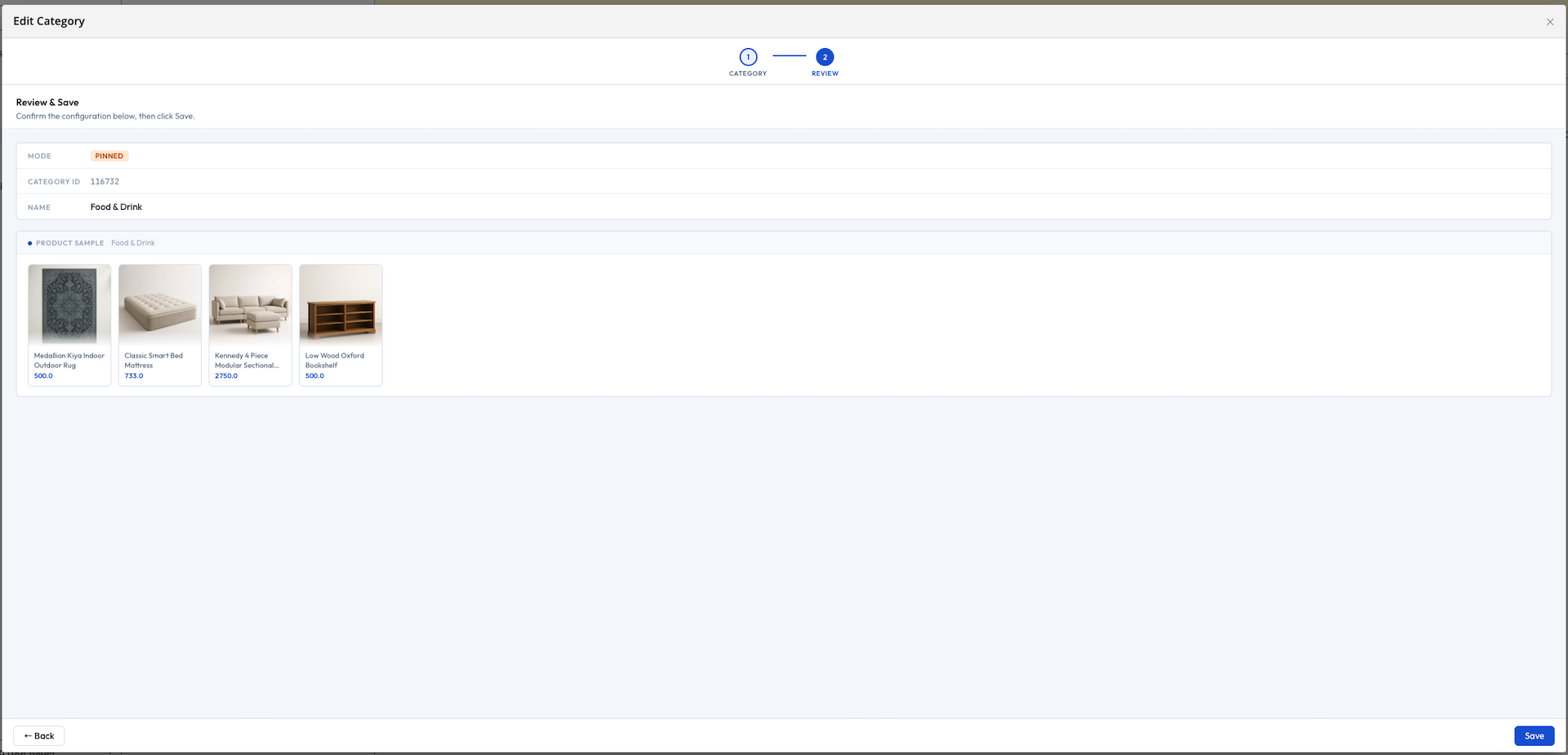
Preview fields update immediately when the picker or wizard selection changes. Saving the document is not required to see the updated preview.
Adding a picker to your own document type
To allow editors to reference a Discovery product in a custom document type, add an Open UI string field that points to the product picker extension:
/my-product-ref: jcr:primaryType: frontend:plugin caption: 'Featured Product' field: 'myns:productId' plugin.class: 'org.onehippo.cms7.frontend.plugin.field.OpenUiStringFieldPlugin' uiExtension: 'discoveryProductPicker' wicket.id: '${cluster.id}.field'
This field stores the product ID as a plain string. You can access this value in your HST code and use it as needed, such as passing it as contextProductId to a recommendation component or retrieving full product details from your commerce system at render time.
Troubleshooting
| Symptom | Likely cause |
|---|---|
| Picker dialog shows blank or fails to load | The CMS-side plugin module is missing from the classpath or has not started. See Installation. |
| Picker search returns no results | Discovery credentials are missing or incorrect for the channel. See Configuration. |
| A picked value disappears after reload | The property backing the field is not declared in your document type's node type definition. |
| Product preview shows the wrong category's products | The picker field and the preview field are not in the same document. Live updates only apply to fields within the same open document. |