3. Add a Document Type Characteristic UI Plugin
Info: This feature in Bloomreach Content requires a standard or premium license. Contact Bloomreach for details.
Previous
Add a Document Types Collector and Characteristic
Characteristic UI Plugin Overview
The Relevance Module UI requires a characteristic UI plugin to display and edit characteristics in the CMS. A characteristic UI plugin provides:
- A description (required), such as "has seen (document type)"
- An icon (optional) to display with the description
- A visitor characteristic (optional), which shows visitor data for this characteristic in the Visitor Analysis screen (for example, "has seen Blogpost Document")
- A custom renderer and/or editor for target groups within the characteristic
This guide demonstrates the development of the documenttype characteristic plugin in three versions. Each version adds more functionality: description and icon, visitor characteristic, and finally a custom renderer and editor.
Version 1: Characteristic UI Plugin with Description and Icon
The initial version of the documenttype characteristic plugin extends TermsFrequencyCharacteristicPlugin and adds a custom description. After completing these steps, the documenttype characteristic appears as a visitor characteristic in the Visitor Analysis screen, in the Characteristics tab, and in the segment editor in the Segments tab.
Visitor Analysis 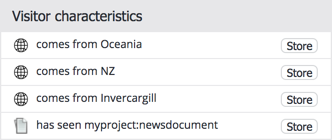 | Characteristics 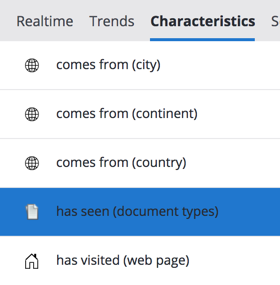 |
Segments  |
Step 1: Register the Plugin in the JCR
Use the Console to add the following JCR node. This registers the new documenttype characteristic plugin:
/hippo:configuration/hippo:frontend/cms/hippo-targeting: /characteristic-documenttype: jcr:primaryType: frontend:plugin collector: documenttypes characteristic: documenttype plugin.class: com.example.DocumentTypeCharacteristicPlugin
Step 2: Implement the Plugin Java Class
Add the following Java class in the cms module:
cms/src/main/java/com/example/DocumentTypeCharacteristicPlugin.java:
package com.example; import com.onehippo.cms7.targeting.frontend.plugin.TermsFrequencyCharacteristicPlugin; import org.apache.wicket.request.resource.ResourceReference; import org.apache.wicket.request.resource.PackageResourceReference; import org.hippoecm.frontend.plugin.IPluginContext; import org.hippoecm.frontend.plugin.config.IPluginConfig; public class DocumentTypeCharacteristicPlugin extends TermsFrequencyCharacteristicPlugin { public DocumentTypeCharacteristicPlugin(IPluginContext context, IPluginConfig config) { super(context, config); } @Override public ResourceReference getIcon() { return new PackageResourceReference(DocumentTypeCharacteristicPlugin.class, "documents-icon.png"); } }
Step 3: Add the Icon Resource
Place the icon file documents-icon.png in the same package as the plugin, within the resources directory of the cms module.

cms/src/main/resources/com/example/documents-icon.png:

Info: This icon is from the Free Shimmer Icons library, licensed under Creative Commons Attribution-NoDerivs 3.0 Unported.
Step 4: Add the Resource Bundle
Create a .properties file for the plugin class in the same package and directory. It must contain at least the following keys:
cms/src/main/resources/com/example/DocumentTypeCharacteristicPlugin.properties:
characteristic-description=has seen {0}
characteristic-subject=(document types)
The {0} in characteristic-description is replaced either by characteristic-subject for a generic description (e.g., "has seen (document types)"), or by the name of a target group (e.g., "has seen myproject:newsdocument").
Step 5: Deploy the Plugin
Stop your running project, rebuild it, and restart it to deploy the new plugin.
Version 2: Characteristic UI Plugin with Description, Icon, and Visitor Characteristic
Warning: This example applies to version 17.1 and below. From 17.2 onward, the ExtJS UI framework is replaced by Angular. See Characteristics for details.
In Version 1, the plugin uses the visitor characteristic from TermsFrequencyCharacteristicPlugin, which displays a comma-separated list of all property names for a target group. For the document type characteristic, this means showing raw JCR types. To display document types without the JCR namespace (e.g., only the type name), implement the following changes.
Step 1: Update the Java Class
Modify the plugin to extend CharacteristicPlugin and specify the associated JavaScript class:
DocumentTypeCharacteristicPlugin.java:
package com.example; import com.onehippo.cms7.targeting.frontend.plugin.CharacteristicPlugin; import org.apache.wicket.Component; import org.apache.wicket.markup.head.JavaScriptHeaderItem; import org.apache.wicket.markup.head.IHeaderResponse; import org.apache.wicket.request.resource.ResourceReference; import org.apache.wicket.request.resource.JavaScriptResourceReference; import org.apache.wicket.request.resource.PackageResourceReference; import org.hippoecm.frontend.plugin.IPluginContext; import org.hippoecm.frontend.plugin.config.IPluginConfig; import org.wicketstuff.js.ext.util.ExtClass; @ExtClass("Example.DocumentTypeCharacteristicPlugin") public class DocumentTypeCharacteristicPlugin extends CharacteristicPlugin { private static final JavaScriptResourceReference DOCTYPE_JS = new JavaScriptResourceReference(DocumentTypeCharacteristicPlugin.class, "DocumentTypeCharacteristicPlugin.js"); public DocumentTypeCharacteristicPlugin(IPluginContext context, IPluginConfig config) { super(context, config); } @Override protected ResourceReference getIcon() { return new PackageResourceReference(DocumentTypeCharacteristicPlugin.class, "documents-icon.png"); } @Override public void renderHead(final Component component, IHeaderResponse response) { super.renderHead(component, response); response.render(JavaScriptHeaderItem.forReference(DOCTYPE_JS)); } }
Step 2: Add the JavaScript File
Create the JavaScript file DocumentTypeCharacteristicPlugin.js. You can place it in either the resources directory or next to the Java class in the java directory. If you place it in src/main/java, update the CMS pom.xml to include .js files from this location in the build.
cms/pom.xml:
<build> <resources> <resource> <filtering>false</filtering> <directory>${basedir}/src/main/java</directory> <includes> <include>**/*.js</include> </includes> </resource> <resource> <filtering>false</filtering> <directory>${basedir}/src/main/resources</directory> <includes> <include>**/*</include> </includes> </resource> </resources> ... </build>
Info:
- JRebel can reload JavaScript changes automatically if you configure IntelliJ.
- Use browser developer tools (such as Chrome DevTools or Firebug) to debug JavaScript log messages from the Relevance Module UI.
Step 3: Implement the JavaScript Classes
cms/src/main/java/com/example/DocumentTypeCharacteristicPlugin.js:
Ext.namespace('Example'); Example.DocumentTypeCharacteristicPlugin = Ext.extend(Hippo.Targeting.CharacteristicPlugin, { constructor: function(config) { Ext.apply(config, { visitorCharacteristic: { xtype: 'Example.DocumentTypeCharacteristic' } }); Example.DocumentTypeCharacteristicPlugin.superclass.constructor.call( this, config); } }); Example.DocumentTypeCharacteristic = Ext.extend(Hippo.Targeting.VisitorCharacteristic, { isCollected: function(targetingData) { console.log(targetingData.termFreq); return !this.isEmptyObject(targetingData.termFreq); }, isEmptyObject: function(object) { var isEmpty = true; if (!Ext.isEmpty(object)) { Ext.iterate(object, function() { isEmpty = false; return false; }) } return isEmpty; }, getTargetGroupName: function(targetingData) { var names = []; Ext.iterate(targetingData.termFreq, function(term) { var indexAfterNamespace = term.indexOf(':') + 1; names.push(term.substring(indexAfterNamespace)); }); return names.join(', '); }, getTargetGroupProperties: function(targetingData) { var properties = []; Ext.iterate(targetingData.termFreq, function(term) { properties.push({ name: term, value: '' }) }); return properties; } }); Ext.reg('Example.DocumentTypeCharacteristic', Example.DocumentTypeCharacteristic);
- Namespace all custom JavaScript classes (here,
Example). - The
visitorCharacteristicproperty specifies the xtype for the visitor characteristic class. - The
isCollectedfunction checks if any document types have been collected for the visitor. - The
getTargetGroupNamefunction removes the namespace prefix from the JCR type. - The
getTargetGroupPropertiesfunction returns an array of property objects for each document type.
Version 3: Characteristic UI Plugin with Description, Icon, Visitor Characteristic, and Custom Renderer and Editor
Warning: This example applies to version 17.1 and below. From 17.2 onward, the ExtJS UI framework is replaced by Angular. See Characteristics for details.
Versions 1 and 2 use the default target group renderer and editor, which display target groups as a comma-separated list of JCR types. To improve usability, Version 3 introduces a custom renderer and editor, allowing users to select document types from a predefined list.
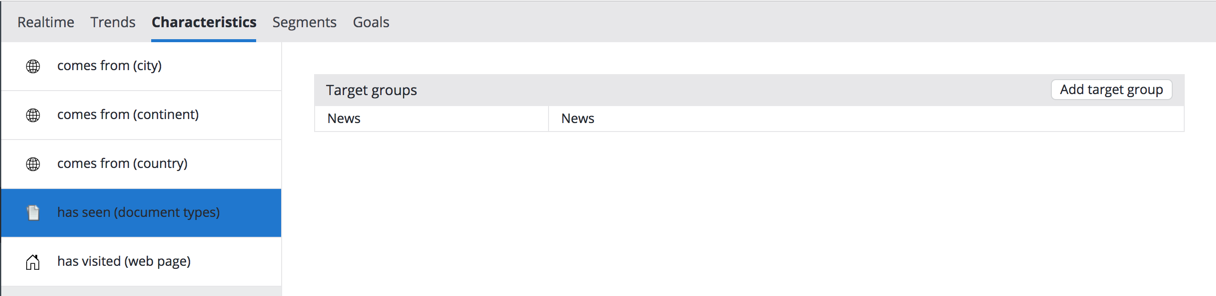
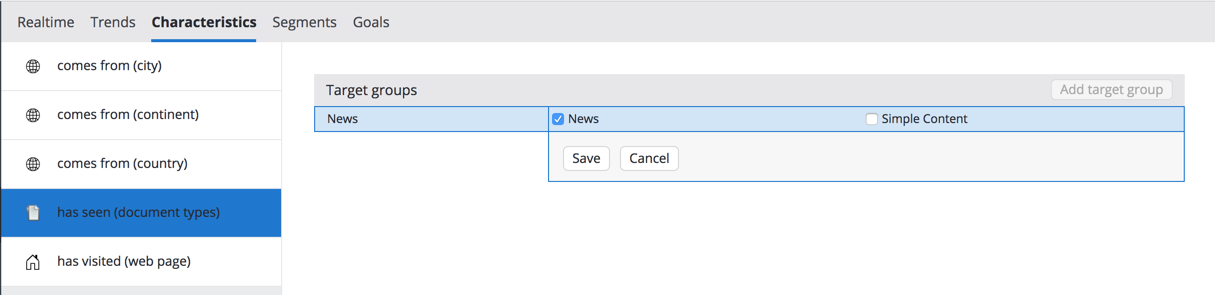
The final version of the plugin is available as com.onehippo.cms7.targeting.frontend.plugin.documenttype.DocumentTypeCharacteristicPlugin in the Relevance Module. The renderer displays i18n names for each document type, and the editor provides a checkbox group for selection.
Renderer Example:
Editor Example:
Step 1: Update the Java Class
Modify the Java class to provide a list of document types and their i18n names.
cms/src/main/java/com/example/DocumentTypeCharacteristicPlugin.java:
package com.example; import java.util.ArrayList; import java.util.List; import org.apache.wicket.Component; import org.apache.wicket.markup.head.IHeaderResponse; import org.apache.wicket.markup.head.JavaScriptHeaderItem; import org.apache.wicket.request.resource.JavaScriptResourceReference; import org.apache.wicket.request.resource.PackageResourceReference; import org.apache.wicket.request.resource.ResourceReference; import org.hippoecm.frontend.plugin.IPluginContext; import org.hippoecm.frontend.plugin.config.IPluginConfig; import org.json.JSONException; import org.json.JSONObject; import org.wicketstuff.js.ext.util.ExtClass; import com.onehippo.cms7.targeting.frontend.plugin.CharacteristicPlugin; @ExtClass("Example.DocumentTypeCharacteristicPlugin") public class DocumentTypeCharacteristicPlugin extends CharacteristicPlugin { private static final JavaScriptResourceReference DOCTYPE_JS = new JavaScriptResourceReference(DocumentTypeCharacteristicPlugin.class, "DocumentTypeCharacteristicPlugin.js"); public DocumentTypeCharacteristicPlugin(IPluginContext context, IPluginConfig config) { super(context, config); } @Override protected ResourceReference getIcon() { return new PackageResourceReference(DocumentTypeCharacteristicPlugin.class, "documents-icon.png"); } @Override public void renderHead(final Component component, final IHeaderResponse response) { super.renderHead(component, response); response.render(JavaScriptHeaderItem.forReference(DOCTYPE_JS)); } @Override protected void onRenderProperties(final JSONObject properties) throws JSONException { super.onRenderProperties(properties); List<JSONObject> documentTypes = new ArrayList<JSONObject>(); documentTypes.add(createDocumentType("News", "myproject:newsdocument")); documentTypes.add(createDocumentType("Simple Content", "myproject:contentdocument")); properties.put("documentTypes", documentTypes); } JSONObject createDocumentType(String name, String jcrType) throws JSONException { JSONObject documentType = new JSONObject(); documentType.put("type", jcrType); documentType.put("name", name); return documentType; } }
The list of available document types and their i18n names is hardcoded here for demonstration. In the Relevance Module, you can configure which document types to include, and the plugin looks up i18n names automatically.
Step 2: Update the Resource Bundle
Add an error message key for the editor.
cms/src/main/resources/com/example/DocumentTypeCharacteristicPlugin.properties:
characteristic-description=has seen {0}
characteristic-subject=(document types)
error-select-at-least-one-document-type=Select at least one document type
Step 3: Extend the JavaScript Class
Update the JavaScript file to define the custom renderer and editor.
cms/src/main/java/com/example/DocumentTypeCharacteristicPlugin.js:
Ext.namespace('Example'); Example.DocumentTypeCharacteristicPlugin = Ext.extend(Hippo.Targeting.CharacteristicPlugin, { constructor: function(config) { this.documentTypeMap = new Hippo.Targeting.Map(config.documentTypes, 'type', 'name'); Ext.apply(config, { visitorCharacteristic: { documentTypeMap: this.documentTypeMap, xtype: 'Example.DocumentTypeCharacteristic' }, editor: { documentTypes: config.documentTypes, resources: config.resources, xtype: 'Example.DocumentTypeTargetGroupEditor' }, renderer: this.renderDocumentTypeNames, scope: this }); Example.DocumentTypeCharacteristicPlugin.superclass.constructor.call( this, config); }, renderDocumentTypeNames: function(properties) { var result = []; Ext.each(properties, function(property) { var type = property.name, name = this.documentTypeMap.getValue(type); if (!Ext.isEmpty(name)) { result.push(name); } }, this); return result.join(', '); } }); Example.DocumentTypeCharacteristic = Ext.extend(Hippo.Targeting.TermsFrequencyCharacteristic, { constructor: function(config) { Example.DocumentTypeCharacteristic.superclass.constructor.call( this, config); this.documentTypeMap = config.documentTypeMap; }, getTermName: function(term) { return this.documentTypeMap.getValue(term); } }); Ext.reg('Example.DocumentTypeCharacteristic', Example.DocumentTypeCharacteristic); Example.DocumentTypeTargetGroupEditor = Ext.extend(Hippo.Targeting.TargetGroupCheckboxGroup, { constructor: function(config) { var checkboxes = []; Ext.each(config.documentTypes, function(documentType) { checkboxes.push({ boxLabel: documentType.name, name: documentType.type }); }); Example.DocumentTypeTargetGroupEditor.superclass.constructor.call( this, Ext.apply(config, { allowBlank: config.allowBlank || false, blankText: config.resources['error-select-at-least-one-document-type'], columns: config.columns || 2, items: checkboxes, vertical: true })); } }); Ext.reg('Example.DocumentTypeTargetGroupEditor', Example.DocumentTypeTargetGroupEditor);
- The Java class provides an array of document types with
typeandnameproperties. - The JavaScript class wraps this array in
Hippo.Targeting.Mapfor easy lookup. - The
rendererfunction displays the i18n name for each selected document type. - The
editorpresents a checkbox for each document type, allowing users to select types for the target group. - The
getTermNamefunction inExample.DocumentTypeCharacteristicreturns the display name for each term.
Next Steps
After implementing the characteristic UI plugin, you can further customize its behavior or integrate it with other targeting features as needed.
For more information on characteristic plugins and advanced configuration, see the Characteristics documentation.