Personalize a Component
Info: Personalizing components in Bloomreach Content requires a standard or premium license. Contact Bloomreach for licensing details.
You can personalize a page component to deliver targeted experiences to specific visitor groups.
Prerequisites
- Define at least one target group.
- Optionally, define segments.
Steps to Personalize a Component
-
Open the
Experience managerapplication. -
Select the channel where you want to personalize a component.
-
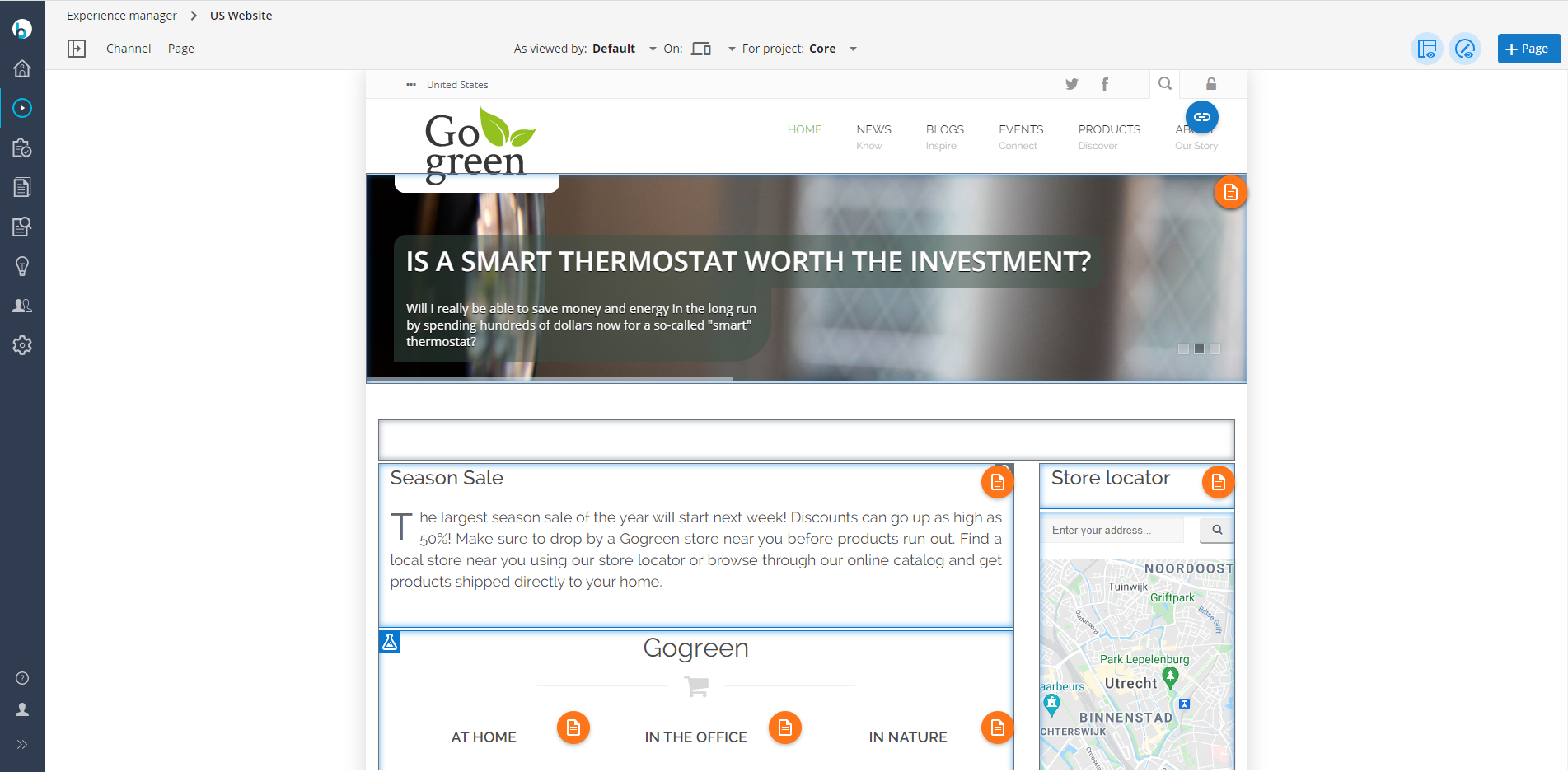
Navigate to the page containing the component you want to personalize.
-
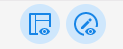
If components are not outlined, click the Show components icon in the top right corner.
-
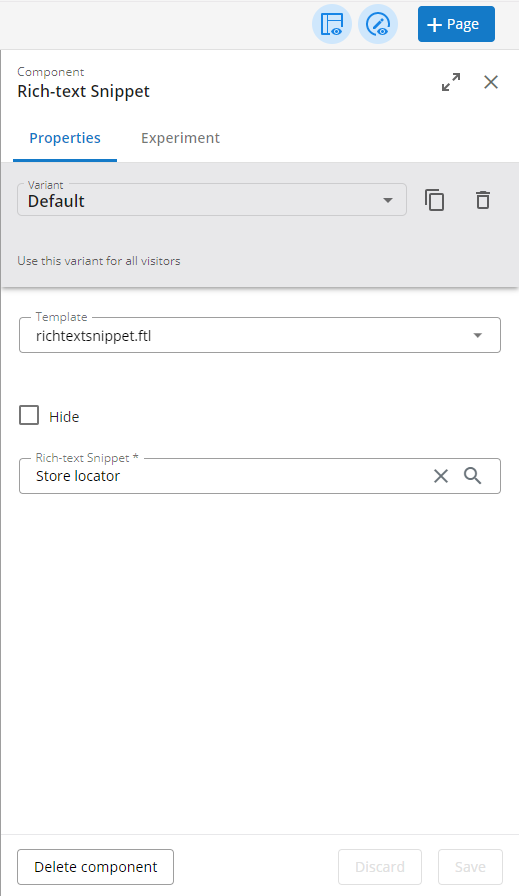
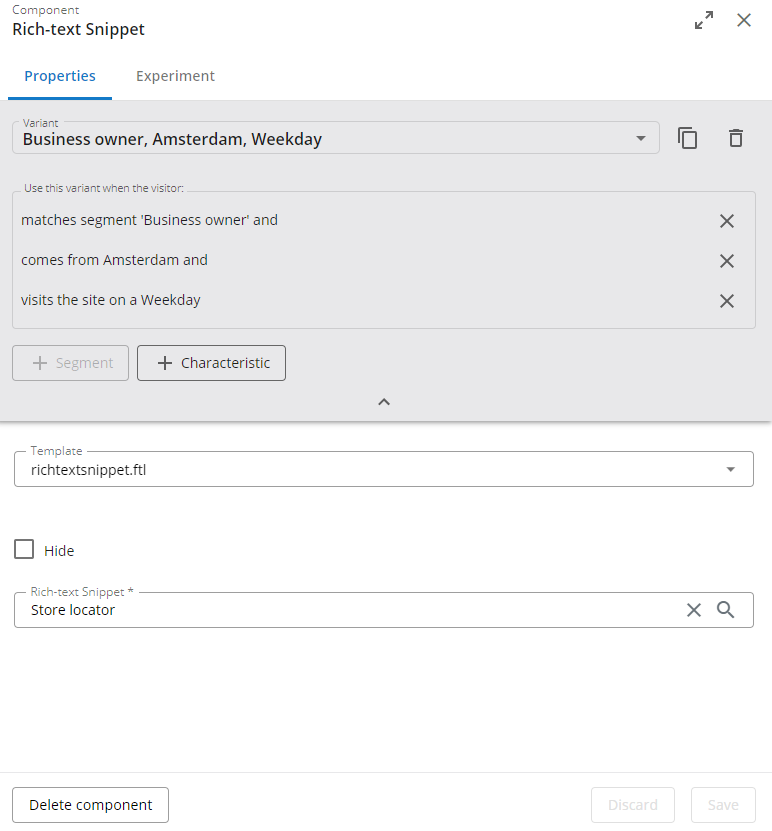
Click the component you want to personalize. The component configuration dialog appears.
-
Click
+ Copy Variantto create a new configuration variant based on the default settings.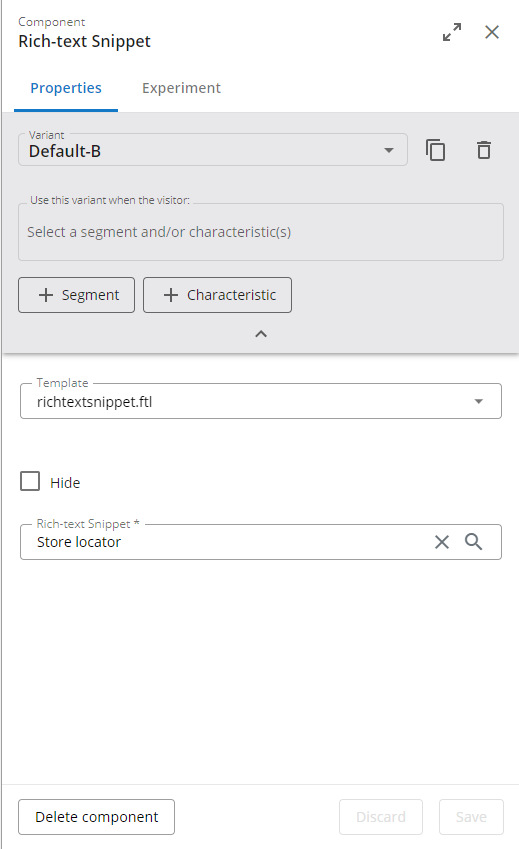
-
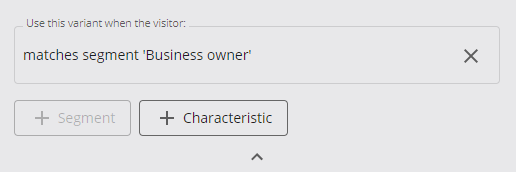
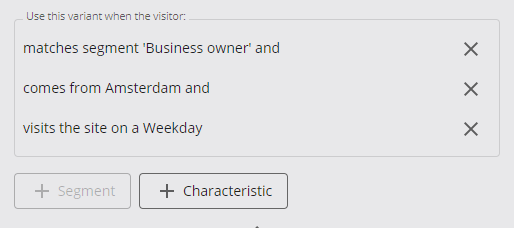
Define the audience for this variant by adding a segment and/or visitor characteristics.
Add a Segment
-
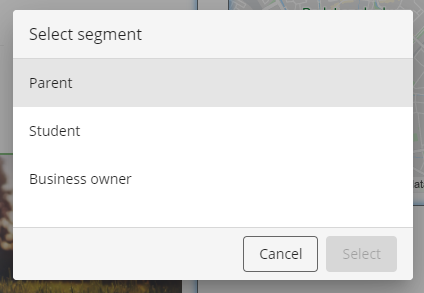
Click Add segment.
-
In the dialog, select a segment.
-
Click OK to confirm.
Add Characteristics
-
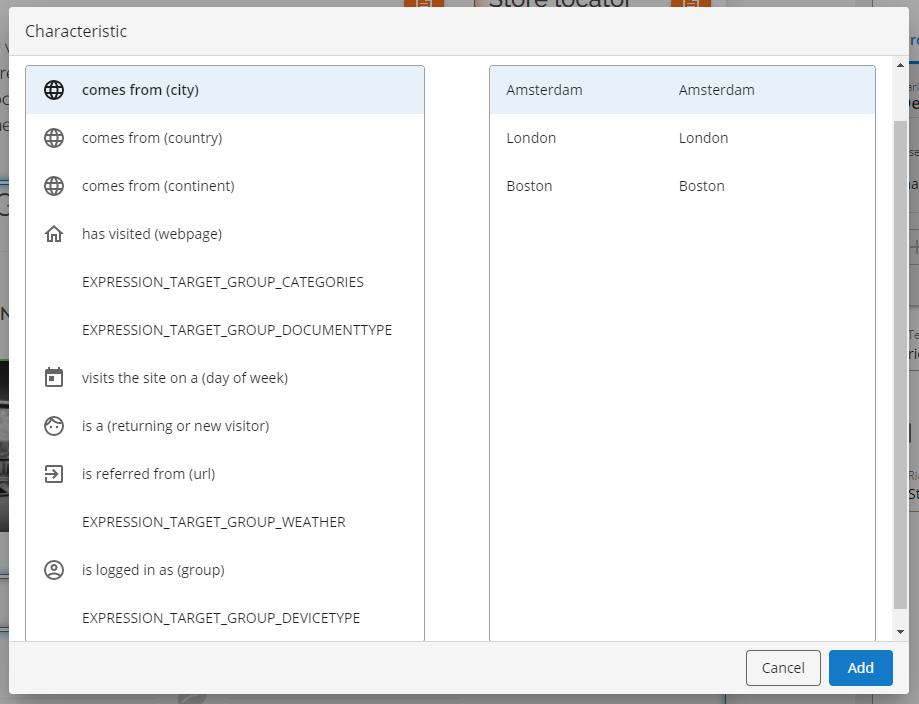
Click Add characteristics.
-
In the dialog, select a characteristic and then a target group.
-
Click OK to add the characteristic.
-
Repeat this process for each characteristic you want to include.
-
-
Adjust the component's configuration settings as needed for the selected audience.
-
Click Save to store the personalized variant.
-
Click Close to exit the component configuration dialog.
Previewing Personalized Components
After saving, the Experience manager continues to display the component in its default configuration. To preview the personalized variant, use the As viewed by feature. For details, see Preview a personalized component.