Create an Experiment
Info: This feature in Bloomreach Content requires a standard or premium license. Contact Bloomreach for licensing details.
This guide explains how to create a content or audience experiment using a Banner Carousel component as an example.
Prerequisites
- Create a goal for your experiment before proceeding.
Steps to Create an Experiment
-
Open the
Experience manager. -
Select the channel where you want to create the experiment.
-
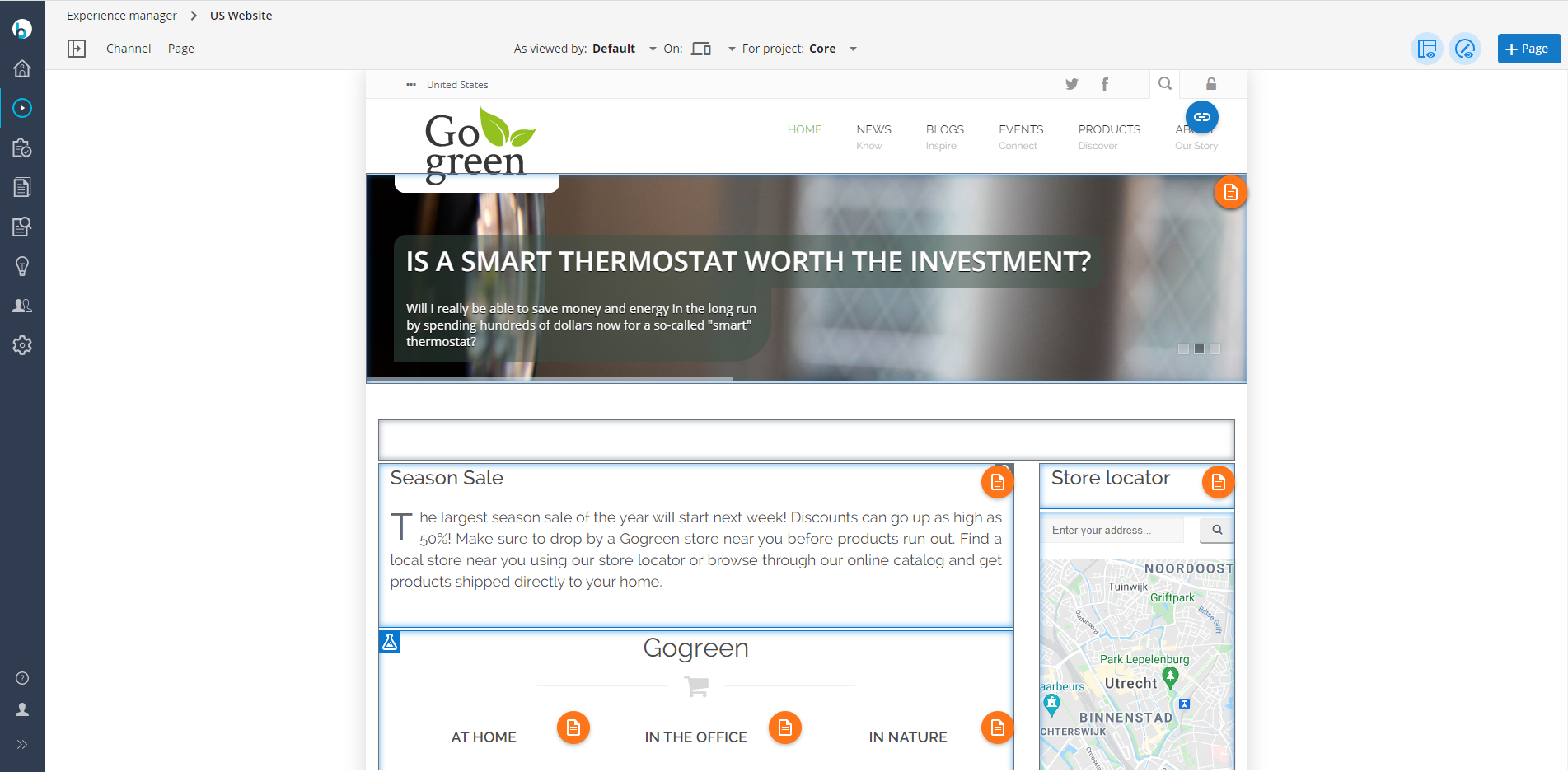
Navigate to the page where you want to set up the experiment.
-
If component outlines are not visible, click the
Show componentsicon in the top right corner.
-
Click the component you want to experiment with. The component configuration dialog opens.

-
If the component supports multiple configuration variants, select the variant you want to use.
-
Click
+ Copy variant. This creates a new variant with the same configuration.
Create a Content Experiment
-
Modify one or more configuration parameters in the new variant. For example, select a different template or different banners.
-
Click
Saveto store the variant. The dialog now displays the new variant as 'Default-B'.
-
To add more than two variants (up to 26), repeat the steps above.
-
Select a goal to associate with the experiment.

For example, select the goal 'Visits Blogs Page'.

-
Click
Save. A message confirms that the experiment will start after you publish your changes.
Create an Audience Experiment
-
Select a segment and/or characteristics to define the audience for the variant. For example, select the persona 'Student'.

-
Optionally, update the configuration parameters for the targeted variant. For example, select only one banner: "How to green your dorm room".
-
Click
Saveto store the variant. The dialog now lists the variant with the targeted audience (for example, 'Student').
-
To add more than two variants (up to 26), repeat the steps above.
-
Select a goal to associate with the experiment.
For example, select the goal 'Visits Blogs Page'.
-
Click
Saveto store the variant.
Publish the Experiment
-
Close the component configuration dialog by clicking
Closeor theXin the top right corner. -
Click
Channel, then selectPublishto start the experiment.- The component under experiment is now locked. It displays a flask icon and cannot be modified while the experiment is running. The component will be unlocked when the experiment ends.

Next Steps
The experiment is now active. You can monitor its progress.