Rebuild & Restart the Project
Previous: Add Features to the Project
Info: This page describes how to rebuild and restart the web applications (WARs) for your project.
Rebuilding and restarting the project is a standard step in the setup process. This action incorporates new features into the dashboard and makes them available in your Bloomreach Content project.
The Dashboard displays a notification when a plugin requires a rebuild and restart. Select the rebuild notification in the upper right corner to access the rebuild page. This page explains the reasons for rebuilding, when it is necessary, and how to perform the process.
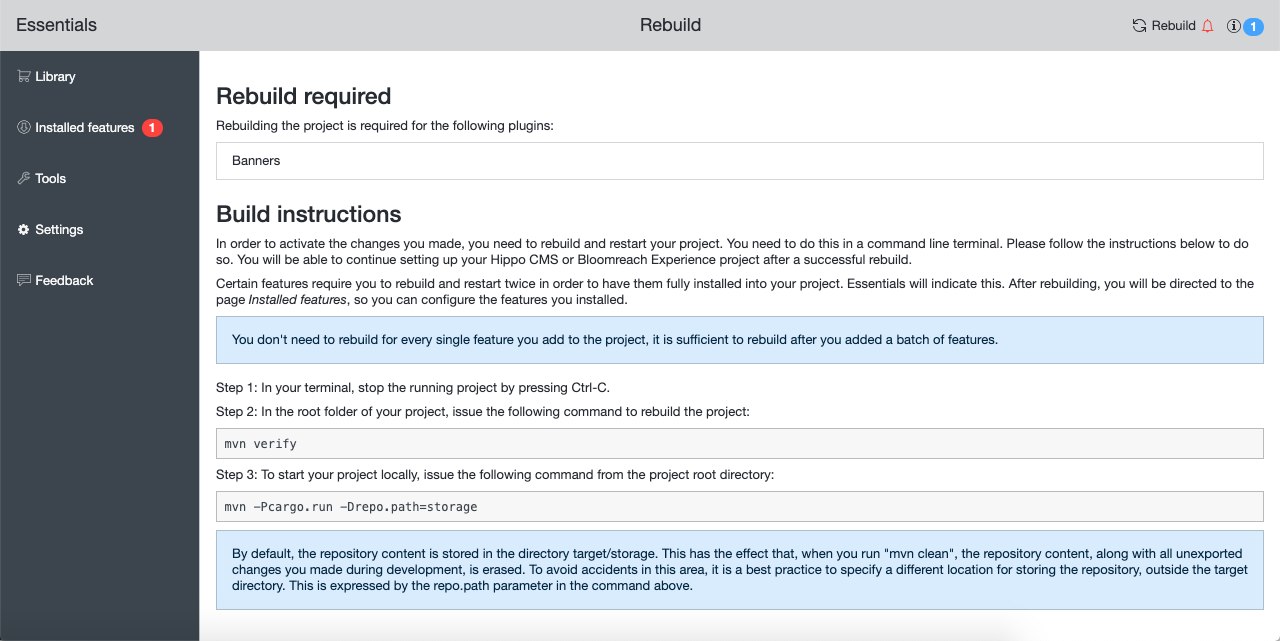
You can rebuild and restart the project using the command line or your IDE. To use the command line, run the following commands:
mvn verify mvn -Pcargo.run -Drepo.path=./storage
The setup application uses a pinger mechanism to detect when the backend is unavailable. If the backend is down, the UI displays an "unavailable" status message.
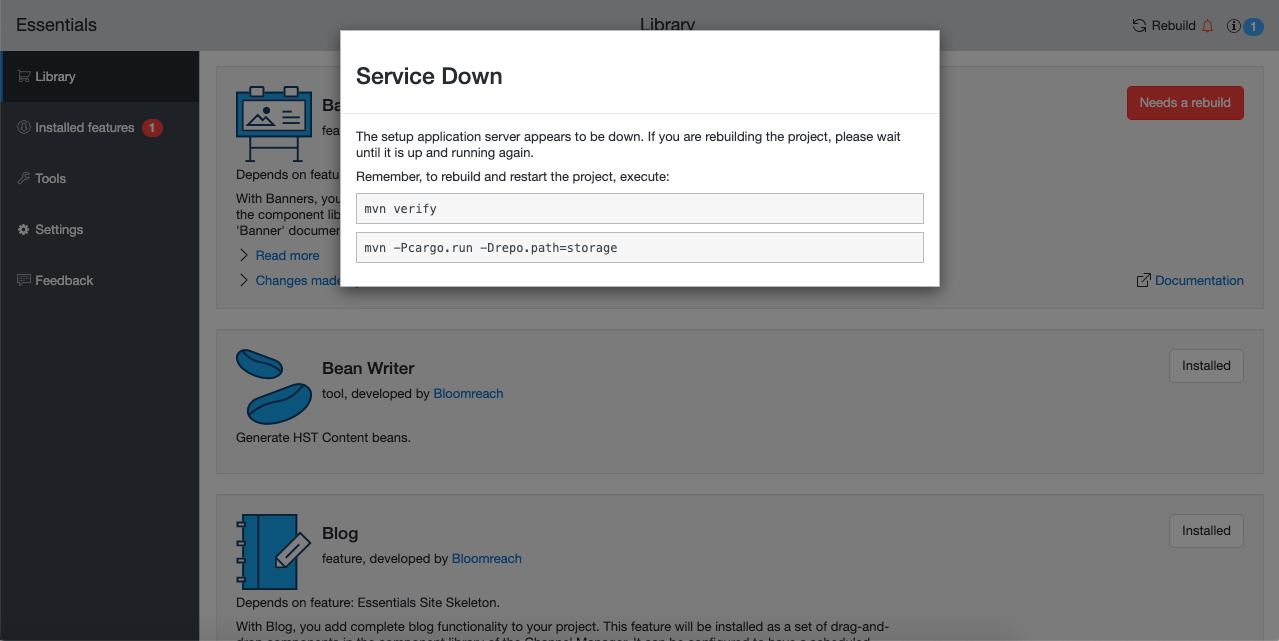
When the backend becomes available again, the pinger automatically reloads the UI. You are typically redirected to the Installed features page.
If the installed feature includes a configuration screen, you can proceed to configure the feature.