Define a Target Group
Info: This feature in Bloomreach Content requires a standard or premium license. Contact Bloomreach for licensing details.
A target group defines a set of visitors who share a specific characteristic. Use target groups to define a segment or to personalize a component.
Prerequisites
- Access to the Content audiences application in Bloomreach Content.
- Appropriate license (standard or premium).
Steps to Define a Target Group
-
Open the Content audiences application.
-
Select the Characteristics tab.
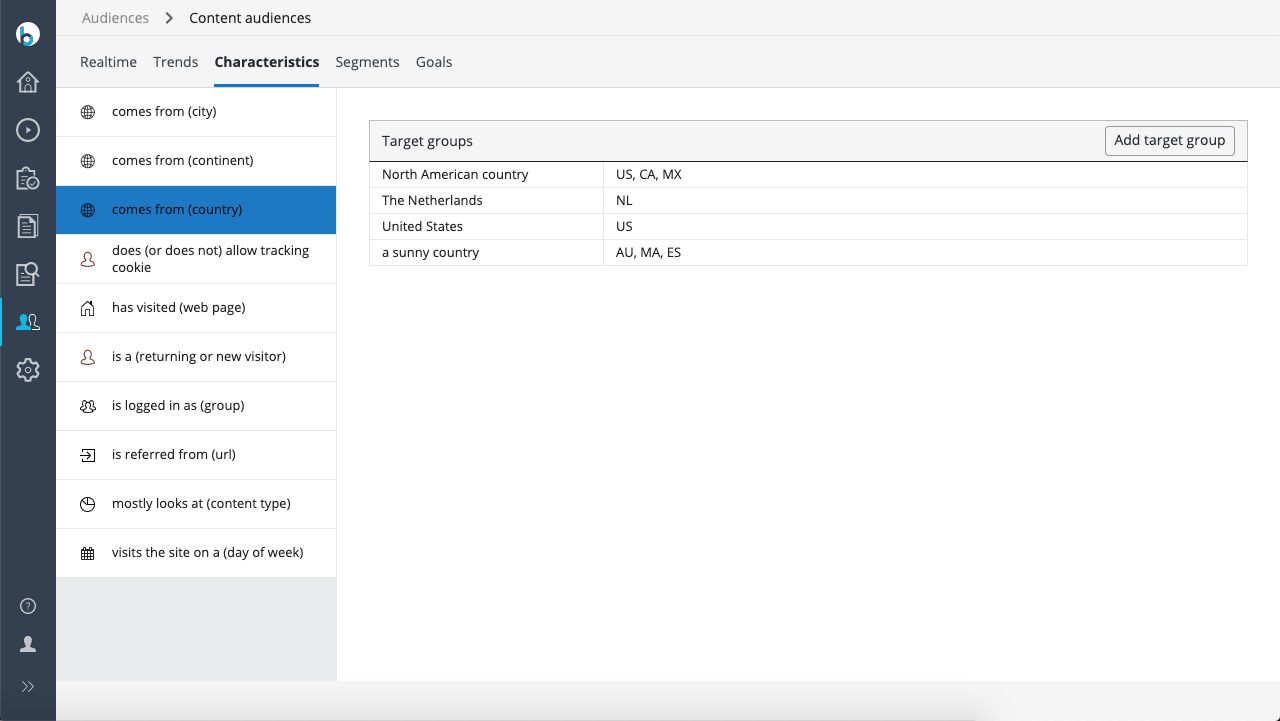
The left column lists all available visitor characteristics.
-
Choose a characteristic. For example, select 'comes from (country)'.
The right panel displays any existing target groups for the selected characteristic.

-
Click Add target group.
A new row appears in the target groups list.

-
In the left column, enter a descriptive label for the target group.
-
In the right column, enter or select the value for the target group. The input method depends on the characteristic.
Example:
- Label:
Norway - Value:
NO(the two-letter country code for Norway)

- Label:
-
Click Save to store the target group.
Define a Target Group with Multiple Values
You can assign multiple values to a target group by entering a comma-separated list.
Example:
- Label:
Nordic Country - Values:
DK,NO,SE,FI,IS

Click Save to store the target group.
Using Target Groups
After you define a target group, you can:
- Personalize a component using the target group.
- Define a segment by combining multiple target groups across different characteristics.
Additional Notes
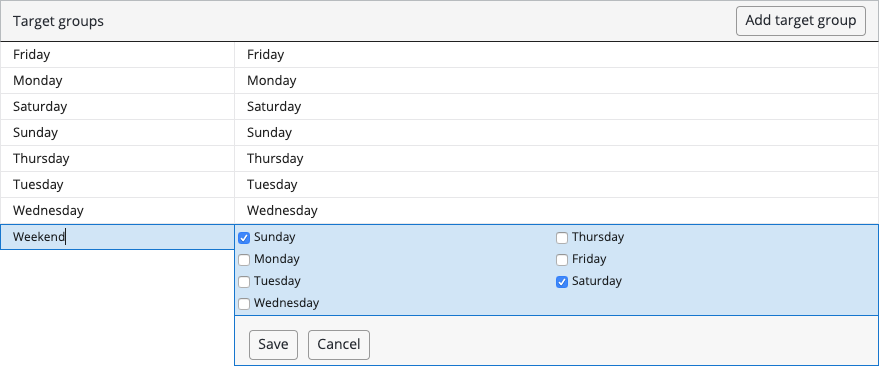
Some characteristics, such as 'visits the site on a (day of the week)', allow you to select values from a predefined list.
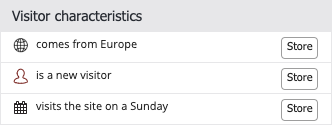
Hint: While analyzing visitors, use the Store buttons to save relevant characteristics as target groups: