User Management
Overview
Manage users, groups, user roles, and permissions in Bloomreach Content.
This functionality is available only to users with the Admin role.

User Management Tasks
Add a Group
- Go to Setup > Bloomreach Content User management.
- Select Groups.
- Click Create a new group.
- Complete the form and select Create.

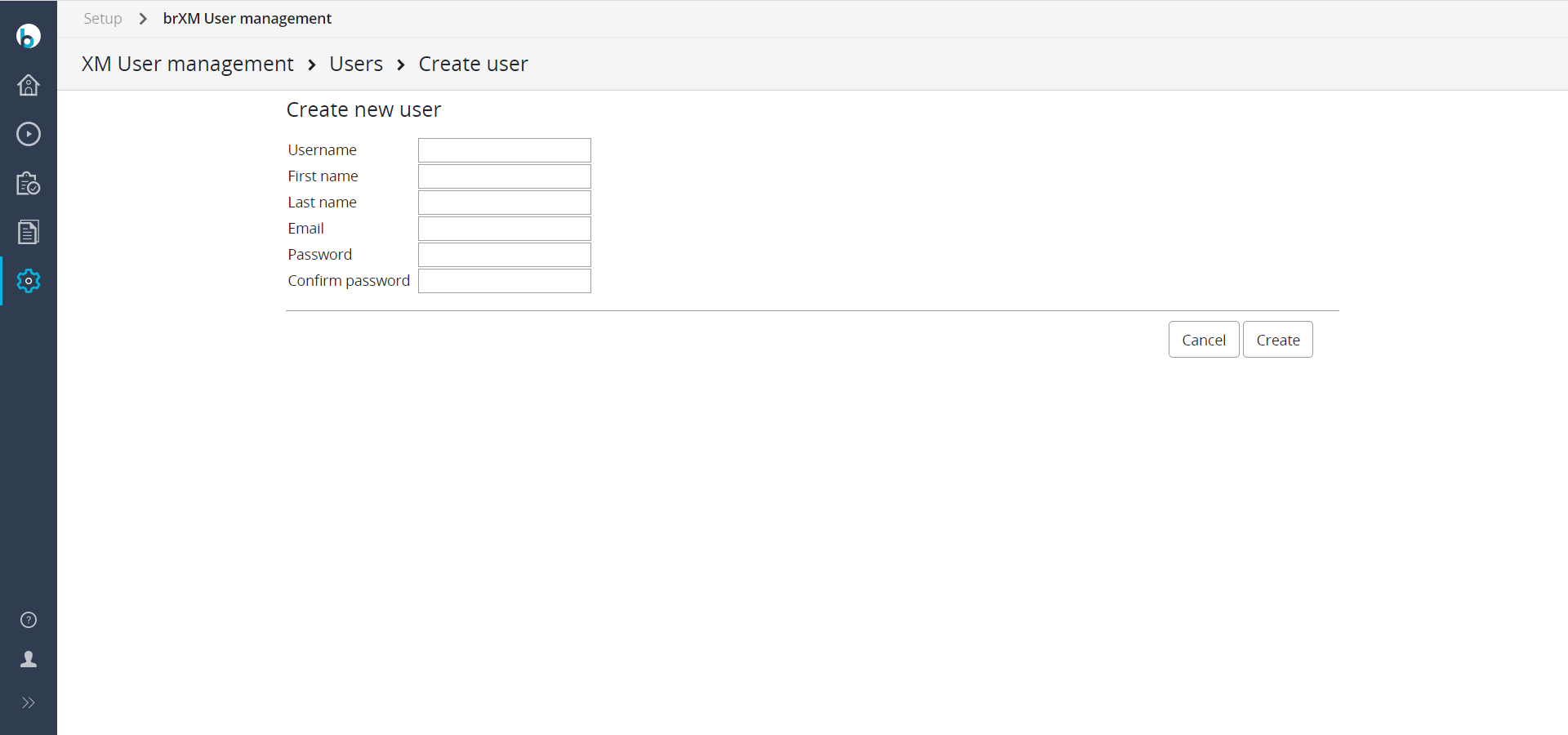
Add a User
- Go to Setup > Bloomreach Content User management.
- Select Users.
- Click Create user.
- Complete the form and select Create.

Assign a User to a Group
- Go to Setup > Bloomreach Content User management.
- Select Users.
- Select a user (for example, johndoe).
- In the Make this user member of the group dropdown, select a group (for example, author) and click Add membership.
You can assign a user to multiple groups.

Alternatively, assign users to groups from the group view:
- Go to Setup > Bloomreach Content User management.
- Select Groups.
- Select a group.
- Click Set the members of the group.
- In the user list, click Add next to a user to add them to the group.
Add a User Role
- Go to Setup > Bloomreach Content User management.
- Select Userroles.
- Click Create a new userrole.
- Complete the form and select Create.


Set Group Permissions
- Go to Setup > Bloomreach Content User management.
- Select Permissions.
- Select a security domain (for example, content).
- Select the role permission for the group (for example, editor).
- In the Add group dropdown, select a group and a role, then click Add (for example, webmaster).


