AI Content Assistant
AI Content Assistant Overview
Info: The AI Content Assistant is available in Bloomreach Content version 16.4.0 and later. A standard or premium license is required. Contact Bloomreach for licensing details.
AI Content Assistant is integrated into the Bloomreach Content CMS. It provides an AI-powered chat panel that appears alongside your document, enabling you to generate, edit, and manage content directly within the CMS.
The AI Content Assistant addresses common content management tasks, including writing, editing, translating, optimizing, and, starting in version 16.8, searching for related content across your repository using the Search Agent.
Key use cases for the AI Content Assistant include:
- Automating repetitive tasks: Streamline content creation and editing.
- Supporting quality checks: Identify and resolve content issues.
- Improving readability: Optimize sentence structure and word choice.
- Enhancing SEO: Suggest improvements for search engine visibility.
- Accelerating workflows: Reduce manual effort for content creation, optimization, and translation.
Note: If the Ask AI button is not visible in the CMS, your administrator must enable and configure the feature. Refer to the AI Content Assistant Developer Guide or contact your administrator for setup instructions.
AI Content Assistant Capabilities
The AI Content Assistant provides several features to support content teams:
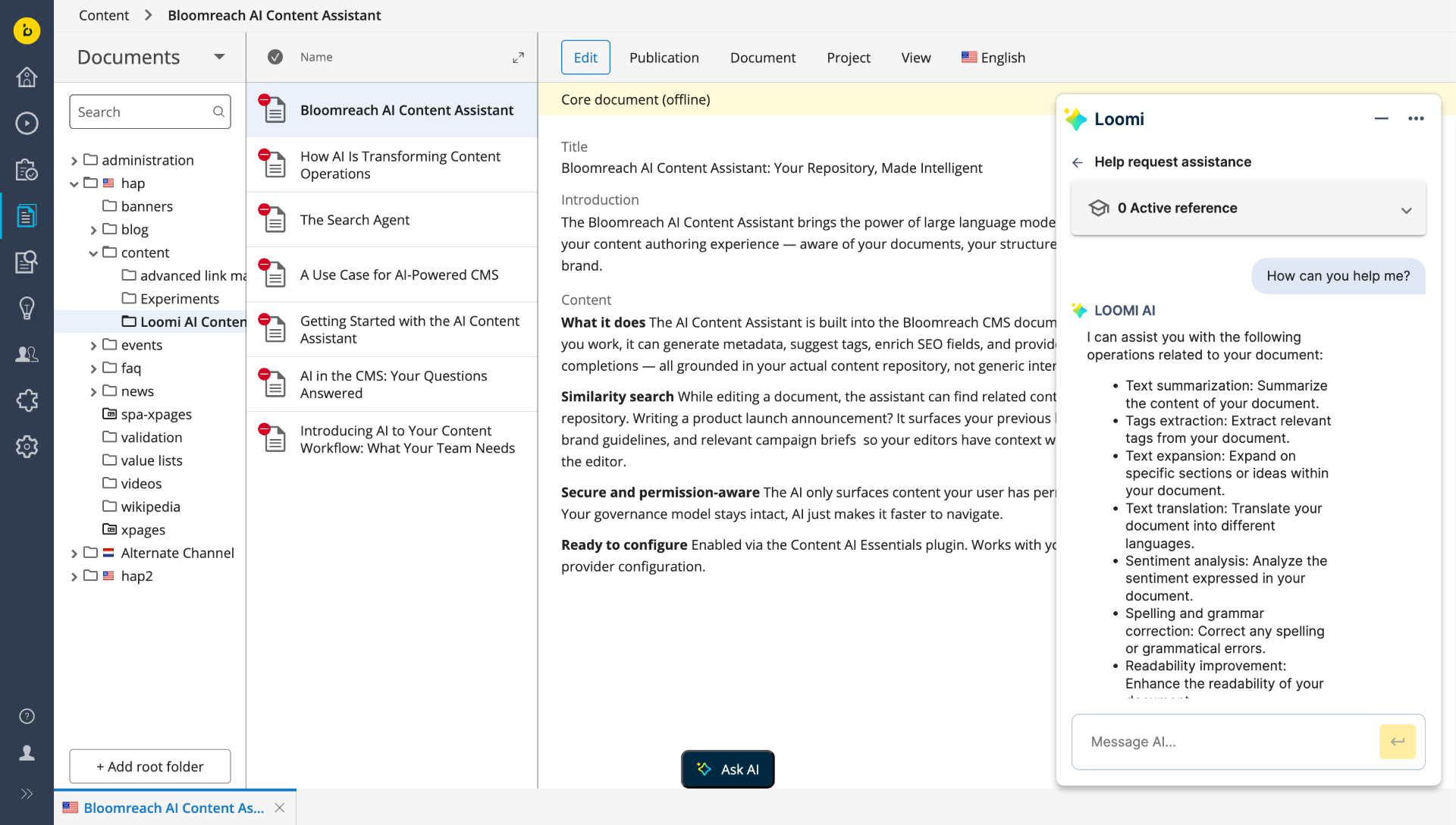
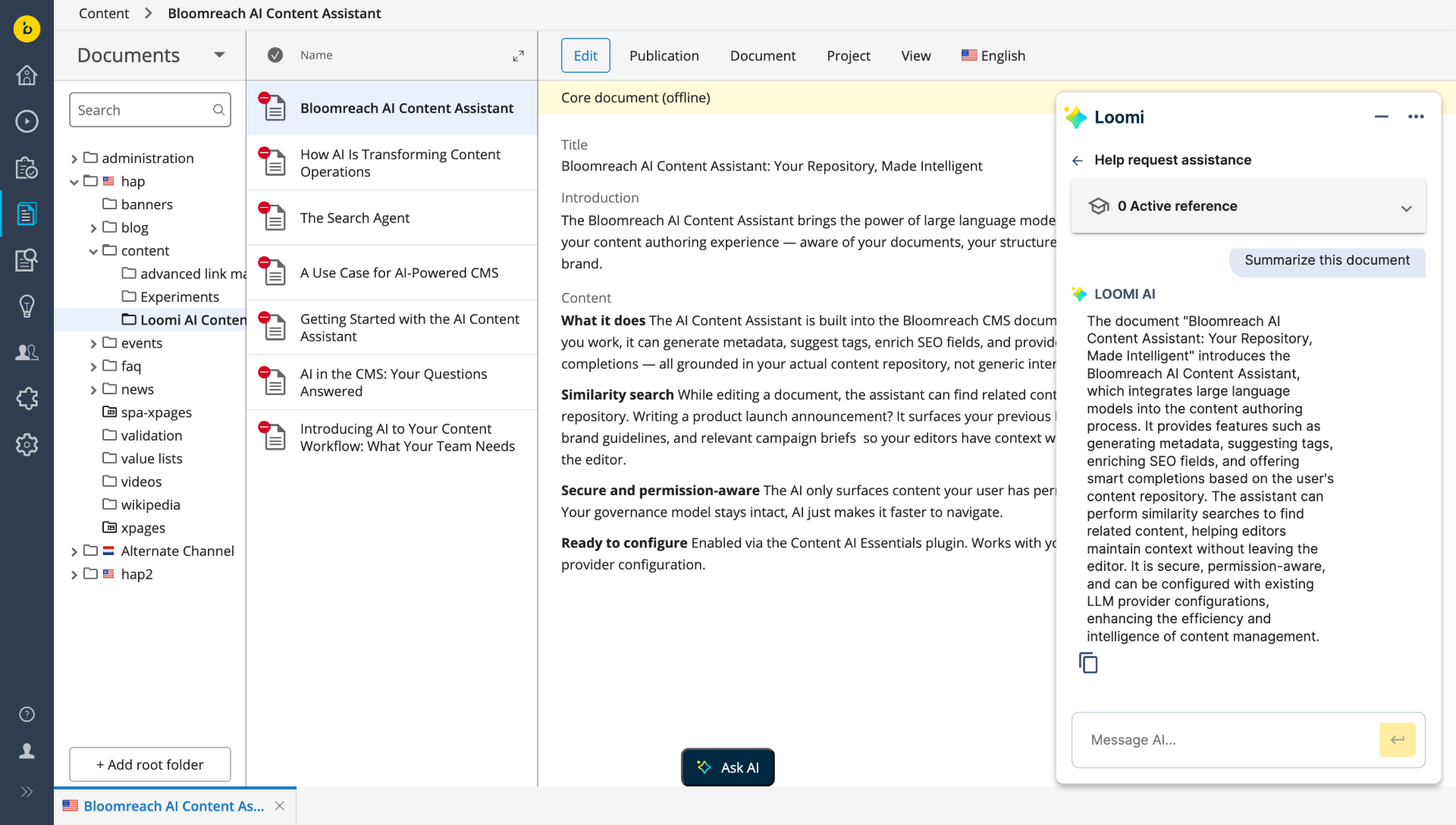
- Text Summarization: Generate concise summaries from longer documents. Useful for teasers, social media, or executive overviews.
- Tags Extraction: Identify key themes and keywords to support content categorization and search optimization.
- Text Expansion: Develop short ideas or drafts into more detailed content.
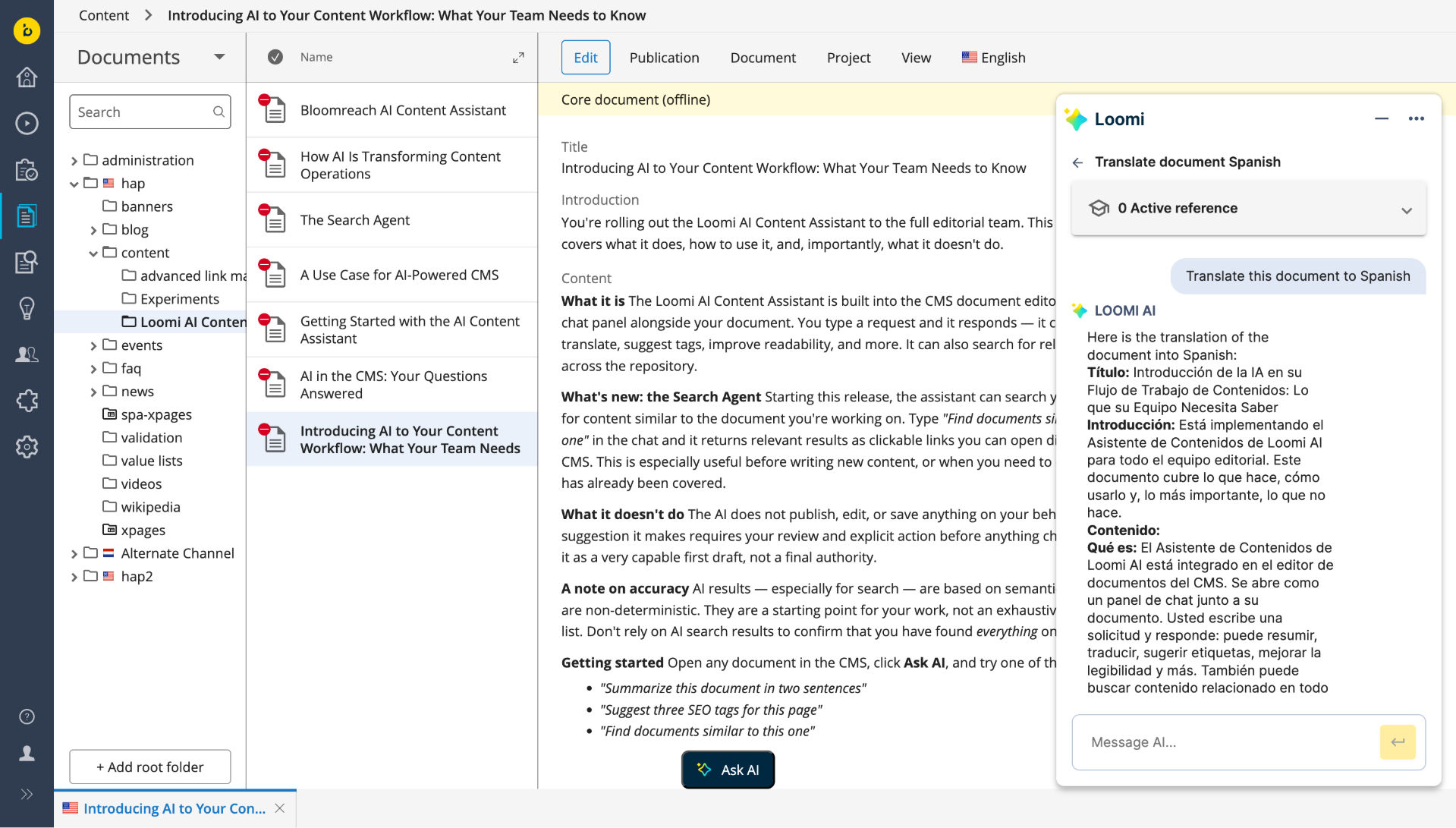
- Text Translation: Translate content into other languages within the CMS to support multilingual workflows.
- Sentiment Analysis: Analyze the emotional tone of content (positive, negative, or neutral) to maintain a consistent brand voice.
- Spelling and Grammar Checks: Detect and correct errors before publishing.
- Readability Improvements: Refine content for clarity and ease of reading.
- SEO Optimization: Enhance content structure, keywords, and metadata for better search performance.
Image Support (v16.4.1+):
When working with images, you can prompt the AI Content Assistant to analyze the image, suggest alt text, or perform related tasks. If the AI model does not support the image type, it may return a generic response such as "We are having trouble processing your request right now. Please try again later." If this occurs repeatedly, the file type may not be supported by the configured AI model.
- Persistent Chat History (v16.6.0+): Conversation history is retained for the duration of your CMS session. You can create, rename, and manage multiple conversation threads.
- Extended Context with References (v16.6.0+): The AI can access and process content from multiple documents in the repository, allowing for more accurate and consistent content generation and editing.
- Role-Based Access (v16.7.0+): Administrators can control access to the AI Content Assistant by user role. Restrict or expand access as needed. See Initialize and Configure the AI Content Assistant for details.
- PDF Support (v16.7.0+): The AI Content Assistant can use PDF documents as context or reference. You can:
- Use any CMS PDF asset as context for AI content generation.
- Reference PDF documents such as brand, legal, or accessibility guidelines.
- Ensure content compliance by providing the AI with relevant PDF guidelines.
- Similarity Search (v16.8+): The Search Agent helps you find repository content similar to your current document. See the section below for details.
Search Agent: Find Similar Content Across Your Repository
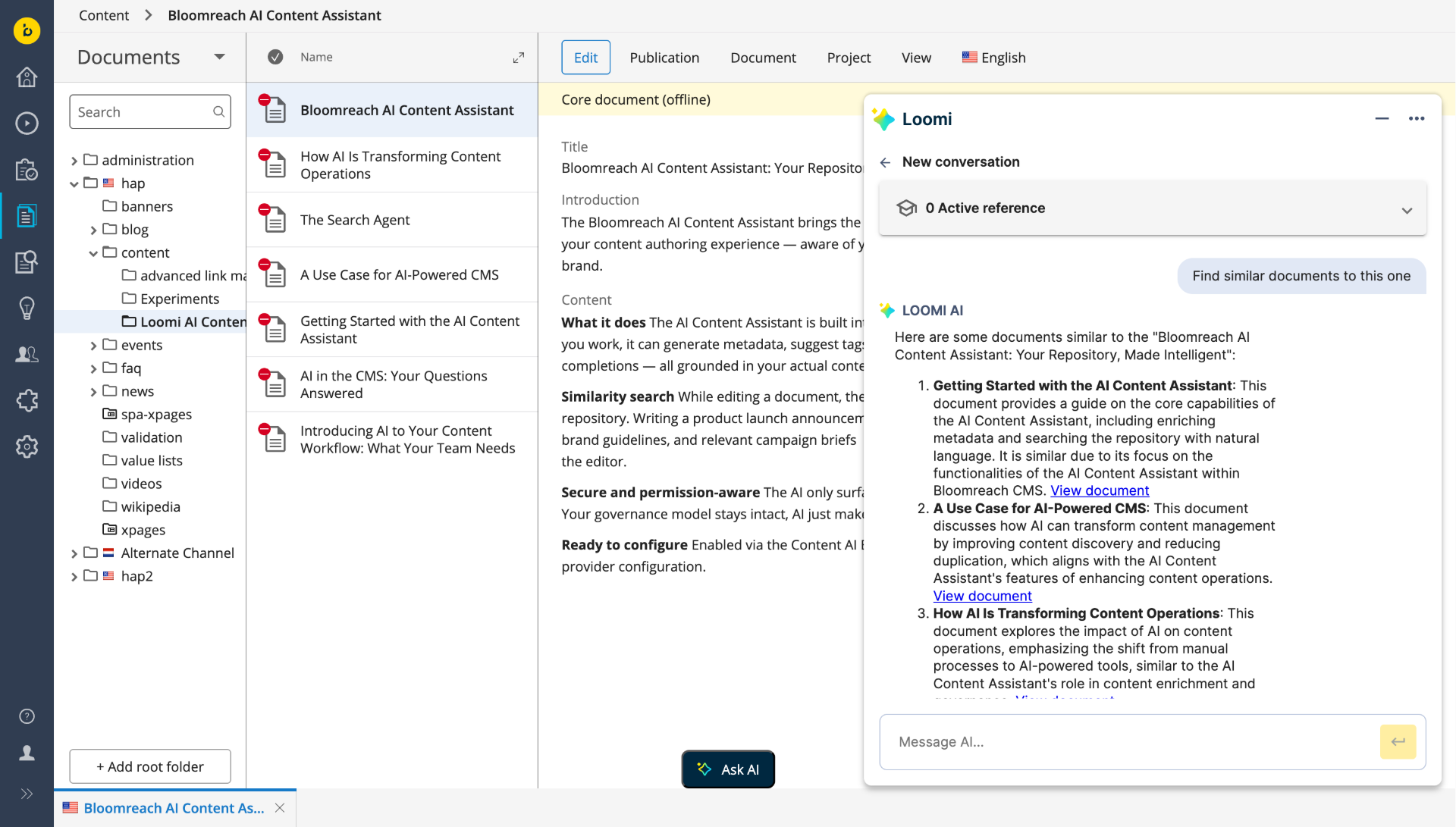
The Search Agent extends the AI Content Assistant's capabilities beyond the current document. It performs similarity search to identify semantically related content throughout your repository, even when different terminology is used or content is located in separate sections.
Info: The Search Agent is available from version 16.8. Administrators must enable this feature.
Search Agent Use Cases
- Finding Similar Documents: Identify related materials, including those that use different terms or are stored in different repository sections. This is useful for tracking updates, managing policy changes, or planning editorial work.
- Repository-wide Natural Language Search: Ask free-form questions to locate content, regardless of terminology or location. For example: "Do we have anything on GDPR compliance?" or "Find documents about our loyalty programme."
Results are based on semantic similarity and are intended for exploratory searches. They may not be exhaustive or suitable for tasks that require complete or exact results.
How the Search Agent Works
When you request a search, the Search Agent scans indexed documents and returns the most relevant results as clickable links. Click a result to open the document in a new CMS editor tab.
- The Search Agent matches content by semantic meaning, not exact phrases.
- Search results respect your CMS permissions.
- Indexed content typically includes published documents by default, or unpublished documents if preview mode is enabled. Check with your administrator for details.
- Newly published or saved documents may take several minutes to appear in search results.
Accessing and Using the AI Content Assistant
You can access the AI Content Assistant directly in the Bloomreach Content CMS. Follow these steps:
- Open the content perspective: Navigate to the document you want to edit.
- Launch the Assistant: Click the "Ask AI" button in the CMS UI to open the chat panel.
- Interact with the Assistant: Enter your request or describe your task in natural language.
- Add references: Expand the conversation context by adding documents or PDF assets from the repository.
- Review and apply suggestions: The Assistant provides recommendations. You decide which suggestions to apply; no changes are made automatically.
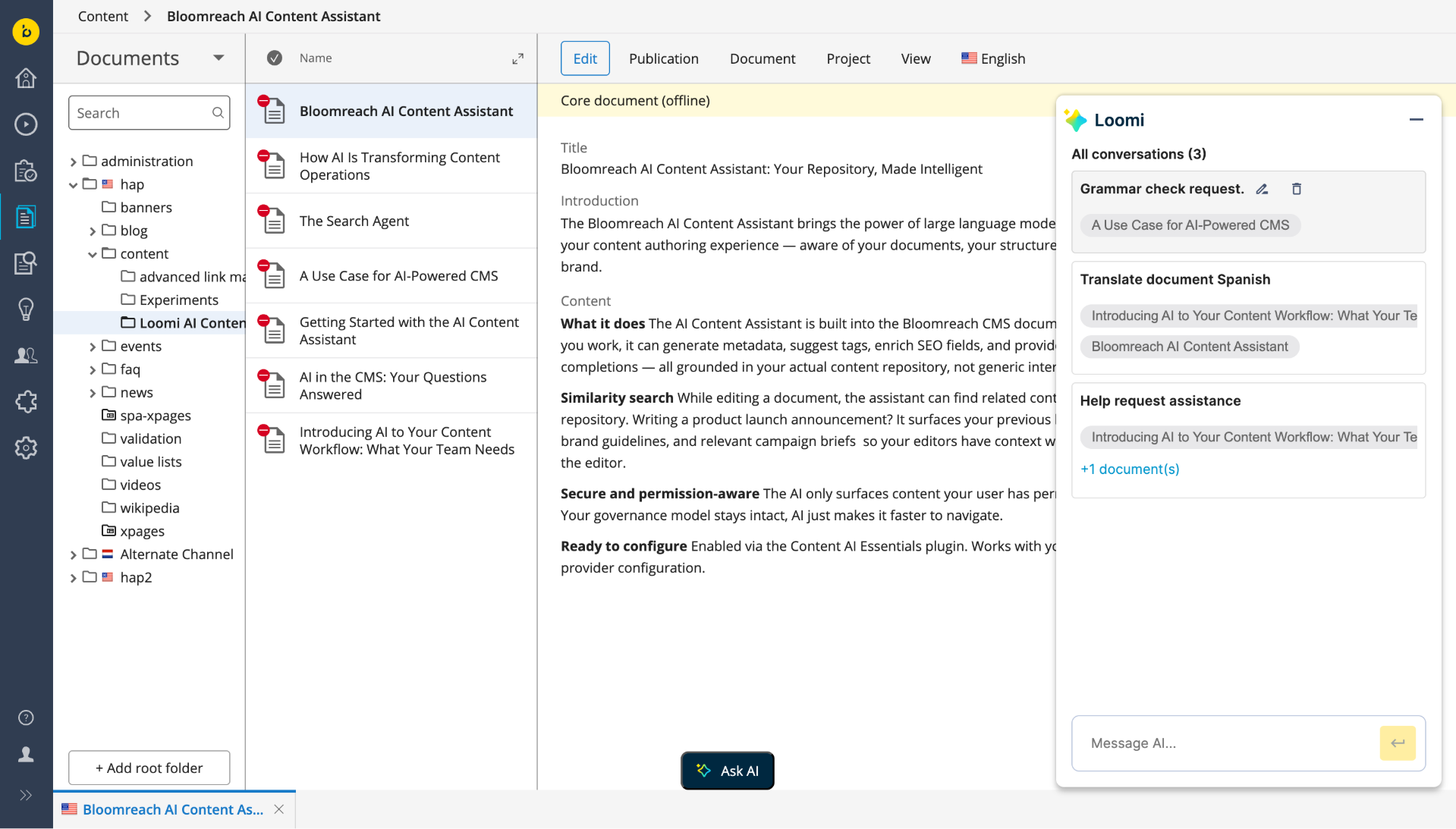
Using Chat History (v16.6.0+)
Chat history is available for all providers starting from version 16.6.0.
- Conversation history persists for your CMS session until the server restarts.
- You can create, manage, and rename multiple conversation threads.
- The system assigns an initial name to each conversation, which you can edit.
Steps:
- Access history: When you open the Assistant panel, your chat history appears.
- Start a new conversation: If no history exists, begin a new chat to create a thread. Multiple threads are supported.
- Manage conversations: Rename conversations for easier identification.
- Maintain context: Continue previous discussions to retain context for multi-step tasks.
If the server restarts, your session and chat history are cleared.
Using Extended Context (v16.6.0+)
The AI Content Assistant can reference and process content from multiple documents in the repository. Attaching large or numerous files increases token usage for the conversation.
Steps:
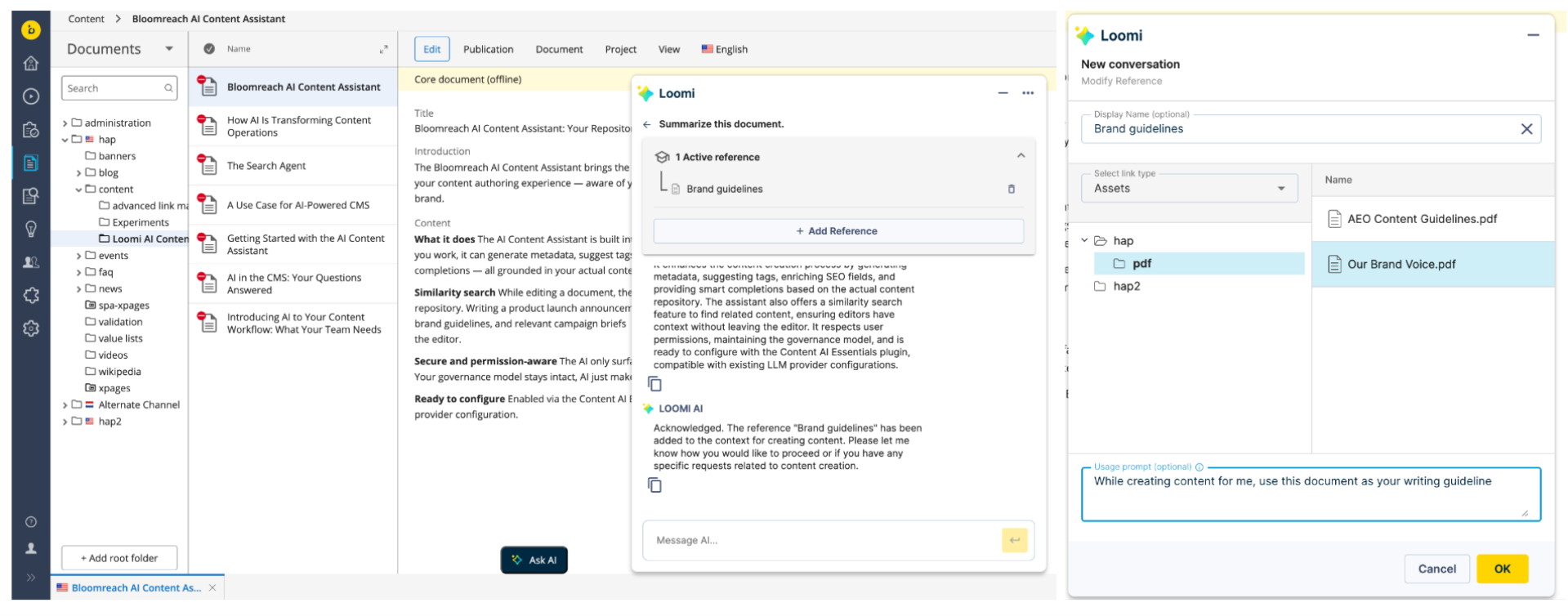
- Open the reference selector: Click + Add reference at the top of the chat box.
- Select internal references: Choose a document or image from the repository.
- Assign a name to each reference.
- Optionally, add a "Usage Prompt" to instruct the Assistant on how to use the reference (e.g., for writing style or brand guidelines).
- Add multiple references as needed.
- Reference in chat: Active references appear in a dropdown. Refer to them by display name in your messages (e.g., "Summarize Document X using the writing style of reference Y").
- Use the term "reference" for clarity.
- You can override the initial purpose of a reference in later messages.
- Remove references as needed.
 Querying the Assistant
You can ask the AI Content Assistant about its capabilities directly in the chat. Example queries:
- "What can you help me with in Bloomreach Content?"
- "How can you help me with text summarization?"
- "What kind of grammar issues can you check and fix?"
- "Can you help me translate content, and if so, how?"
- "Can you search for related content in the repository?" (if Search Agent is enabled)
Extending the AI Content Assistant
Refer to the Extensibility guide for instructions on:
- Adding custom tools
- Integrating a custom model provider
- Connecting a custom vector store
Limitations
- Asset fields and document types are not supported except for PDFs.
- Value list fields and document types are not supported.
- The Assistant is only available in the content perspective.
- All document-level operations, such as inserting generated text, require manual confirmation. The Assistant only suggests changes.
- References are specific to a single conversation and user; they are not shared or global.
- Conversation history is session-based and is cleared if the server restarts.
- Search results are limited to indexed content (published by default, or unpublished if preview mode is enabled). Results are ranked by semantic similarity, not by exact match, and are subject to your CMS permissions.
- The Search Agent returns a configurable number of results (default: 5; maximum: 20, set by your administrator).
- Search Agent results are based on semantic similarity and are non-deterministic. Do not use Search Agent results for tasks that require complete or verifiable output.
- Attribute-based filtering is not supported: Results cannot be filtered by locale, document type, folder, or metadata. Search operates on semantic similarity only. Attribute-based filtering is planned for a future release.
Roadmap
The Search Agent in version 16.8 establishes the foundation for future AI-powered content intelligence features in Bloomreach Content.
Planned enhancements include:
- H2 2026 – Document Agent (Phase 1): Auto-generation of metadata and taxonomy tags for documents.
- H2 2026 – Document Agent (Phase 2): Reference-aware draft writing, structure checks, and improvement suggestions with approval workflows.
- H2 2026 – Centralized Knowledge Management for AI: Central management of brand guidelines and governance rules, applied across all AI features.
- H2 2026 – Content Governance at Scale: Scheduled repository-wide audits with health reports to identify stale, inconsistent, or non-compliant content.
Try the AI Content Assistant and Provide Feedback
If the AI Content Assistant is not enabled in your project, you can try it in the demo environment.
- Demo: Visit the Bloomreach Content Demo to explore the AI Content Assistant.
- Feedback: Share your requirements and ideas through the AI Adoption and Vision Survey.
Your feedback helps shape future AI capabilities in Bloomreach Content.