Create a Document
To create a new document, first navigate to the target folder in the navigation area.
If the required folder does not exist, create it as follows:
- Hover over the parent folder.
- Click the down-arrow that appears to the right of the folder name.
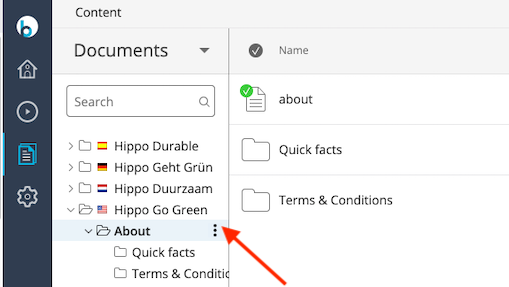
- Select
Add new translated folder.... - Enter the folder name. You can specify a different name for the URL if needed.
- Click
OK.
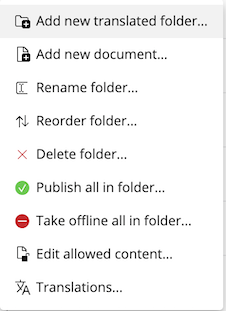
Once the folder is available, create a document:
- Hover over the folder.
- Click the down-arrow to the right of the folder name.
- Select
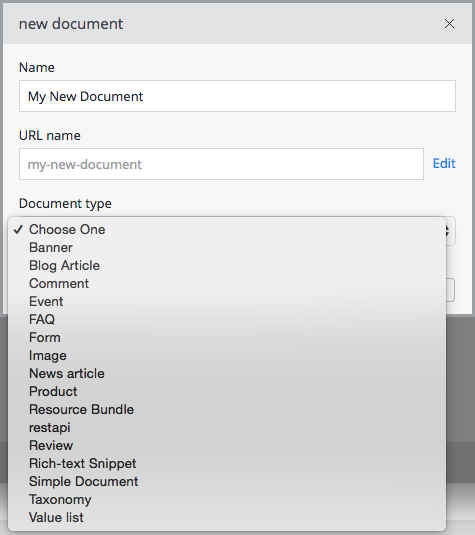
Add new document.... - Choose the document type.
- Enter the document name. You can specify a different name for the URL if required.
- Click
OK.
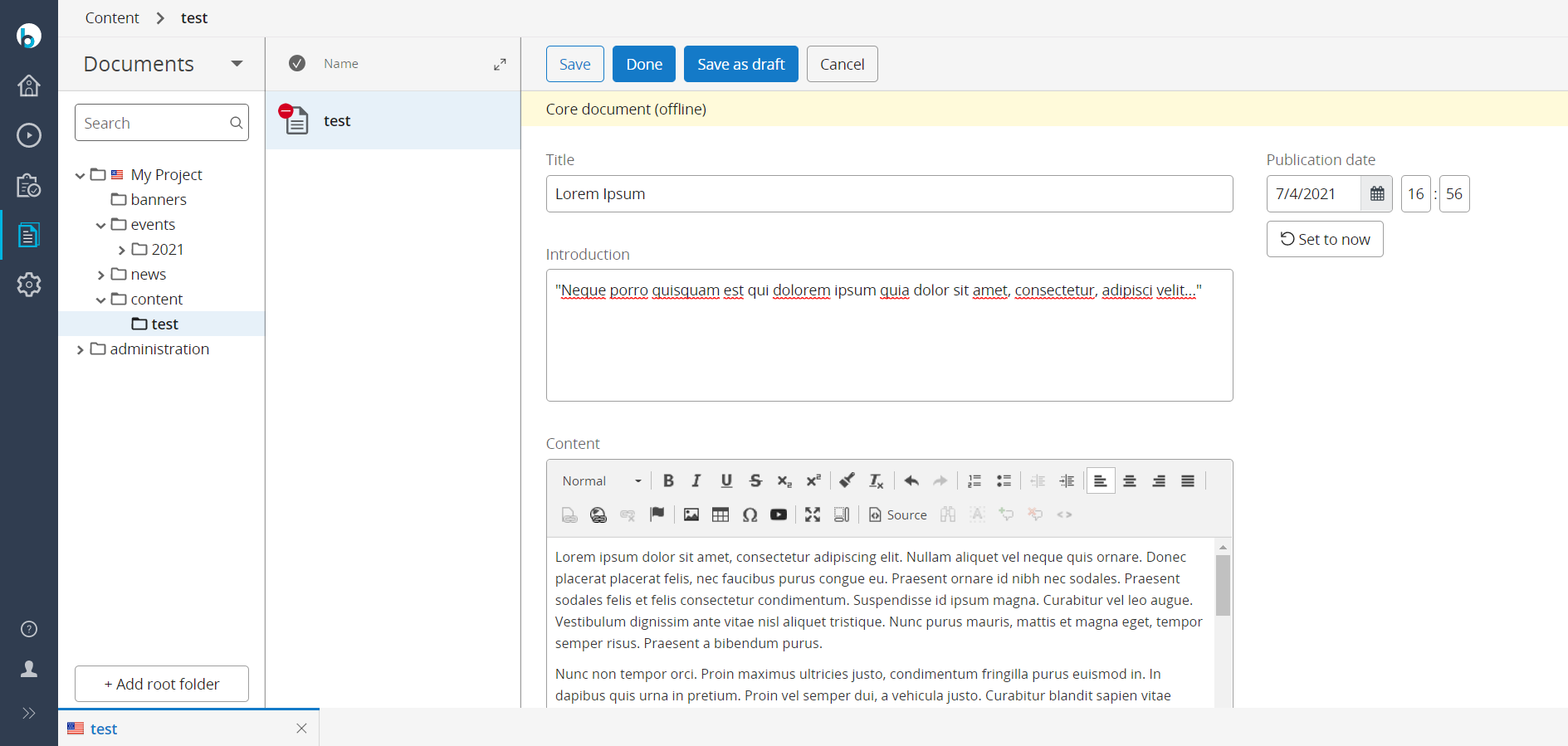
The Document Viewer Area displays an empty template for the selected document type. The document opens in editing mode.
Complete the document fields. When finished, click Done in the Document Viewer menu bar. The document switches to read-only viewing mode. To close the document, click the close (x) button on the document's tab in the bottom navigation bar.
You can also create a document by copying an existing one:
- Open the existing document in the Document Viewer. Ensure it is not in editing mode (
Done). - Click the
Documentbutton in the menu bar. - Select
Copy.... - In the dialog, enter a new name for the copy and select the parent folder.
- Click
OK. The copy appears in the Document Viewer.
Info: Starting with version 15.4.0, when you copy a page from one translated folder to another with a different locale, the copy’s locale automatically updates to match the target folder.
Note: You can also create documents directly in the Experience manager. For details, see Manage Content in a Channel.