References in Content
Info: Available in brXM 16.2.0 and later.
The advanced link management feature in Bloomreach Content improves visibility and management of references between documents, images, assets, components, pages, and projects. This feature enables editors and authors to track content relationships efficiently. Future releases will expand workflow management capabilities for references.
Terminology
Content Items:
In Bloomreach Content, content items include documents, images, assets, components, menu items, and pages. These items can reference each other in different ways. For example, a document may be used in a component, or an image may be included in a document field.
Reference in Bloomreach Content:
A reference is an internal link between content items—such as documents, images, or assets—and other components or pages within Bloomreach Content. The feature tracks only direct, first-level references to or from a content item.
Feature Overview
The advanced link management feature provides the following capabilities:
- Track Usage: View where specific documents, images, or assets are used across Bloomreach Content. (Available since v16.2)
- Impact Analysis: Identify how changes to a document or asset affect related pages or components. (Available since v16.2)
- Concurrent Publication Workflows: Publish directly referenced content together, reducing manual steps and errors. (Available since v16.3)
Benefits
- Improved Visibility: Understand how content items are connected for easier tracking and management.
- Streamlined Workflows: Publish referenced documents together, minimizing manual intervention and reducing errors.
- Increased Efficiency: Support editors and authors with more accurate and efficient content management processes.
Using the Feature
1. Access the References Interface
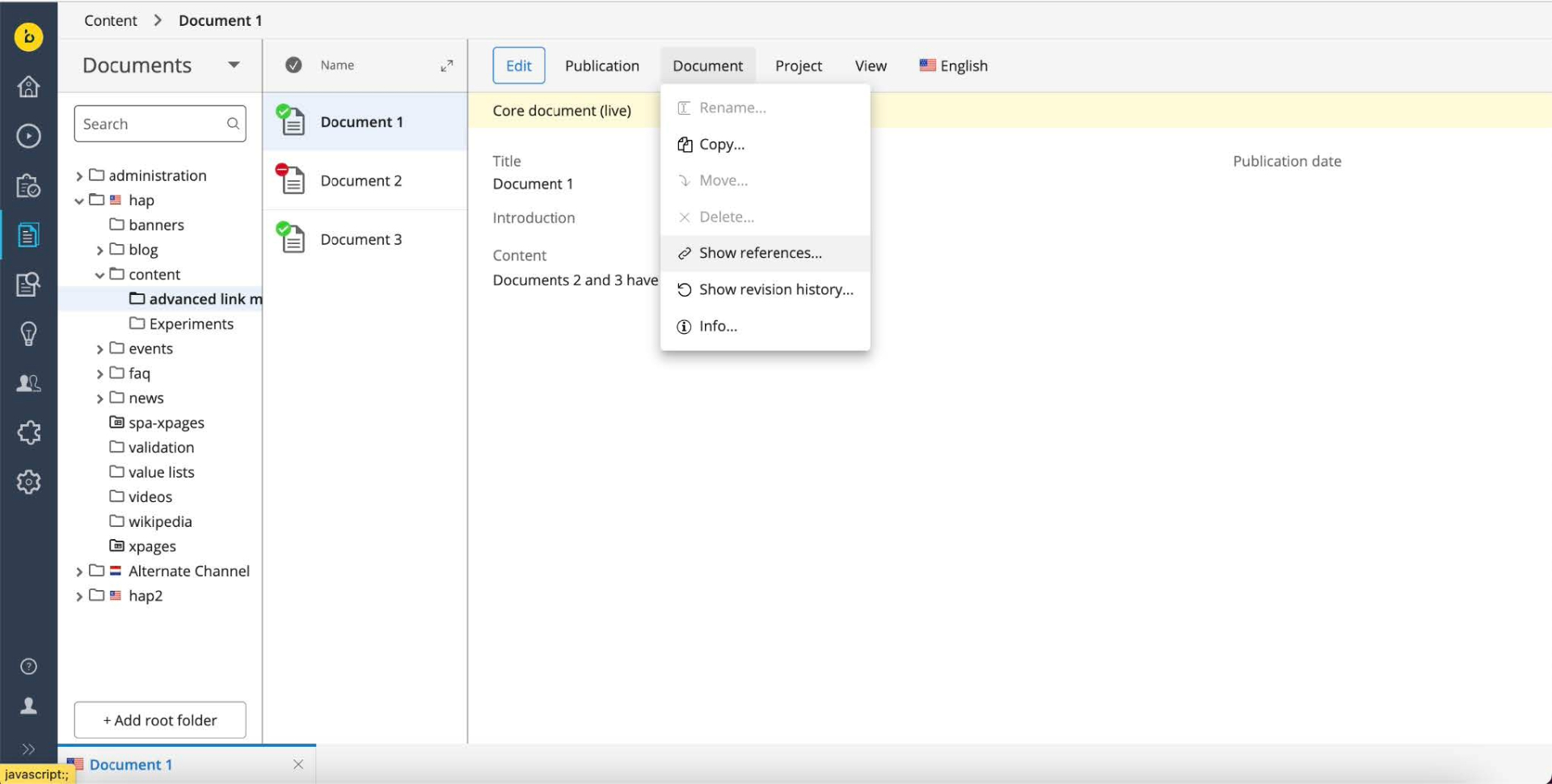
- Navigate to the document, image, asset, or component you want to manage in Bloomreach Content.
- Select the "Show References" option from the “Document” menu to open the References interface.
2. View References
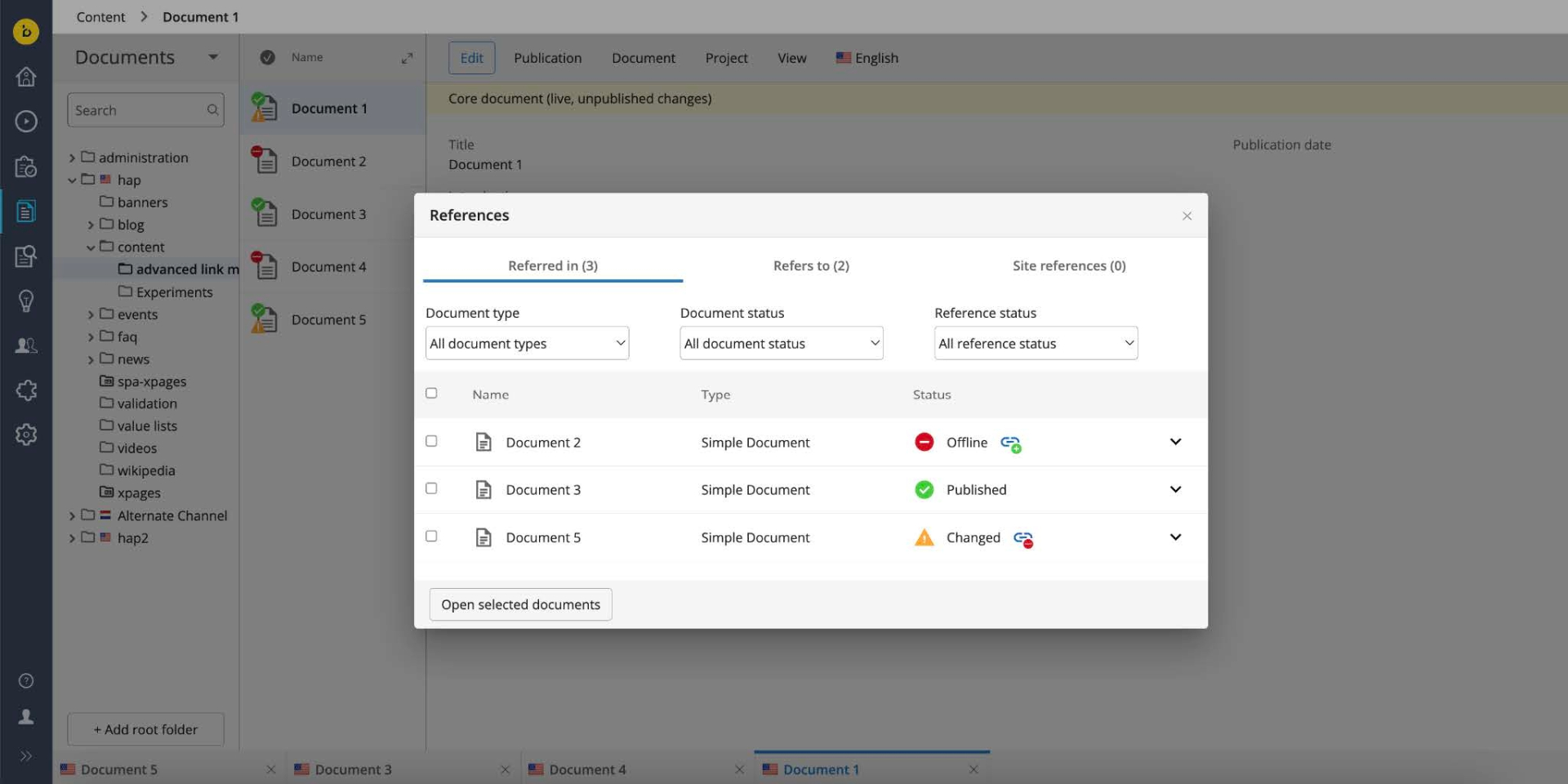
- The "References" dialog displays three tabs:
- Referred in: Content items that refer to the selected document.
- Refers to: Content items that the selected document refers to.
- Site References: Components, menu items, pages, and channel settings that refer to the selected document.
- Use dropdown filters to narrow the list by document type, document status, or reference status. Images and assets always appear with “published” status.
3. Interpret Reference Details
3.1. "Referred in" Tab
-
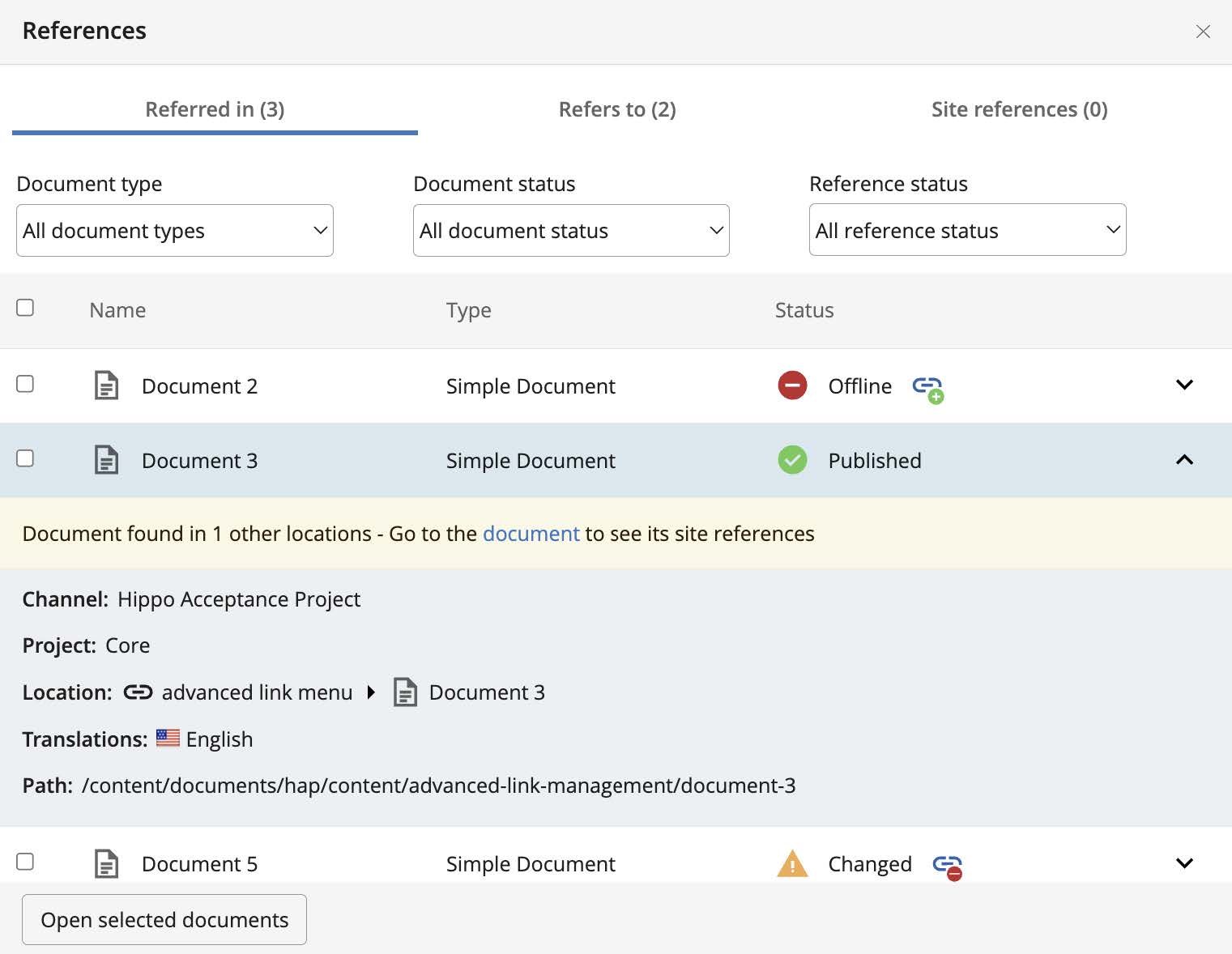
Name: User-defined name of the content item.
-
Type: Content type (e.g., document, image, asset).
-
Status: Publication status of the referenced content item and the reference itself:
- Published: The referenced document is published and directly references the selected document.
- Offline: The referenced document is offline but directly references the selected document.
- Changed: The referenced document is published but has unpublished changes.
-
Reference Status Icons:
 Reference added: The reference exists only in the “preview” (unpublished) version of the document. It is not present in the live version.
 Reference removed: The reference exists in the live version but is removed in the “preview” version. Publishing the preview will remove the reference.
-
Additional Information:
Click the dropdown next to a content item for more details:- Channel: The channel the content item belongs to.
- If not referenced in any channel, a warning displays: “Document is not part of any component, menu item or channel setting.”
- If referenced in multiple locations, a warning displays: “Document found in x other locations - Go to the document to see its site references.” Click the link to view site references.
- Project: The project the referenced document belongs to. Currently, only the “Core” project is supported; project-specific versions are not included. This limitation will be addressed in a future release.
- Location: The location of the content item in the channel, if applicable.
- Translations: Available translations of the document.
- Path: Direct CMS URL path of the document.
- Channel: The channel the content item belongs to.
3.2. "Refers to" Tab
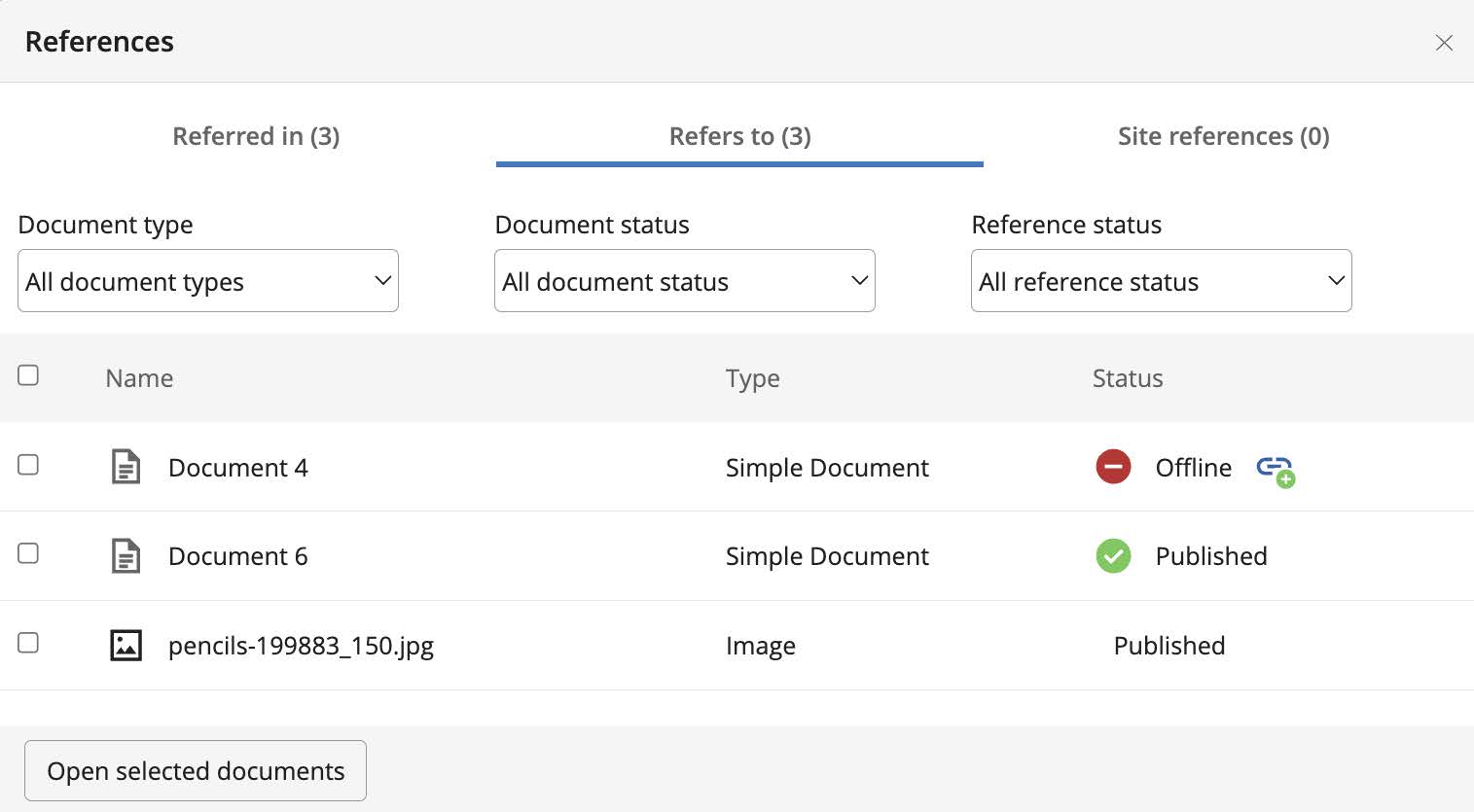
- Name: User-defined name of the content item.
- Type: Content type (e.g., document, image, asset).
- Status: Publication status of the referenced content item and the reference itself.
3.3. "Site References" Tab
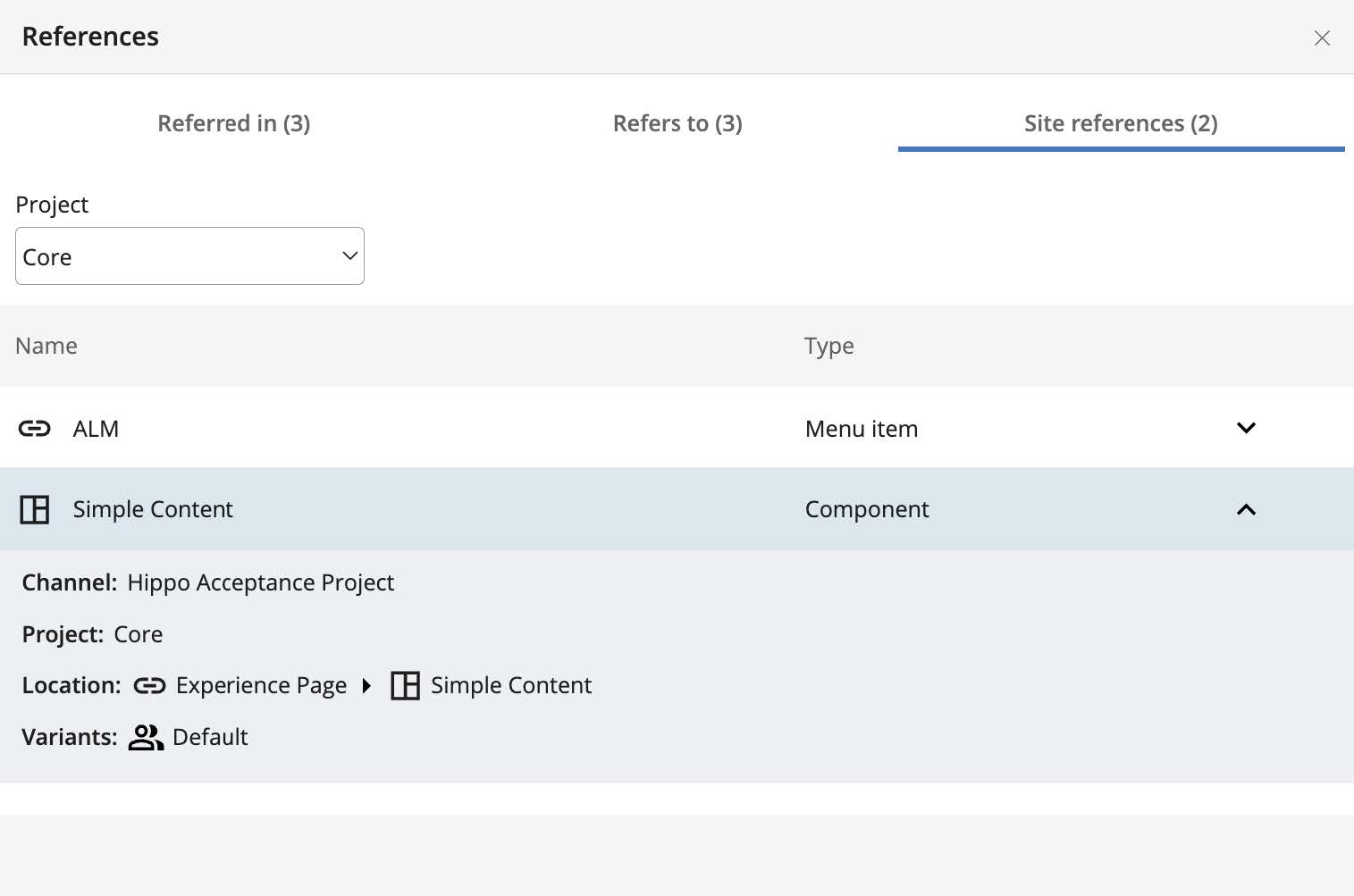
- Name: User-defined name of the content item.
- Type: Component type, page, or menu item for site references.
- Additional Information:
Click the dropdown next to a content item for more details:- Channel: The channel the content item belongs to.
- Project: The project the content item belongs to. Use the "Project" filter to view site references for different projects.
- Location: The location of the content item in the channel.
- Variant: Available variants of the component. This does not indicate which specific variant references the selected document.
4. Manage Reference Publication Workflows
Info: Available in brXM 16.3.0 and later.
Use bulk actions to publish, take offline, or request publication for all directly referenced documents at once, reducing manual updates.
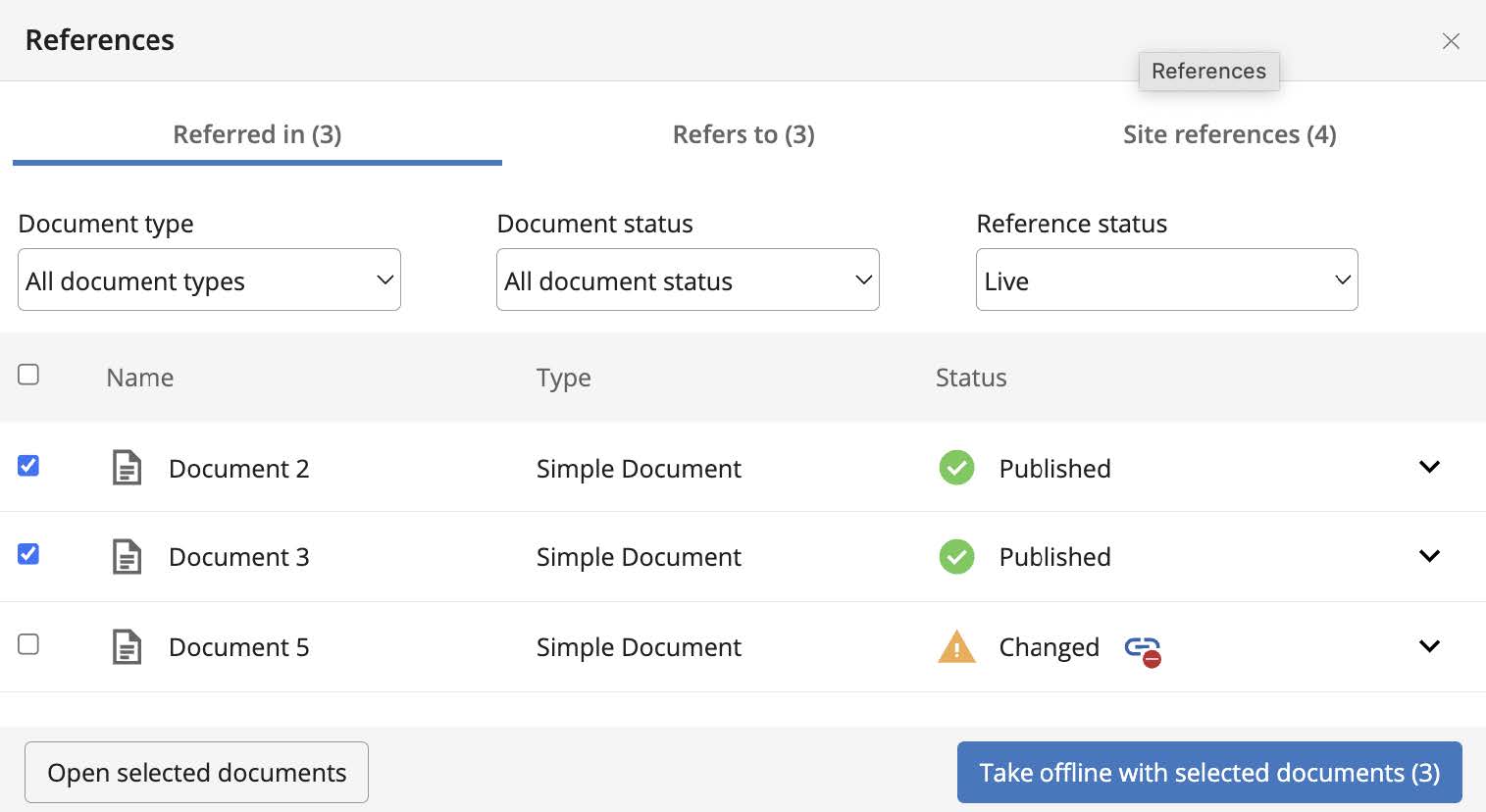
- To publish or unpublish a document and its references, select "Publish" or "Take Offline" from the Publication menu. A dialog lists relevant references based on the workflow action:
- For publication, the "Refers to" tab opens and filters for references in the “preview” version. This helps you identify which referenced documents also need publishing.
- For "take offline," the "Referred in" tab opens and filters for references in the “live” version. This helps you identify which referenced documents also need to be unpublished.
- Select the documents to publish or unpublish with the opened document, then click "Publish/Take Offline with Selected Documents."
- The button displays the number of selected documents. The count starts at 1, including the opened document.
Key Points:
- Workflows apply only to direct document links. Nested references are not included.
- Documents within a project can only be published with the project itself.
Limitations
- Projects Feature Limitation:
The feature covers site references in projects. For document, asset, and image references, only the core project is supported.
Learn more about Projects - Component References via Query:
Components referencing a document through a query are not tracked. These references are not displayed in the advanced link management feature. This limitation will be addressed in a future release. - Bulk Workflows for Folders:
Bulk workflow actions to publish or take offline all documents in a folder are not supported by this feature.
Consider these limitations when using advanced link management to ensure accurate tracking and workflow execution.