Search Documents Within the CMS
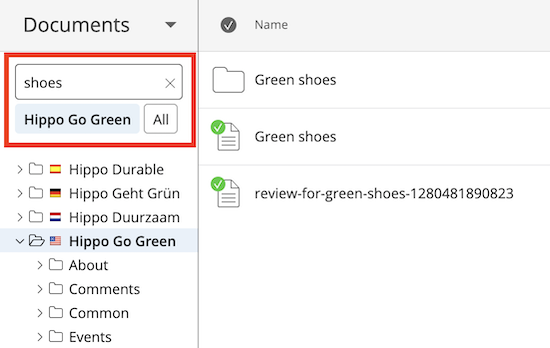
You can search for documents, images, or assets in the CMS using the search box located above the folder structure. Enter your search term in the box and press Enter. The document listing will update to show results that match your query.
By default, the search is limited to the currently selected folder and its subfolders. After you perform a search, the grey area below the search box displays the current search scope. To expand your search to include all documents in Bloomreach Content, select All.
To exit search mode and return to browsing, click the cross (×) in the search box. The icon in the search box indicates the current mode: a magnifying glass for search mode, and a cross for browse mode.
Search Behavior in the CMS
The Content application’s search box returns documents that match your query within the selected folder and all its child folders. Some search behaviors can be configured. For details, see Configure CMS Search.
When you enter text in the search box, the system splits your input into tokens (words) separated by spaces. The search engine processes these tokens as follows:
- All tokens are combined using AND logic.
- The characters
?and*are removed from all tokens. - Tokens that meet the minimum length requirement (default: 3 characters, configurable) are automatically suffixed with a
*wildcard. This matches any word that starts with the token. - Tokens shorter than the minimum length are not suffixed with a wildcard. Only exact matches for these tokens are returned.
- Common stop words (such as "the", "a", "an") are ignored.
- Searches are case-insensitive. For example, "Hippo" and "hiPPO" return the same results.
- Searches ignore diacritics. For example, "très" and "tres" return the same results.
Search Query Examples
"hip"
- Matches documents containing the word "hippo".
- Does not match documents containing the word "shipment".
"hip thing"
- Matches documents containing both "hippo" and "things".
- Does not match documents containing only "hippo" or only "things".
"go hippo"
- Matches documents containing "hippopotamus".
- Does not match documents containing "government" ("go" is too short for a wildcard).
OR Searches
To search for documents containing either of two words, use OR (in uppercase) between the terms. The search returns documents that contain at least one of the specified words. Documents containing both words usually appear higher in the results, but the ranking also depends on document length and other scoring factors.
OR Search Query Example
"hip OR thing"
- Matches documents containing "hip", "thing", or words that start with "hip" or "thing".
Search Result Scoring
By default, the search results are sorted by relevance. Documents with exact matches score higher than those with partial matches (matches using the * wildcard).
For OR searches, documents containing all specified words generally rank higher than those containing only some. The exact score also depends on document length and the frequency of the search terms in the repository.
Hyphens and Punctuation in Search
The search engine handles punctuation and hyphens as follows:
- Words are split at punctuation characters, and punctuation is removed. However, a dot (.) that is not followed by whitespace is treated as part of the search term.
- Words are split at hyphens, unless the term contains a number. In that case, the entire term is treated as a single "product number" and is not split.
- Email addresses and internet hostnames are recognized as single search terms.
You cannot search for hyphens directly, unless the word with the hyphen also contains a number. For example, searching for "foo-bar" is not possible, but "foo-bar-5" is. You can search for parts of a hyphenated word. For example, searching for "bar" will match documents containing "foo-bar".
Punctuation (other than dots within words) cannot be searched. For example, "foo,bar" cannot be searched, but "foo.bar" can.