Images and Assets
Images and other assets are managed in dedicated sections within Bloomreach Content. This page explains how to upload, organize, and manage images and assets in the Content application.
Images
Images are stored in the Images section. To access this section, select Images from the dropdown at the top of the navigation area in the Content application. The navigation area displays a folder tree that organizes your images.
Uploading Images
To upload images:
- Hover over the target folder in the Images section.
- Click the down-arrow that appears to the right of the folder name.
- Select Add image... to open the Add image(s) to the gallery dialog.
- Select one or more image files.
- Click
Upload.
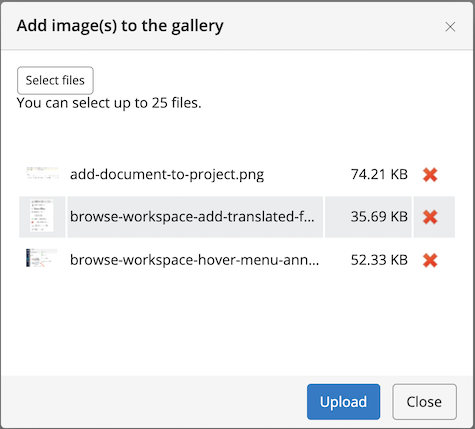
When you upload an image, Bloomreach Content automatically generates several variants of the image and stores them with the original. These images are available for use in documents and can be displayed on your website.
Managing Images
You can rename, move, and delete images in the gallery using the same actions available for documents. If you attempt to delete an image that is referenced by a document, Bloomreach Content displays a warning. Remove all references to the image before deleting it.
To maintain consistency, align the folder structure of the Images section with the structure used in the Documents section.
Info: Images do not have a publication state. They are public by default. Anyone with the correct URL can access an image stored in Bloomreach Content.
Assets
Assets include files such as PDFs, videos, and other data types. These are stored in the Assets section.
To access the Assets section, select Assets from the dropdown at the top of the navigation area in the Content application. The navigation area displays a folder tree for organizing assets.
Uploading Assets
To upload assets:
- Hover over the target folder in the Assets section.
- Click the down-arrow that appears to the right of the folder name.
- Select Add file... to open the Add file(s) to the library dialog.
- Select the asset file.
- Click
Upload.
Managing Assets
You can rename, move, and delete assets in the library as you would with documents. If you try to delete an asset that is referenced by a document, Bloomreach Content displays a warning. Remove all references to the asset before deleting it.
Info: Assets do not have a publication state. They are public by default. Anyone with the correct URL can access an asset stored in Bloomreach Content.