Add a New Site Content Folder
To create a new site content folder, open the Content application. In the dropdown at the top of the first column (navigation area), select Documents.
The navigation area displays one or more folders, each containing documents organized in subfolders. Typically, each folder holds the documents for a single channel. You may also see configuration or administration folders, which store content shared across multiple channels, such as labels or value lists.
Add a New Content Folder
At the bottom of the browser area column, click the Add root folder button. Use this option to create content for a new channel.
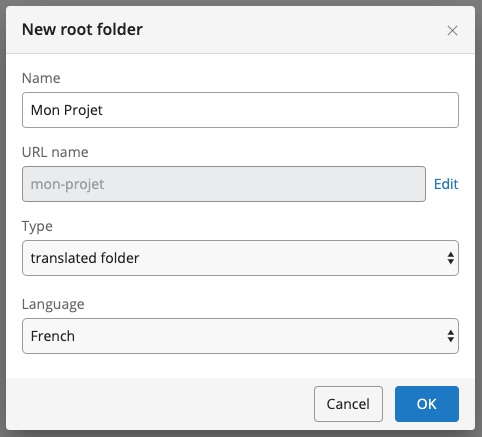
In the dialog, provide a Name and a URL name for the new folder. The Name appears in the Bloomreach Content interface. The URL name is used in site configuration to reference the folder. Do not change the URL name after it is referenced in the configuration.
To specify a language for the folder, select the folder option in the Type dropdown. This action displays a language selection dropdown. Choose the language that matches the content for this folder.
Click OK to create the folder. You can now add content to the new folder.
Note: If your preferred language is not available, see Add a Translatable Language for instructions on adding new languages.
Link Folders for Content Translation
You can link content folders to support translations. This setup allows you to maintain the same content in different folders, each in a different language.
To link two content folders as translations:
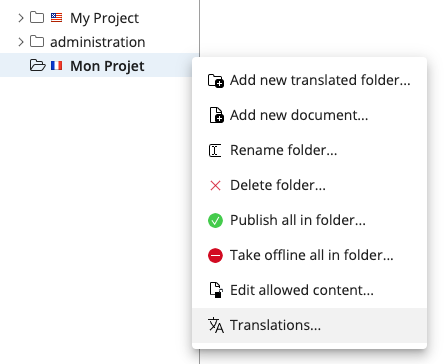
- Open the context menu for one of the folders.
- Select
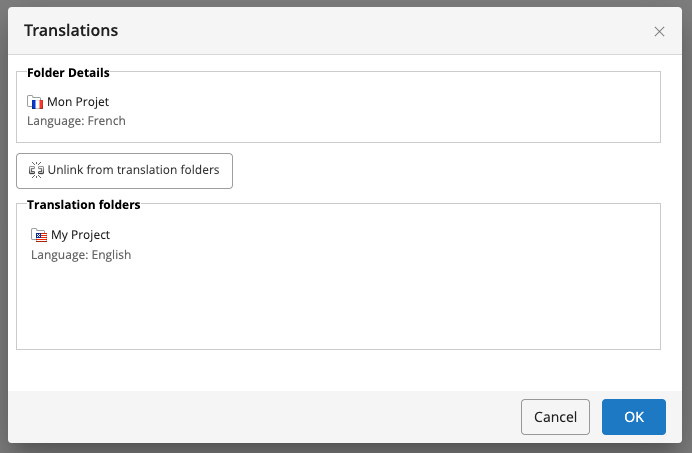
Translations.... - In the
Translationsdialog, select the other folder in theTranslation folderssection to link them.
Set Up a Subfolder Structure
Organize documents within the root folder using a subfolder structure. You can restrict which document types are allowed in specific folders to help editors create content in the correct locations. For example, you can configure a news folder to allow only News documents. For details, see Control which Document Types can be Created in which Folder.
Add Site Configuration Using a Blueprint
If your project uses Blueprints for channels, you can use the new content folder when creating a channel from a blueprint. There are two blueprint types:
- One provides a new root-level content folder with sample data.
- The other requires you to select an existing folder (created as described above).
For more information, see Blueprints.