Publish a Document
Documents in Bloomreach Content have three publication states: Offline, Live, and Changed. The current state is indicated by an icon in the "State" column in the Documents area of the Content application.
Document States
| Icon | State | Description |
|---|---|---|
 | Offline | The document is not published and is not accessible on the website. |
 | Live | The document is published and accessible on the website. |
 | Changed | The published version is still visible on the website, but a new version is pending publication. |
When you create a new document, it starts in the Offline state. Authors can request publication from users with editor privileges.
Note: You can also submit a publication request from the Experience manager. For details, see Manage Content in a Channel.
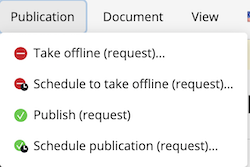
When an author submits a publication request, editors and admins see a notification in the document editor:
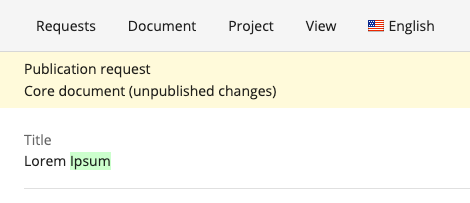
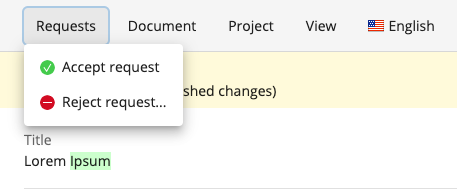
Editors and admins can accept or reject the request.
- If the request is accepted, the document is published and moves to the Live state.
- If the request is rejected, the editor or admin can provide feedback to the author:
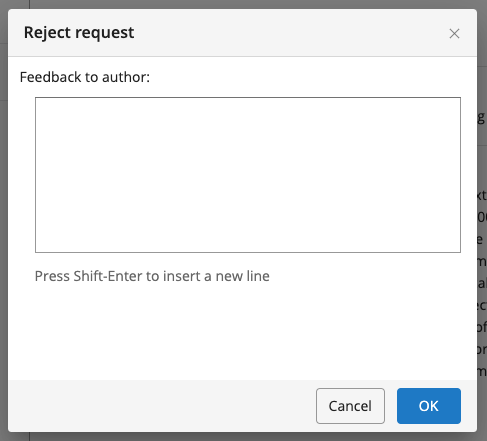
Authors can view rejection messages by selecting Requests > Show rejected requests in the document view:

Editors and admins can also create and publish documents directly from the document view.
When you update a published document, it enters the Changed state. In this state:
- The previous published version remains visible on the website.
- The updated version is visible in the Document Viewer and in the Experience manager preview.
- The Document Viewer highlights changes compared to the previous live version.
To make the updated version live, an editor must (re-)publish the document.
Note: You can also publish a document from the Experience manager. See Manage Content in a Channel.