Gallery Picker Plugin Usage
Overview
The Gallery Picker plugin allows you to add an image selection field to a document type in Bloomreach Content. This field enables content editors to select and preview images from the gallery within documents.
Adding an Image Link Field to a Document Type
To configure a document type with an image selection field:
-
Log in to Bloomreach Content as a user with admin privileges.
-
Open the relevant document type in the Document Type Editor.
-
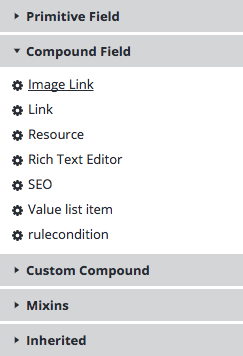
In the compound field options, select "imagelink" to add an Image Preview field to the template.
-
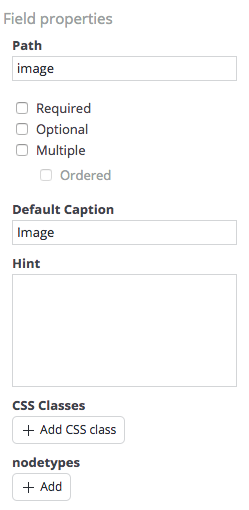
Specify the field's caption and path name in the properties panel.
-
Save and commit the changes to the template.
Adding an Image to a Document
After you have added the image field to a document type, follow these steps to select an image in a document:
-
Create a new document of the configured type, or open an existing document that includes the image field.
-
In the Image field, select 'Select'.

-
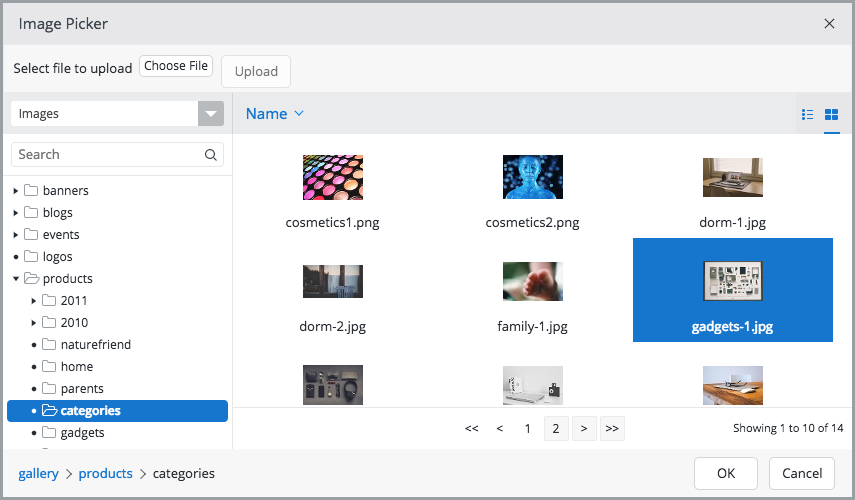
In the Image Picker dialog, browse the gallery folders, select an image, and click 'OK'.
-
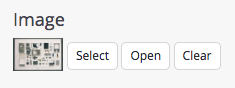
The Image field displays a thumbnail preview of the selected image.