Integration Testing with the New B2B Commerce Connector
Info: This feature in Bloomreach Content requires a standard or premium license. Contact Bloomreach for more information.
Overview
After you have validated your CommerceRepository implementations and completed unit testing using the Commerce Connector SDK APIs, you must perform integration testing with the Bloomreach Commerce Accelerator Application. To do this, add your connector module as a dependency and configure it in the Bloomreach B2B Commerce Accelerator project.
Info: Refer to the Installation documentation to install and create a Bloomreach B2B Commerce Accelerator project.
Add the Commerce Connector Module Dependency
Add your Commerce Connector Module as a dependency in the cms-dependencies/pom.xml file of your Bloomreach B2B Commerce Accelerator project. The following example uses the B2B Demo Commerce Connector Module:
<dependency> <groupId>com.bloomreach.commercedxp.demo.connectors</groupId> <artifactId>mydemoconnector-b2b</artifactId> <version>14.1.0</version> </dependency>
Build and Start the Application
Build the Bloomreach B2B Commerce Accelerator project:
$ mvn clean verify -Ddependency-check.skip=true
Start the application:
$ mvn -P cargo.run
Note: When running the application with this command, you may see error or warning logs related to missing Salesforce Commerce Cloud: B2B connector configuration. These errors can be ignored if you are testing with the B2B Demo Commerce Connector Module. Unless you have a running Salesforce Commerce Cloud: B2B environment configured in conf/braccelerator.properties, these exceptions are expected.
Example log output:
[INFO] [talledLocalContainer] 04.03.2020 09:00:44 ERROR ResourceResolversInitializingThread [RepositoryMapResourceResolverProvider.refreshResourceResolvers:289] Failed to load child context for resource space, 'salesforcecc'.
...
[INFO] [talledLocalContainer] 04.03.2020 09:06:11 WARN  http-nio-8080-exec-8 [SFBizCategoryRepositoryImpl.retrieveCategoryModelsBySOQL:130] Failed to find categories through SOQL in backend.
[INFO] [talledLocalContainer] org.onehippo.cms7.crisp.api.resource.ResourceException: No resource space for 'salesforcecc'.
...
Disable Federated Authentication
By default, the Bloomreach B2B Commerce Accelerator project is configured to use Federated Authentication Integration for Salesforce Commerce Cloud: B2B. For the B2B Demo Commerce Connector Module, Federated Authentication is not required. Disable this option as described below.
Update the Sign-in HST Page Configuration
In the CMS Console, navigate to the Sign-in HST sitemap item configuration and update the HST page configuration:
/hst:starterstoreb2bboot/hst:configurations/starterstoreb2bboot/hst:sitemap/signin
  hst:componentconfigurationid: 'hst:pages/signin-contentpage'
Update the Sign-up HST Page Configuration
In the CMS Console, navigate to the Sign-up HST sitemap item configuration and update the HST page configuration:
/hst:starterstoreb2bboot/hst:configurations/starterstoreb2bboot/hst:sitemap/signup
  hst:componentconfigurationid: 'hst:pages/signup-contentpage'
Update the Change Password HST Page Configuration
In the CMS Console, go to /hst:starterstoreb2bboot/hst:configurations/starterstoreb2bboot/hst:pages/account-creds-contentpage and remove the main child node at /hst:starterstoreb2bboot/hst:configurations/starterstoreb2bboot/hst:pages/account-creds-contentpage/main.
Then, import the following YAML to recreate the main child node:
/main: jcr:primaryType: hst:containercomponent hst:label: Content Page Main hst:xtype: hst.vbox /AccountCredentials: jcr:primaryType: hst:containeritemcomponent hst:componentclassname: com.bloomreach.commercedxp.starterstore.components.AccountCredentialsComponent hst:iconpath: images/essentials/catalog-component-icons/starterstore-bloomreach-dxp.png hst:label: Account credentials hst:template: starterstore-account-credentials hst:xtype: hst.item
Update the Sign-out Link
Modify the logout link in repository-data/webfiles/src/main/resources/site/freemarker/starterstoreb2bboot/federated-login-status.ftl as follows:
Before:
<li> <a href="<@hst.link siteMapItemRefId='logout'/>"> Logout </a> </li>
After:
<li> <a href="<@hst.actionURL><@hst.param name='_action' value='logout'/><@hst.param name='destination' value='${destination!?html}'/></@hst.actionURL>"> Logout </a> </li>
Register the Connector
Register your Commerce Connector Module in the CMS by creating a Commerce Connector document. Navigate to the adminitration/commerce-connectors folder and create a new document, for example, named "myb2bdemo" for the B2B Demo Commerce Connector Module.
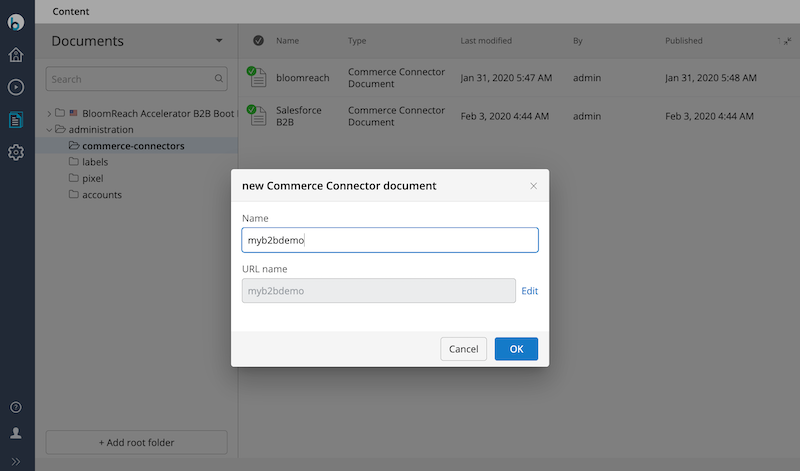
In the Connector ID field, enter "myb2bdemo" to uniquely identify the connector.
For the Module Name field, use the module name specified in the module descriptor at META-INF/hst-assembly/addon/module.xml. For the demo connector, this is com.bloomreach.commercedxp.demo.connectors.myb2bdemoconnector.
Leave the Resource space field empty unless you are using the CRISP API in your connector module. When required, enter the CRISP resource space name.
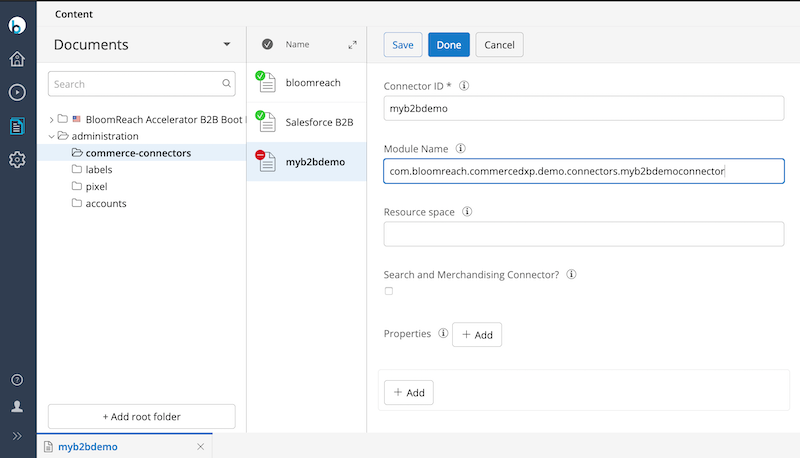
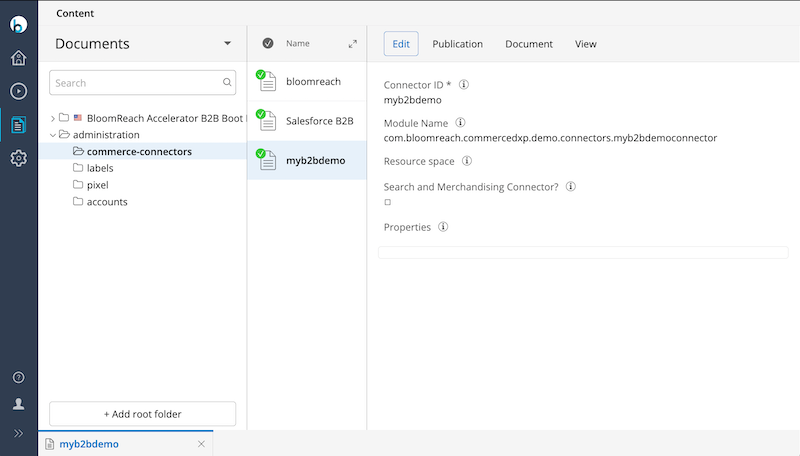
Publish the Commerce Connector document. The new B2B Commerce Connector Module "myb2bdemo" is now active.
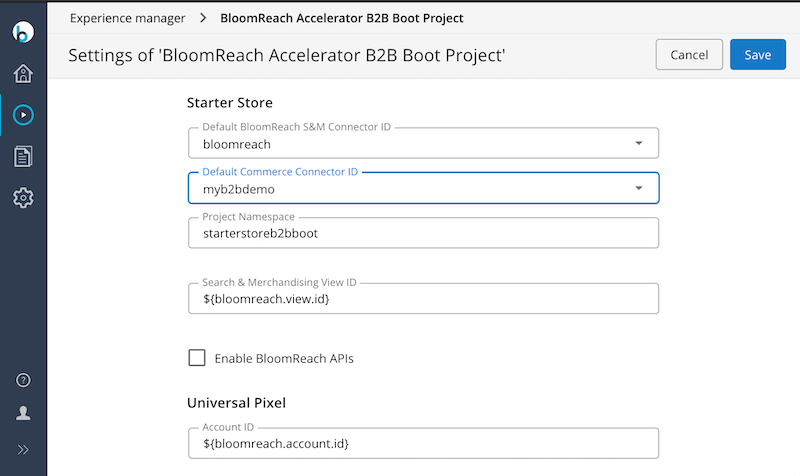
Set the Default Connector for the Channel
Open the Experience manager and edit the channel settings. In the Bloomreach Commerce Accelerator channel settings, select "myb2bdemo" as the default Commerce Connector. Publish the channel to activate the new configuration. Also, ensure that Bloomreach APIs are disabled.
Access the Delivery Application
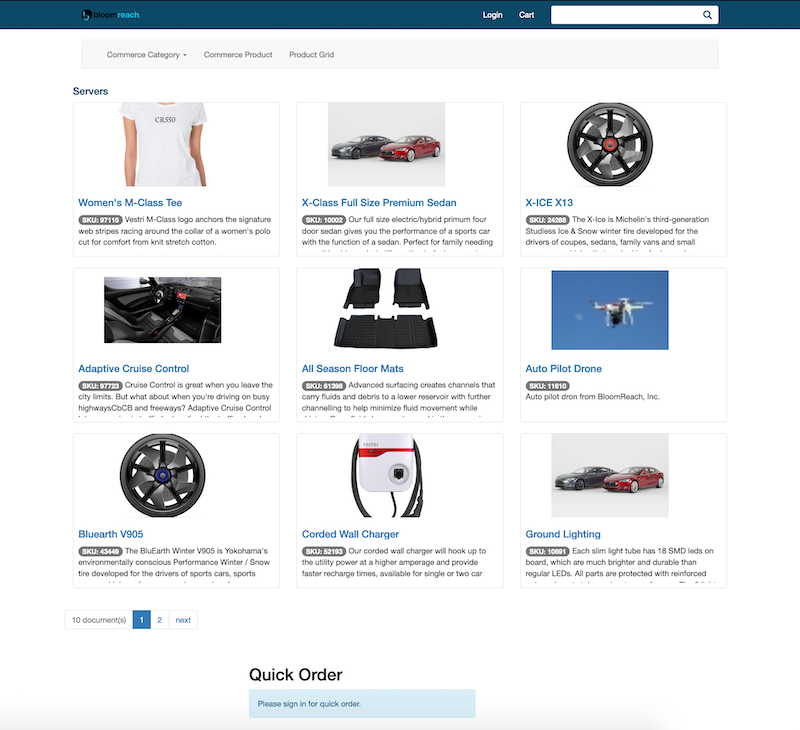
Go to http://localhost:8080/site/ and select the Product Grid menu. The product grid page will display product data from the B2B Demo Commerce Connector Module.
Customer Sign-up
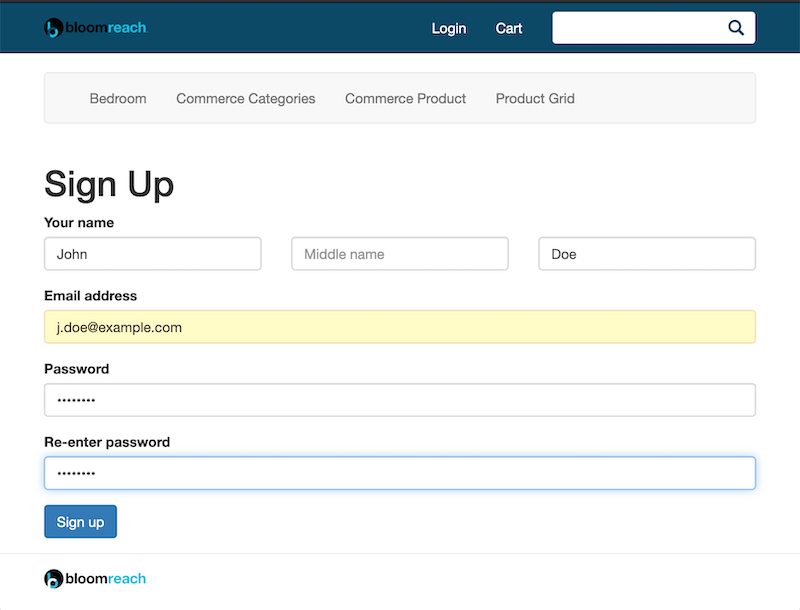
Test the customer sign-up and sign-in features. Click Login and then Sign up on the login page.
The B2B Demo Commerce Connector Module extends the B2C Demo Commerce Connector Module and stores customer and cart data in memory only. Data will not persist after a server restart, so you must sign up again each time the server restarts.
Customer Sign-in
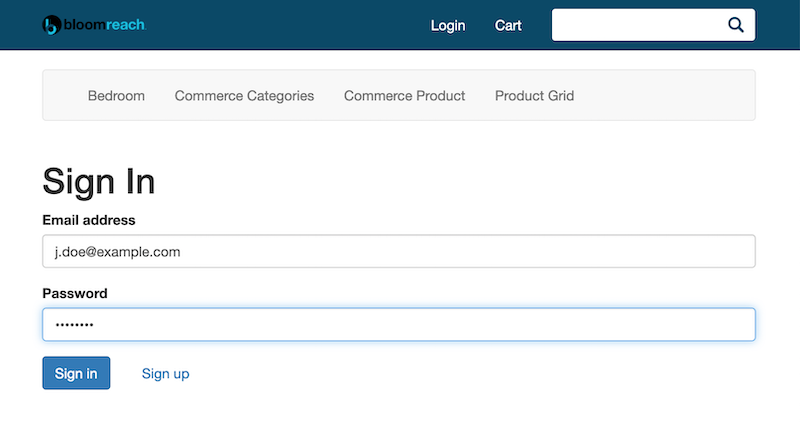
After signing up, sign in with your credentials.
Product Grid Page
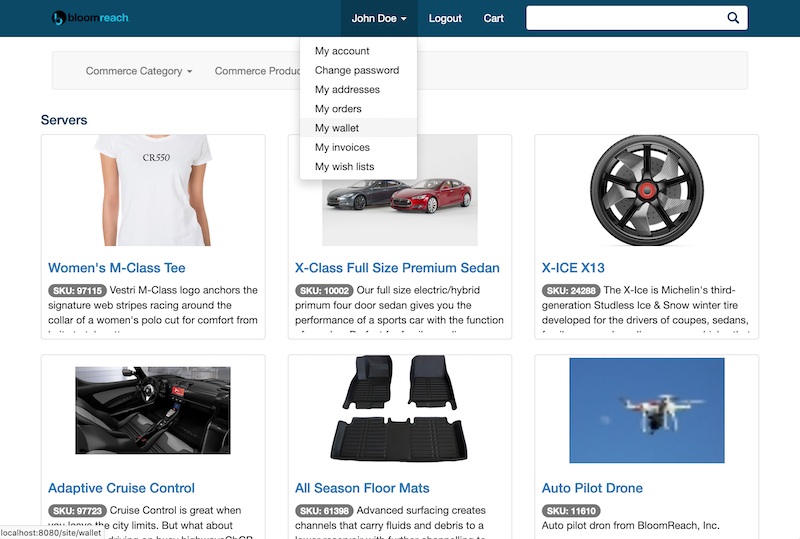
Return to the Product Grid page. The data remains the same, but you are now recognized as an authenticated customer.
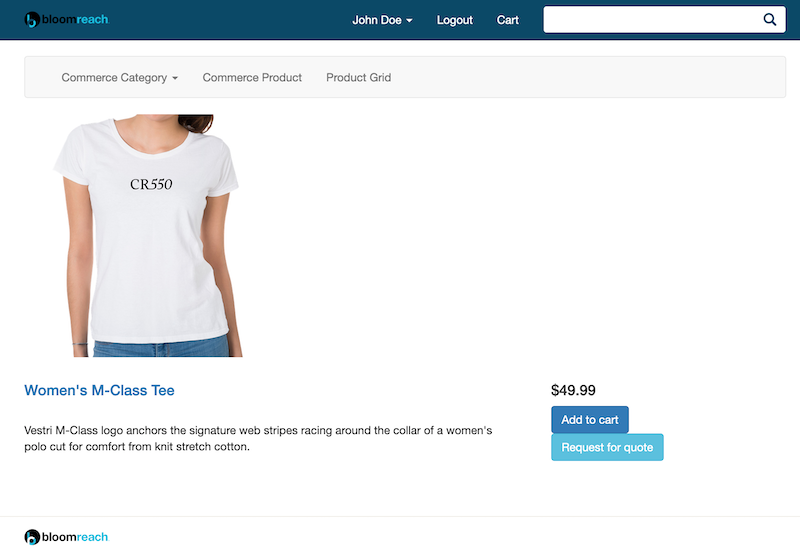
Select a product item in the grid to view the product detail page.
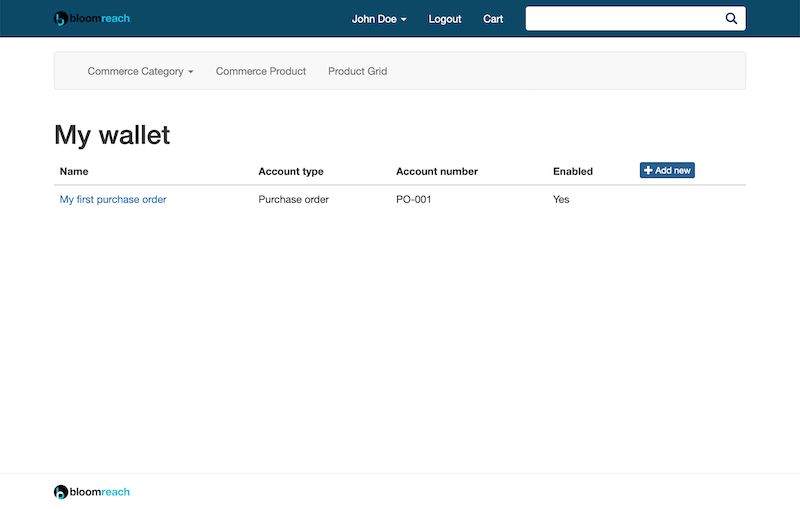
The Bloomreach B2B Commerce Accelerator project also provides menu items such as "My wallet" and "My wish lists". On the "My wallet" page, you can manage multiple stored payment options, such as purchase orders.
Product Detail Page and Add to Cart
On the product detail page, you can add the product to your cart.
Select the Cart menu to view, update, or delete cart entries.