Manage Pages in a Channel
Page Types
Channels support two types of pages:
- Document-driven pages: These pages use a single layout to display multiple documents of the same type, such as news articles, blogs, or event pages.
- Static pages: These pages have unique content and layouts specific to the site.
In the channel editor, webmasters can modify the layout of document-driven pages by adding, editing, or deleting components. To make these changes available on the live site, you must publish the channel.
If your Bloomreach Content environment includes prototype pages, webmasters can also add and edit static pages as part of the channel. These pages do not support workflow or versioning. They are published together with the channel and cannot be unpublished individually.
Experience pages provide a more flexible static page option.
You can add and edit experience pages in the channel editor. Each experience page is managed as a separate content item, similar to documents, and is not part of the channel configuration.
As an editor or webmaster, you can publish or schedule the publication or unpublishing of individual experience pages. Scheduled publication allows you to prepare changes in advance and have them go live automatically. Authors can also work with experience pages, but must request publication or unpublishing. Experience pages support workflow and versioning for both layout and embedded content.
Info: Experience pages are available starting from version 14.3.0.
Page Navigation
To access a specific page in the site, use the site's navigation menu, links, or the Sitemap panel:
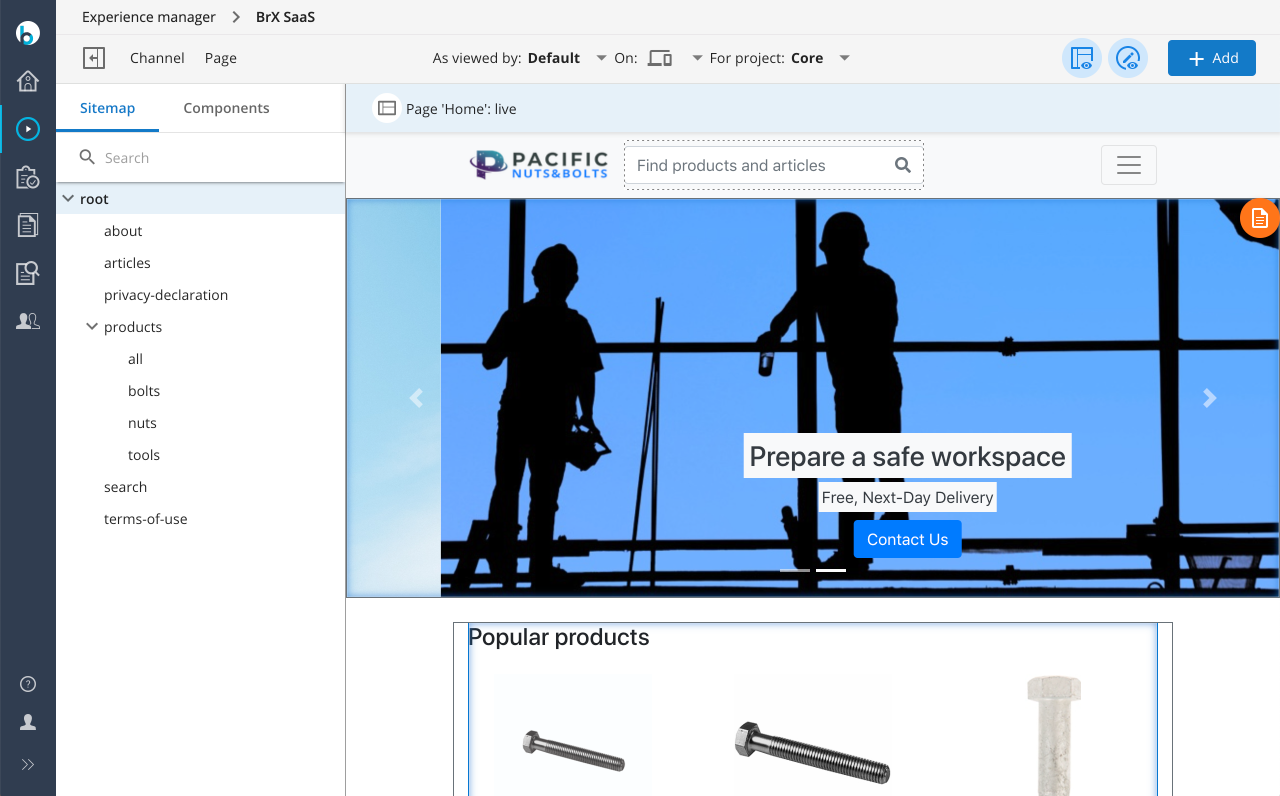
The Sitemap displays all static pages—including both experience pages and pages that are part of the channel—in a tree structure organized by URL. Experience page URLs depend on configuration, but typically follow the folder structure in the Content application, starting from the top-level folder containing experience pages for the current channel.
You can browse the sitemap tree or use the Search function to locate a page. Search by page name, any segment of the URL path, or the full or partial URL path (starting with a slash). For example, to find the /products/bolts page shown above, you can search for "bolts", "products", "/products/bolts", or "/products/b".
Select a page in the sitemap to open it in the channel preview.
Info: The sitemap tree structure is available from version 14.4.0. In earlier versions, pages appear in a list.
Info: Searching by URL path in the sitemap is available from version 15.4.0.