Manage Pages as Part of a Channel
Use the Experience manager to add, copy, delete, rename, or move pages within a channel.
Pages managed in this way do not support workflow or versioning. They are published together with the channel and cannot be unpublished individually.
Info: Experience pages (available since version 14.3.0) support workflow and versioning. You can publish or unpublish these pages individually.
Add a Page
-
Select the channel where you want to add a page.
-
Click
Pagein the toolbar.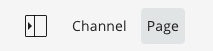
-
In the menu, click
New.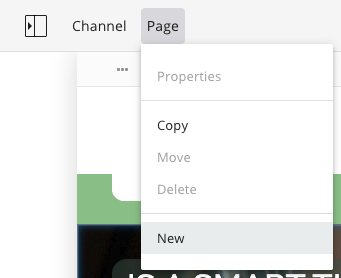
-
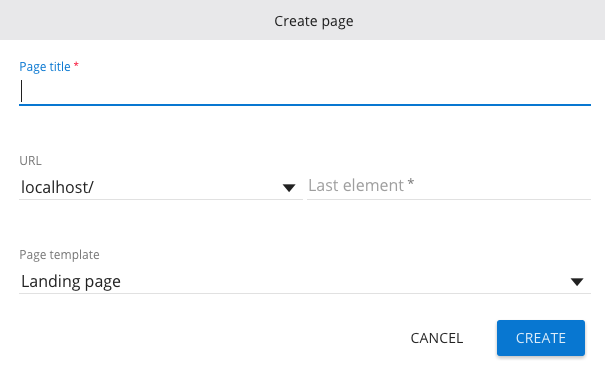
In the form, enter a title for the new page.
-
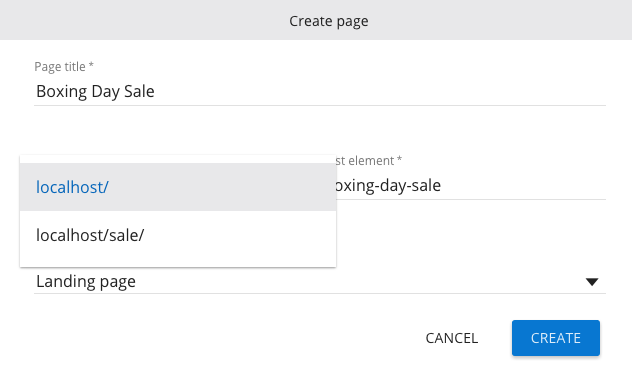
The system generates a default URL based on the channel's domain and a URL-friendly version of the title.
-
You can select a different URL from the dropdown or modify the generated name.
-
-
Select a page template from the dropdown.
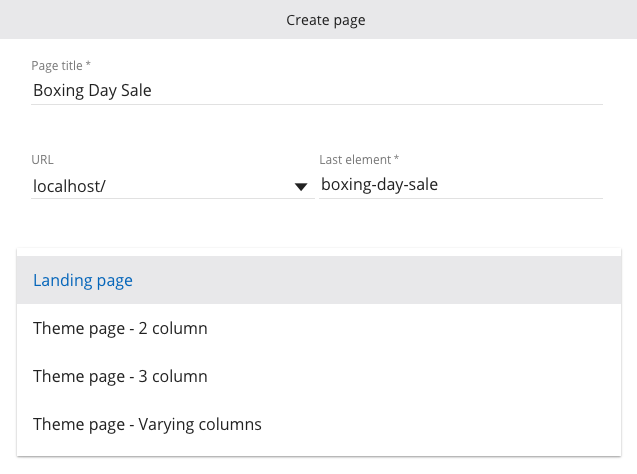
-
Click
Createto add the new page.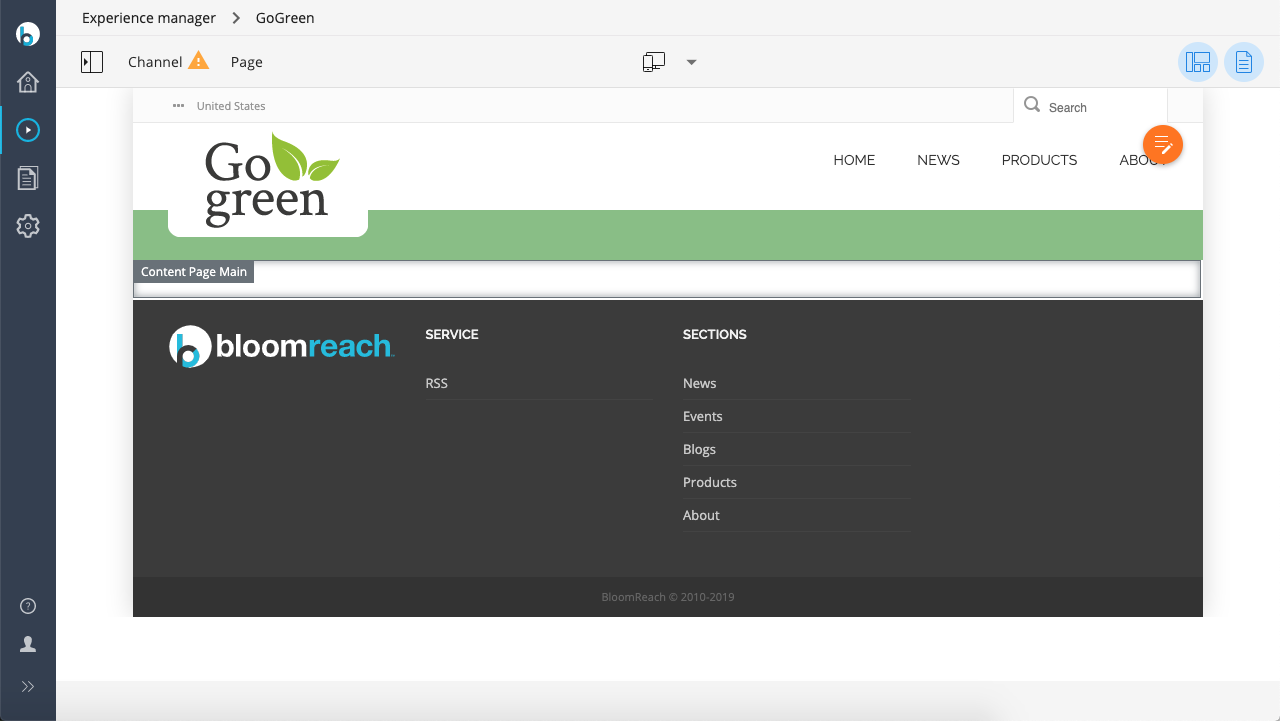
-
Add and configure components as needed.
-
After configuring the page, publish your changes to make the page available.
Note: Pages added through the Experience manager can also be copied, renamed or moved, or deleted.
Copy a Page
You can copy pages within the Experience manager. By default, copying is allowed within the same channel. Administrators can enable copying between channels. Both editable and non-editable pages can be copied. When you copy a non-editable page, the copy becomes editable.
Copy a Page Within the Same Channel
-
Select the channel containing the page you want to copy.
-
Click
Pagein the toolbar. -
In the menu, click
Copy.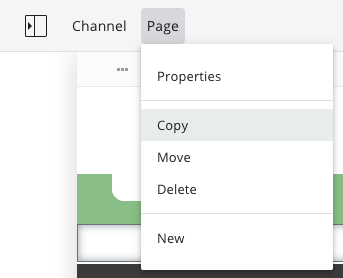
-
In the
Copy pageform, enter the last element of the URL for the new page.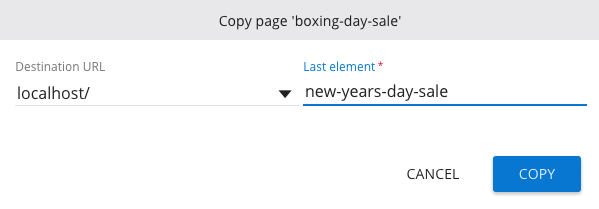
-
Optionally, select a different
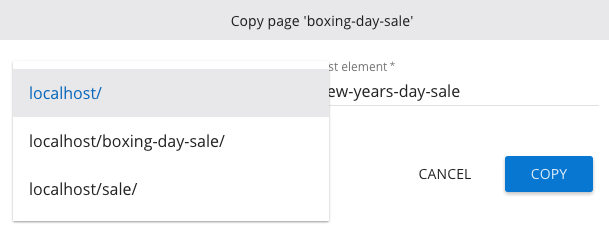
Destination URL(parent location). The dropdown lists all available locations. -
If the selected destination is locked by another user, the copy will fail and display a message with the lock owner's name.
-
Copy a Page Between Channels
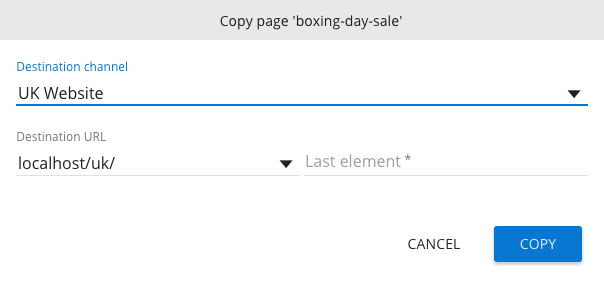
By default, you can only copy pages within the same channel. To copy pages between channels, an administrator must enable this option.
If enabled, the Copy page form includes a Destination channel dropdown:
Handling Missing Configuration
If the target channel does not have all required templates or components, the system copies any missing configuration along with the page.
Locking
After copying, the new page is locked by the current user until changes are published.
Rename or Move a Page
Pages added through the Experience manager can be renamed, moved, or both at the same time.
-
Select the channel containing the page you want to rename or move.
-
Click
Pagein the toolbar. -
In the menu, click
Move.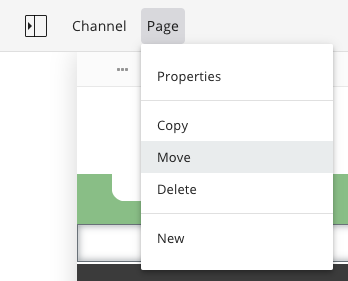
-
In the
Move pageform, use theURLdropdown to select a new parent location.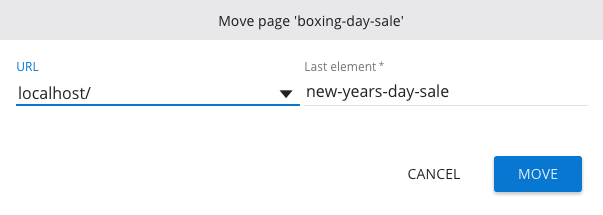
-
Use the
Last elementfield to rename the page.
Important:
- If a page has child pages (nested URLs), moving or renaming the parent updates the URLs of all child pages.
- You cannot move a page below itself.
Publish Changes
Pages managed as part of a channel are published together with other channel changes. To publish, select Publish (or Submit if you are working in a project) from the Channel menu.
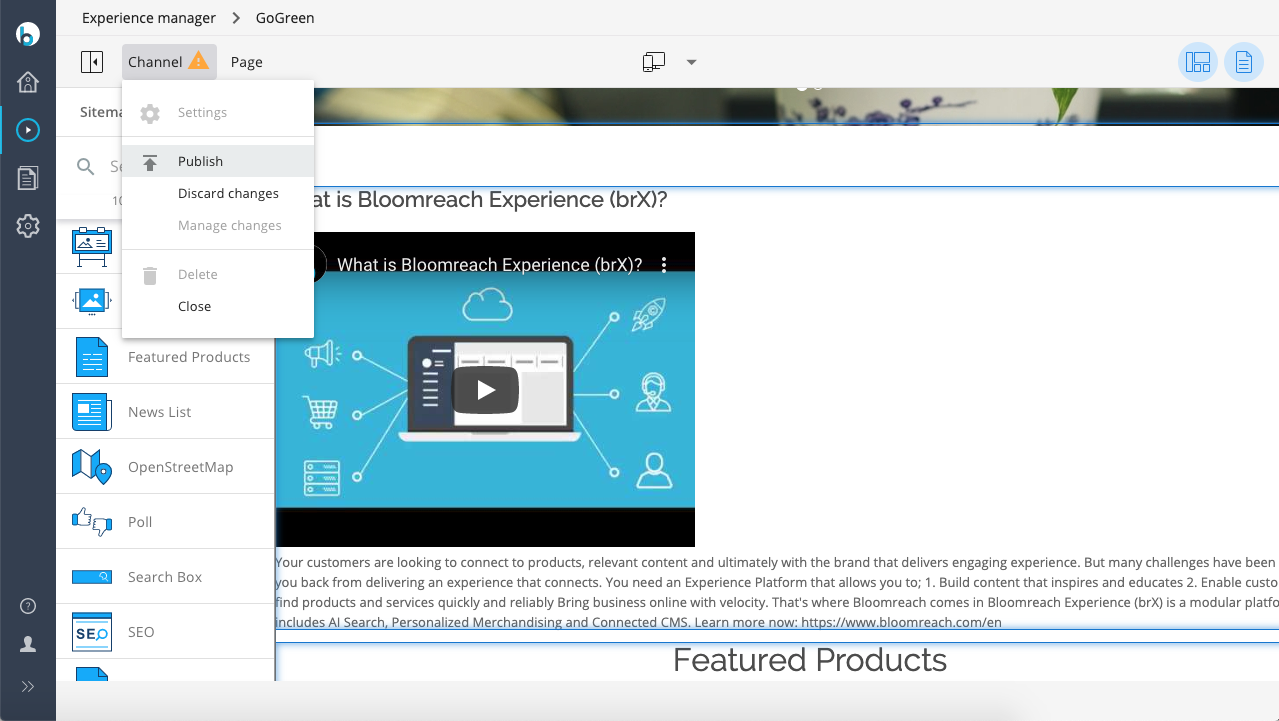
To discard all changes made to the channel, select Discard changes.