Add Related News
Previous Step
At this point, all features in the sprint scope are implemented except for Related News. To allow authors to add related news links to a news article, you need to update both the content model and the template for news articles.
Review the Web Design
Open the web design in your browser and navigate to a news article detail page. The right column displays a block with related news links.

The two-column main content area is not included in this sprint. The News Detail page currently uses a single-column layout.
However, Related News is within the sprint scope. Add this feature to the News Detail template.
Add a Related News Links Field to the News Document Type
- Open Bloomreach Content at http://localhost:8080/cms/ and log in using username
adminand passwordadmin. - On the dashboard, click
To the contentto open theContentapplication. - In the left column, select
Document Typesfrom the dropdown and open thegogreenfolder. This displays the list of document types.
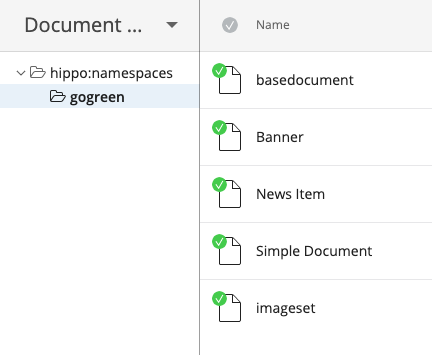
- Select the
News Itemdocument type and clickEditto open it in the document type editor. - In the right column, under
Compound Field, selectLinkto add a new Link field.
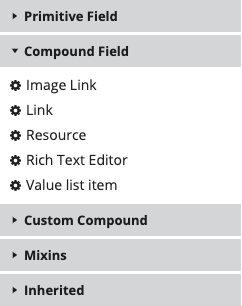
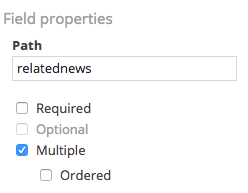
- Select the new Link field (named "mirror" by default). Its properties appear in a form in the right column.
- Set the
Pathproperty torelatednews. This value must be unique within the document type. - Enable the
Multiplecheckbox to allow authors to add more than one link.
- Set the
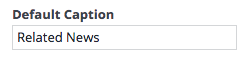
Default Captionproperty toRelated News. This label appears above the field in the editor.
- Click
Doneto close the document type editor. - Click
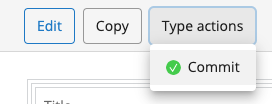
Type actions, thenCommitto apply your changes. The Link field is now available for all News documents.
Add Related News Links to a News Document
- In the left column, select
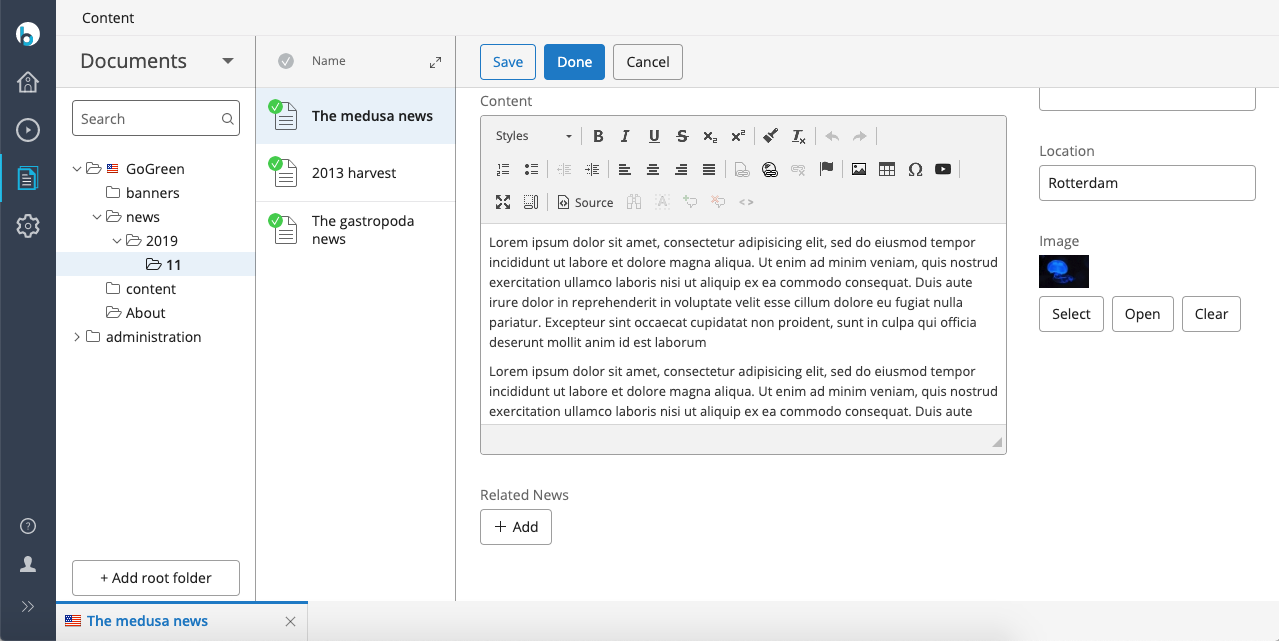
Documentsfrom the dropdown and navigate to thenewsfolder. - Open a news document in the editor. The new
Related Newsfield appears at the bottom. No links are present yet, but the+ Addbutton is available.
- Click
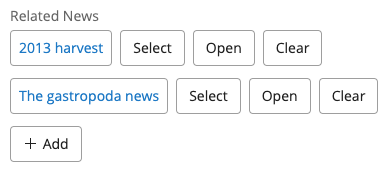
+ AddbelowRelated News. An empty item appears. ClickSelectto open a dialog. - In the dialog, browse to the
newsfolder, select a different news document, and clickOKto add the link. - Add one or two more links as needed. Close the document and publish your changes.
At this stage, related news links are not visible on the website. The template must be updated to display them.
Add Related News Links to the News Article Template
- Open the
news-detail.htmlfile from the web design. This file contains the HTML markup for the Related News block. - Locate the
<div class="col-md-3 col-sm-3">element. This is the right column that will display related news links. - Open
bootstrap-webfiles/src/main/resources/site/freemarker/hstdefault/newspage-main.ftlin your project. This Freemarker template renders news articles. - Use Freemarker syntax to render the related news links dynamically, using the HTML structure from the web design. If there are no related news links, do not render the block.
The document object exposes the list of related news links through its relatednews attribute, which corresponds to the getRelatednews method in the NewsDocument class.
Example Freemarker code:
<#if document.relatednews?has_content> <div class="col-md-3 col-sm-3"> <div class="hst-container"> <div class="hst-container-item"> <div class="sidebar-block"> <h3 class="h3-sidebar-title sidebar-title">Related News</h3> <div class="sidebar-content"> <ul> <#list document.relatednews as item> <@hst.link var="link" hippobean=item /> <li> <a href="${link}">${item.title?html}</a> </li> </#list> </ul> </div> </div> </div> </div> </div> </#if>
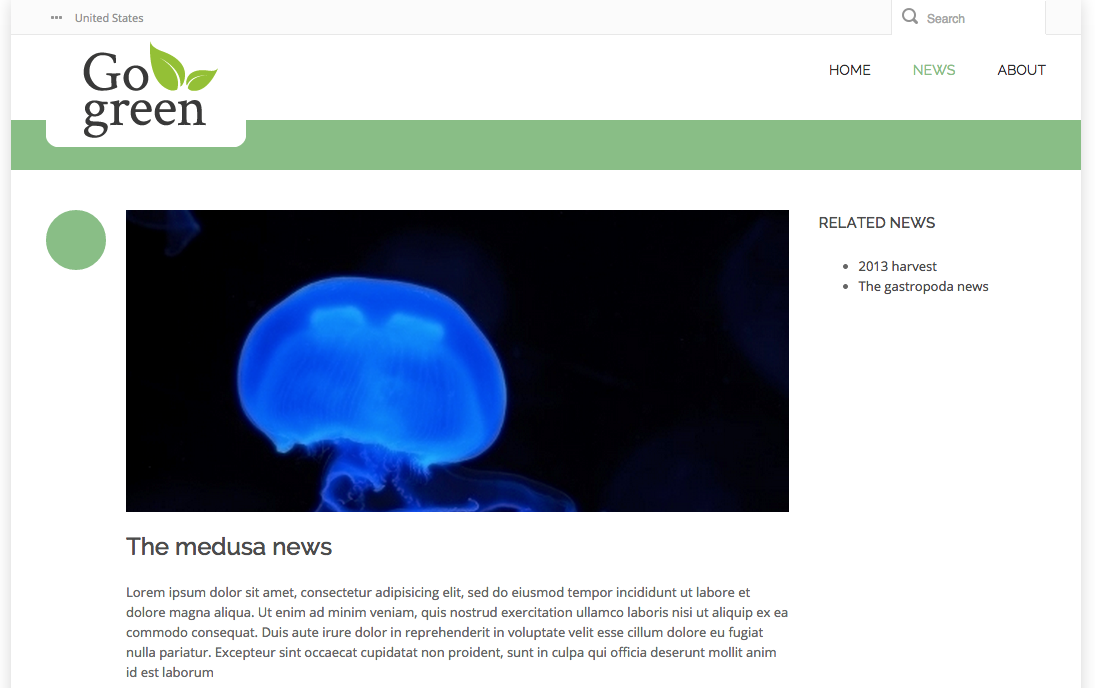
- Open the website in your browser and navigate to the news article where you added related news links. The links now appear in a sidebar, matching the web design.
Iteration Complete
You have now added Related News and completed the first iteration. The GoGreen website includes all features defined for this iteration. Proceed to the next iteration to continue development.
Info: The full deliverable for this iteration is available on GitHub for brXM 14, brXM 15, and brXM 16. Use these repositories to compare your implementation.
Next Step
Iteration 2: Develop New Features
Full Source Code
newspage-main.ftl
<#include "../include/imports.ftl"> <div class="body-wrapper"> <div class="container"> <div class="row"> <#if document??> <@hst.link var="link" hippobean=document/> <div class="col-md-9 col-sm-9"> <div class="blog-post has-edit-button"> <@hst.manageContent hippobean=document/> <div class="blog-post-type"> <i class="icon-news"> </i> </div> <div class="blog-span"> <#if document.image?? && document.image.large??> <@hst.link var="img" hippobean=document.image.large/> <div class="blog-post-featured-img"> <img src="${img}" alt="${document.title?html}" /> </div> </#if> <h2>${document.title?html}</h2> <div class="blog-post-body"> <p>${document.introduction?html}</p> <@hst.html hippohtml=document.content/> </div> <div class="blog-post-details"> <div class="blog-post-details-item blog-post-details-item-left icon-calendar"> <#if document.date??> <span class="date"> <@fmt.formatDate value=document.date.time type="both" dateStyle="medium" timeStyle="short"/> </span> </#if> </div> </div> </div> </div> </div> <#if document.relatednews?has_content> <div class="col-md-3 col-sm-3"> <div class="hst-container"> <div class="hst-container-item"> <div class="sidebar-block"> <h3 class="h3-sidebar-title sidebar-title">Related News</h3> <div class="sidebar-content"> <ul> <#list document.relatednews as item> <@hst.link var="link" hippobean=item /> <li> <a href="${link}">${item.title?html}</a> </li> </#list> </ul> </div> </div> </div> </div> </div> </#if> </#if> </div> </div> </div>