Configure the News Overview Page
Previous Step
With the homepage configured, proceed to implement the News Overview page.
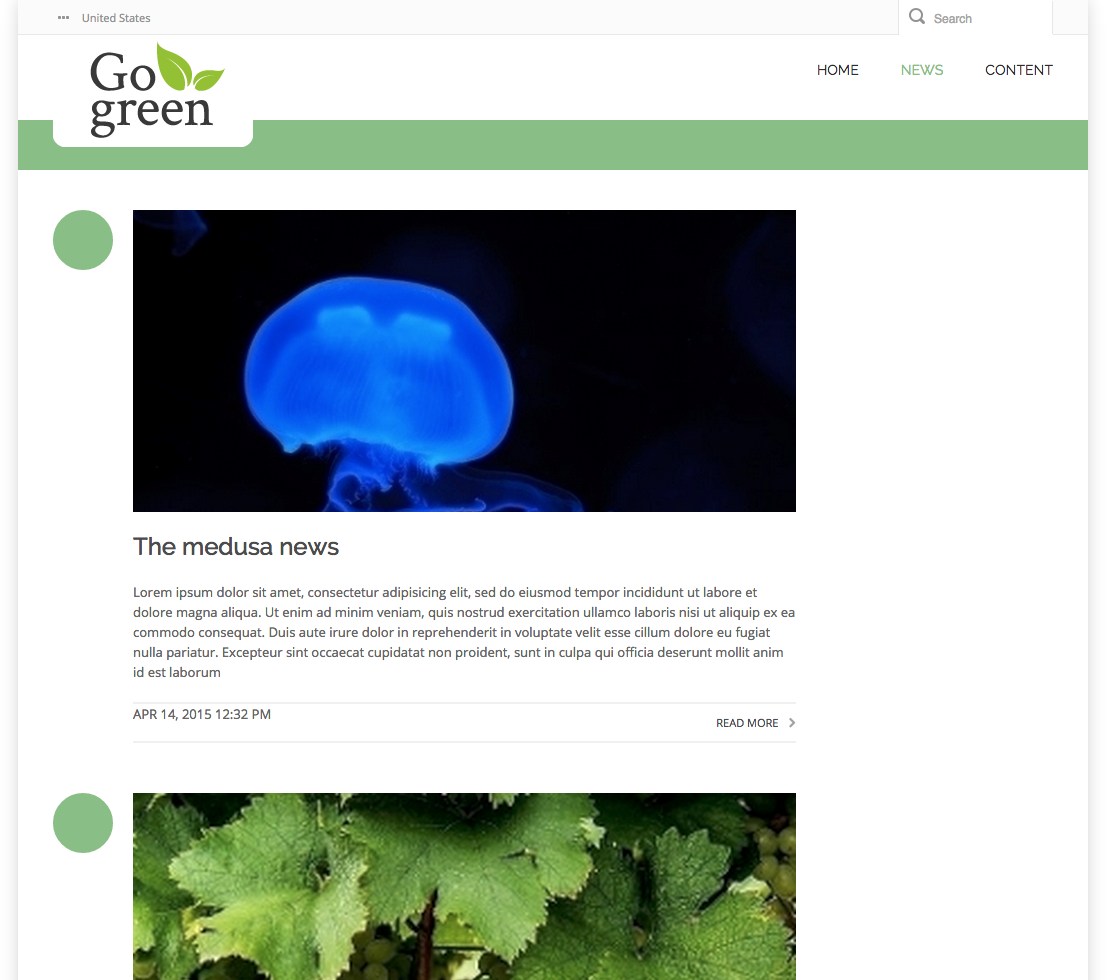
Review the Web Design
Open the web design in your browser and navigate to the News Overview page. This page displays a news listing that your implementation should match.

The main content area is divided into two columns:
- Left column: news list
- Right column: faceted navigation
The faceted navigation (right column) is not included in this iteration. For now, focus on the left column, which contains the news list. You will implement the additional column in a future development iteration.
Implement the News Overview Template
- Open your site in the browser at http://localhost:8080/site/.
- Navigate to the News Overview page by selecting the 'news' menu item. The default news listing appears in the main content area, but it lacks styling.
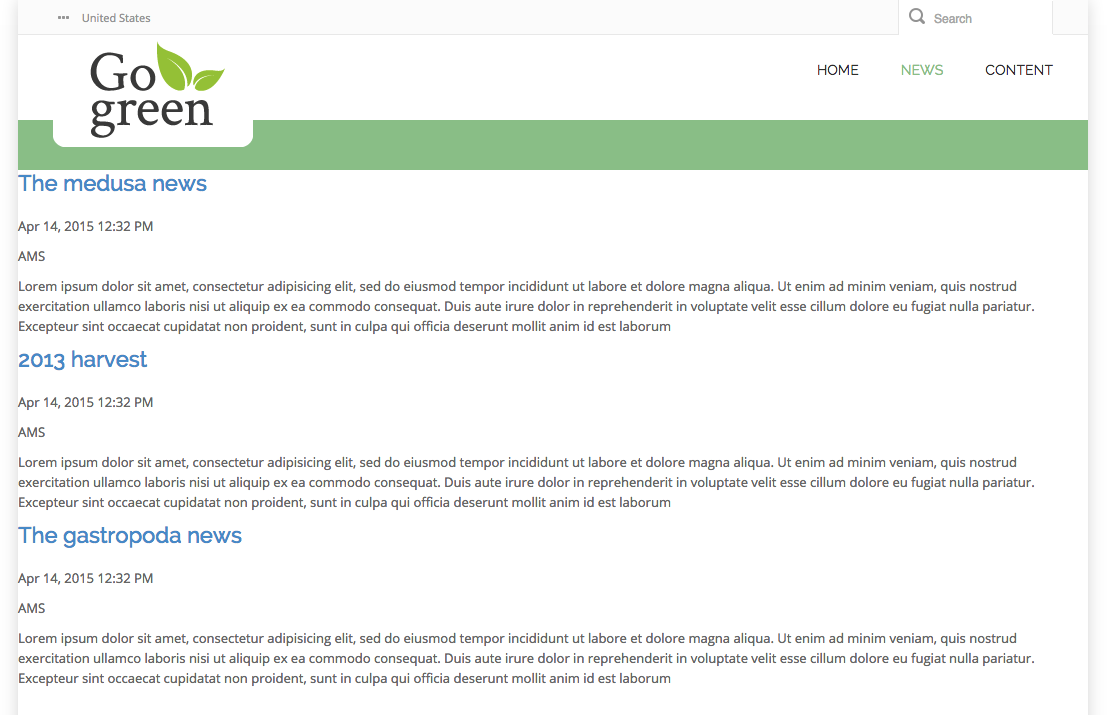
-
Locate the
news.htmlfile in your web design assets. This file contains the HTML markup for the news overview. -
In
news.html, find the<div class="body-wrapper">element. This element wraps the news listing markup. -
Open the following Freemarker template in your Bloomreach Content project:
repository-data/webfiles/src/main/resources/site/freemarker/hstdefault/newslist-main-newslist.ftlThis template defines the news list component.
-
Note that this template includes another template for pagination:
<#include "../include/pagination.ftl"> -
Integrate the HTML markup from
news.htmlinto the Freemarker templatenewslist-main-newslist.ftl. Consider the following:- Retrieve a news article's image using the
item.imageproperty. - Access the 'large' image variant with
item.image.large. - Use the
<@hst.link>tag to generate image and document URLs. - Preserve the
<@hst.manageContent>tag to enable the edit button in channel preview. - Retain the pagination template inclusion.
- Retrieve a news article's image using the
A typical implementation will resemble the following:
<#include "../include/imports.ftl"> <div class="body-wrapper"> <div class="container"> <div class="row"> <div class="col-md-9 col-sm-9"> <div class="news-overview"> <#if pageable?? && pageable.items?has_content> <#list pageable.items as item> <@hst.link var="link" hippobean=item /> <div class="blog-post has-edit-button"> <@hst.manageContent hippobean=item/> <div class="blog-post-type"> <i class="icon-news"> </i> </div> <div class="blog-span"> <#if item.image?? && item.image.large??> <@hst.link var="img" hippobean=item.image.large /> <div class="blog-post-featured-img"> <a href="${link}"><img src="${img}" alt="${item.title?html}" /></a> </div> </#if> <h2> <a href="${link}">${item.title?html}</a> </h2> <div class="blog-post-body"> <p>${item.introduction?html}</p> </div> <div class="blog-post-details"> <div class="blog-post-details-item blog-post-details-item-left icon-calendar"> <#if item.date?? && item.date.time??> <p><@fmt.formatDate value=item.date.time type="both" dateStyle="medium" timeStyle="short"/></p> </#if> </div> <div class="blog-post-details-item blog-post-details-item-right"> <a href="${link}"> Read more<i class="fa fa-chevron-right"></i></a> </div> </div> </div> </div> </#list> <#if cparam.showPagination> <#include "../include/pagination.ftl"> </#if> <#elseif editMode> <div> <img src="<@hst.link path='/images/essentials/catalog-component-icons/news-list.png'/>"> Click to edit News List <div class="has-new-content-button"> <@hst.manageContent templateQuery="new-news-document" rootPath="news" defaultPath="${currentYear}/${currentMonth}"/> </div> </div> </#if> </div> </div> </div> </div> </div>
Implement the Pagination Template
-
In
news.html, locate the<div class="pagination-container">element. This contains the markup for pagination. -
Open the following Freemarker template:
repository-data/webfiles/src/main/resources/site/freemarker/include/pagination.ftlThis template is included from
newslist-main-newslist.ftland handles pagination. -
Replace the template's content with the HTML markup for pagination from
news.html, adapting it for Freemarker as needed. The resulting template should look similar to:
<#include "../include/imports.ftl"> <#if pageable??> <div class="pagination-container"> <ul class="pagination"> <#if pageable.totalPages gt 1> <#list pageable.pageNumbersArray as pageNr> <@hst.renderURL var="pageUrl"> <@hst.param name="page" value="${pageNr}"/> <@hst.param name="pageSize" value="${pageable.pageSize}"/> </@hst.renderURL> <#if pageNr_index==0> <#if pageable.previous> <@hst.renderURL var="pageUrlPrevious"> <@hst.param name="page" value="${pageable.previousPage}"/> <@hst.param name="pageSize" value="${pageable.pageSize}"/> </@hst.renderURL> <li><a href="${pageUrlPrevious}"><span class="prev">Previous</span></a></li> <#else> <li class="disabled"><span class="prev">Previous</span></li> </#if> </#if> <#if pageable.currentPage == pageNr> <li><span class="current">${pageNr}</span></li> <#else > <li><a href="${pageUrl}">${pageNr}</a></li> </#if> <#if !pageNr_has_next> <#if pageable.next> <@hst.renderURL var="pageUrlNext"> <@hst.param name="page" value="${pageable.nextPage}"/> <@hst.param name="pageSize" value="${pageable.pageSize}"/> </@hst.renderURL> <li><a href="${pageUrlNext}"><span class="next">Next</span></a></li> <#else> <li class="disabled"><span class="next">Next</span></li> </#if> </#if> </#list> </#if> </ul> </div> </#if>
- Open your site in the browser and navigate to the News Overview page. The page should now match the web design. To verify pagination, add additional news articles in the CMS and confirm that pagination controls appear and function as expected.
Next Step
Configure the News Detail Page
Full Source Code
newslist-main-newslist.ftl
<#include "../include/imports.ftl"> <div class="body-wrapper"> <div class="container"> <div class="row"> <div class="col-md-9 col-sm-9"> <div class="news-overview"> <#if pageable?? && pageable.items?has_content> <#list pageable.items as item> <@hst.link var="link" hippobean=item /> <div class="blog-post has-edit-button"> <@hst.manageContent hippobean=item/> <div class="blog-post-type"> <i class="icon-news"> </i> </div> <div class="blog-span"> <#if item.image?? && item.image.large??> <@hst.link var="img" hippobean=item.image.large /> <div class="blog-post-featured-img"> <a href="${link}"><img src="${img}" alt="${item.title?html}" /></a> </div> </#if> <h2> <a href="${link}">${item.title?html}</a> </h2> <div class="blog-post-body"> <p>${item.introduction?html}</p> </div> <div class="blog-post-details"> <div class="blog-post-details-item blog-post-details-item-left icon-calendar"> <#if item.date?? && item.date.time??> <p><@fmt.formatDate value=item.date.time type="both" dateStyle="medium" timeStyle="short"/></p> </#if> </div> <div class="blog-post-details-item blog-post-details-item-right"> <a href="${link}"> Read more<i class="fa fa-chevron-right"></i></a> </div> </div> </div> </div> </#list> <#if cparam.showPagination> <#include "../include/pagination.ftl"> </#if> <#elseif editMode> <div> <img src="<@hst.link path='/images/essentials/catalog-component-icons/news-list.png'/>"> Click to edit News List <div class="has-new-content-button"> <@hst.manageContent templateQuery="new-news-document" rootPath="news" defaultPath="${currentYear}/${currentMonth}"/> </div> </div> </#if> </div> </div> </div> </div> </div>
pagination.ftl
<#include "../include/imports.ftl"> <#if pageable??> <div class="pagination-container"> <ul class="pagination"> <#if pageable.totalPages gt 1> <#list pageable.pageNumbersArray as pageNr> <@hst.renderURL var="pageUrl"> <@hst.param name="page" value="${pageNr}"/> <@hst.param name="pageSize" value="${pageable.pageSize}"/> </@hst.renderURL> <#if pageNr_index==0> <#if pageable.previous> <@hst.renderURL var="pageUrlPrevious"> <@hst.param name="page" value="${pageable.previousPage}"/> <@hst.param name="pageSize" value="${pageable.pageSize}"/> </@hst.renderURL> <li><a href="${pageUrlPrevious}"><span class="prev">Previous</span></a></li> <#else> <li class="disabled"><span class="prev">Previous</span></li> </#if> </#if> <#if pageable.currentPage == pageNr> <li><span class="current">${pageNr}</span></li> <#else > <li><a href="${pageUrl}">${pageNr}</a></li> </#if> <#if !pageNr_has_next> <#if pageable.next> <@hst.renderURL var="pageUrlNext"> <@hst.param name="page" value="${pageable.nextPage}"/> <@hst.param name="pageSize" value="${pageable.pageSize}"/> </@hst.renderURL> <li><a href="${pageUrlNext}"><span class="next">Next</span></a></li> <#else> <li class="disabled"><span class="next">Next</span></li> </#if> </#if> </#list> </#if> </ul> </div> </#if>