Using This Documentation
This documentation lives at docs.content.bloomreach.com.
You can read it like any website. You can also connect it to your AI assistant, which then searches
and reads these docs for you and links its answers back to the source pages.
This guide leads with that AI integration (MCP), then covers the website's own features:
search, AI mode, browsing by persona, overview and detail pages, login, and feedback.
Connect your AI assistant over MCP
The documentation is served over the Model Context Protocol (MCP), an open, vendor-neutral
standard that lets AI assistants talk to external systems through one interface. Point a compatible
client at the MCP endpoint and it can search and read the entire public documentation set as tools,
without copy-pasting pages.
MCP endpoint (production):
https://api.content.bloomreach.com/mcp
Note the host. The MCP endpoint lives on the delivery host (
api.content.bloomreach.com),
a different host from the website itself (docs.content.bloomreach.com). The website's own search
and AI features call this same endpoint behind the scenes.
Tools available
Once connected, your assistant has these tools:
| Tool | What it does |
|---|---|
knowledge_search | Semantic (meaning-based) search across all documentation. Returns ranked results with title, summary, path, audience, and a relevance score. Can be filtered by audience (backend-developer, frontend-developer, devops, content-editor, architect) and by section (getting-started, content, frontend, build, deploy, content-ai, about). |
get_page | Fetches a full page: all metadata plus the complete Markdown body. Your assistant typically calls this after knowledge_search to read the most relevant result in full. |
related_search | Given a page, finds other pages semantically similar to it, useful for "what else should I read about this?" |
The endpoint enforces access tiers automatically from your session. Anything your account can't
fully read comes back as a preview (title and summary) with an "authentication required" marker
rather than the full body. See Authentication below.
Registering the endpoint
For a ready-to-paste config, use the Copy page widget on any detail page: open its dropdown and
choose MCP config / command. It gives you a snippet already pointing at the correct endpoint.
Below are the typical setups for the clients we have tested.
We have tested the documentation MCP with Claude Code, Claude Desktop, and
Codex / ChatGPT.
Claude Code. Add the endpoint as an HTTP MCP server:
claude mcp add --transport http bloomreach-docs https://api.content.bloomreach.com/mcp
This registers the server as an HTTP endpoint in your MCP config:
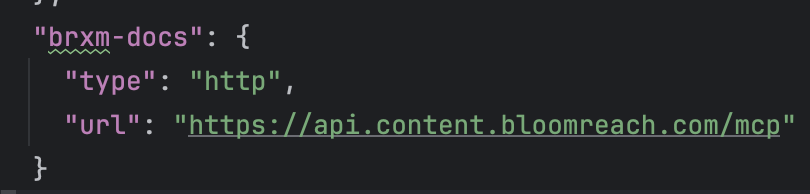
Then start (or restart) Claude Code and ask it to search the Bloomreach documentation. You can
confirm it is connected with claude mcp list or the /mcp command.
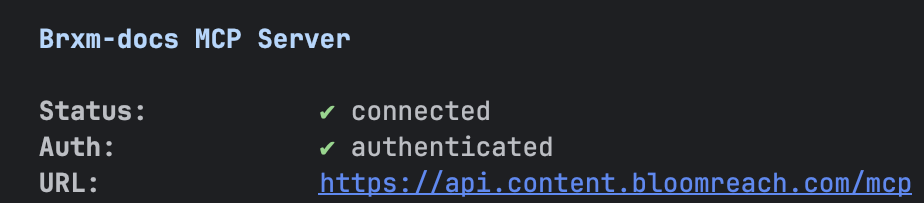
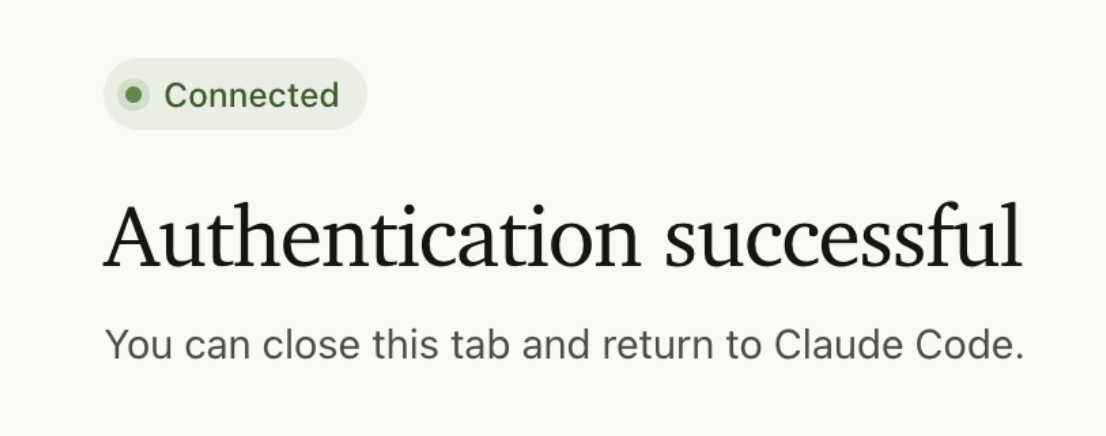
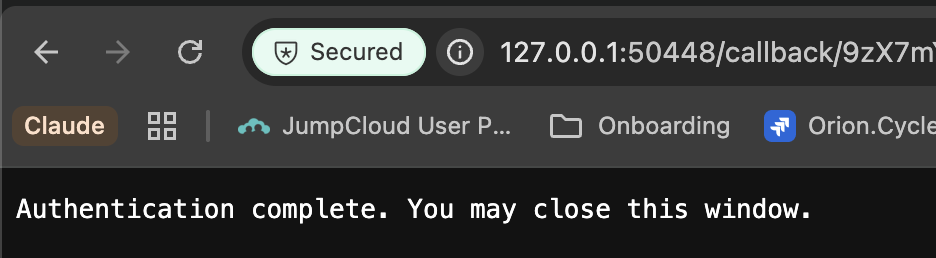
When you authenticate for gated content, a browser tab opens and confirms success:
Back in Claude Code, the /mcp command confirms the server reconnected:

Claude Desktop. Add it as a custom connector:
-
Open Settings → Connectors (or Developer, depending on your version).
-
Choose Add custom connector.
-
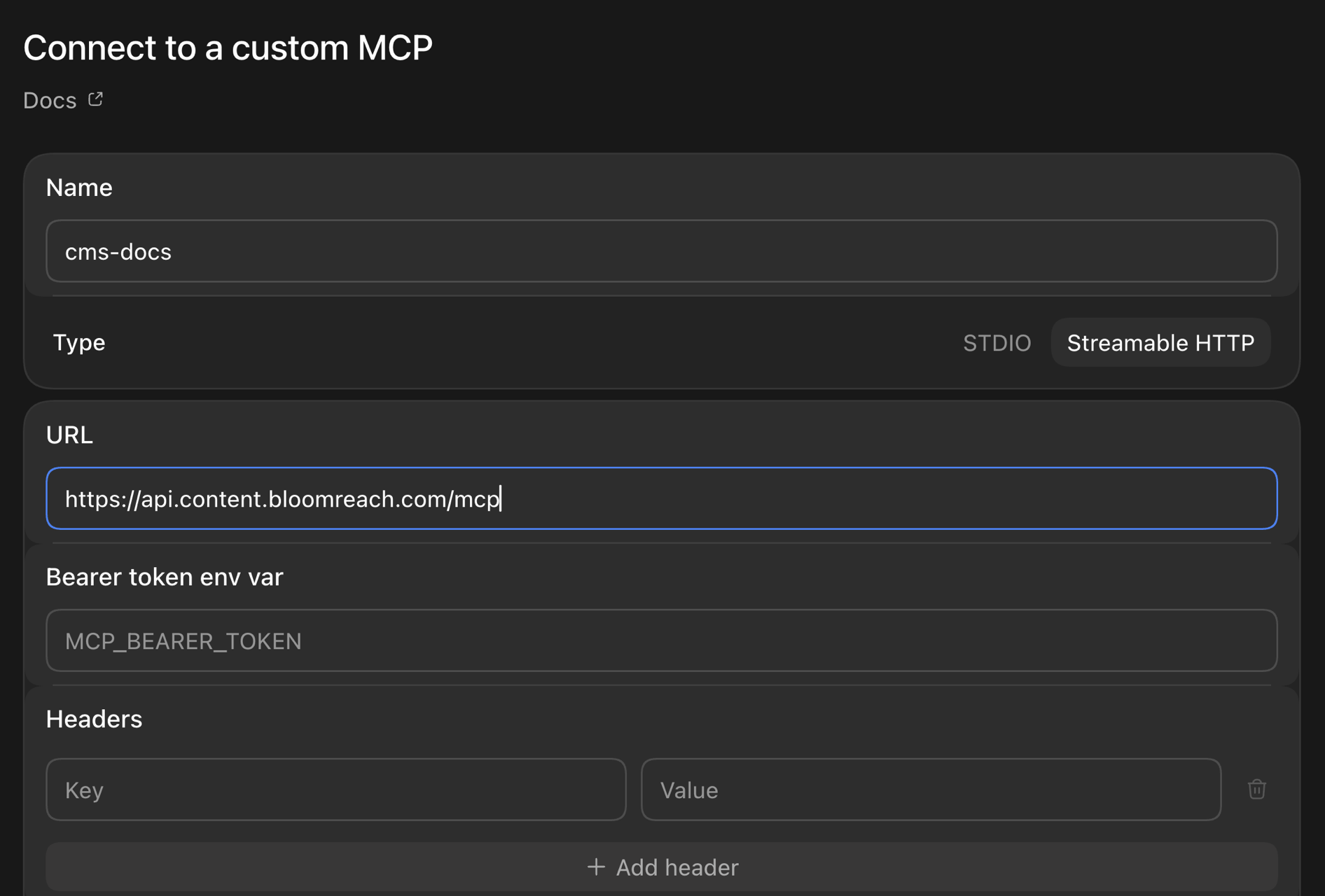
Give it a name (e.g. Bloomreach Docs) and paste the URL
https://api.content.bloomreach.com/mcp. -
Save, then restart Claude Desktop so it picks up the new connector.
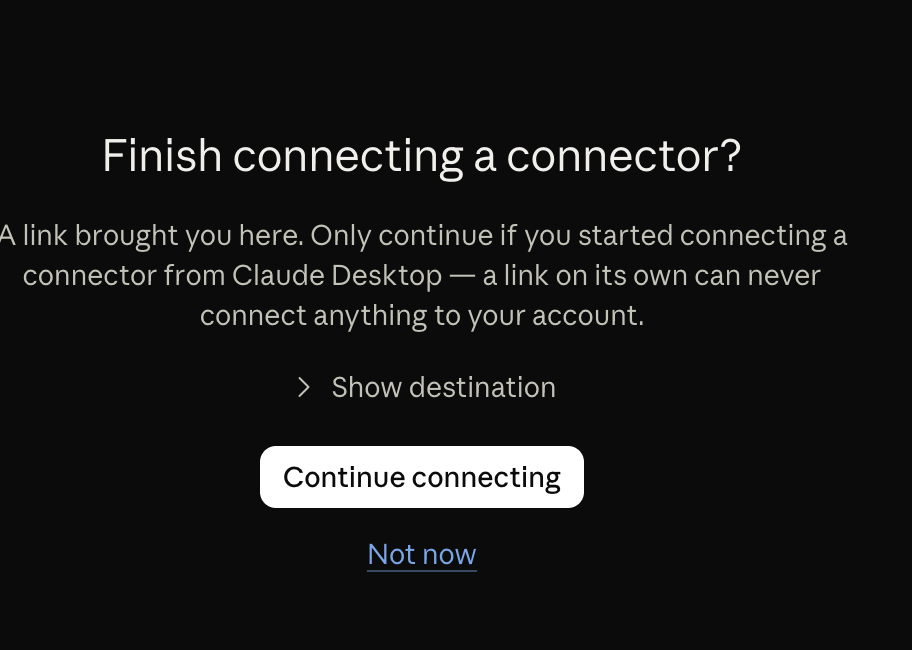
When you authenticate, Claude Desktop opens the browser to confirm the connection before sign-in:
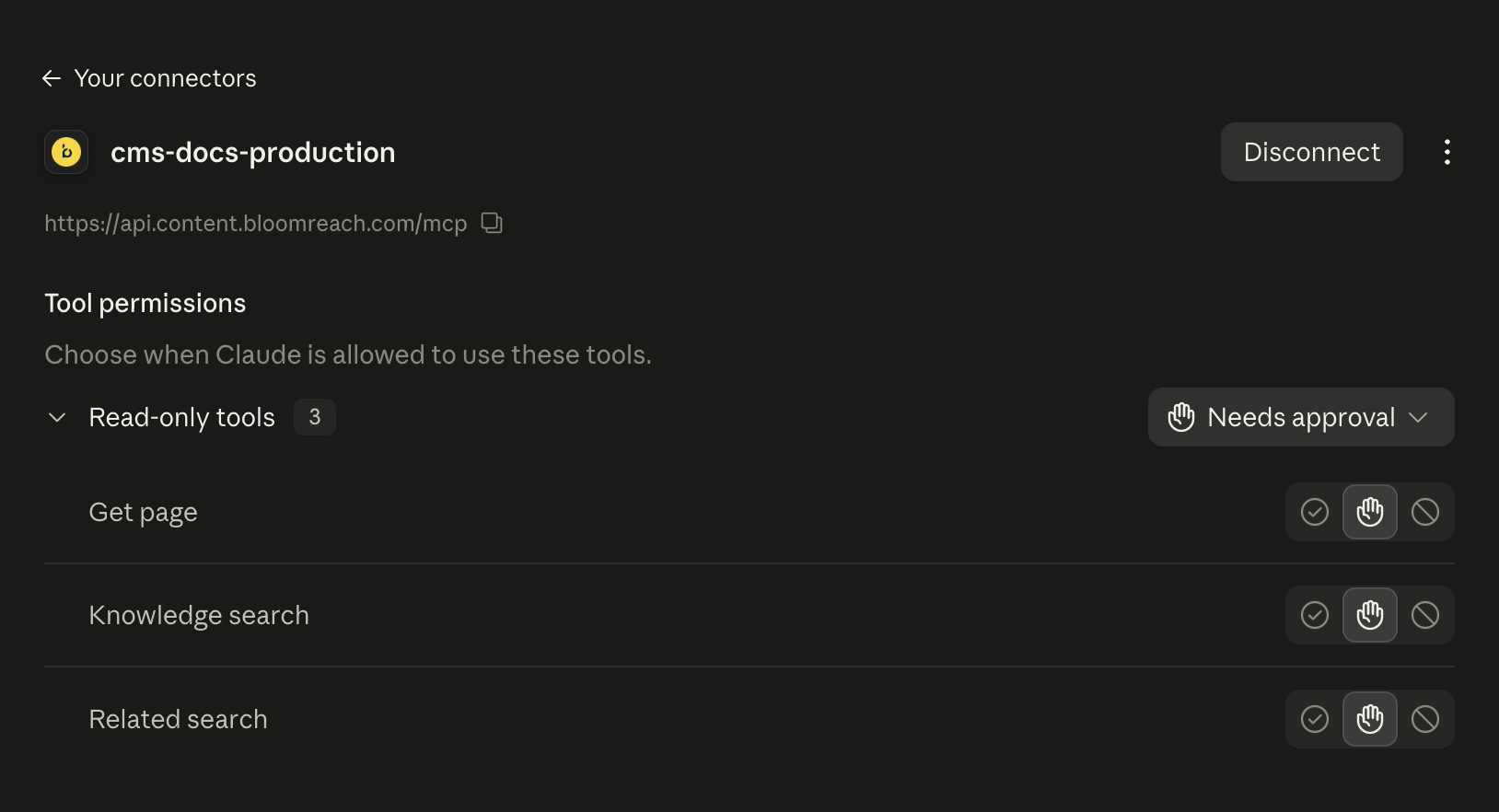
Once connected, the connector lists its three read-only tools:
Claude Desktop can be flaky around login. The connector itself usually registers fine, but
the OAuth login flow occasionally doesn't complete (you authenticate, but Claude Desktop
doesn't end up with an authenticated session). It happens intermittently; retrying, or doing the
login in the browser first, usually gets you through. See Troubleshooting
below.
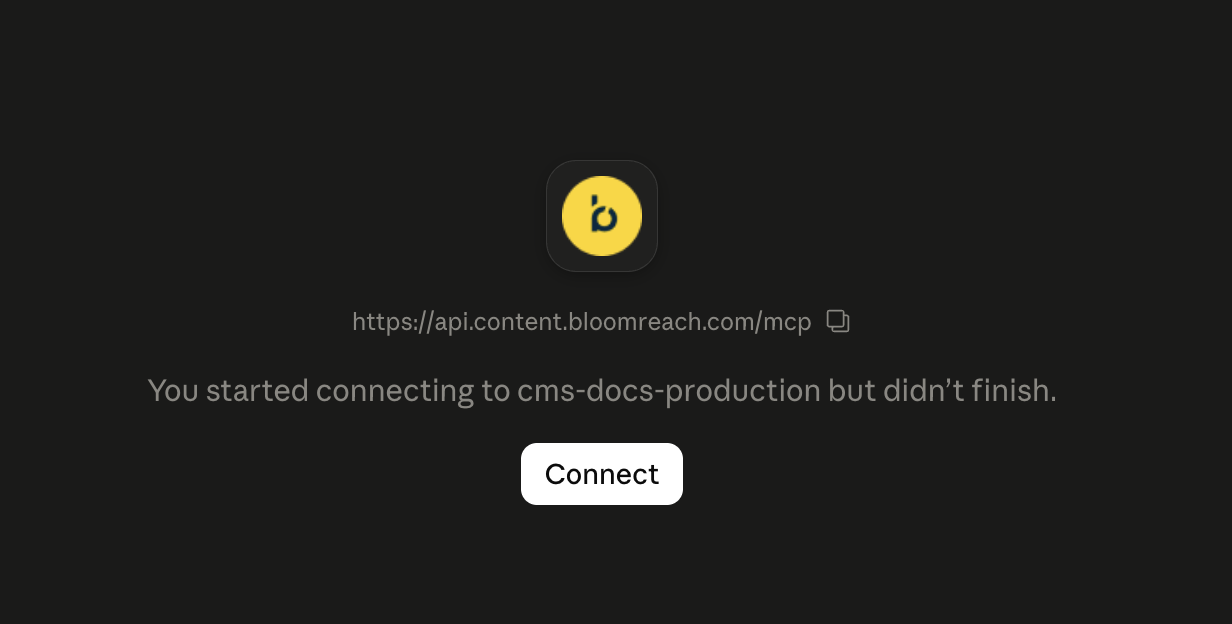
If the flow is interrupted, the connector shows a Connect button so you can resume:
Codex / ChatGPT. Codex CLI reads MCP servers from ~/.codex/config.toml:
[mcp_servers.bloomreach-docs] command = "npx" args = ["-y", "mcp-remote", "https://api.content.bloomreach.com/mcp"]
For the ChatGPT app, add the same endpoint as a connector under Settings → Connectors
(developer / custom MCP connector), using the URL https://api.content.bloomreach.com/mcp.
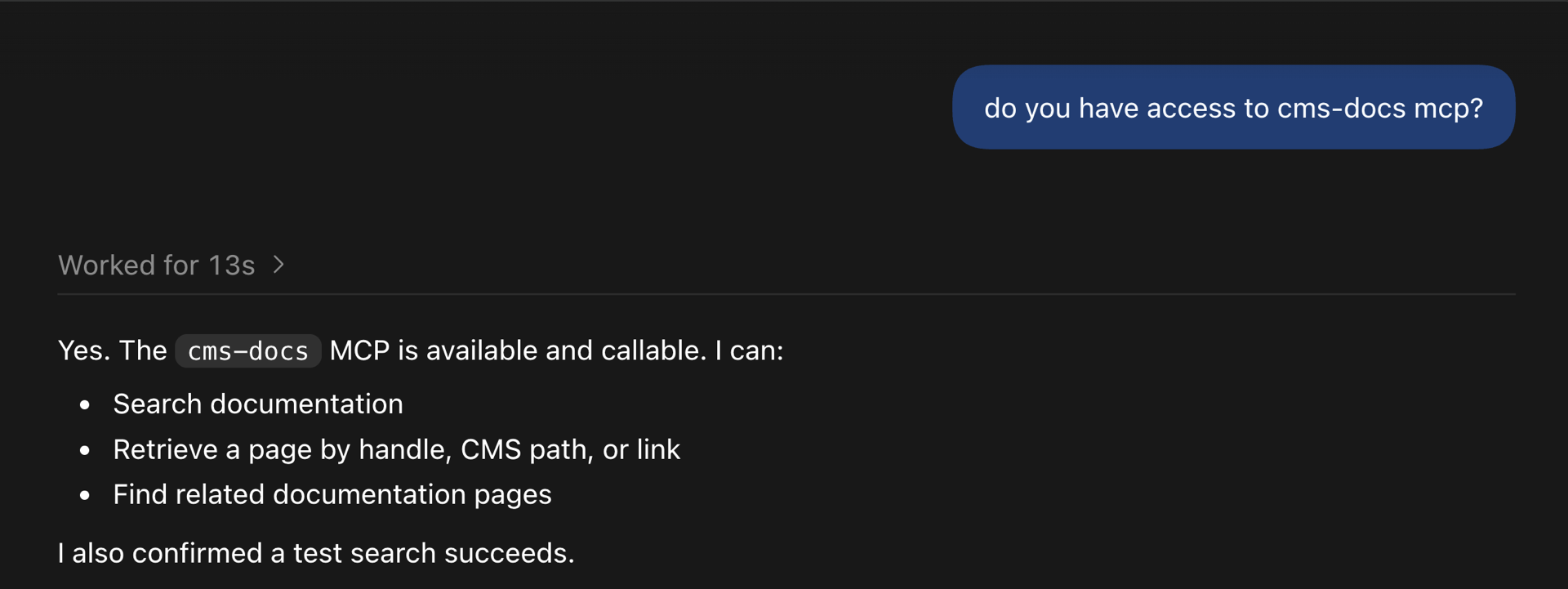
You can confirm the connector is available and see what it can do:
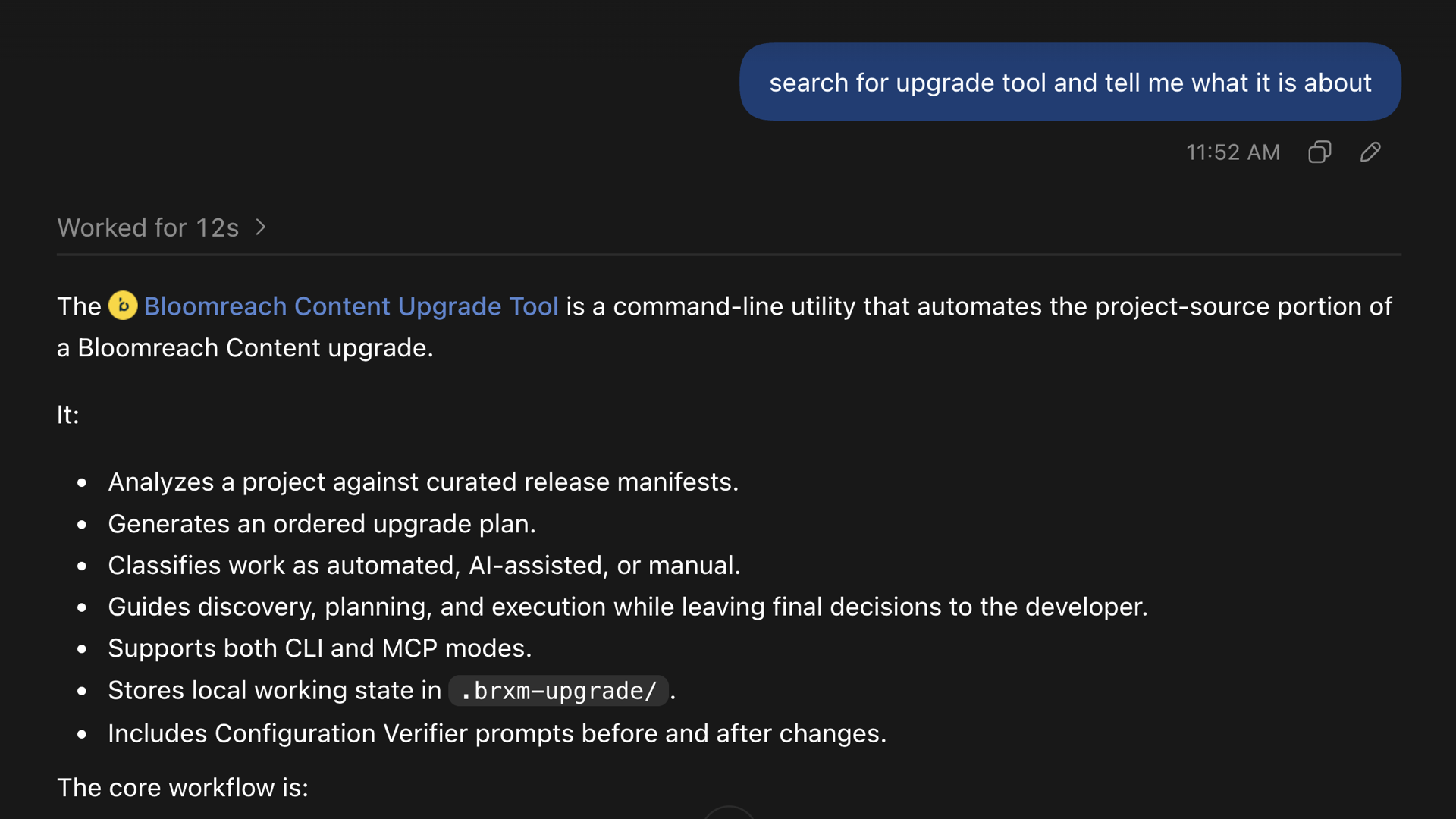
After registering with any client, run a quick search (e.g. "How do I add a component to a
page?") and confirm you get results drawn from these docs.
Authentication (public vs. gated content)
Authentication is optional and off by default. When you first connect, the MCP endpoint works
anonymously: you can search and read all public documentation without logging in.
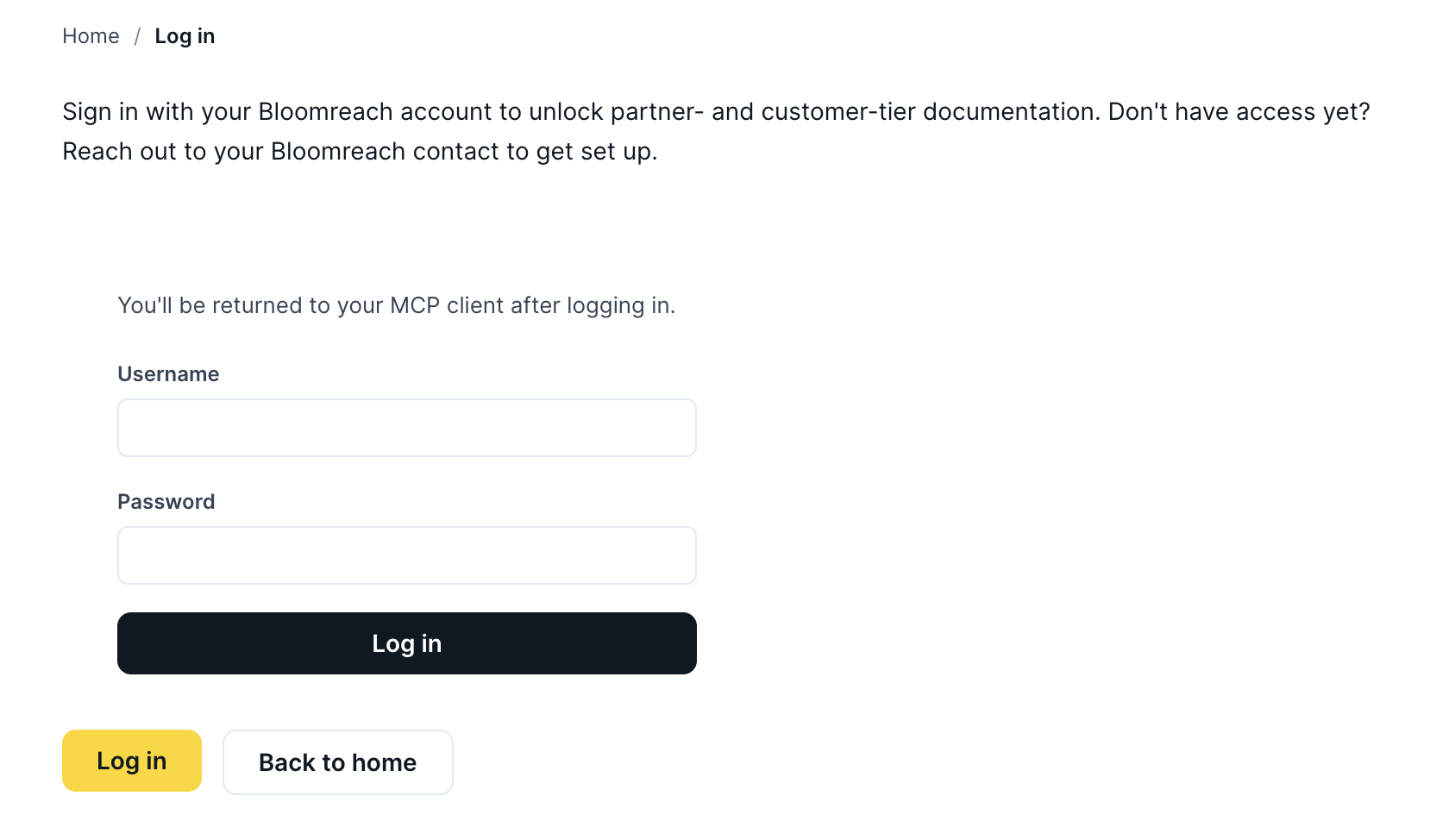
Some documents are gated. To reach those, trigger Authenticate from your MCP client's settings.
That starts an OAuth flow that redirects you to the documentation website to log in, using the same
login as the website. If you're already signed in there, you're sent straight through and returned
to your client with an authenticated session. After that, the same searches also return the gated
content your login is allowed to see.
The documentation website
Everything below is on docs.content.bloomreach.com.
Search
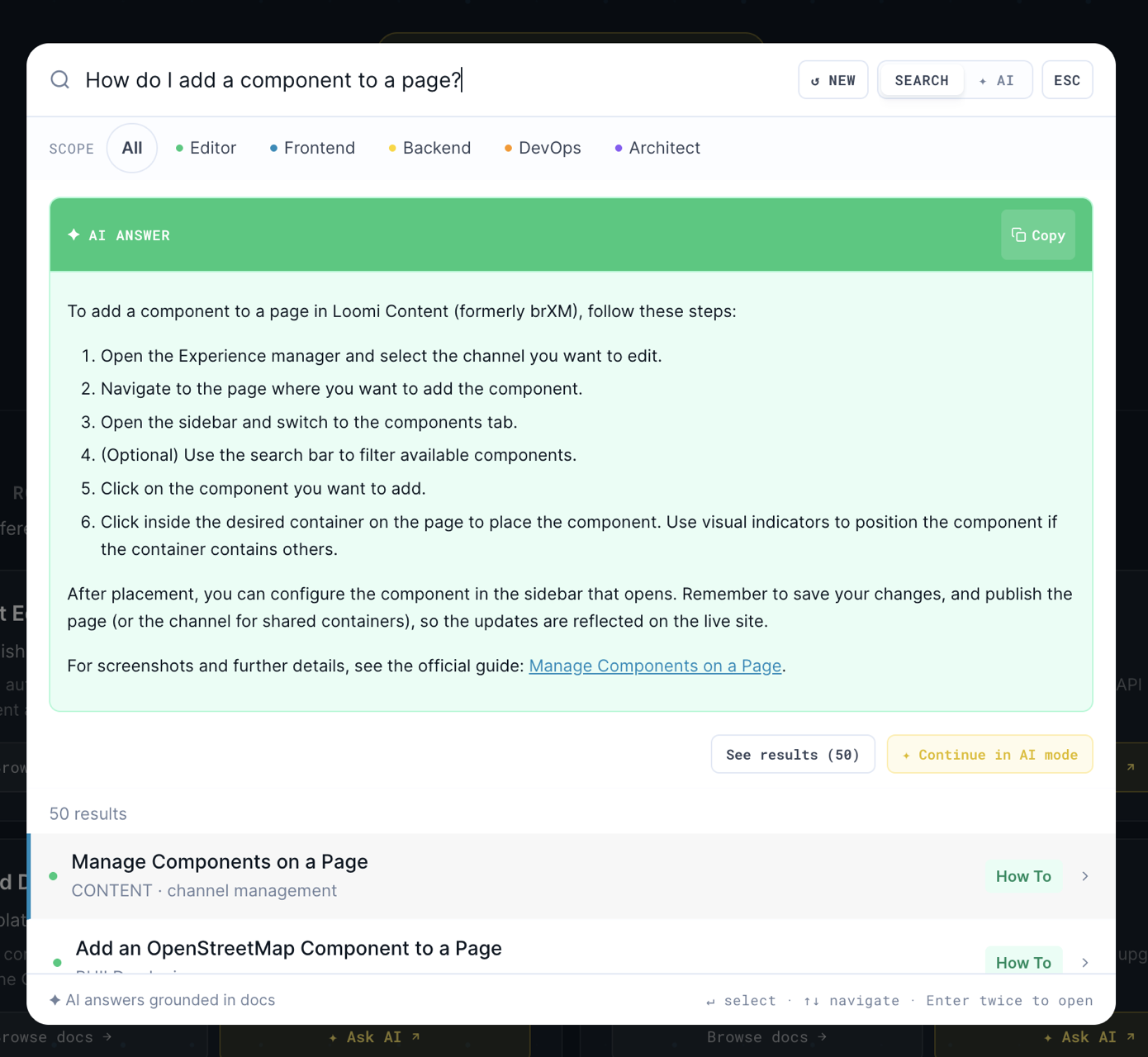
Click the search box in the hero (or press ⌘K / Ctrl+K from anywhere) to open the search modal.
It stays mounted as you navigate, so your query and results survive while you browse.
-
Results are ranked and show title, summary, path, and a relevance score.
-
You can scope results by persona and by section.
-
If a scoped query finds nothing, the site falls back to unscoped results and shows a "showing
all" banner, so you still get results. -
Each result is clickable and keyboard-navigable; clicking takes you to that page. Gated results
show a lock icon and an inline Log in prompt.
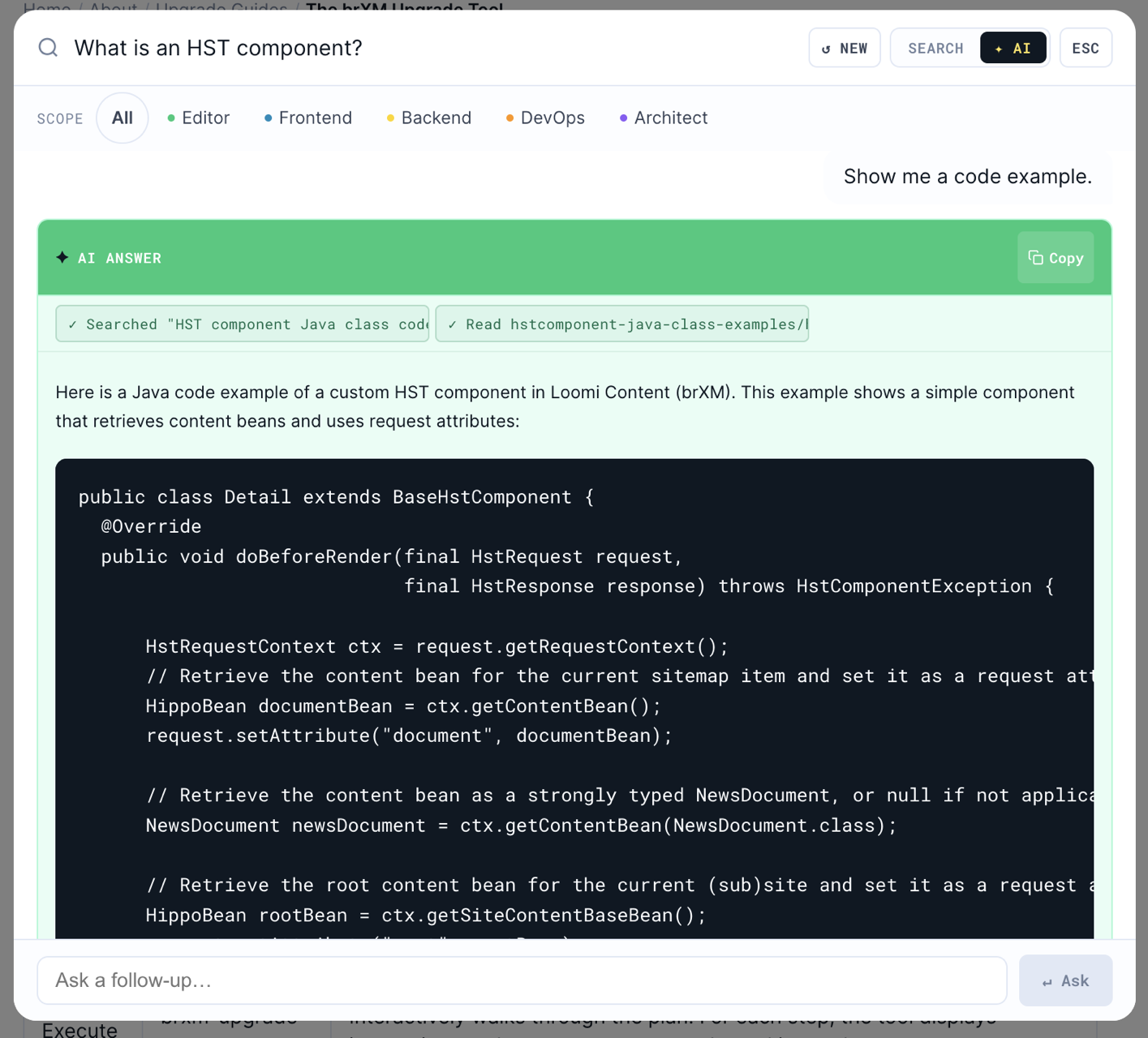
AI Answer
Above the search results, the site generates an AI Answer for your query. It is a single-shot,
grounded answer: the assistant searches the docs, reads the most relevant page, and writes an answer
with source links back into the documentation. A Copy button appears when it is done.
AI mode (conversation)
Toggle the ✦ AI button in the search modal to switch from single-shot search into AI mode, a
full multi-turn chat. Ask follow-up questions and the assistant keeps the conversation context. It
uses the same documentation tools (knowledge_search + get_page), and you'll see small tool
badges when it searches or reads a page. Your conversation is saved in the browser session, so it
survives a reload.
Two shortcuts jump straight into AI mode already scoped:
-
A persona card's Ask AI button on the homepage (scoped to that persona).
-
The Ask AI option in a detail page's Copy widget (focused on the current page).
Empty chats show a few suggested questions to get you started.
Note: the website's AI runs on a smaller, faster model, not a flagship one. The on-site AI
Answer and AI mode are tuned for quick lookups over the docs. To query the same documentation with
a more capable model, connect it over MCP and use your own
client (Claude Code, Claude Desktop, ChatGPT, and so on). That usually gives better answers to
harder or multi-step questions.
Navigation
-
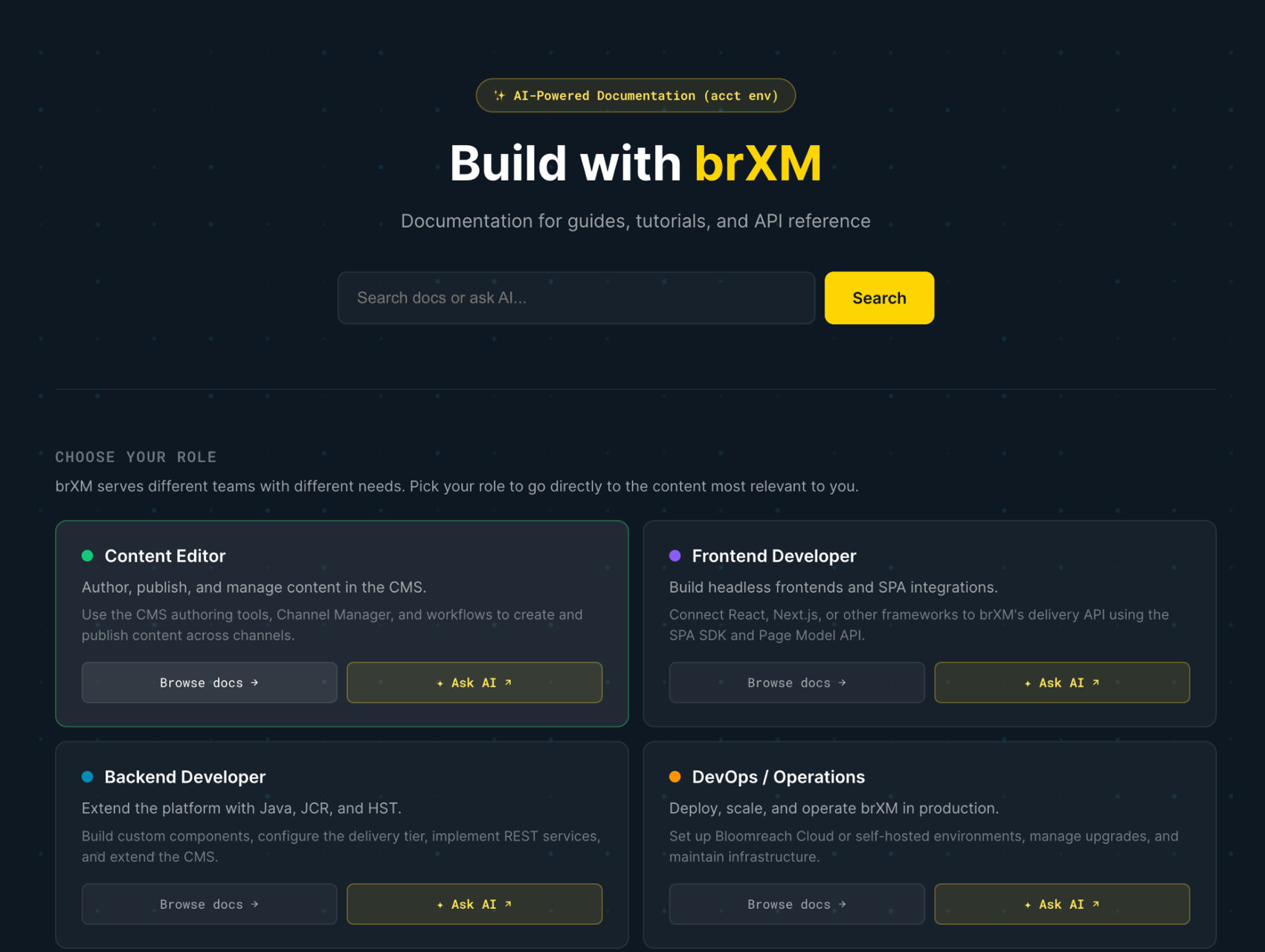
The homepage is the main entry point: a hero (title, version badge, search box, Log in),
followed by browse sections: a persona picker (Editor / Frontend / Backend / DevOps /
Architect), Explore, Most Visited, Quick Start, and Upgrades. -
The top nav starts with Home, followed by pill tabs for each documentation section. The
active section is highlighted. A theme toggle (light/dark/system) and the Log in button
sit on the right, next to the search trigger. -
Inside a section, a left sidebar shows a collapsible tree of that section's docs, with the current
page highlighted and its own section-scoped search trigger.
Browse by persona: on the homepage, each persona card has a Browse docs link (into that
persona's documentation) and an Ask AI button (AI mode scoped to that persona). Use these to go
straight to what's relevant to your role.
Overview pages (section landing)
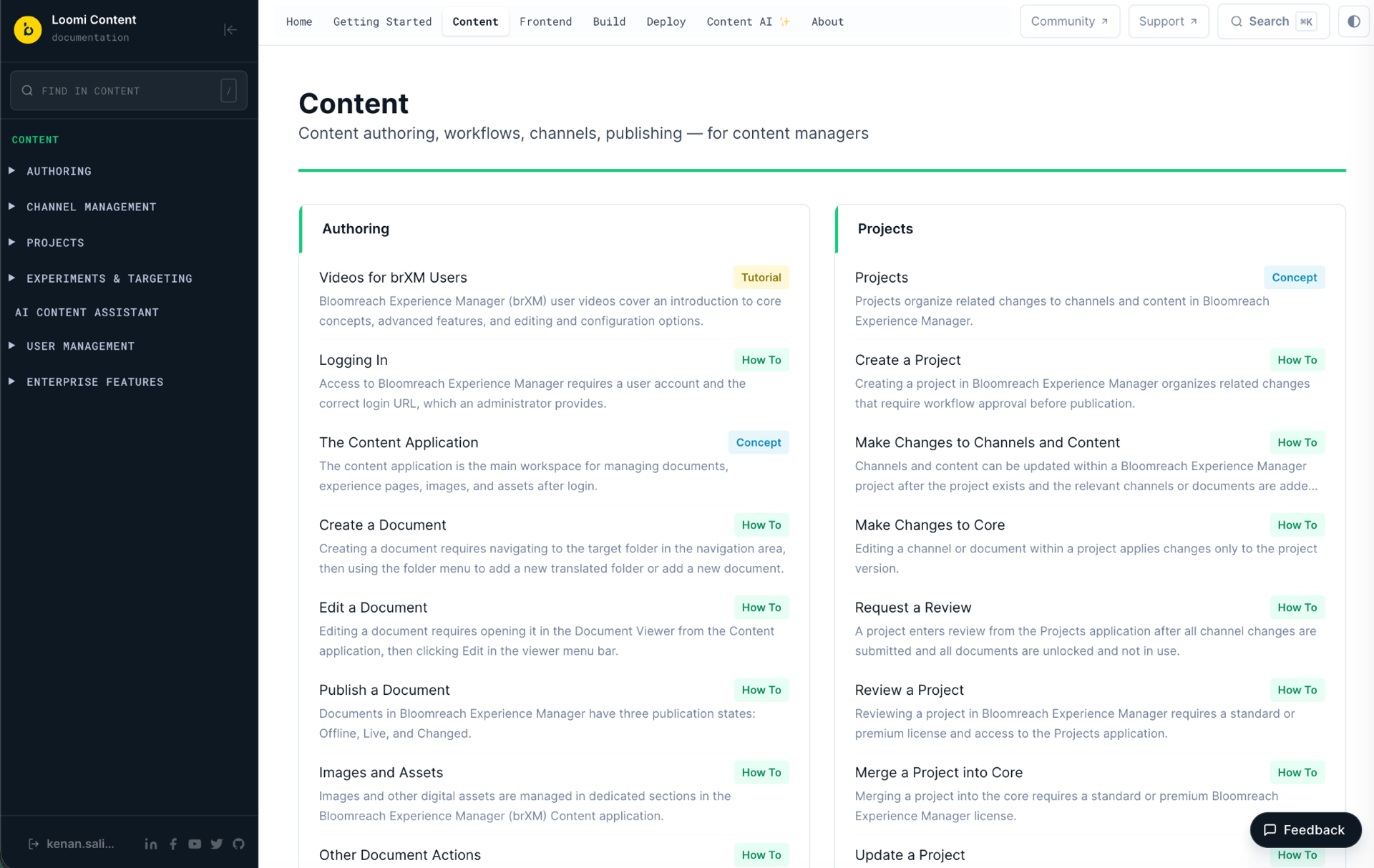
Clicking a section tab opens that section's overview page: the section title and description, then
its contents in a multi-column layout. Folder groups render as cards listing their child docs;
standalone docs render as links with a short summary. Gated items show a lock icon.
Detail pages
A detail page renders a single document: breadcrumbs, the title, and the Markdown body. On the right
is a sidebar with page metadata (content-type badge, complexity, available versions, audience tags),
the Copy page widget, and the Table of Contents.
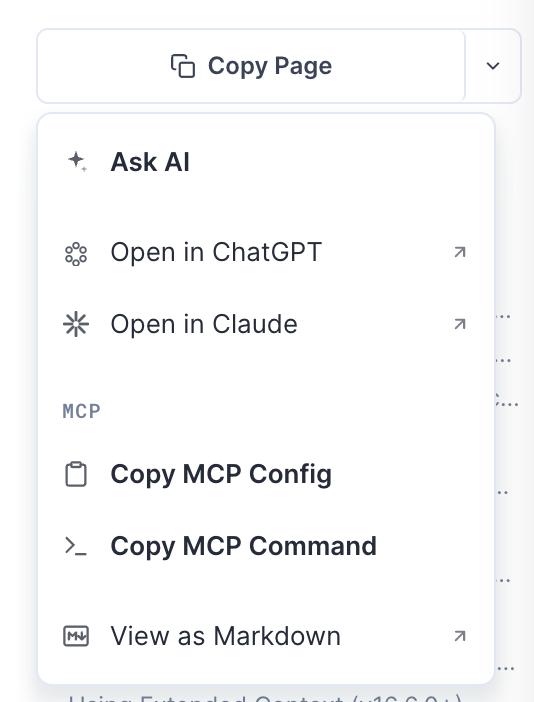
The Copy page widget is a button plus a dropdown:
-
Copy Page: copies the page's Markdown source to your clipboard.
-
Ask AI: opens AI mode focused on this page.
-
Open in ChatGPT / Open in Claude: opens the external assistant with a pre-filled prompt.
-
View as Markdown: opens the raw
.mdversion of the page. -
MCP config / command: copies a ready-to-paste MCP config pointing at the right endpoint (see
Registering the endpoint).
Below it, the Table of Contents is built from the page's headings. It highlights the heading
you're currently reading as you scroll, and each entry is a jump link.
Login
You don't need an account to read public documentation or to use the MCP endpoint anonymously.
Logging in does two things:
-
It removes rate limits on AI Answer, AI mode chat, and search (see below).
-
It unlocks gated content your login is allowed to see. Without the right access, gated pages show
the title and summary with a notice instead of the full body.
Log in from the hero or top-nav button (which opens a login modal) or from the dedicated sign-in
page. After signing in, you're returned to the page you were trying to read. The MCP OAuth flow
reuses the same login when an AI client needs you to authenticate.
Rate limits: anonymous vs. logged in
The documentation website has rate-limits AI and search features per hour for guests. Logging in
removes these caps.
| Feature | Anonymous (guest) | Logged in |
|---|---|---|
| AI Answer (single-shot) | 5 / hour | uncapped |
| AI mode chat (per message) | 5 / hour | uncapped |
| Doc search | 30 / hour | uncapped |
When you hit a limit you get a message and a Log in button instead of an error.
Feedback
Every page has a floating Feedback pill in the bottom-right corner, with no login required. It
slides in a panel that records the page you're on, then lets you pick a category (Bug,
Content, or UX) and fill in a short description, with an optional screenshot. On submit you
get a "Thank you!" confirmation.
Use it to report anything wrong, outdated, unclear, or missing.
Troubleshooting
Claude Desktop login flow does not complete
Symptom: You trigger Authenticate in Claude Desktop and go through the login, but the client
does not end up signed in. Gated content stays locked, and the connector still shows as
unauthenticated.
Cause: The OAuth login flow between Claude Desktop and the endpoint is intermittent. The
connector itself registers correctly; only the authentication step fails, and not every time.
Resolution: Try these in order.
-
Retry the authenticate step from the connector. The login often succeeds on a second attempt.
-
Log in to the documentation website first in your browser
(docs.content.bloomreach.com), then trigger authenticate
in Claude Desktop. With an existing website session the flow has less to do and tends to
complete. -
Register the connector in the browser instead, then hand it to the desktop app: at
claude.ai, open Settings → Connectors → Add custom connector and enter
the endpointhttps://api.content.bloomreach.com/mcp. When prompted, choose "Sign in when
needed" and "Use Claude's published identity (Recommended)". Once it is connected and
authenticated in the browser, restart Claude Desktop so it picks up the working connector. -
As a cross-check, authenticate the same endpoint from Claude Code or Codex. If login
works there, the problem is isolated to the Claude Desktop flow.
Verification: Run a search that touches gated content. The gated results should return full
bodies instead of "authentication required" previews.
Quick reference
| Thing | Value |
|---|---|
| Website | https://docs.content.bloomreach.com |
| MCP endpoint | https://api.content.bloomreach.com/mcp |
| MCP tools | knowledge_search, get_page, related_search |
| Tested clients | Claude Code, Claude Desktop, Codex / ChatGPT |
| Open search | ⌘K / Ctrl+K |
| AI mode | ✦ AI toggle in the search modal |
| Authentication | Optional; same login as the website; unlocks gated content and uncapped usage |
| Feedback | Floating pill, bottom-right, no login required |