Configure the News Detail Page
Previous Step
Configure the News Overview Page
After updating the News Overview page with your web design's HTML, apply the same process to the News Detail page.
Review the Web Design
Open your site in a browser at http://localhost:8080/site/.
Navigate to a news overview page and select the first news article. The News Detail page will not yet reflect your web design.
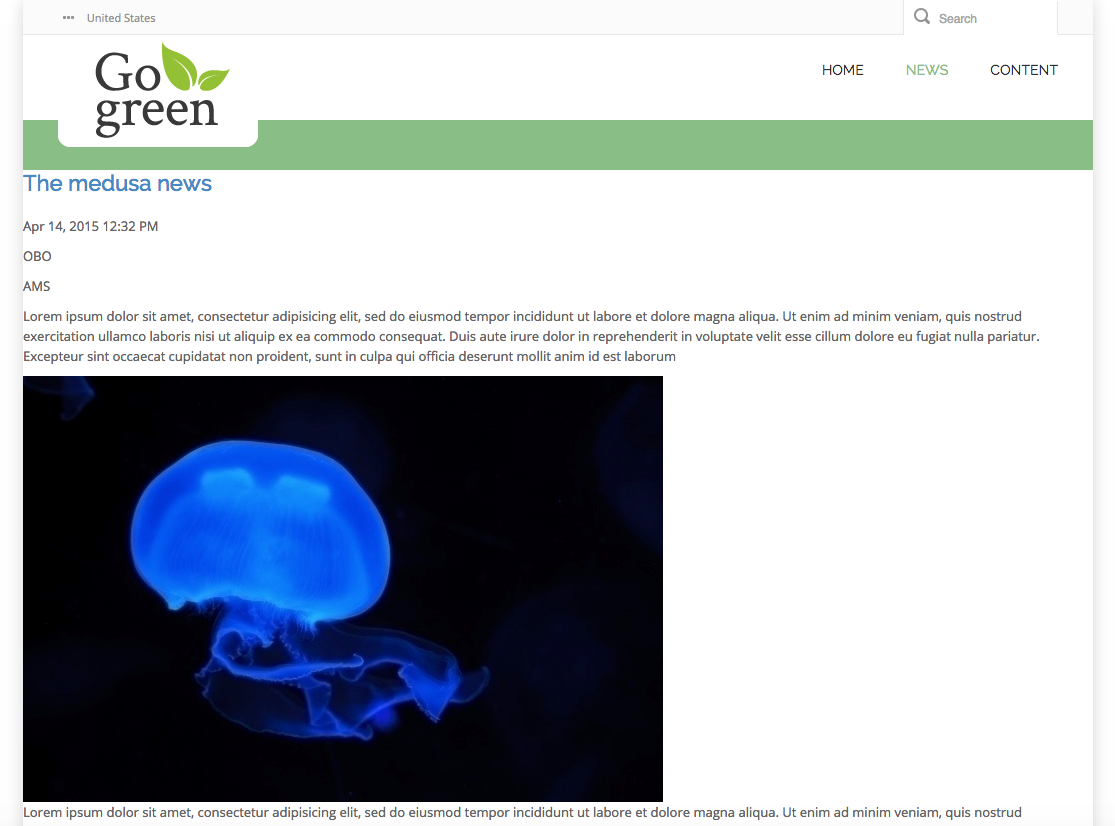
Next, open the web design in your browser. Go to the news overview and click the first news article. This is the intended appearance for the News Detail page.
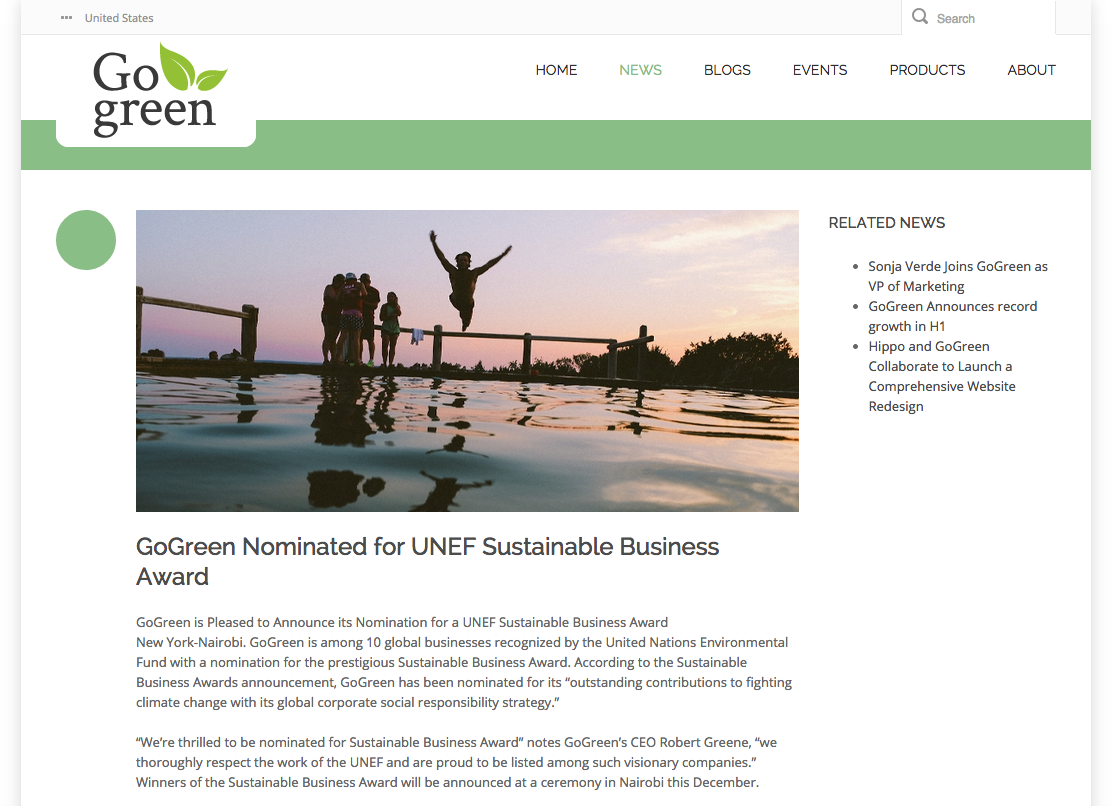
Integrate the Web Design into the News Detail Template
-
Open the
news-detail.htmlfile from your web design. This file contains the HTML structure for news articles. -
Locate the
<div class="body-wrapper">element innews-detail.html. This section wraps the news article content. -
Open
repository-data/webfiles/src/main/resoucrs/site/freemarker/hstdefault/newspage-main.ftlin your project. This Freemarker template renders the News Detail page. -
Replace the relevant section in
newspage-main.ftlwith the HTML markup fromnews-detail.html. Ignore the related news links for now; you will implement those later. Use thelargeproperty for the article image (document.image.large). -
Ensure you retain the
<@hst.manageContent>tag. This tag enables the edit button in Channel Manager preview.
A typical implementation will look like the following:
<#include "../include/imports.ftl"> <div class="body-wrapper"> <div class="container"> <div class="row"> <#if document??> <@hst.link var="link" hippobean=document/> <div class="col-md-9 col-sm-9"> <div class="blog-post has-edit-button"> <@hst.manageContent hippobean=document/> <div class="blog-post-type"> <i class="icon-news"> </i> </div> <div class="blog-span"> <#if document.image?? && document.image.large??> <@hst.link var="img" hippobean=document.image.large/> <div class="blog-post-featured-img"> <img src="${img}" alt="${document.title?html}" /> </div> </#if> <h2>${document.title?html}</h2> <div class="blog-post-body"> <p>${document.introduction?html}</p> <@hst.html hippohtml=document.content/> </div> <div class="blog-post-details"> <div class="blog-post-details-item blog-post-details-item-left icon-calendar"> <#if document.date??> <span class="date"> <@fmt.formatDate value=document.date.time type="both" dateStyle="medium" timeStyle="short"/> </span> </#if> </div> </div> </div> </div> </div> </#if> </div> </div> </div>
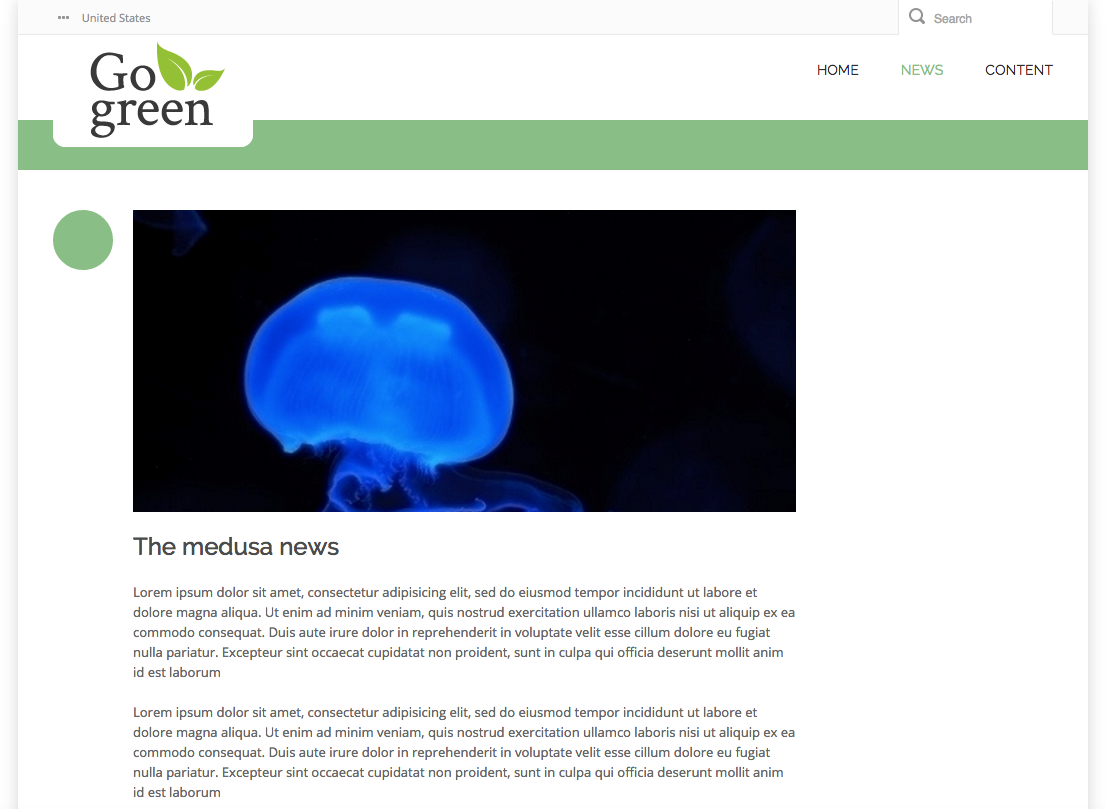
Return to the news overview in your site and select the first news article. The News Detail page should now match your web design.
Next Step
Full Source Code
newspage-main.ftl
<#include "../include/imports.ftl"> <div class="body-wrapper"> <div class="container"> <div class="row"> <#if document??> <@hst.link var="link" hippobean=document/> <div class="col-md-9 col-sm-9"> <div class="blog-post has-edit-button"> <@hst.manageContent hippobean=document/> <div class="blog-post-type"> <i class="icon-news"> </i> </div> <div class="blog-span"> <#if document.image?? && document.image.large??> <@hst.link var="img" hippobean=document.image.large/> <div class="blog-post-featured-img"> <img src="${img}" alt="${document.title?html}" /> </div> </#if> <h2>${document.title?html}</h2> <div class="blog-post-body"> <p>${document.introduction?html}</p> <@hst.html hippohtml=document.content/> </div> <div class="blog-post-details"> <div class="blog-post-details-item blog-post-details-item-left icon-calendar"> <#if document.date??> <span class="date"> <@fmt.formatDate value=document.date.time type="both" dateStyle="medium" timeStyle="short"/> </span> </#if> </div> </div> </div> </div> </div> </#if> </div> </div> </div>