Configure the Homepage
Previous Step
Adapt the Base Page Configuration to the Web Design
After updating the base page configuration to match your web design, configure the homepage to display dynamic content. This section explains how to remove placeholder text and add a Banner Carousel.
Remove Static Text from the Homepage
Open your website's homepage in a browser. The main content area displays generated placeholder text. Remove this text to prepare the page for dynamic content.
- Open the file
repository-data/webfiles/src/main/resources/site/freemarker/gogreen/homepage-main.ftlin your project. - Delete the following lines:
<@hst.setBundle basename="essentials.homepage"/> <div> <h1><@fmt.message key="homepage.title" var="title"/>${title?html}</h1> <p><@fmt.message key="homepage.text" var="text"/>${text?html}</p> <#if !hstRequest.requestContext.cmsRequest> <p> [This text can be edited <a href="http://localhost:8080/cms/?1&path=/content/documents/administration/labels/homepage" target="_blank">here</a>.] </p> </#if> </div>
- The file should now contain only these lines:
<#include "../include/imports.ftl"> <div> <@hst.include ref="container"/> </div>
Create Banner Documents
Before adding the Banner Carousel, create banner documents and upload images as content.
- Open Bloomreach Content in your browser: http://localhost:8080/cms/
- Log in with username
adminand passwordadmin. - In the
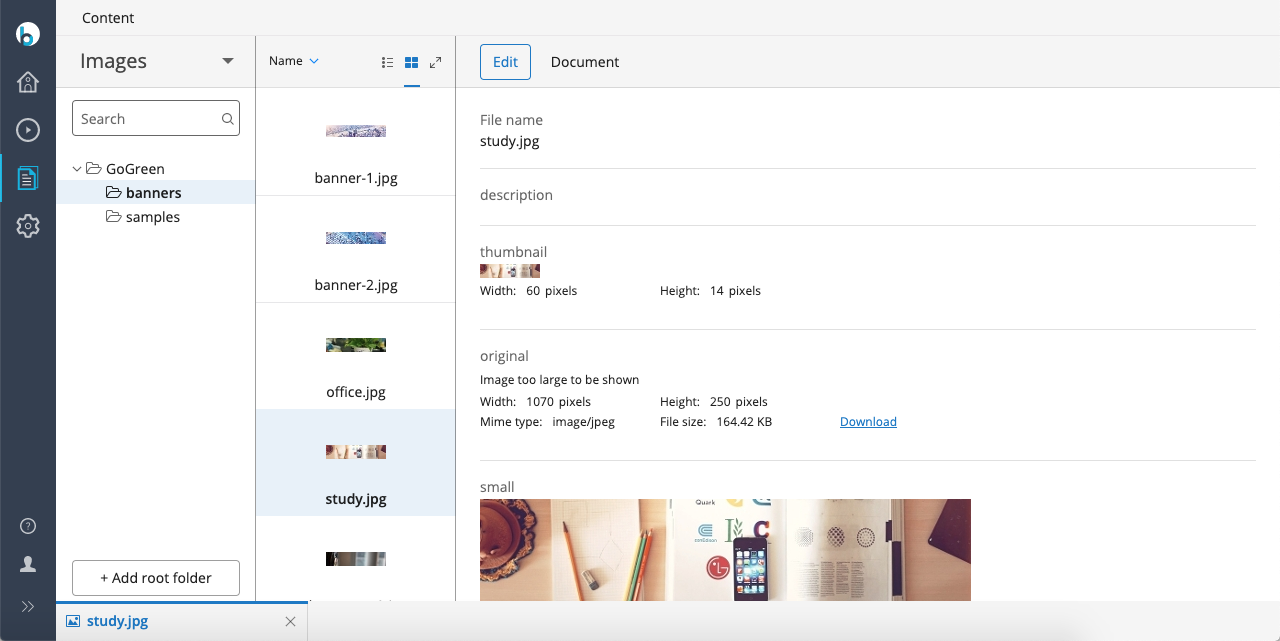
Contentapplication, selectImagesfrom the dropdown menu. - Navigate to
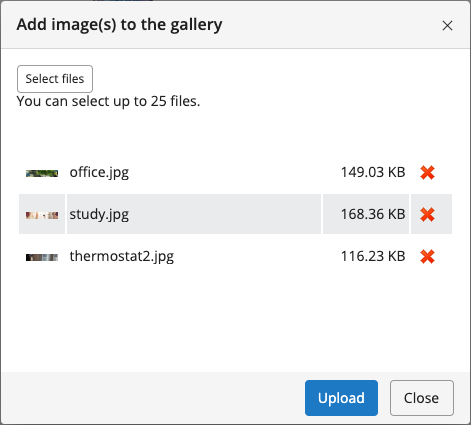
GoGreen>banners. - Upload the following images from the web design into the
bannersfolder:binaries/content/gallery/banners/office.jpgbinaries/content/gallery/banners/study.jpgbinaries/content/gallery/banners/thermostat2.jpg
- Switch the dropdown menu to
Documentsand navigate toGoGreen>banners.
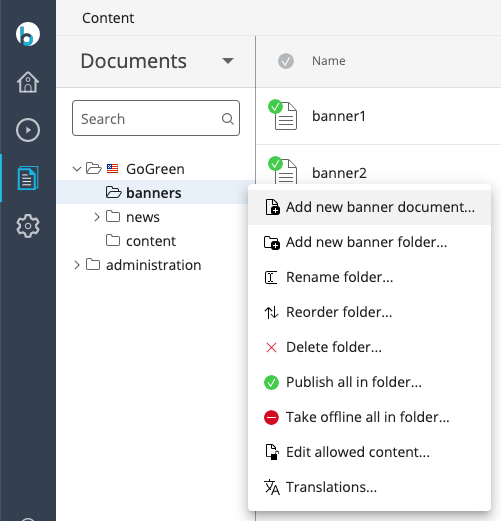
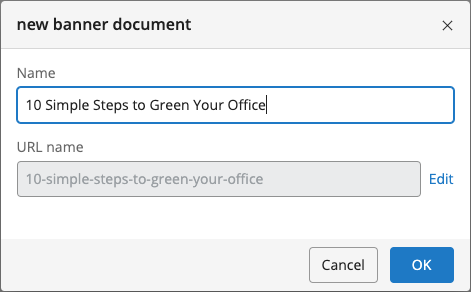
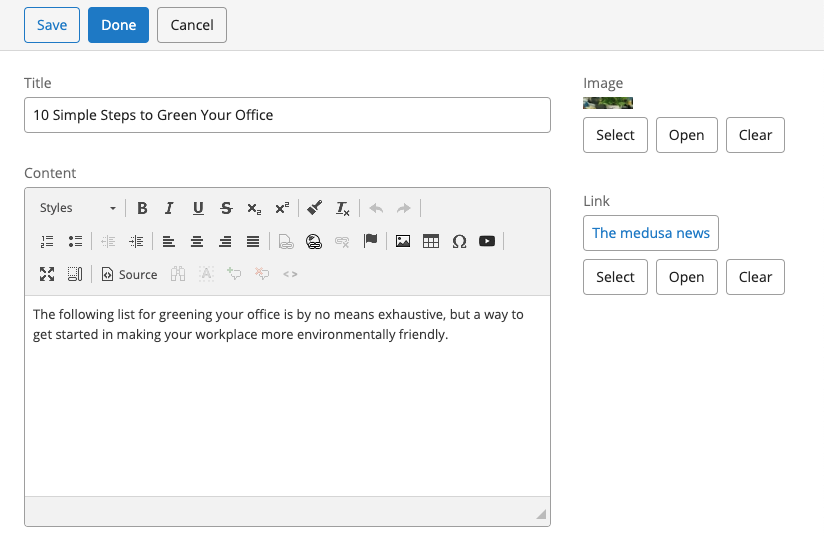
- Add a new Banner document. Enter a name, for example, "10 Simple Steps to Green Your Office".
- In the
Titlefield, enter the same name. - In the
Contentfield, add descriptive text. You can use text from the web design. - In the
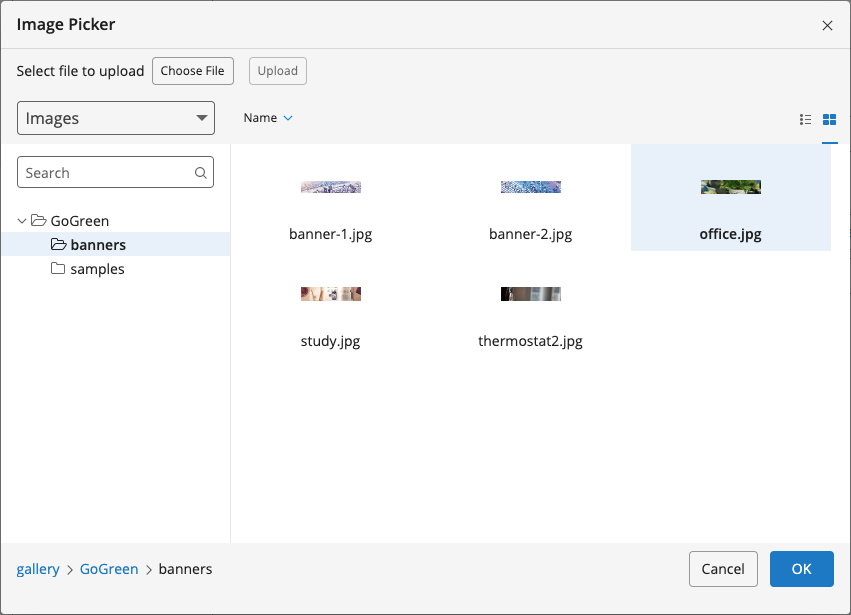
Imagefield, clickSelect, then browse toImages>GoGreen>banners.
- Select
office.jpgand clickOK. - In the
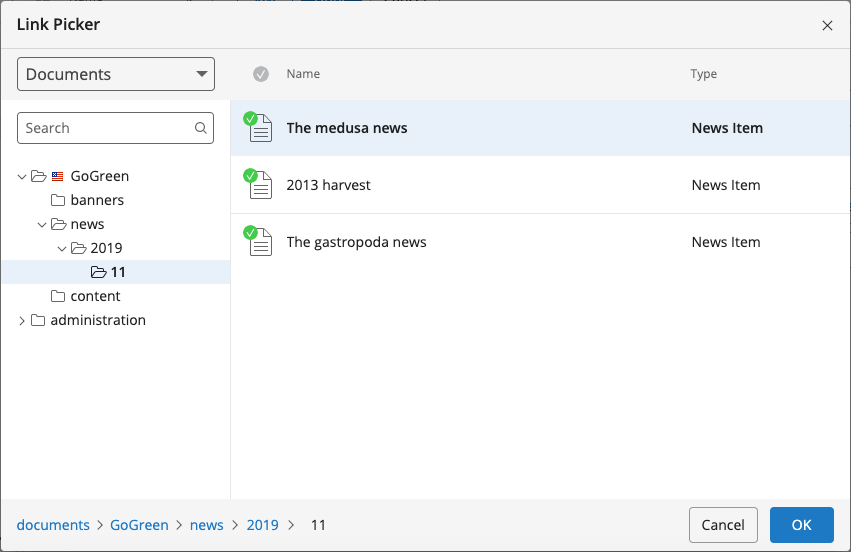
Linkfield, clickSelect, browse toDocuments>GoGreen>news, and select a news article.
- Click
OK.
- Click
Done. - Open the
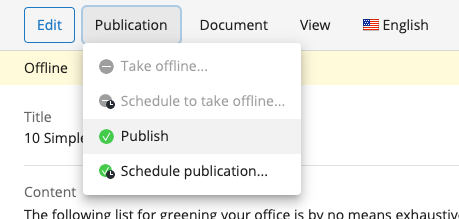
Publicationmenu and selectPublish.
- Repeat these steps to create two more Banner documents, for example:
- "Is a Smart Thermostat Worth the Investment?"
- "How to Green Your Dorm Room"
Add the Banner Carousel to the Homepage
After creating banner documents, add the Banner Carousel component to the homepage.
- In Bloomreach Content, open the
Experience managerapplication and select the GoGreen website. - Click the icon in the top left corner to open the sidebar, then select
Components.
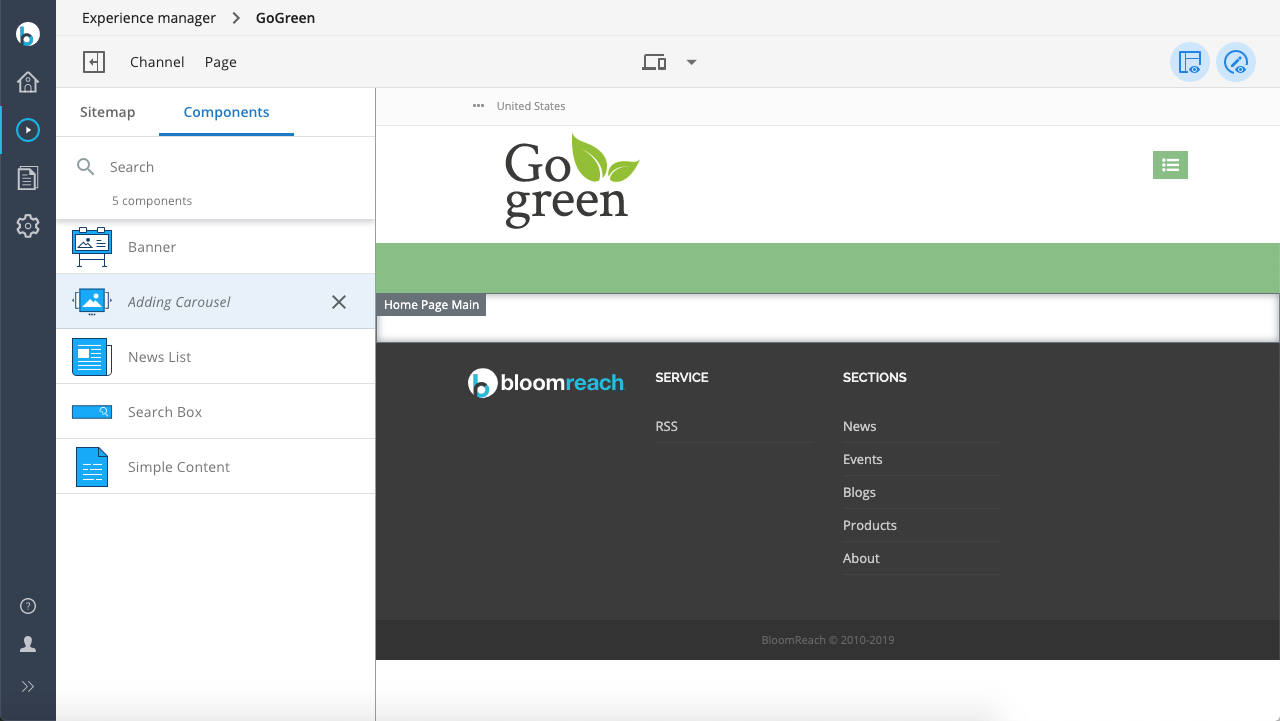
- Select the
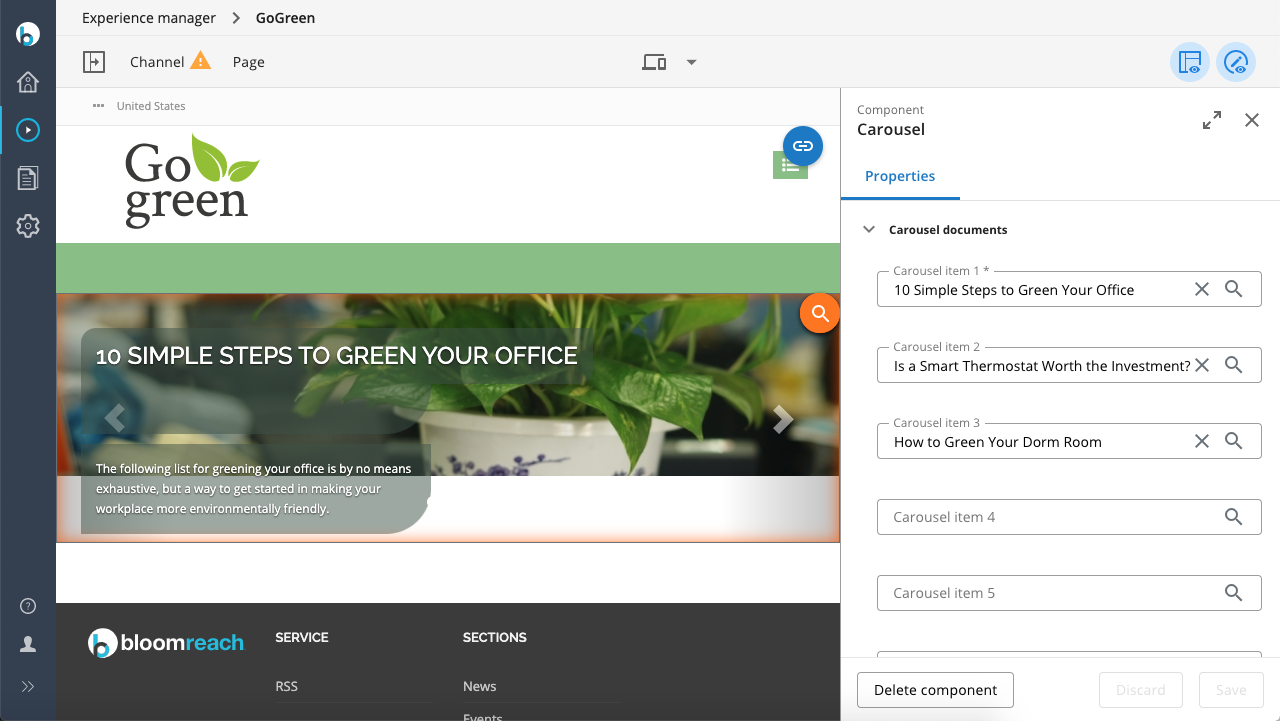
Carouselcomponent. - Click inside the rectangle labeled 'Home Page Main' in the main content area to add the component to the container. The configuration sidebar appears on the right.
- For
Carousel Item 1, click the magnifying glass icon, browse to one of the Banner documents you created, and select it. - Repeat for
Carousel Item 2andCarousel Item 3. - Uncheck the
Show carousel navigationoption.
- Click
Savein the configuration sidebar, then close the sidebar. - The Banner Carousel now displays the selected banners.
- Click
Channel, thenPublish. - View the site in your browser. The homepage now displays the Banner Carousel, which cycles through the banners you configured.
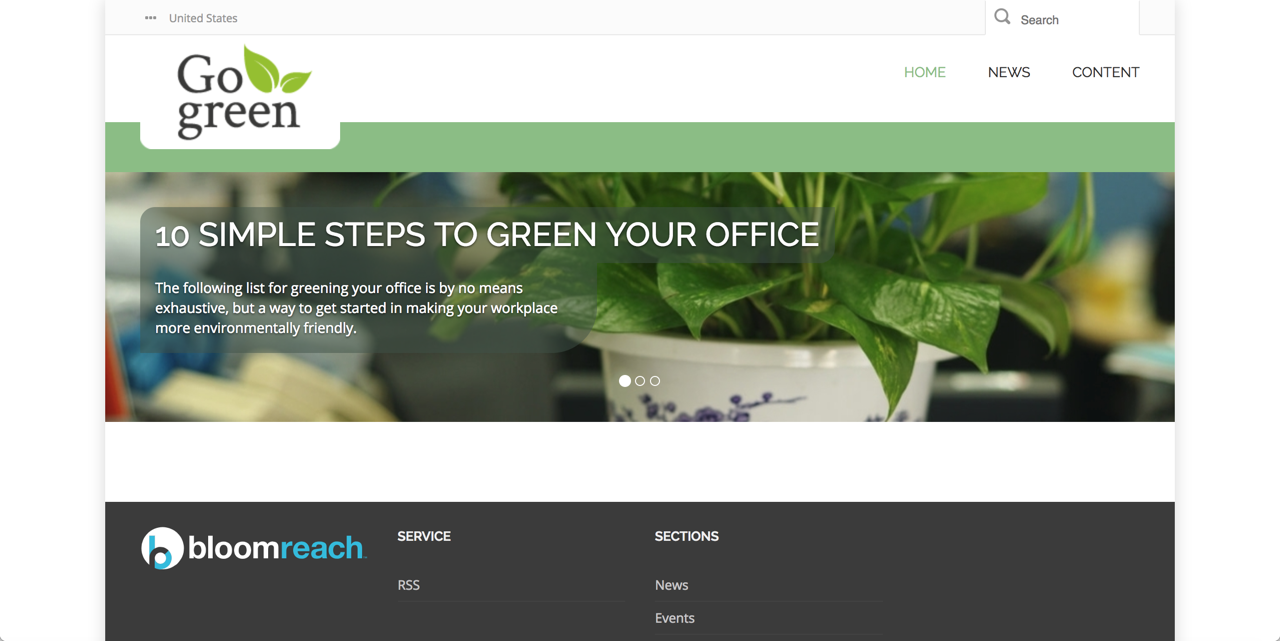
The banner carousel matches the appearance defined in the web design. Both the web design and the Banner Carousel component use Bootstrap's Carousel JavaScript, so the included CSS applies automatically.
Head Contributions
The web design's index.html includes JavaScript references that were not added to the base page template. Banner Carousel components can contribute resources to the page head using head contributions.
- Open
repository-data/webfiles/src/main/resources/site/freemarker/hstdefault/essentials-carousel.ftl. This template defines the out-of-the-box banner carousel. - The template contains head contributions, for example:
<@hst.headContribution category="htmlHead"> <style type="text/css"> /* Carousel base class */ .carousel { height: ${cparam.carouselHeight}px; /*width: ${cparam.carouselWidth}px;*/ margin-bottom: 60px; } /* Since positioning the image, we need to help out the caption */ .carousel-caption { z-index: 10; } /* Declare heights because of positioning of img element */ .carousel .item { height: ${cparam.carouselHeight}px; background-color: ${cparam.carouselBackgroundColor}; } /* center images*/ .carousel-inner > .item > img { margin: 0 auto; } </style> </@hst.headContribution> <@hst.headContribution category="htmlBodyEnd"> <script type="text/javascript" src="<@hst.webfile path="/js/jquery-3.5.1.min.js"/>"></script> </@hst.headContribution> <@hst.headContribution category="htmlBodyEnd"> <script type="text/javascript" src="<@hst.webfile path="/js/bootstrap.min.js"/>"></script> </@hst.headContribution>
The category attribute of each <@hst.headContribution> tag determines where the resource is injected.
- Open
repository-data/webfiles/src/main/resources/site/freemarker/gogreen/base-layout.ftland locate the<@hst.headContributions>tags you previously added. Identify where head contributions from the banner carousel are rendered in the final HTML.
Note: The base-layout.ftl template already loads jquery-3.5.1.min.js and bootstrap.min.js on every page. As a result, these scripts are loaded twice on the homepage.
Resolution:
Remove the bottom two head contributions (the script tags for jQuery and Bootstrap) from essentials-carousel.ftl to prevent duplicate script loading.
Next Step
Configure the News Overview Page
Full Source Code
For reference, the final version of homepage-main.ftl:
homepage-main.ftl
<#include "../include/imports.ftl"> <div> <@hst.include ref="container"/> </div>