Add a Two Columns Page Configuration
Previous Step
In the first iteration, you created a single page configuration with a one-column main content area. In this iteration, you will add additional navigation options to the About and News Overview pages. The web design for these pages uses two columns in the main content area, placing navigation options in the right column. This step describes how to add a new two-column page configuration alongside the existing one-column configuration, ensuring both share common page elements.
The CMS Console
Page configurations and most other delivery tier settings are stored in the content repository. In the previous iteration, you used tools like the setup application and Experience manager to change configurations. These tools updated the content repository automatically.
In this iteration, you will modify the delivery tier configuration directly in the content repository using the Console. The Console is a web application that exposes low-level repository operations for developers and administrators. Access the Console at http://localhost:8080/cms/console/. Log in with your Bloomreach Content credentials: username admin, password admin.
Warning:
Before proceeding, use the Console to delete the following node by selecting it and clicking 'Delete':
/hst:gogreen/hst:configurations/gogreen-previewThis node was created when you used the Experience manager in iteration 1. To avoid configuration conflicts, do not use both the Experience manager and the Console to make changes at the same time.
When using the Console, always click Write changes to repository after making changes. This step will not be repeated in each instruction.
Create a Freemarker Template for the Two Columns Content Area
In your project, navigate to repository-data/webfiles/src/main/resources/site/freemarker/gogreen. Create a new file named twocolumns-main.ftl with the following content:
<#include "../include/imports.ftl"> <div class="body-wrapper"> <div class="container"> <div class="row"> <div class="col-md-9 col-sm-9"> <@hst.include ref="left"/> </div> <div class="col-md-3 col-sm-3"> <@hst.include ref="right"/> </div> </div> </div> </div>
The nested <div> elements with classes body-wrapper, container, row, col-md-9 col-sm-9, and col-md-3 col-sm-3 define the two-column layout. In the first iteration, these elements were included in the main content template. For a multi-column layout, move them up in the template hierarchy. Remove these <div> elements from the main content templates for pages that will use the two-column layout. You will update those templates in a later step.
After creating the Freemarker template, register it in the delivery tier configuration.
In the Console, go to /hst:gogreen/hst:configurations/gogreen/hst:templates.
- Add a new node named
twocolumns-mainof typehst:template. - Add a String property
hst:renderpathto thetwocolumns-mainnode with the valuewebfile:/freemarker/gogreen/twocolumns-main.ftl.
/hst:gogreen/hst:configurations/gogreen/hst:templates/twocolumns-main: jcr:primaryType: hst:template hst:renderpath: webfile:/freemarker/gogreen/twocolumns-main.ftl
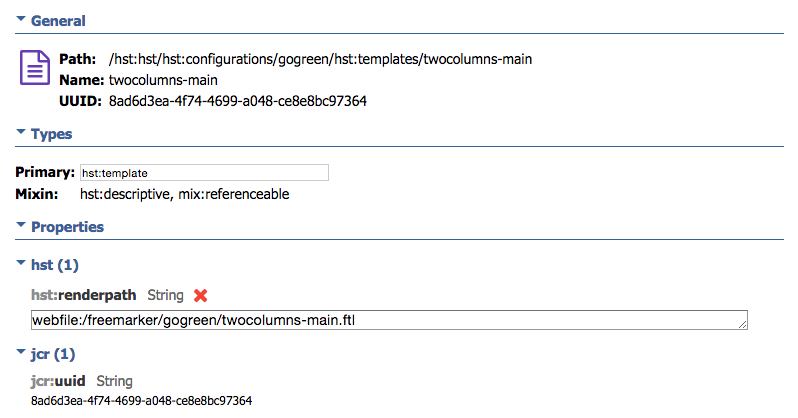
You now have a template that divides the main content area into two columns, using the left and right templates for each column.
Configure an Abstract Two Columns Page
In the Console, navigate to /hst:gogreen/hst:configurations/gogreen/hst:abstractpages. This location stores abstract page configurations intended for extension by other page configurations.
- Add a new node named
twocolumnsof typehst:component. - Add a String property
hst:referencecomponenttotwocolumnswith the valuehst:abstractpages/base. - Add a child node
mainof typehst:componenttotwocolumns. - Add a String property
hst:templateto themainnode with the valuetwocolumns-main.
/hst:gogreen/hst:configurations/gogreen/hst:abstractpages/twocolumns: jcr:primaryType: hst:component hst:referencecomponent: hst:abstractpages/base /main: jcr:primaryType: hst:component hst:template: twocolumns-main
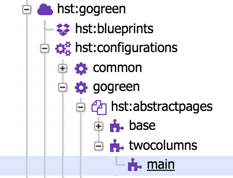
The twocolumns page configuration extends the base page configuration, adds a main component (in addition to the header and footer from base), and attaches the twocolumns-main Freemarker template to the main component. The twocolumns-main template includes two templates: left and right. These correspond to child components of main and will be defined in each page configuration that extends twocolumns.
Info:
Thebaseabstract page configuration may contain atopchild node and acontainernode underfooter. These are remnants from the example site generated by the setup application. Containers are typically used for adding components via the Channel Editor. In the previous sprint, you replaced the contents of thebase-layout.ftlandbase-footer.ftltemplates with static HTML, removing these containers from the template. Since the first sprint did not cover repository-based configuration, the corresponding nodes were not removed. To keep your project clean, you can now remove the following nodes:
/hst:gogreen/hst:configurations/gogreen/hst:abstractpages/base/top/hst:gogreen/hst:configurations/gogreen/hst:abstractpages/base/footer/container/hst:gogreen/hst:configurations/gogreen/hst:workspace/hst:containers/base/top/hst:gogreen/hst:configurations/gogreen/hst:workspace/hst:containers/base/footer
Update the News Overview Page to Use the Two Columns Page Configuration
In the Console, go to /hst:gogreen/hst:configurations/gogreen/hst:pages/newslist. This is the News Overview page configuration.
- The
hst:referencecomponentproperty currently points tohst:abstractpages/base. Change its value tohst:abstractpages/twocolumnsso thatnewslistextends the new two-column configuration.
The page configuration hierarchy must match the structure defined by twocolumns.
- Select the
mainchild node (the main content area). In the two-column layout, this content will be rendered in the left column. - Rename the
mainnode toleft. You will move it in the next step. - Update the
hst:referencecomponentproperty tonewslist/main/left. The Console may display a warning: "Reference not found. Might be used in inheriting structure though." This will be resolved in the next step. - Select the
newslistnode again. Add a new child nodemainof typehst:component. - Move the
leftnode under the newmainnode.
The updated node structure should look like this:
/hst:gogreen/hst:configurations/gogreen/hst:pages/newslist: jcr:primaryType: hst:component hst:referencecomponent: hst:abstractpages/twocolumns /main: jcr:primaryType: hst:component /left: jcr:primaryType: hst:containercomponentreference hst:referencecomponent: newslist/main/left
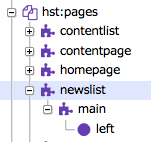
Next, update the workspace container to match the new hierarchy.
- Go to
/hst:gogreen/hst:configurations/gogreen/hst:workspace/hst:containers/newslist. - Rename the
mainchild node toleft. - Add a new child node
mainof typehst:containercomponentfolder. - Move the
leftnode under the newmainnode.
The structure should now be:
/hst:gogreen/hst:configurations/gogreen/hst:workspace/hst:containers/newslist: jcr:primaryType: hst:containercomponentfolder /main: jcr:primaryType: hst:containercomponentfolder /left: jcr:primaryType: hst:containercomponent /newslist: jcr:primaryType: hst:containeritemcomponent
(Properties of the newslist node of type hst:containeritemcomponent are omitted.)
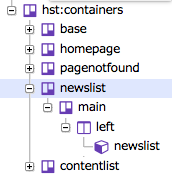
Return to /hst:gogreen/hst:configurations/gogreen/hst:pages/newslist/main/left and confirm that the warning for the hst:referencecomponent property is no longer displayed.
Open the template repository-data/webfiles/src/main/resources/site/freemarker/hstdefault/newslist-main-newslist.ftl and remove the four nested <div> elements that are now included in twocolumns-main.ftl:
<div class="body-wrapper"> <div class="container"> <div class="row"> <div class="col-md-9 col-sm-9">
Remove the corresponding closing </div> tags as well. For reference, the updated newslist-main-newslist.ftl template is provided at the end of this page.
Reload the website and navigate to the News Overview page to verify that the layout remains unchanged.
Update the News Detail Page to Use the Two Columns Page Configuration
Repeat the process for the newspage page configuration (News Detail page).
- In the Console, go to
/hst:gogreen/hst:configurations/gogreen/hst:pages/newspage. - Change the
hst:referencecomponentproperty tohst:abstractpages/twocolumns. - Rename the
mainchild node toleft. - Add a new child node
main. - Move
leftundermain. - Update the
hst:referencecomponentvalue tonewspage/main/left.
/hst:gogreen/hst:configurations/gogreen/hst:pages/newspage: jcr:primaryType: hst:component hst:referencecomponent: hst:abstractpages/twocolumns /main: jcr:primaryType: hst:component /left: jcr:primaryType: hst:containercomponentreference hst:referencecomponent: newspage/main/left
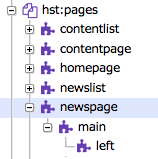
Update the workspace container:
- Go to
/hst:gogreen/hst:configurations/gogreen/hst:workspace/hst:containers/newspage. - Rename the
mainchild node toleft. - Add a new
mainnode of typehst:containercomponentfolder. - Move
leftunder the newmainnode.
/hst:gogreen/hst:configurations/gogreen/hst:workspace/hst:containers/newspage: jcr:primaryType: hst:containercomponentfolder /main: jcr:primaryType: hst:containercomponentfolder /left: jcr:primaryType: hst:containercomponent /content: jcr:primaryType: hst:containeritemcomponent
(Properties of the content node are omitted.)
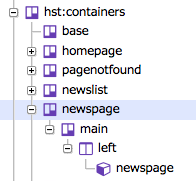
Open the template repository-data/webfiles/src/main/resources/site/freemarker/hstdefault/newspage-main.ftl and remove the four nested <div> elements now handled by twocolumns-main.ftl:
<div class="body-wrapper"> <div class="container"> <div class="row"> <div class="col-md-9 col-sm-9">
Also remove the <div class="col-md-3 col-sm-3"> element around the related news markup and their closing </div> tags.
Next, move the related news code to its own template:
- Create
repository-data/webfiles/src/main/resources/site/freemarker/gogreen/newspage-relatednews.ftl. - Add the standard include at the top, then move the related news code from
newspage-main.ftlto this new file:
<#include "../include/imports.ftl"> <#if document.relatednews?has_content> <div class="hst-container"> <div class="hst-container-item"> <div class="sidebar-block"> <h3 class="h3-sidebar-title sidebar-title">Related News</h3> <div class="sidebar-content"> <ul> <#list document.relatednews as item> <@hst.link var="link" hippobean=item /> <li> <a href="${link}">${item.title?html}</a> </li> </#list> </ul> </div> </div> </div> </div> </#if>
Register the new template in the Console at /hst:gogreen/hst:configurations/gogreen/hst:templates:
/hst:gogreen/hst:configurations/gogreen/hst:templates/newspage-relatednews: jcr:primaryType: hst:template hst:renderpath: webfile:/freemarker/gogreen/newspage-relatednews.ftl
Add a right column to the newspage page configuration at /hst:gogreen/hst:configurations/gogreen/hst:pages/newspage:
- Select
/hst:gogreen/hst:configurations/gogreen/hst:pages/newspage/main. - Add a child node
rightof typehst:component. - Add a property
hst:componentclassname(String) with valueorg.onehippo.cms7.essentials.components.EssentialsContentComponent. - Add a property
hst:template(String) with valuenewspage-relatednews.
The configuration should look like this:
/hst:gogreen/hst:configurations/gogreen/hst:pages/newspage: jcr:primaryType: hst:component hst:referencecomponent: hst:abstractpages/twocolumns /main: jcr:primaryType: hst:component /left: jcr:primaryType: hst:containercomponentreference hst:referencecomponent: newspage/main/left /right: jcr:primaryType: hst:component hst:componentclassname: org.onehippo.cms7.essentials.components.EssentialsContentComponent hst:template: newspage-relatednews
Reload the website and check a News Detail page to verify the layout and related news items appear as expected.
Update the Content Page to Use the Two Columns Page Configuration
Repeat the process for the contentpage page configuration. This configuration will be used in the next step.
- In the Console, go to
/hst:gogreen/hst:configurations/gogreen/hst:pages/contentpage. - Change the
hst:referencecomponenttohst:abstractpages/twocolumns. - Rename the
mainchild node toleft. - Add a new child node
main. - Move
leftundermain. - Update the
hst:referencecomponenttocontentpage/main/left.
/hst:gogreen/hst:configurations/gogreen/hst:pages/contentpage: jcr:primaryType: hst:component hst:referencecomponent: hst:abstractpages/twocolumns /main: jcr:primaryType: hst:component /left: jcr:primaryType: hst:containercomponentreference hst:referencecomponent: contentpage/main/left
Update the workspace container:
- Go to
/hst:gogreen/hst:configurations/gogreen/hst:workspace/hst:containers/contentpage. - Rename the
mainchild node toleft. - Add a new
mainnode of typehst:containercomponentfolder. - Move
leftunder the newmainnode.
/hst:gogreen/hst:configurations/gogreen/hst:workspace/hst:containers/contentpage: jcr:primaryType: hst:containercomponentfolder /main: jcr:primaryType: hst:containercomponentfolder /left: jcr:primaryType: hst:containercomponent /content: jcr:primaryType: hst:containeritemcomponent
(Properties of the content node are omitted.)
Open repository-data/webfiles/src/main/resources/site/freemarker/hstdefault/contentpage-main.ftl and remove the three nested <div> elements that are now included in twocolumns-main.ftl:
<div class="body-wrapper"> <div class="container"> <div class="row">
Remove the corresponding closing </div> tags as well. The full source code is provided at the end of this page.
Update the About Page to Use the Two Columns Page Configuration
Repeat the process for the contentpage page configuration used by the About page.
- In the Console, go to
/hst:gogreen/hst:configurations/gogreen/hst:workspace/hst:pages/about-contentpage. - Change the
hst:referencecomponenttohst:abstractpages/twocolumns. - Rename the
mainchild node toleft. - Add a new child node
main. - Move
leftundermain. - Update the
hst:referencecomponenttocontentpage/main/left.
/hst:gogreen/hst:configurations/gogreen/hst:workspace/hst:pages/about-contentpage: jcr:primaryType: hst:component hst:referencecomponent: hst:abstractpages/twocolumns /main: jcr:primaryType: hst:component /left: jcr:primaryType: hst:containercomponent
The about-contentpage uses the same template as contentpage, which you have already updated.
Verify the About page in your site. The layout should remain unchanged. You will add the secondary navigation menu to the right column in the next step.
Next Step
Add the Secondary Navigation Menu to the About Page
Full Source Code
twocolumns-main.ftl
<#include "../include/imports.ftl"> <div class="body-wrapper"> <div class="container"> <div class="row"> <div class="col-md-9 col-sm-9"> <@hst.include ref="left"/> </div> <div class="col-md-3 col-sm-3"> <@hst.include ref="right"/> </div> </div> </div> </div>
newslist-main-newslist.ftl
<#include "../include/imports.ftl"> <div class="news-overview"> <#if pageable?? && pageable.items?has_content> <#list pageable.items as item> <@hst.link var="link" hippobean=item /> <div class="blog-post has-edit-button"> <@hst.manageContent hippobean=item/> <div class="blog-post-type"> <i class="icon-news"> </i> </div> <div class="blog-span"> <#if item.image?? && item.image.large??> <@hst.link var="img" hippobean=item.image.large /> <div class="blog-post-featured-img"> <a href="${link}"><img src="${img}" alt="${item.title?html}" /></a> </div> </#if> <h2> <a href="${link}">${item.title?html}</a> </h2> <div class="blog-post-body"> <p>${item.introduction?html}</p> </div> <div class="blog-post-details"> <div class="blog-post-details-item blog-post-details-item-left icon-calendar"> <#if item.date?? && item.date.time??> <p><@fmt.formatDate value=item.date.time type="both" dateStyle="medium" timeStyle="short"/></p> </#if> </div> <div class="blog-post-details-item blog-post-details-item-right"> <a href="${link}"> Read more<i class="fa fa-chevron-right"></i></a> </div> </div> </div> </div> </#list> <#if cparam.showPagination> <#include "../include/pagination.ftl"> </#if> <#elseif editMode> <div> <img src="<@hst.link path='/images/essentials/catalog-component-icons/news-list.png'/>"> Click to edit News List <div class="has-new-content-button"> <@hst.manageContent templateQuery="new-news-document" rootPath="news" defaultPath="${currentYear}/${currentMonth}"/> </div> </div> </#if> </div>
newspage-main.ftl
<#include "../include/imports.ftl"> <#if document??> <@hst.link var="link" hippobean=document/> <div class="blog-post has-edit-button"> <@hst.manageContent hippobean=document/> <div class="blog-post-type"> <i class="icon-news"> </i> </div> <div class="blog-span"> <#if document.image?? && document.image.large??> <@hst.link var="img" hippobean=document.image.large/> <div class="blog-post-featured-img"> <img src="${img}" alt="${document.title?html}" /> </div> </#if> <h2>${document.title?html}</h2> <div class="blog-post-body"> <p>${document.introduction?html}</p> <@hst.html hippohtml=document.content/> </div> <div class="blog-post-details"> <div class="blog-post-details-item blog-post-details-item-left icon-calendar"> <#if document.date??> <span class="date"> <@fmt.formatDate value=document.date.time type="both" dateStyle="medium" timeStyle="short"/> </span> </#if> </div> </div> </div> </div> </#if>
newspage-relatednews.ftl
<#include "../include/imports.ftl"> <#if document.relatednews?has_content> <div class="hst-container"> <div class="hst-container-item"> <div class="sidebar-block"> <h3 class="h3-sidebar-title sidebar-title">Related News</h3> <div class="sidebar-content"> <ul> <#list document.relatednews as item> <@hst.link var="link" hippobean=item /> <li> <a href="${link}">${item.title?html}</a> </li> </#list> </ul> </div> </div> </div> </div> </#if>
(Content truncated)