Configure the About Page
Previous Step
Configure the News Detail Page
After updating the templates for the out-of-the-box news feature, you will now create an "About" text document, add a new page to your website, and configure it to display the text document.
Review the Web Design
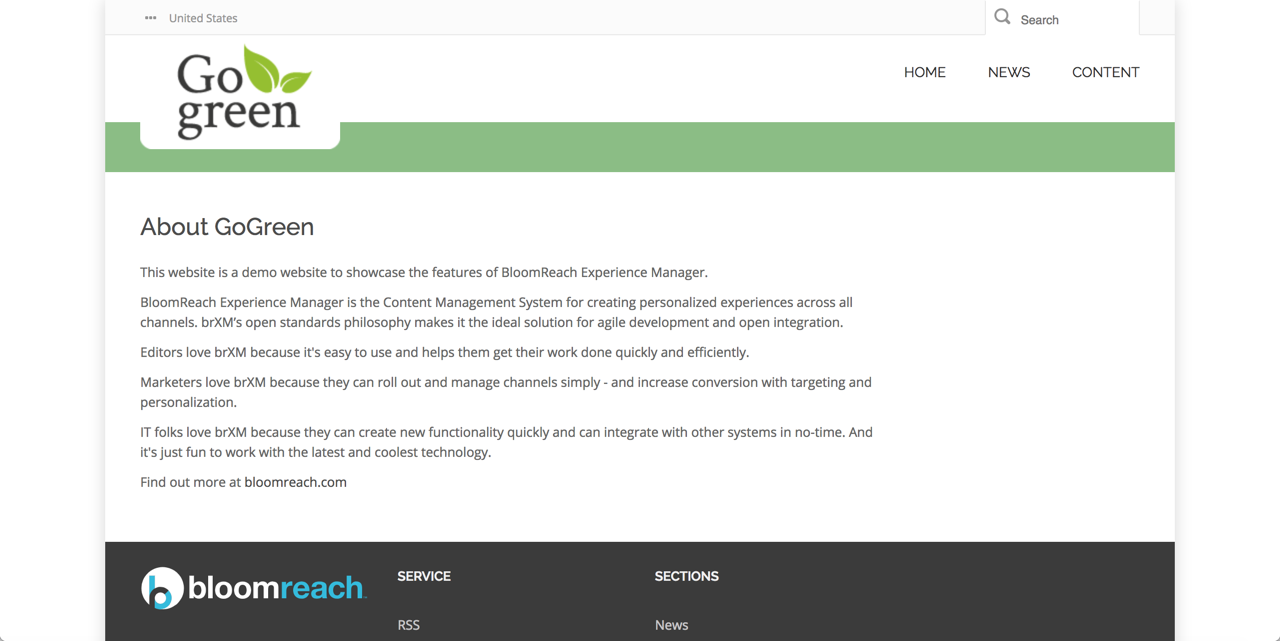
Open the web design in your browser and navigate to the "About" page. The main content area uses a two-column layout:
- Left column: text content
- Right column: secondary navigation menu
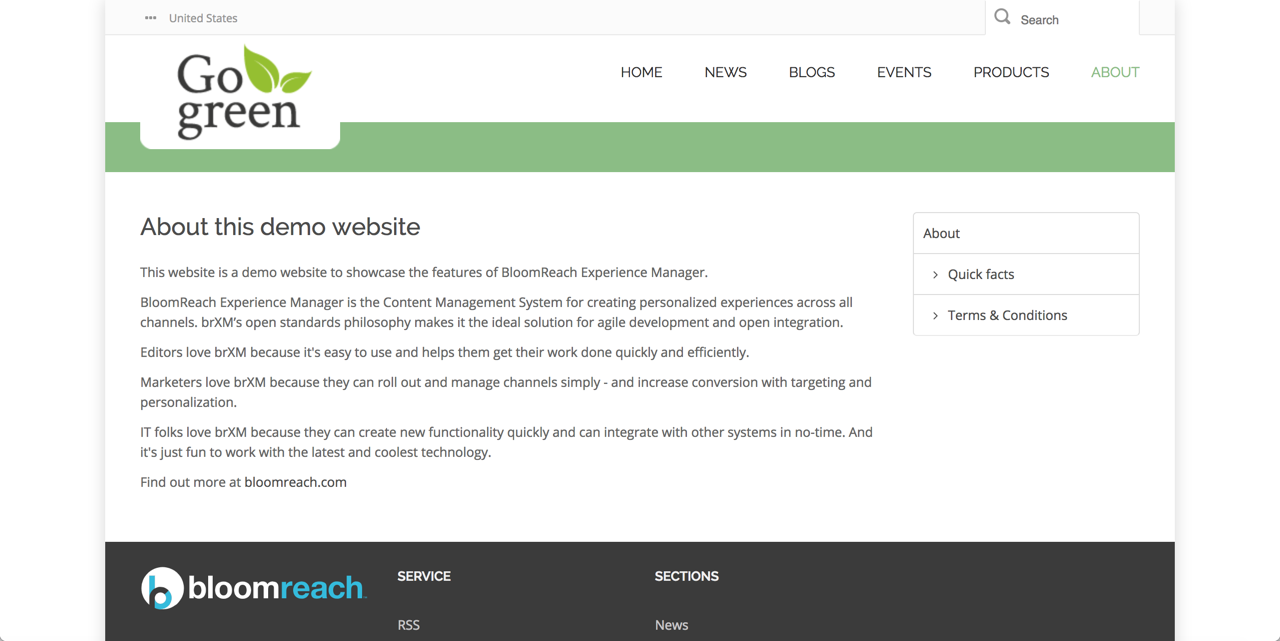
For this step, focus only on the text content in the left column. The right column and its navigation menu are out of scope for now.
Create the Content
The "Simple Content" feature, which you added during project setup, provides a "content document" type. This document type includes fields for title, introduction, content, and publication date. Use this document type to create the content for the About page.
- Open Bloomreach Content at http://localhost:8080/cms/. Log in with username
adminand passwordadmin. - On the dashboard, click
To the contentto open theContentapplication. - Navigate to the "GoGreen" folder.
- Create a new folder named "About" inside the "GoGreen" folder.
- Add a new
Simple Documentin the "About" folder and name it "About". The editor will open the new document. - In the
Titlefield, enter "About GoGreen". - Enter text in the
IntroductionandContentfields.
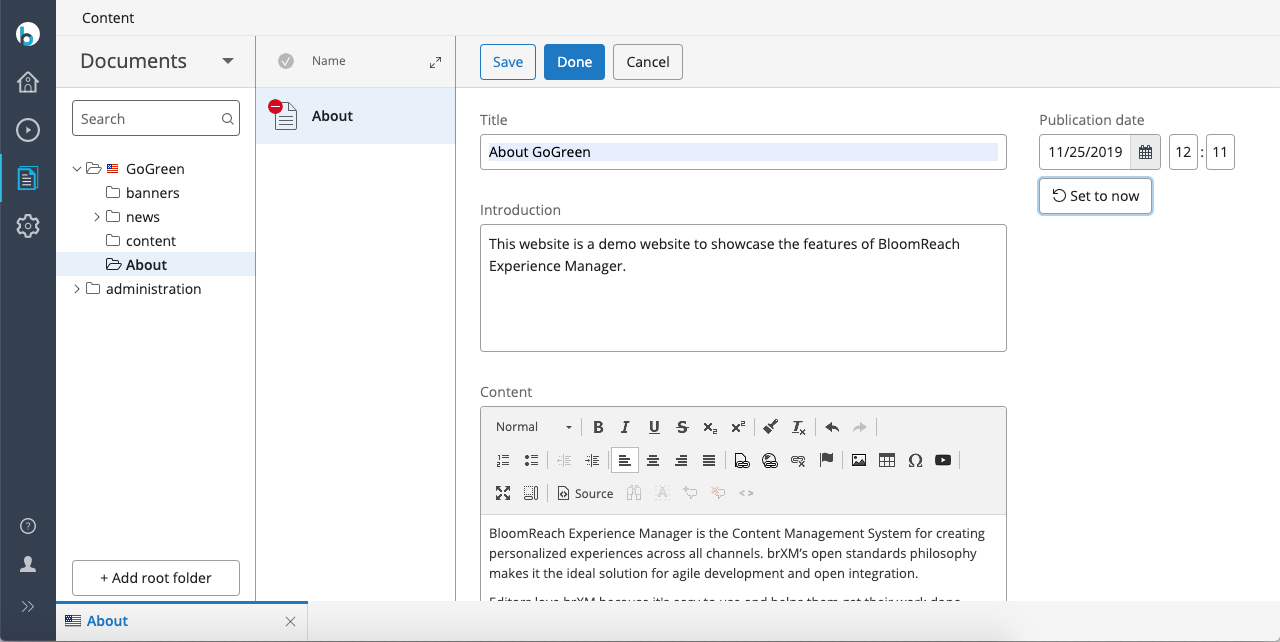
- Close the document and publish your changes.
Create the Page
Configure a page to render the About document's content.
- In Bloomreach Content, switch to the
Experience managerapplication. - Select the GoGreen channel if it is not already open in preview.
- Open the
Pagemenu and clickNew.
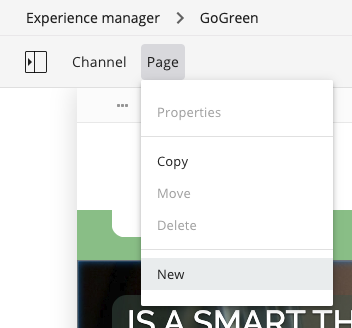
- In the
New pagedialog, set thePage titleto "About". The URL will be generated automatically. - Ensure
Simple Content Pageis selected in thePage templatefield.
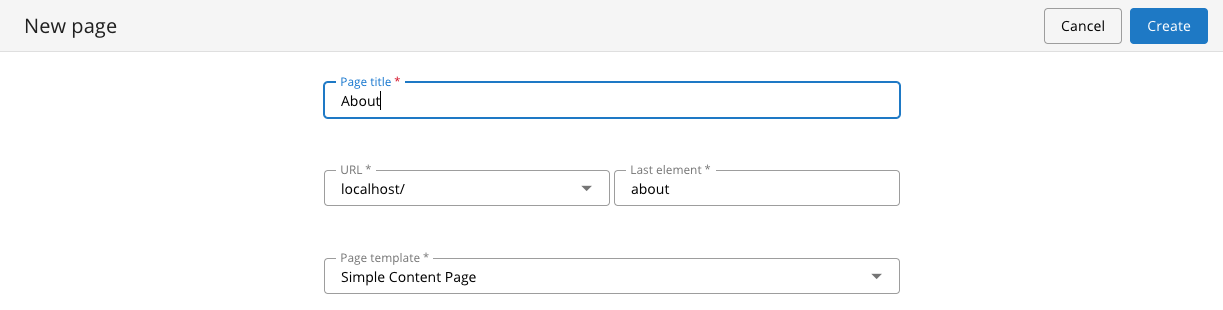
- Click
Createto create the new page. - If page components are not visible, click the
Show componentsicon in the top right corner. - Click the icon in the top left corner to open the sidebar, then select
Components. - Select the
Simple Contentcomponent and click inside theContent Page Mainrectangle in the main content area to add the component.
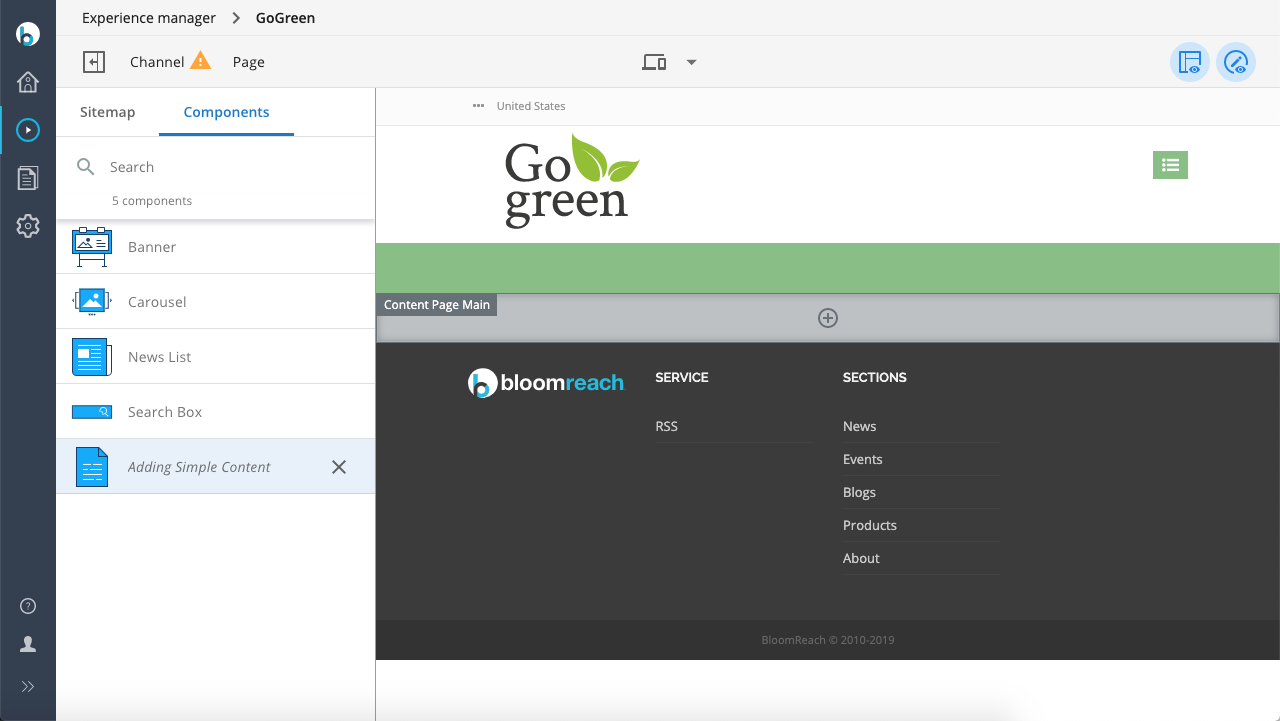
- In the configuration sidebar on the right, click the looking glass icon in the
Documentfield, browse to the "About" document, and select it.
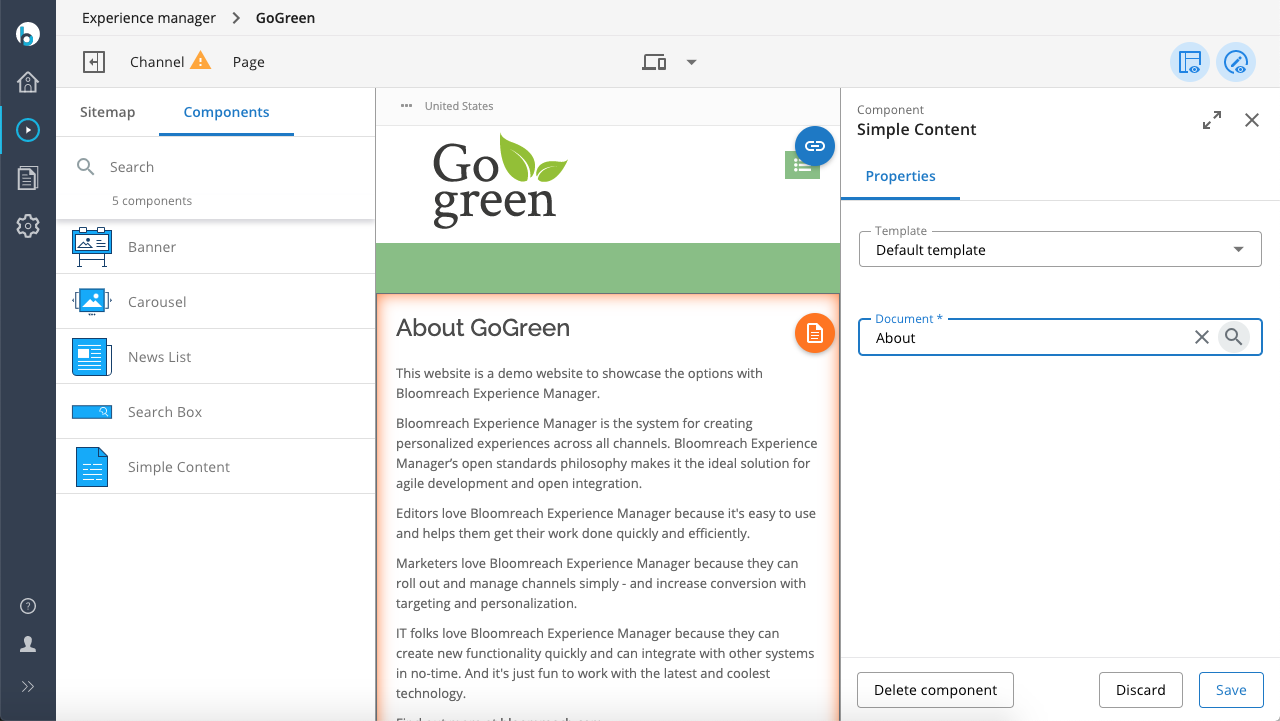
- Click
Save, then close the configuration dialog. - The page now displays the content of the "About" document. The layout does not yet match the web design.
- Open the
Pagemenu and selectProperties.
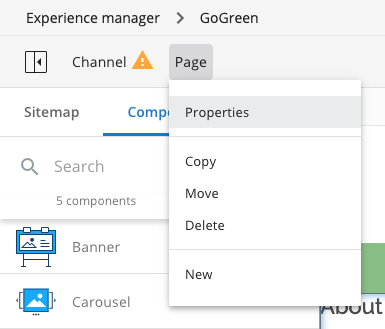
- In the
Properties of 'about'dialog, select the "About" document in thePrimary Documentdropdown.
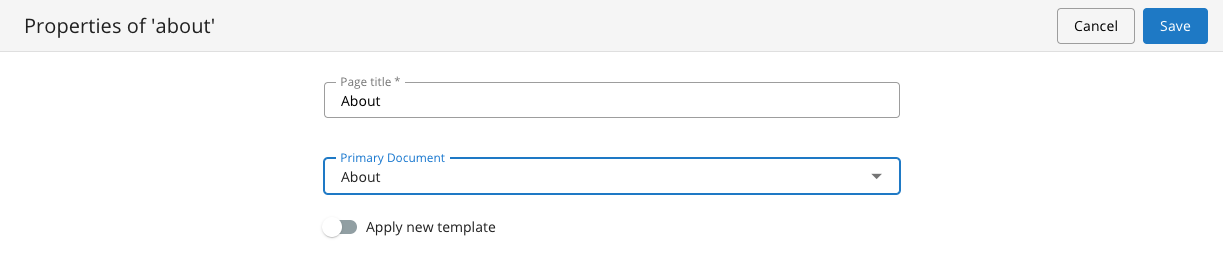
Setting the Primary Document links the page to the document, enabling the delivery tier to resolve internal links to the document.
- Click
Save. - Click
Channel, thenPublish. - View the About page by entering its URL in your browser: http://localhost:8080/site/about.
Apply the Web Design to the Simple Content Template
- Open the
about.htmlfile from the web design. This file contains the HTML markup for the About page. - Locate the
<div class="body-wrapper">element. This section contains the markup for the text content. - Open
repository-data/webfiles/src/main/resources/site/freemarker/hstdefault/contentpage-main.ftlin your project. This Freemarker template renders the text content. - Apply the HTML markup from
about.htmlto the Freemarker code incontentpage-main.ftl. The resulting template should look similar to the following:
<#include "../include/imports.ftl"> <div class="body-wrapper"> <div class="container"> <div class="row"> <#if document??> <@hst.link var="link" hippobean=document/> <div class="col-md-9 col-sm-9 has-edit-button"> <@hst.manageContent hippobean=document /> <h2>${document.title?html}</h2> <p>${document.introduction?html}</p> <@hst.html hippohtml=document.content/> </div> <#elseif editMode> <div class="has-edit-button"> <img src="<@hst.link path="/images/essentials/catalog-component-icons/simple-content.png" />"> Click to edit Simple Content <@hst.manageContent templateQuery="new-content-document" rootPath="content"/> </div> </#if> </div> </div> </div>
- Reload http://localhost:8080/site/about in your browser. The About page now matches the web design and displays the content from the "About" document.
Next Step
Full Source Code
contentpage-main.ftl
<#include "../include/imports.ftl"> <div class="body-wrapper"> <div class="container"> <div class="row"> <#if document??> <@hst.link var="link" hippobean=document/> <div class="col-md-9 col-sm-9 has-edit-button"> <@hst.manageContent hippobean=document /> <h2>${document.title?html}</h2> <p>${document.introduction?html}</p> <@hst.html hippohtml=document.content/> </div> <#elseif editMode> <div class="has-edit-button"> <img src="<@hst.link path="/images/essentials/catalog-component-icons/simple-content.png" />"> Click to edit Simple Content <@hst.manageContent templateQuery="new-content-document" rootPath="content"/> </div> </#if> </div> </div> </div>