Configure the Navigation Menu
Previous Step
After setting up the home, news, and about pages, update the navigation menu to reflect these changes. By default, the menu includes a "content" item that does not match your current site structure, and it does not include the About page.
Update the Menu in Experience Manager
-
In Bloomreach Content, open the Experience manager and select your website.
-
Click
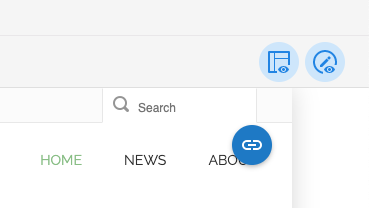
Edit menu. If you do not see this button, click theShow componentsicon (second from the right in the top right corner).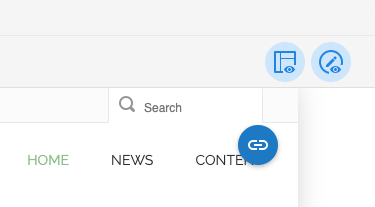
The menu editor opens.
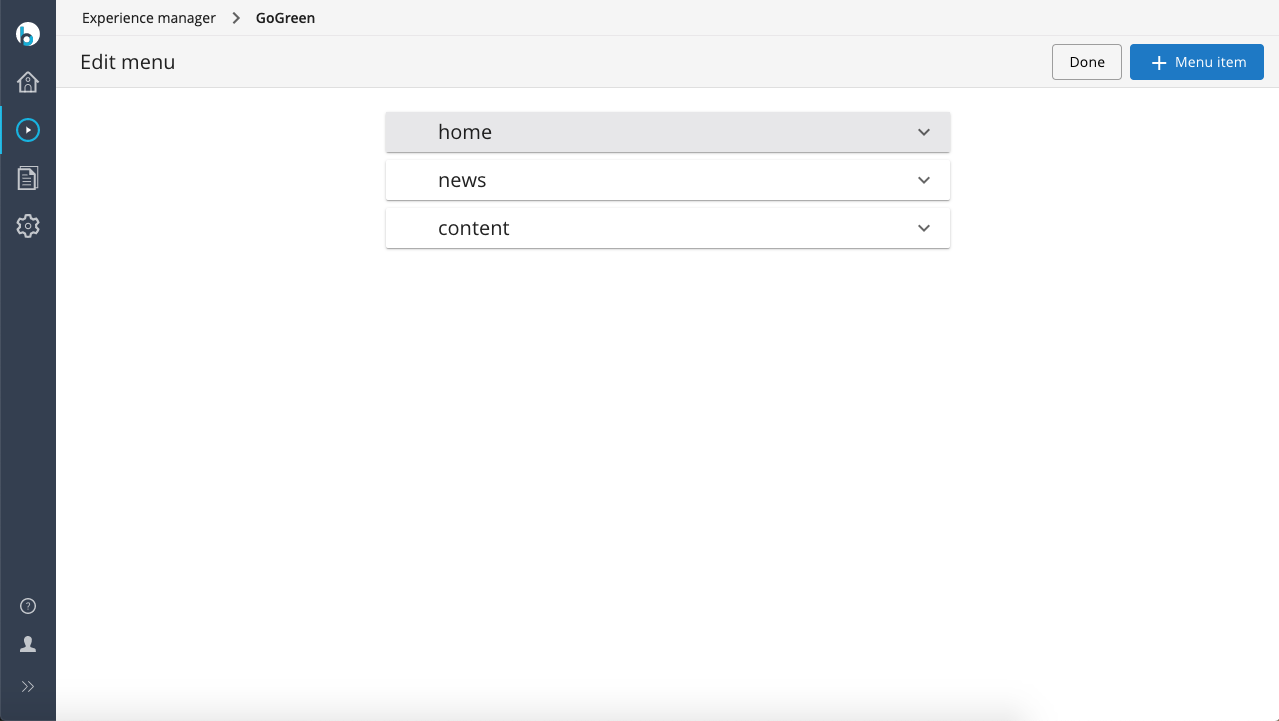
-
Select the "content" menu item and delete it.
-
To add a new menu item, click the
+ Menu Itemicon in the bottom right corner.
-
Enter "About" as the title. Select
Internal Link. In theInternal Linkfield, clickSelect. -
In the
Select internal linkdialog, selectDocumentsfrom the dropdown, browse to the About document, and clickOK.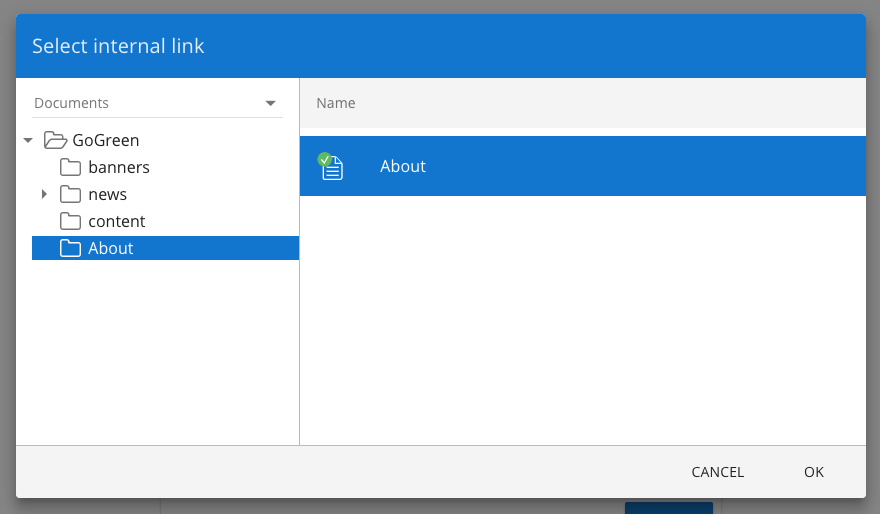
The
Internal Linkfield now displays "about", which is the relative URL for the About page.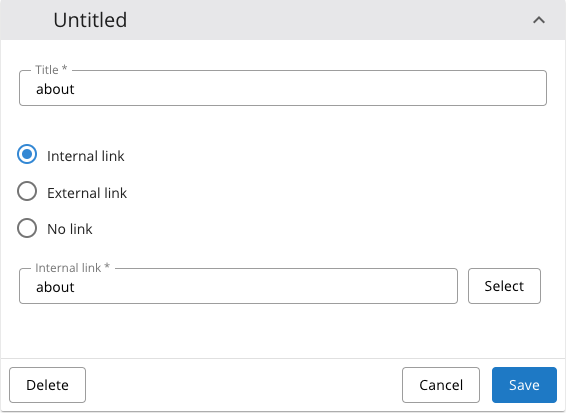
-
Click
Saveand close the menu editor by clickingDone.The channel preview now displays the updated menu with Home, News, and About.
-
Publish your changes to update the live website.
-
Verify the update by loading the website in your browser: http://localhost:8080/site/.
