Configure Image Variants
Previous Step
Select Out-of-the-Box Features
After adding the out-of-the-box features to your project, configure the image sizes required for your website.
Configure Image Set
Open the Essentials setup application at http://localhost:8080/essentials/.
In the menu, select Tools, then choose Gallery manager. The Gallery Manager allows you to define the image sizes used throughout your site. Each image uploaded to the CMS is stored as an image set that contains all configured size variants.
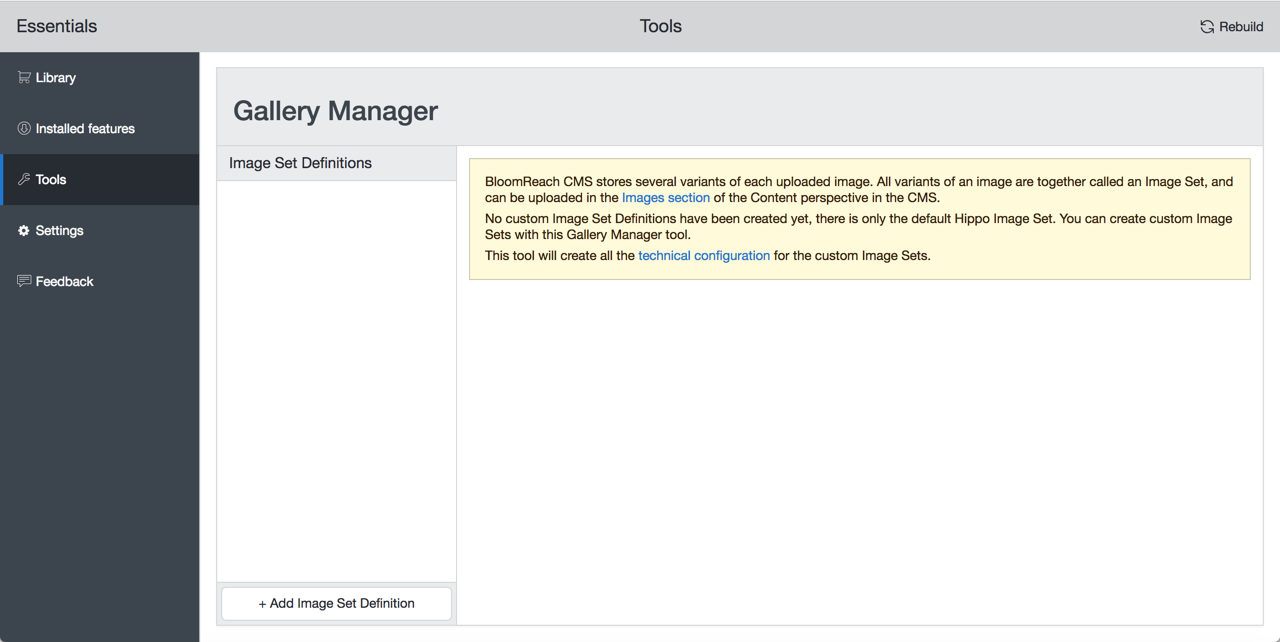
For a new project, you must first create an image set configuration.
In the Gallery Manager, click Add Image Set Definition. Enter imageset as the name for the new Image Set Definition.
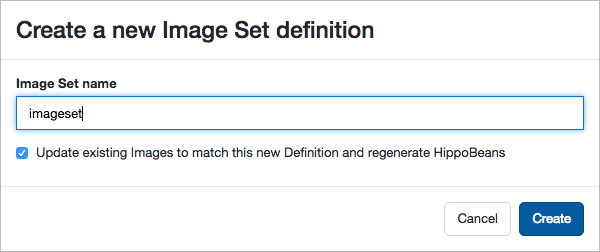
Ensure that Update existing Images to match this new Definition and regenerate HippoBeans is selected. Click Create.
The system creates a custom Image Set Definition based on the default Bloomreach Content Image Set Definition. This includes the thumbnail and original variants. The new Image Set Definition is automatically selected in the Gallery Manager.
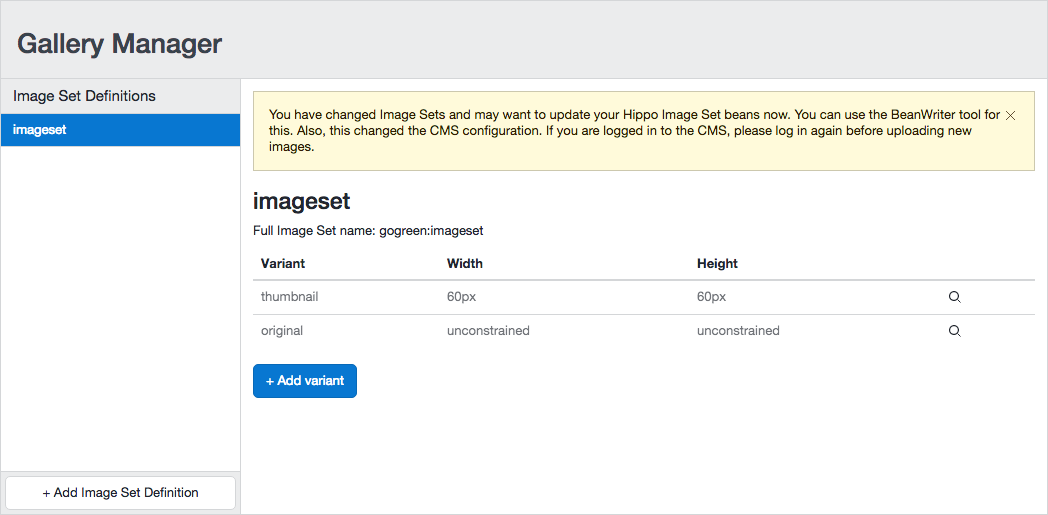
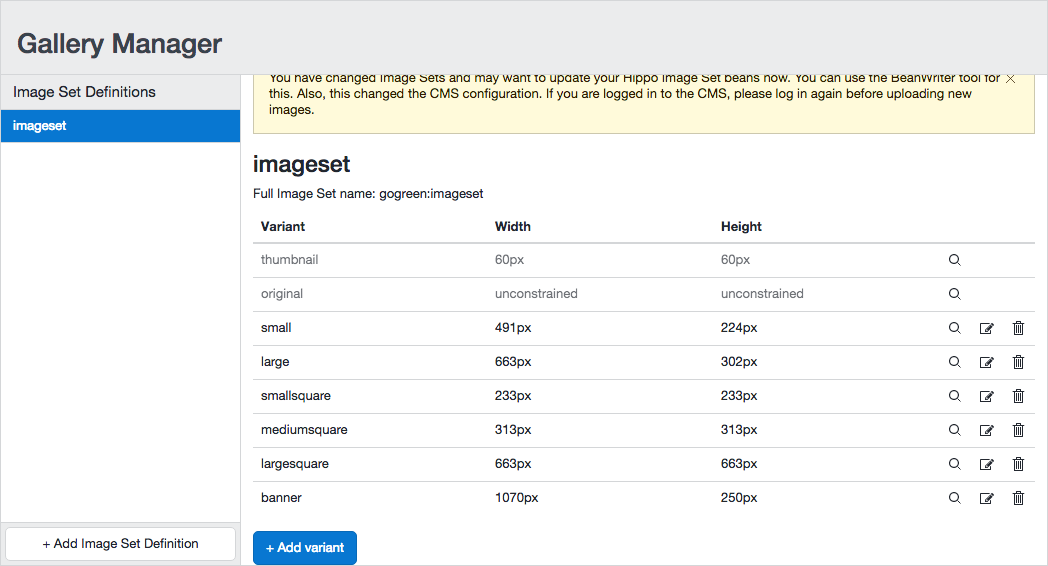
Add the image size variants required by your design:
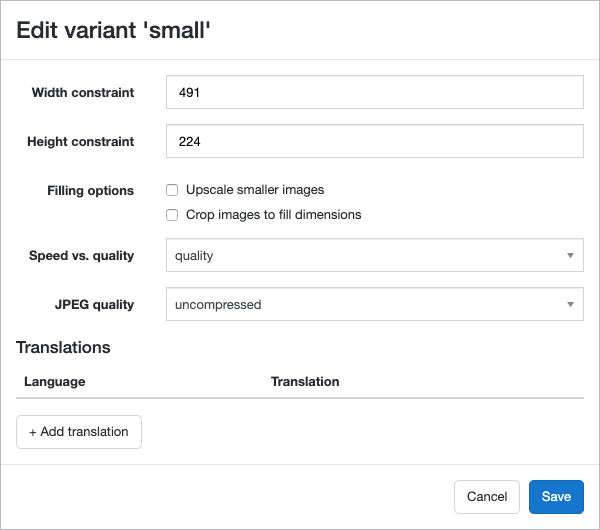
- small: 491 x 224 pixels
- large: 663 x 302 pixels
- smallsquare: 233 x 233 pixels
- mediumsquare: 313 x 313 pixels
- largesquare: 663 x 663 pixels
- banner: 1070 x 250 pixels
For each variant:
- Click
Add variant. - Enter the variant name in lowercase.
- Click
Create. - Set the width and height constraints.
- Click
Save Changes.
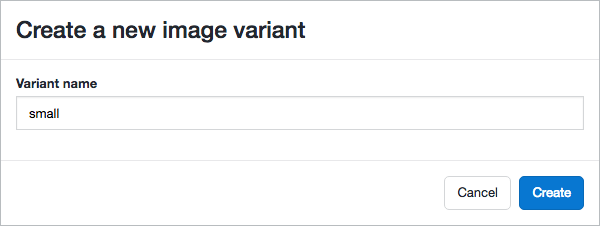
After adding all required variants, the custom Image Set Definition lists each configured size.
Next, open the Bloomreach Content UI at http://localhost:8080/cms/. Log in using the default credentials: username admin, password admin.
From the dashboard, click To the content, select Images from the dropdown, and browse to an image. The UI displays the image in all configured sizes. The actual dimensions of each variant may differ from the configured values, depending on the image's aspect ratio.
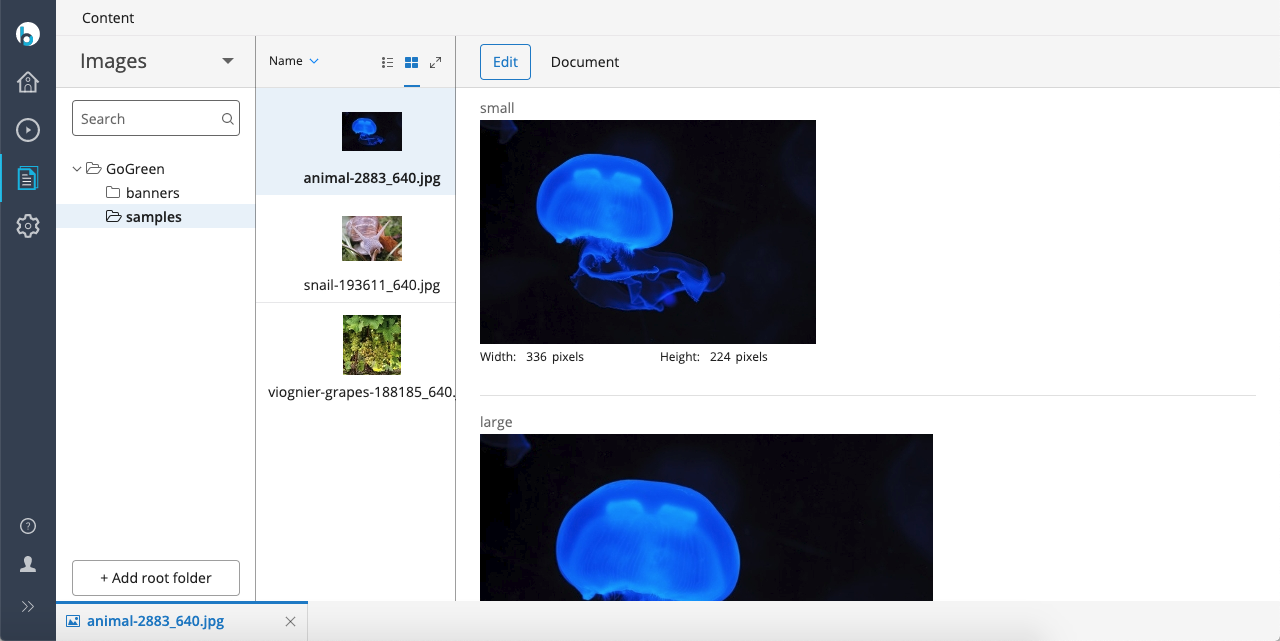
You can edit image sets and replace any variant by cropping the original image or uploading an alternative.