Requesting Translations from a Document View
Info: Bloomreach provides Enterprise support for this feature for Bloomreach Experience customers. The release cycle for this feature may differ from the core product release cycle.
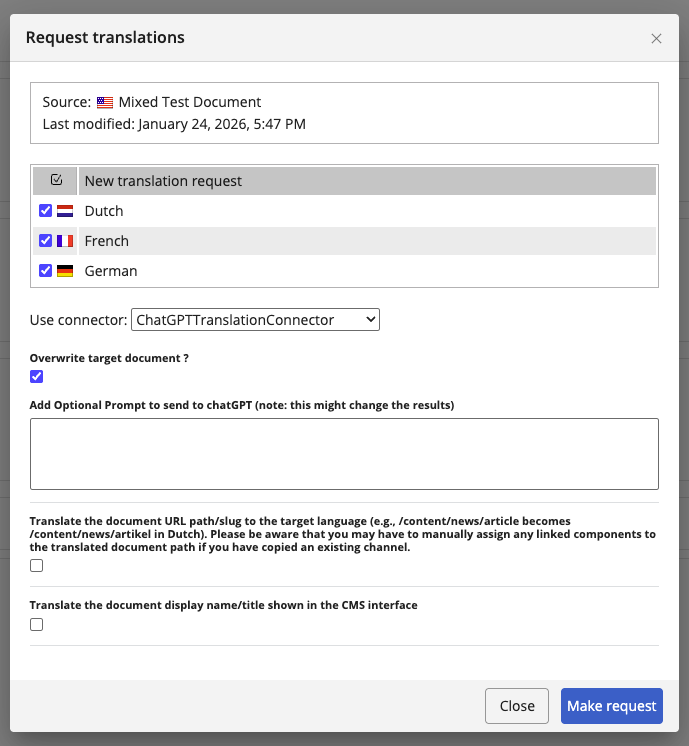
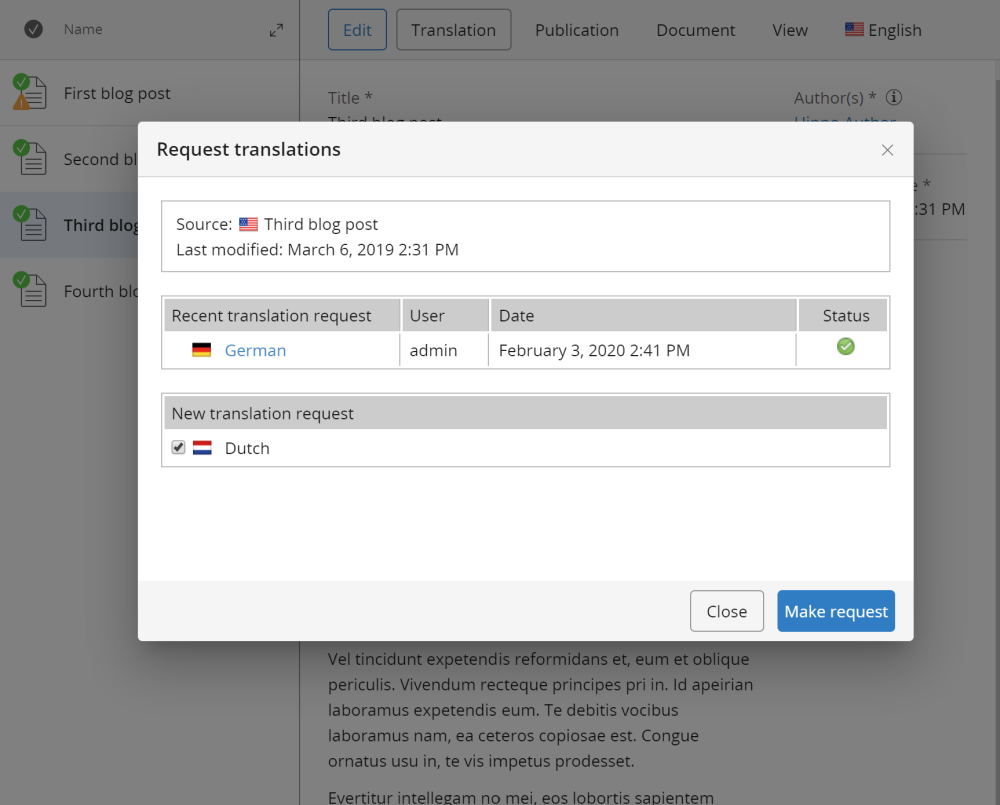
When the document editor frontend is installed (see Installation) and the relevant document type is enabled for translations (see Configuration), a Translation button appears in the top bar of the document view. Select this button to open a dialog where you can request translations for the document.
Overwriting the Target Document
Starting with version 8.0.0, the request dialog includes an Overwrite target document checkbox.
- Enabled: The target document is fully rewritten to match the structure of the source document. All existing content in the target is replaced.
- Disabled (default): Only fields that already exist in the target document are translated. The current structure of the target document is preserved.
Enable this option when you need to synchronize the target document’s structure with the source, such as when compounds allow reordering or adding items and the structures have diverged. Leave it disabled for standard translation updates where you only want to update field values.