Bulk Upload Plugin
Info: Bloomreach provides Enterprise support for this feature for Bloomreach Experience customers. The release cycle for this feature may differ from the core product release cycle.
Overview
The Bulk Upload Plugin enables the following functionality:
- Upload images and assets in bulk, preserving the folder structure, through the content authoring user interface.
- Choose whether to overwrite existing images and assets during upload.
- Implement a custom event handler to create and publish an associated document for each image or asset upload event.
Architecture
Components and Connectors
The diagram below illustrates how the core components of the Bulk Upload Plugin interact with other platform components. It also shows how a custom event listener can subscribe to gallery item events.
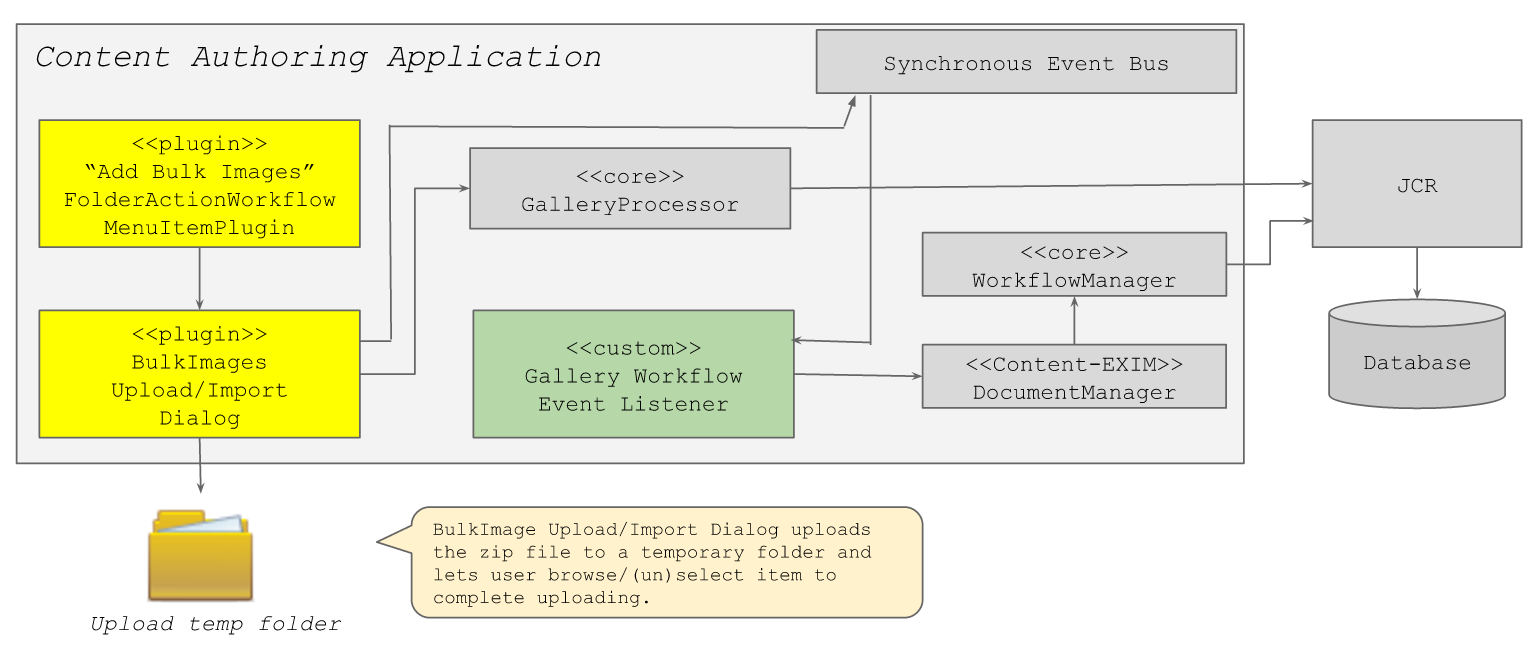
Diagram: The diagram displays the Bulk Upload Plugin within the Content Authoring Application and its integration with platform services. Yellow boxes represent plugin components, such as the “Add Bulk Images” FolderActionWorkflow MenuItemPlugin and the BulkImages Upload/Import Dialog, which uploads a ZIP file to a temporary folder and connects to the GalleryProcessor. Gray boxes indicate platform components, including GalleryProcessor, WorkflowManager, DocumentManager, a Synchronous Event Bus, JCR, and a Database, with arrows showing communication and persistence paths. A green custom Gallery Workflow Event Listener subscribes to the event bus and interacts with DocumentManager, demonstrating how custom listeners can respond to gallery workflow events.
Module Structure
The following diagram shows the module organization for the Bulk Upload Plugin and a custom event listener.
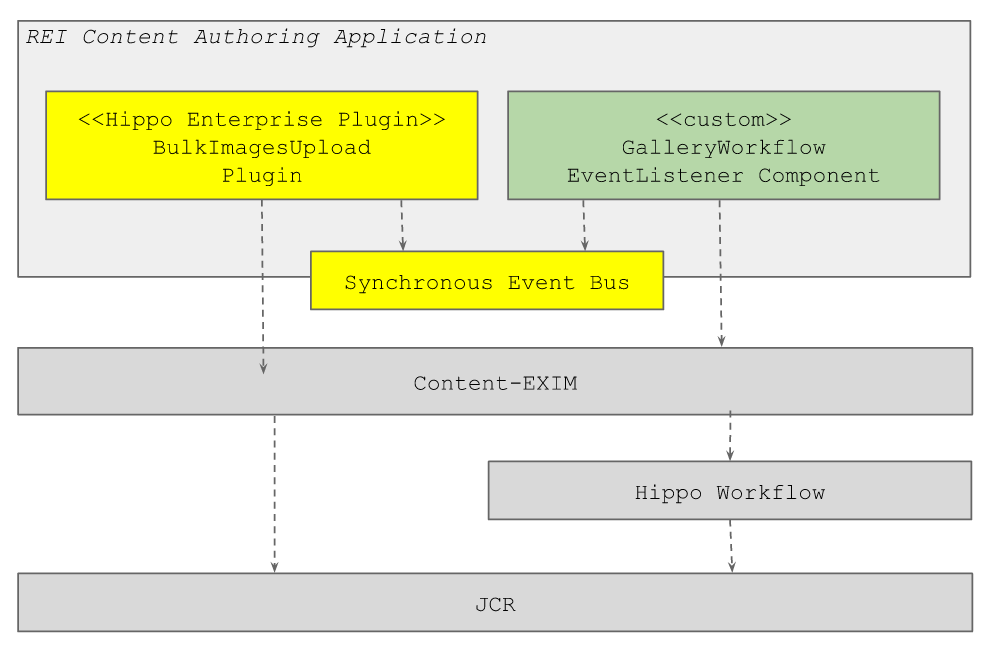
Diagram: The diagram presents a module view within the REI Content Authoring Application. At the top, two components are shown: a yellow "Hippo Enterprise Plugin" labeled "BulkImagesUpload Plugin" and a green custom "GalleryWorkflow EventListener Component." Both connect via dashed arrows to a yellow "Synchronous Event Bus" below. Under the application boundary, gray layers labeled "Content-EXIM," "Hippo Workflow," and "JCR" illustrate how the plugin and custom listener interact through the event bus and underlying content and workflow infrastructure down to the repository.
Example Implementation Scenario
A project can install the Bulk Upload Plugin to support the following workflow:
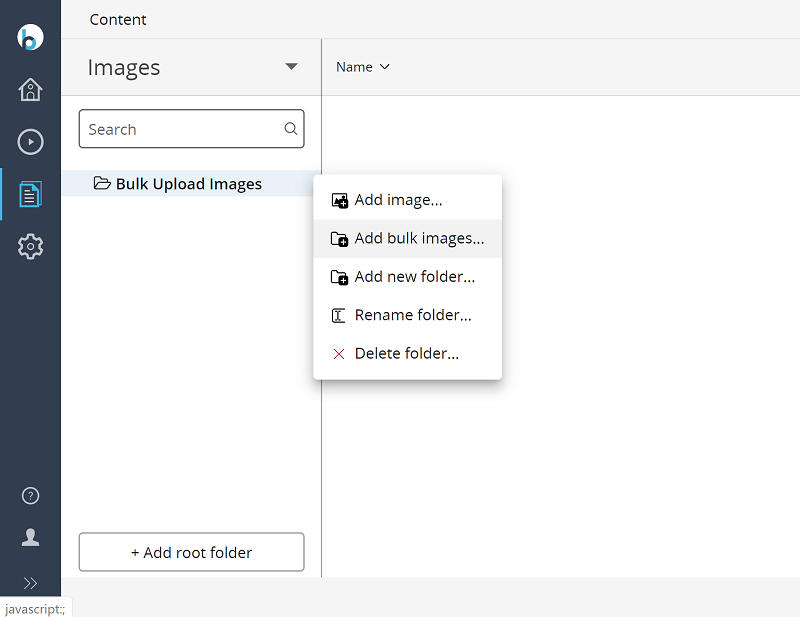
- In the CMS UI, a user selects Images and a folder (for example, samples), then clicks either Add image... or Add bulk images... from the menu.
- Each action can display options such as Overwrite existing ... and Publish uploaded ....
If a custom event listener is registered, it can create or update an associated document when an image or asset is created or updated. For example:
- When an image is uploaded, the system creates an associated imageContainer document for each image.
- The user can select Documents and navigate to the images folder to view the newly created documents.
For implementation and registration details for the event listener, refer to the relevant documentation page.
Demo Project
You can download a specific version of the demo project for building and testing from:
After downloading and extracting the package, build and run the demo project with:
mvn clean verify && mvn -P cargo.run
Access the CMS at http://localhost:8080/cms/.
User Interface Screenshots
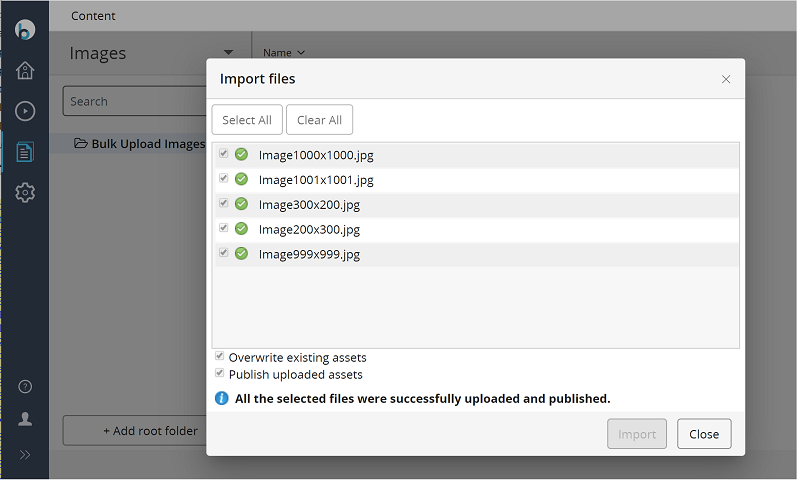
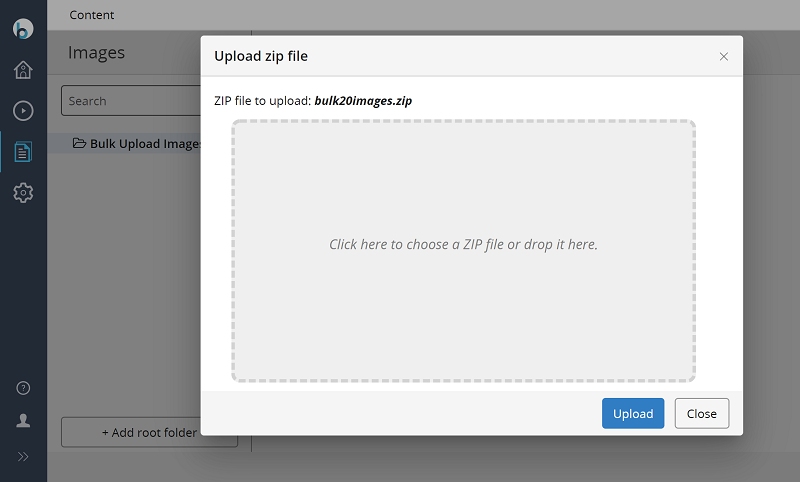
To upload images or assets through a ZIP file, select "Add bulk images..." or "Add bulk files..." from the menu.
Browse for a ZIP file or drag and drop it into the upload area.
Select or deselect files to control which items are included in the upload.
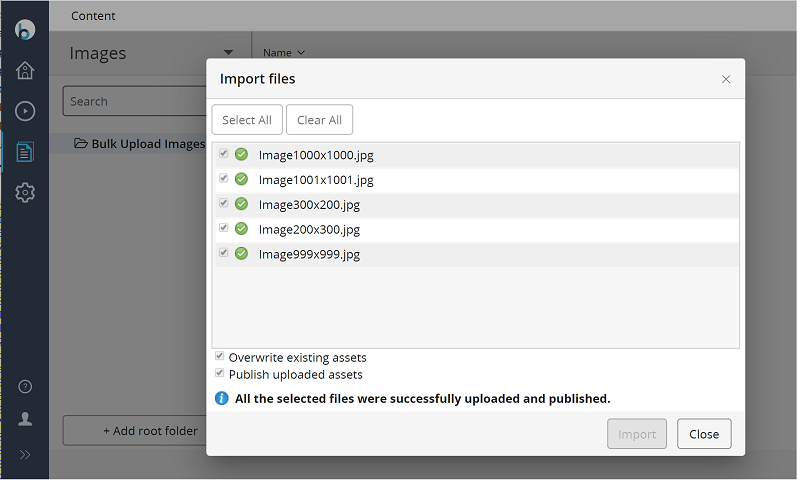
When you click "Import," the system processes each selected file and displays the processing status.