Introduction to the Universal Pixel Integration Addon
Warning: Universal Pixel Integration was previously used to integrate with Bloomreach Discovery. This integration is no longer in use and has been removed from brXM version 16.2 and later.
Overview
The Universal Pixel Integration addon enables you to track visitor activity across your site using a JavaScript tracking pixel. This data supports analytics and personalization.
With this addon, you can configure Universal Pixel contributions directly in Bloomreach Content. Editors and webmasters can manage pixel data for each page and channel using the Experience Manager user interface.
To collect comprehensive analytics, you must integrate the Universal Pixel on nearly every page and channel. The pixel sends data from the visitor’s browser to the Pixel Server, where it is processed for reporting and insights.
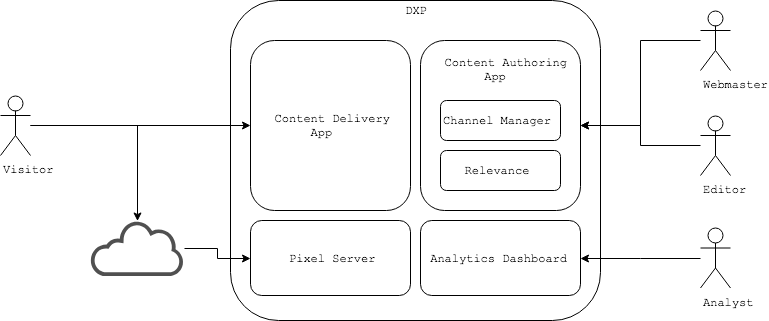
Diagram: This diagram illustrates a visitor interacting with a DXP environment that includes a Content Delivery App, a Content Authoring App, a Pixel Server, and an Analytics Dashboard. The Content Authoring App contains Channel Manager and Relevance components. User roles such as Webmaster and Editor interact with the authoring side, while an Analyst uses the analytics dashboard. Data flows from the visitor to the Pixel Server and from the Pixel Server to the Analytics Dashboard.
Business users, such as editors and webmasters, can manage Universal Pixel contributions for landing pages and content-driven pages independently through the Experience Manager UI. The content delivery application renders each page with the configured Universal Pixel data, ensuring that every page view contributes relevant tracking data.
Analysts can use the collected data, including conversion actions, to evaluate and optimize the digital experience.
Bloomreach Pixel Validator
The content delivery application generates Universal Pixel JavaScript based on the configured contribution data. For example:
<script type="text/javascript"> var br_data = { "page_type":"search", "page_labels":"bloomreach,documentation", "cmscategories":"news", "acct_id":"****", "domain_key":"", "type":"pageview" }; </script> <script type="text/javascript"> (function() { var brtrk = document.createElement('script'); brtrk.type = 'text/javascript'; brtrk.async = true; brtrk.src = '//cdns.brsrvr.com/v1/br-trk-****.js'; var s = document.getElementsByTagName('script')[0]; s.parentNode.insertBefore(brtrk, s); })(); </script>
You can use the BloomReach Pixel Validator Chrome Extension to inspect Universal Pixel data at runtime. This tool provides a user interface to review pixel data without viewing the page source.
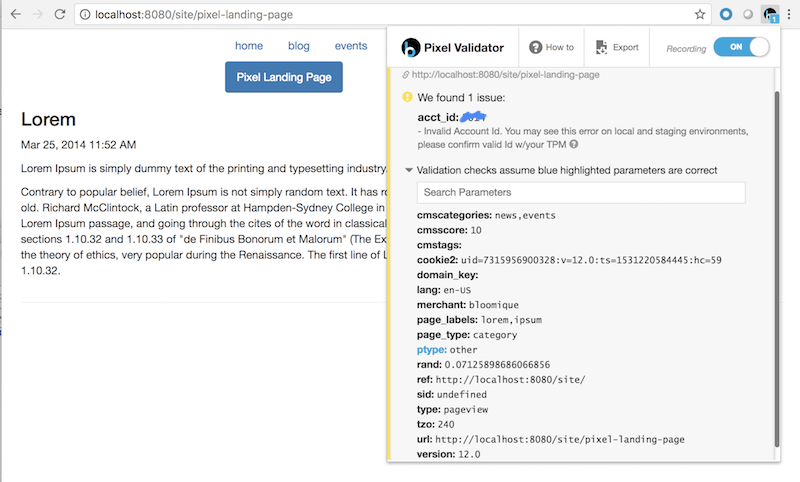
Both business users and developers can use this extension to validate Universal Pixel data against the configured or customized values.
Levels of Universal Pixel Contribution
Bloomreach Content supports two primary types of pages for Universal Pixel contributions:
- Landing pages: Managed by webmasters, these pages aggregate components and primary content.
- Content-driven pages: Managed by editors, these pages are based on documents and primarily display content from those documents.
Webmasters can configure Universal Pixel data for landing pages in Experience Manager. Editors can configure pixel data for content-driven pages at the document level.
Additionally, webmasters can define channel-level default Universal Pixel data. These defaults apply when a landing page or content-driven page does not override specific pixel values.
Universal Pixel Contribution for Landing Pages
To configure Universal Pixel data for a landing page, webmasters use the Page > Info menu in Experience Manager.
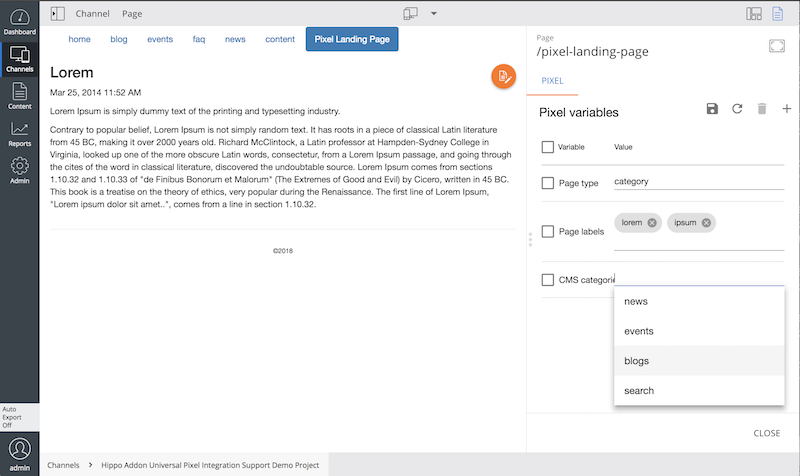
The Universal Pixel variables editor appears in the right side panel. Changes made here are saved with the landing page and used by the content delivery application when rendering the page after publication.
Universal Pixel Contribution for Content-Driven Pages
For content-driven pages, you can include a Universal Pixel contribution editor field in the document type. Editors can then configure pixel data directly in the document.
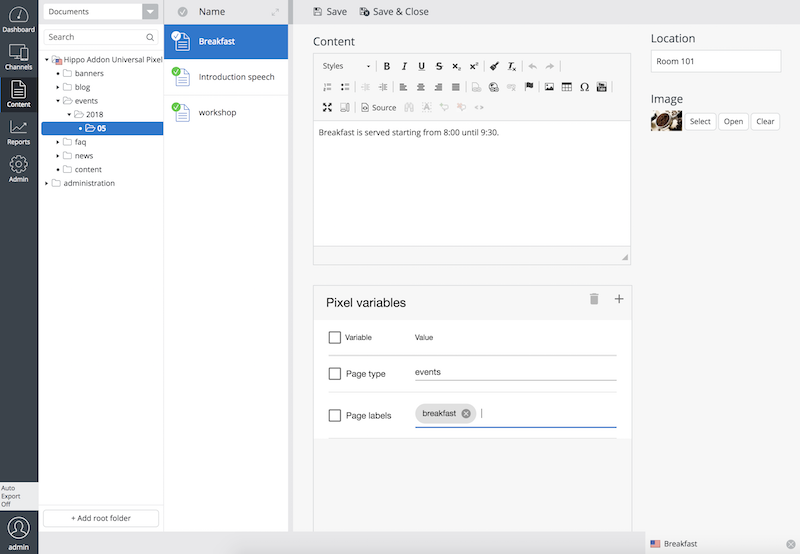
If the document type includes the Universal Pixel field, editors can set pixel data at the document level. After the document is published, the associated content-driven pages are rendered with the specified Universal Pixel data.
For instructions on adding the Universal Pixel contribution field to a document type, see the Configuration page.
Channel Default Universal Pixel Contribution
You can set default Universal Pixel data for all pages in a channel. These defaults are used when a specific page does not define its own pixel data.
To configure channel-level defaults, select a Universal Pixel Variables document in the Default Universal Pixel Variables parameter in the channel properties window:
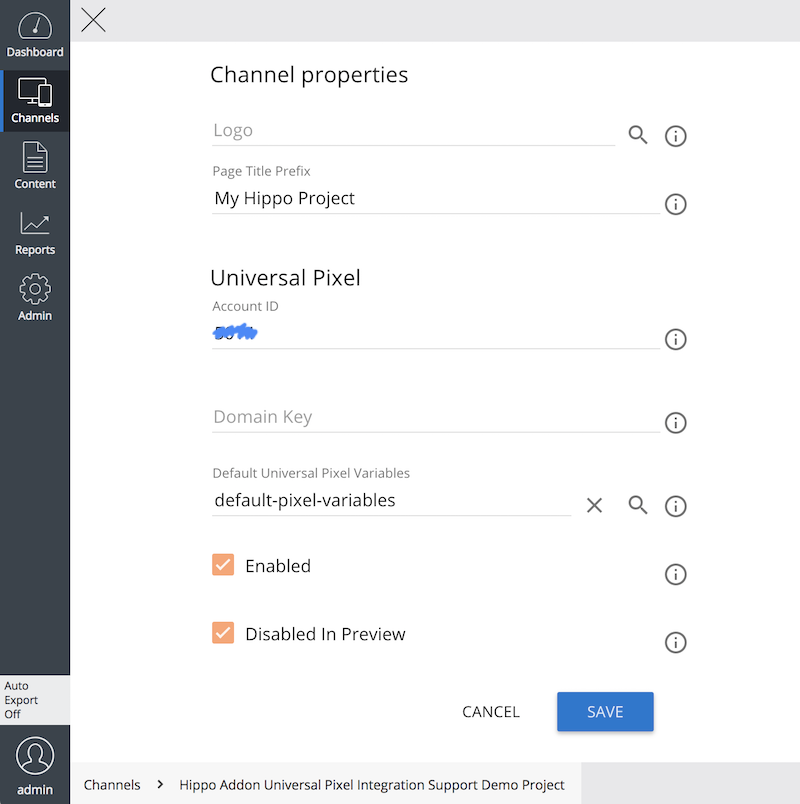
Refer to the Configuration page for details on enabling Universal Pixel configuration in channel settings.
You can create a Universal Pixel Variables document anywhere in the CMS and configure variables as needed:
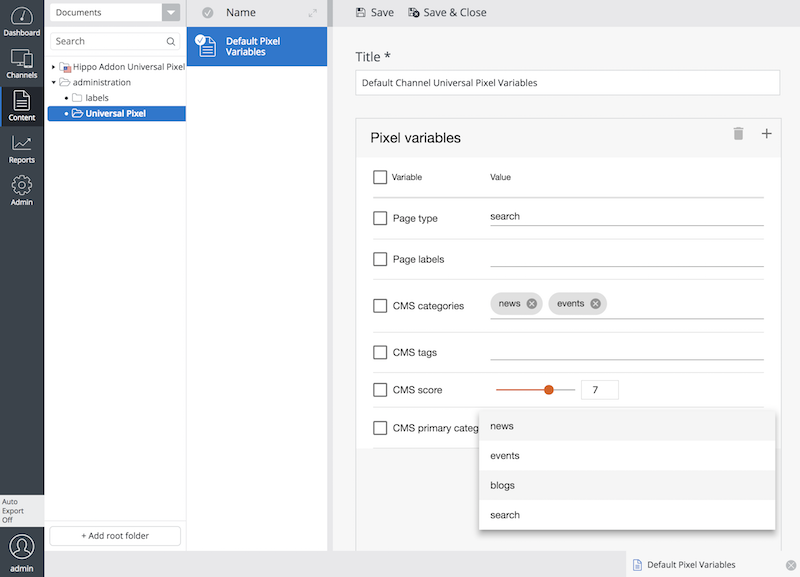
See the Configuration page for more information.
Event Tracking for User Interaction
The Universal Pixel Integration Addon does not natively support tracking user interaction events beyond page loads.
To track additional events, such as clicks, you must customize HST component templates and add JavaScript event handlers. For example:
<a href="#" onClick="BrTrk.getTracker().logEvent('cart', 'click-add', {'prod_id': '348574', 'sku' : 'sku38738'});">Add to cart</a>
In this example, the BrTrk.getTracker().logEvent() function logs a "cart" event when the "Add to cart" button is clicked. You must implement event tracking on a case-by-case basis by attaching handlers to relevant UI elements. For further details, refer to the Universal Pixel developer guide.