Add Content Reports to a Project
Info: This feature requires a standard or premium Bloomreach Content license. Contact Bloomreach for details.
Overview
This page describes how to add the Content reports application to your Bloomreach Content implementation project.
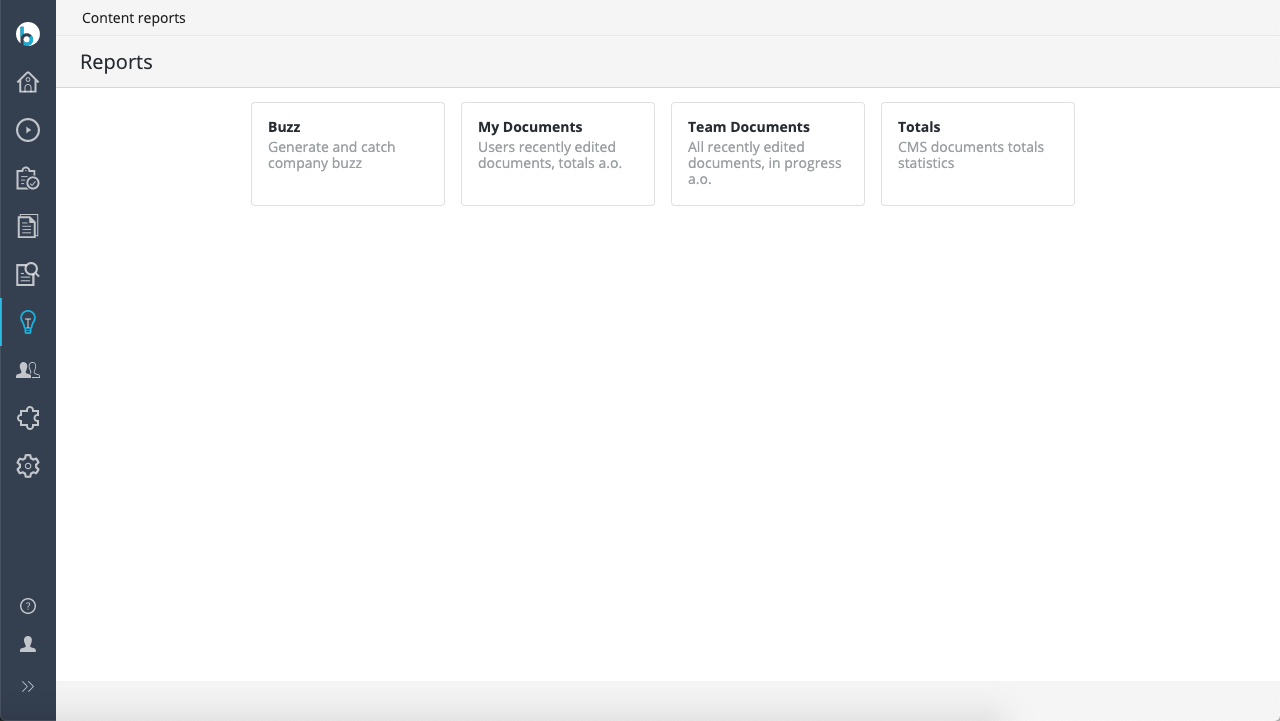
The Content reports application provides reports on content usage and management.
Prerequisites
- Your project must be configured as a Bloomreach Content enterprise project.
- You need access to the Bloomreach Content Enterprise Maven Repository.
- Administrative access to assign user roles in Bloomreach Content.
Implementation Steps
1. Add Dependencies
Update your Maven project to include the Content reports application.
- Confirm your project is set up as a Bloomreach Content enterprise project. See Set Up a Bloomreach Content Enterprise Project for instructions.
- Add the following dependencies to
cms-dependencies/pom.xml:
<dependency> <artifactId>hippo-addon-reporting-dashboard-frontend</artifactId> <groupId>com.onehippo.cms7</groupId> </dependency> <dependency> <artifactId>hippo-addon-reporting-dashboard-repository</artifactId> <groupId>com.onehippo.cms7</groupId> </dependency>
Info: Access to the Bloomreach Content Enterprise Maven Repository is required to build projects with enterprise features.
Known Issue
Some reports depend on hippofacnav:facetnavigation nodes under /hippo:reports. The hippo:docbase property for these facets is set to 2c21a29c-a5d1-4e84-aec4-594e5bf93b25, which is the default UUID for /content/documents in new projects created with the Hippo archetype. If your /content/documents folder uses a different UUID, facet-based reports will fail and the repository will log an error at startup.
To resolve this:
- Set the UUID of
/content/documentsto2c21a29c-a5d1-4e84-aec4-594e5bf93b25, or - Update the
hippo:docbaseproperty of the facets under/hippo:reportsto match the UUID of your/content/documentsfolder.
2. Assign User Roles
- Log in to Bloomreach Content as an administrator.
- Go to
Setup > System > Groups. - Assign the
xm.report.useruser role to each group that requires access to Content reports.
3. Verify Access
- Log in as a user who belongs to a group with the
xm.report.userrole. - Navigate to
Insights > Content reports. - Confirm that you can access the available reports.