Replication Control Panel
The Replication Control Panel is available in the administration perspective of the CMS. Use this panel to monitor and manage the replication process for your environment. In brXM 14.x and 15.1.x, the panel manages a single replication target. In brXM 15.1.0 and later, you can manage multiple replication targets individually.
The control panel provides the following capabilities for each replication target:
- Monitor replication status
- View error messages
- Pause and resume replication
- Initiate full or partial synchronization
When you select a replication target from the dropdown (available in brXM 15.1.0 and later), the panel displays the current status and any error messages for that target. Actions you perform apply only to the selected target and do not affect other targets.
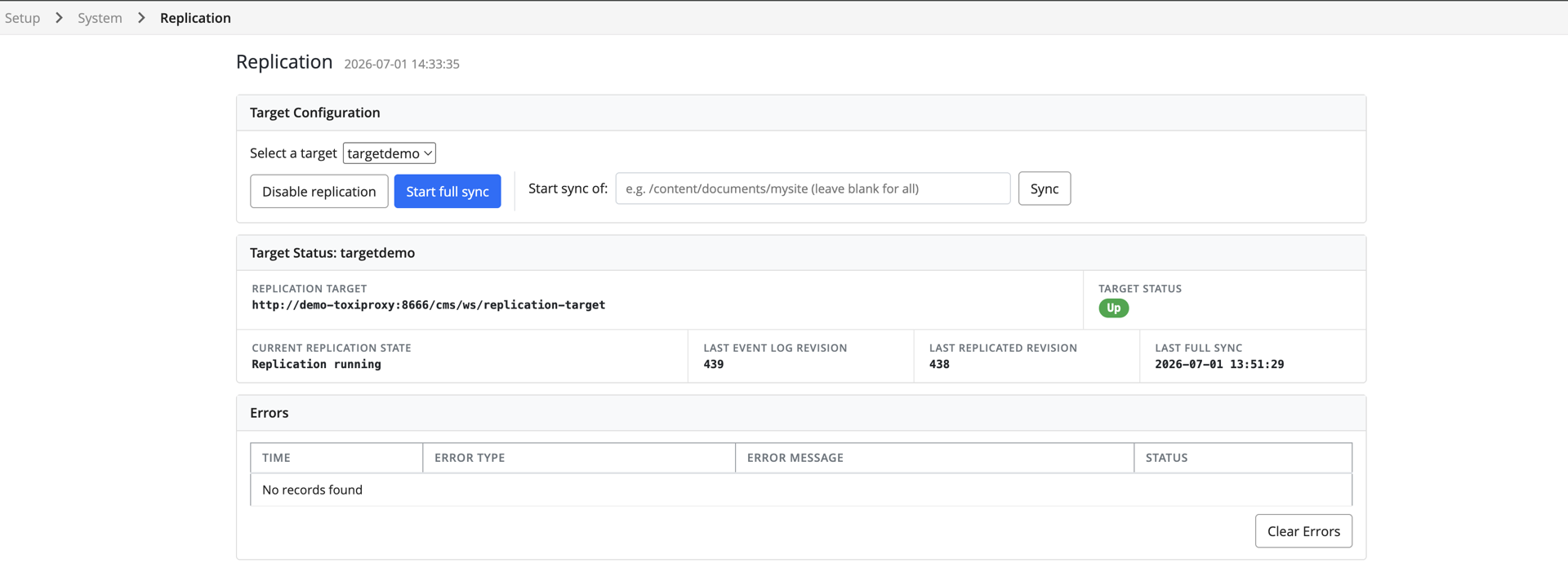
Initiating a Full Sync
After deploying your project, you must synchronize the target with the source. The duration of this process depends on the amount of data being transferred. During a full sync, the system suspends regular replication based on repository changes. When the sync completes, regular replication resumes and processes any changes that occurred during the sync.
Running a Partial Sync
If a document or folder on the target becomes out of sync with the source, you can run a partial sync to restore consistency. This situation should not occur during normal operation. To initiate a partial sync, enter the path of the node to re-sync and start the process. As with a full sync, regular replication is suspended until the partial sync finishes.
Pausing and Resuming Replication
You can pause replication if you need to bring the target down for maintenance or if the target is not yet configured. Pausing is optional, as the replication process monitors the target's availability and can recover automatically if the target becomes unreachable. After maintenance, resume replication to process any accumulated changes and bring the target back in sync.
Monitoring Error Messages
If the source cannot reach the target—due to downtime or network issues—the control panel displays error messages describing the problem. Other error conditions are also reported and can be reviewed by an administrator. Each error includes a suggested next action, the context of the failure (such as packaging changes, syncing a subtree, or sending a package), and the underlying stack trace and message when available.

The replication engine can automatically recover from certain error conditions. The control panel indicates when an error has been resolved or is being retried automatically. The engine currently supports automatic recovery for the following scenarios:
- If an ancestor of a replication unit is missing on the target, the system schedules a partial sync rooted at the missing ancestor.
- If a sync root cannot be applied on the target, the system retries the sync up to three times. If all attempts fail, the error is flagged for manual intervention.
All other errors require administrator review. In these cases, investigate the error and initiate a partial or full sync as needed.
For additional diagnostic information, click the details button next to an error. This displays the specific error details to assist with troubleshooting.
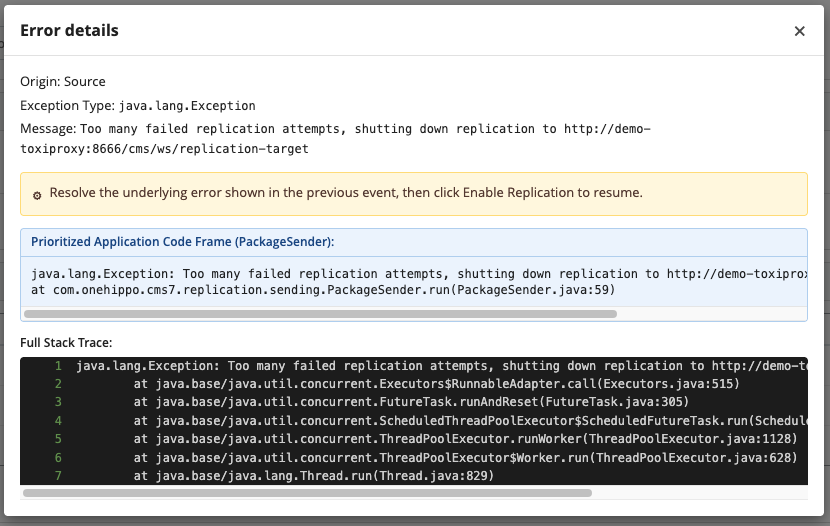
This error occurs when the same package fails three times for the same reason. At this point, the system considers the issue permanent and requires manual resolution. Review the preceding error message to determine the cause.
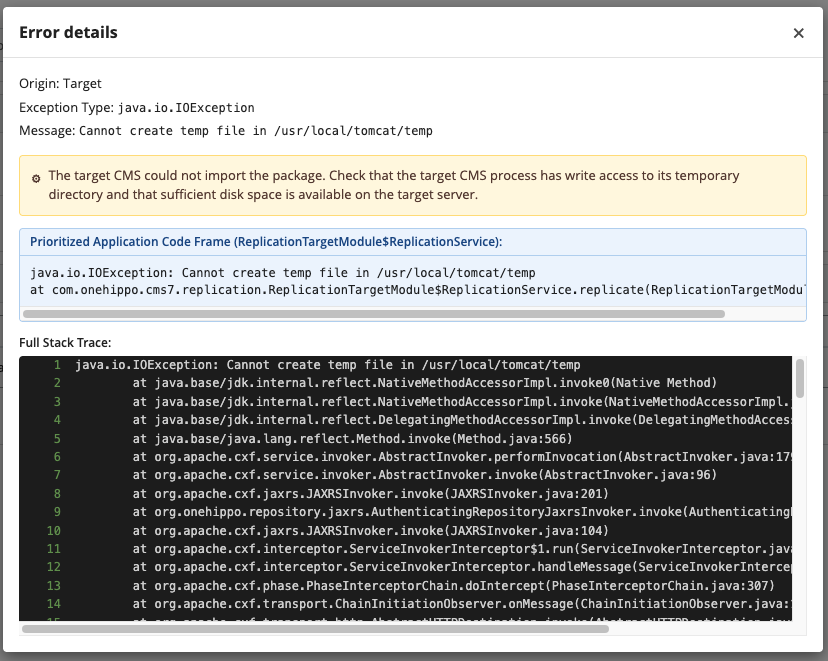
In this example, the permanent error is caused by the target server lacking write permission to its temporary directory. To resolve this, grant write access to the directory for the user or process running the server.